
Unbeatably Optimized
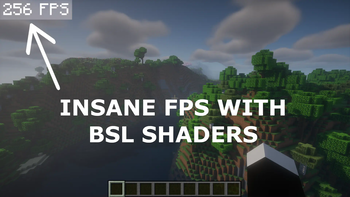
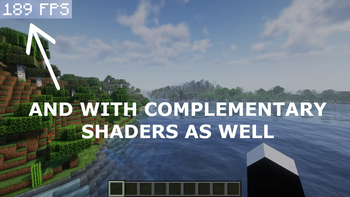
Unbeatably Optimized boosts Minecraft: Java Edition's FPS to the maximum and adds features like shader support, zoom and dynamic lighting.
⬇ Download on Modrinth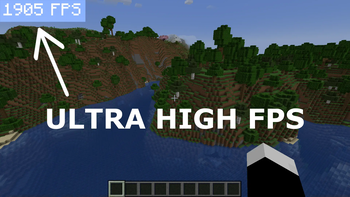
Minecraft: Java Edition has been poorly optimized since its initial release. Many low-end devices can't run it smoothly, and even midrange and high-end devices don't get the FPS they should with their hardware.
Unbeatably Optimized aims to give players the maximum FPS possible using mods that optimize different aspects of the game.
It also adds many features to the game:
- Shader support
- Zoom
- Dynamic lighting
- Connected textures/glass
- Cleaner F3 Menu
- Option to set the render distance higher than possible in vanilla Minecraft
- More video settings, such as the option to change the fog distance or even disable fog
- Support for resource packs with custom entity models/textures
So if you want to maximize your FPS in Minecraft: Java Edition, be able to play with shaders, and get many other features on top, you need this modpack!
!!! Important !!!
Allocate more RAM
To get the maximum performance, please follow these steps:
- After installing the modpack, go to your library.
- Click "Unbeatably Optimized".
- Click "Options".
- Scroll down until you find "Java Memory".
- Ensure "Override global memory settings" is checked.
- Drag the slider to about the middle. And you are done.
Bind zoom key correctly
With default key binds, Zoom conflicts with Save Hotbar Activator
- Go to Options --> Controls --> Key Binds
- Change either Zoom (Hold) or Save Hotbar Activator to some key that's not C, my recommendation: just unbind Save Hotbar Activator, at least, I never use it
Hints:
"How can I turn off the FPS display in the top left corner?"
To disable the FPS display in the top left corner (in newer versions it defaults to being off):
- Head to Options -> Video Settings -> Extras.
- Disable "Show FPS".
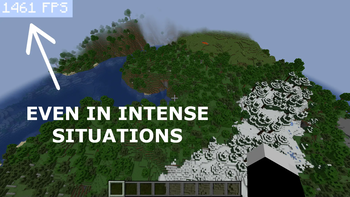
"I want to get crazy FPS like in the Screenshots!"
If you want to get more FPS than your monitor can show (if your PC can handle it, of course):
- Head to Options --> Video Settings --> General
- Turn off VSync, consider adjusting Max Framerate
Keep in mind that this consumes more power.
- Edition: Minecraft Java
- File type: .jar
- Minecraft version listed: 1.21.5
- How to install: Install the matching mod loader (Forge, Fabric or NeoForge) for your Minecraft version. → Download the .jar. → Put it in the .minecraft/mods folder and launch that loader profile.
- Where to get it: Opens on Modrinth — not every file is mirrored on our own servers.
Install steps are the general flow for this file type — How to install Minecraft Java mods & modpacks walks through it step by step.
- Downloads as Unbeatably Optimized for 1.21.5 1.5.0.mrpack
- Download size: 10 KB
- Download link checked 28 Aug 2026 — working
These come from our own check of the pack file, not from the source page.