
No Dark Inventory Overlay
I don't know my version or loader
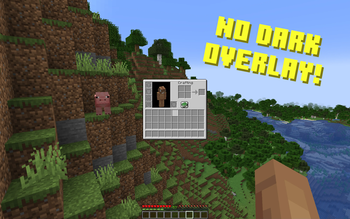
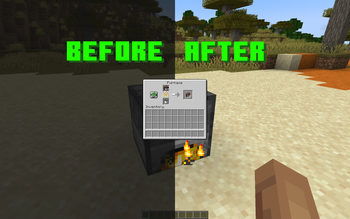
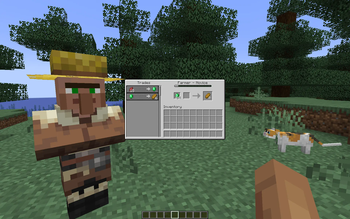
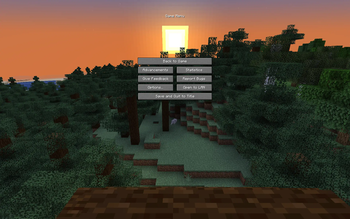
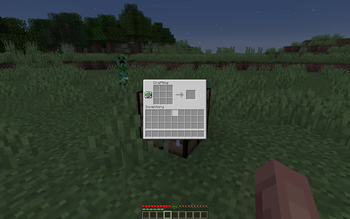
No dark background overlay from inventories and pause menu
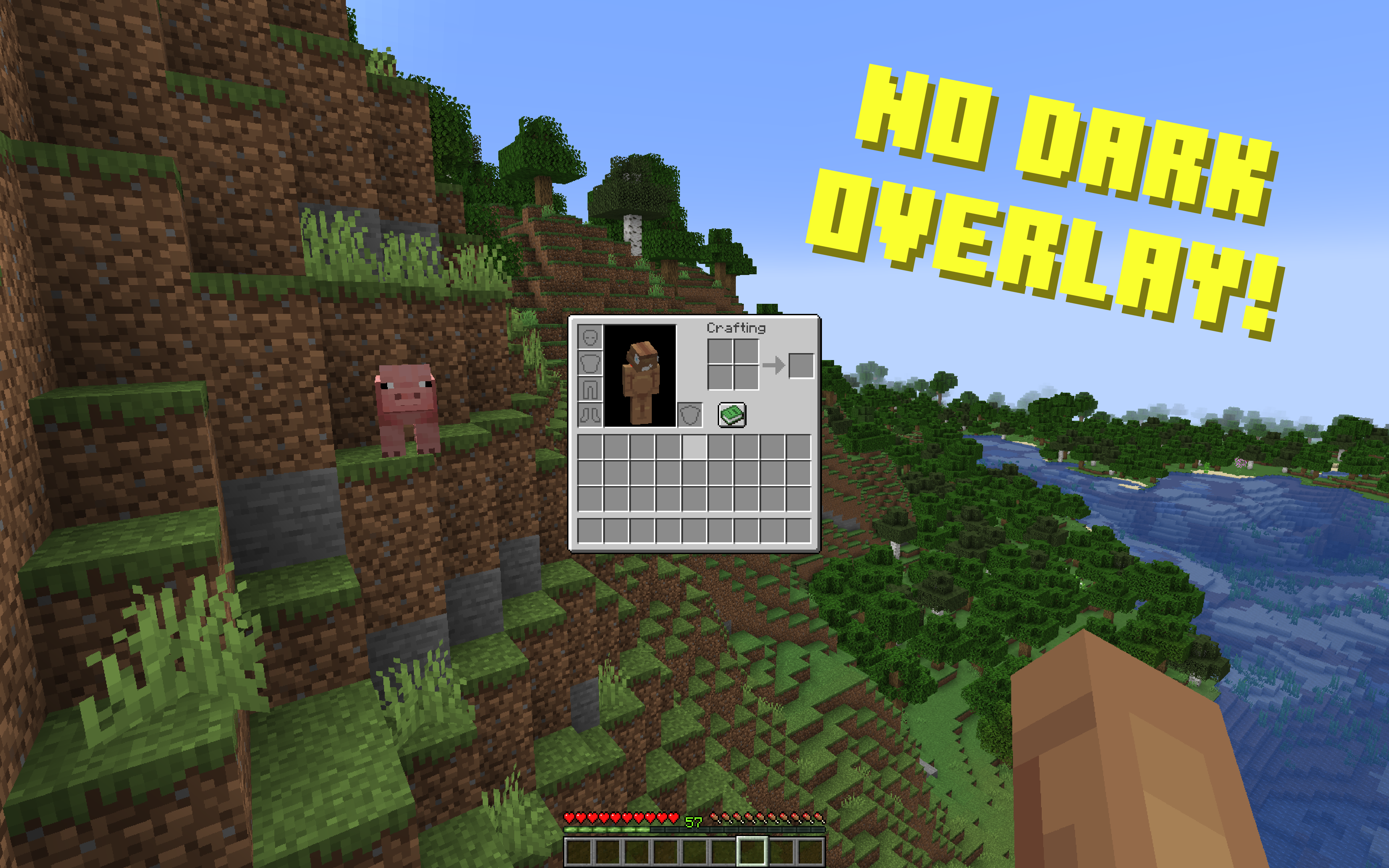
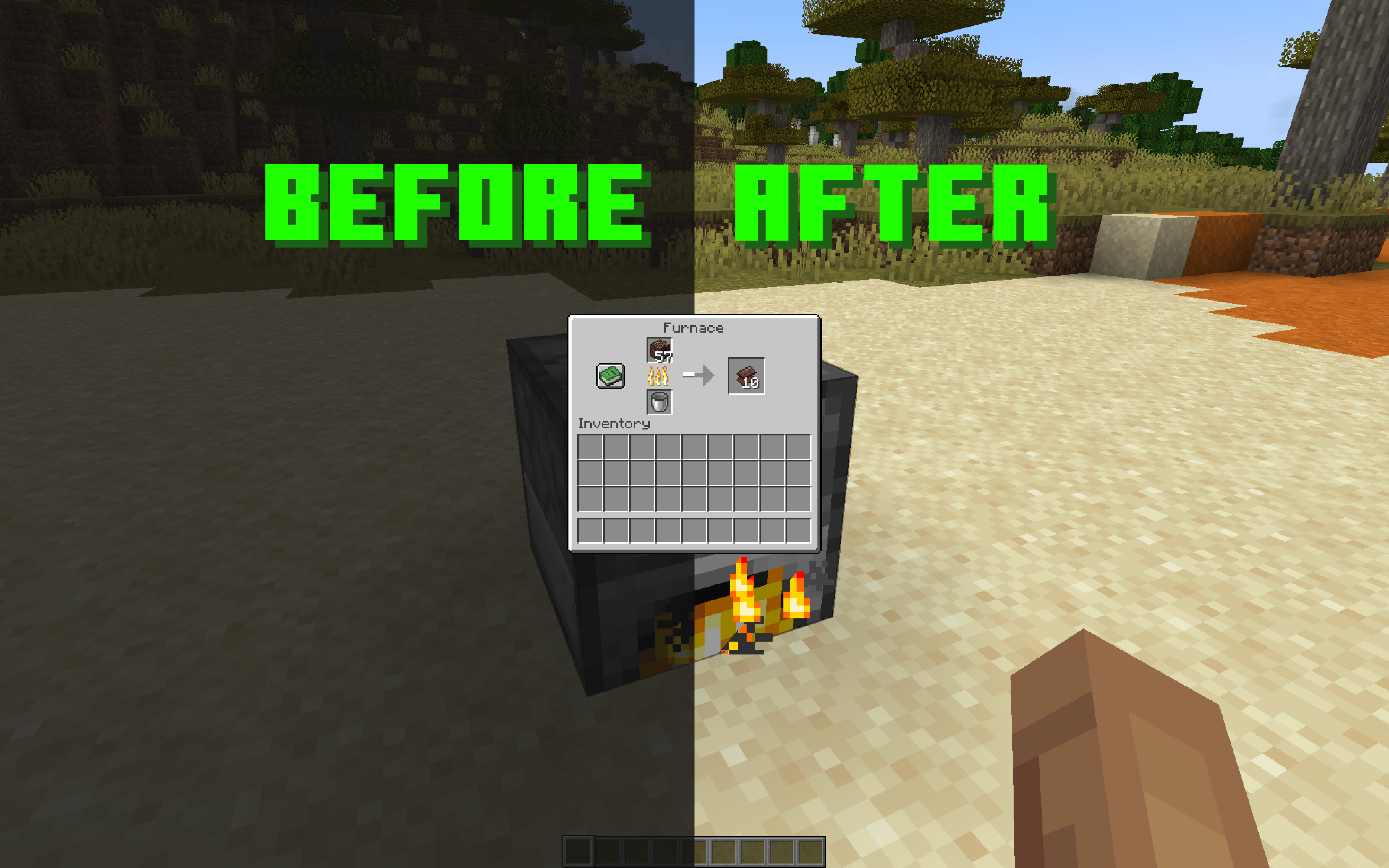
This resource pack removes dark background overlay from all different types of inventories and pause menu.
Afaik I am the first one who made this without using any mods.
Versions: 1.17.1 — 1.21.11+
For the versions above 1.20.4 pause menu will not be affected because mojang changed the overlay to a different one, with blur, which you can remove in vanilla video settings.
Works with both Optifine and Sodium.
Note:
You can also customize transparency and color of the dark background overlay to whatever you want. To do that, open a file called rendertype_gui.vsh (if you are on versions 1.17.1 – 1.19.4, open the file position_color.vsh instead), go to line 18 and change the value of vertexColor.a to whatever you want. 0 is fully transparent (it is set by default), 1 is the opposite, 0.5 is 50% transparent. To change the color of the overlay, delete the whole line 18 and change it to vertexColor = vec4(0, 0, 0, 0);, and then change zeros to values you want. The first zero is for red, the second is for blue, the third is for green, and the fourth is for alpha aka transparency.
You can pick a color and get corresponding values for it on this website.
- Edition: Minecraft Java
- File type: .zip (resource pack)
- Minecraft versions listed: 1.20, 1.20.1, 1.20.2
- How to install: Download the .zip resource pack — do not unzip it. → Put it in .minecraft/resourcepacks. → Enable it in Options → Resource Packs.
- Where to get it: Opens on Modrinth — not every file is mirrored on our own servers.
Install steps are the general flow for this file type — How to install Minecraft Java resource packs walks through it step by step.
- Downloads as No dark inventory overlay v1.1.4.zip
- Download size: 808 KB
- Download link checked 28 Aug 2026 — working
These come from our own check of the pack file, not from the source page.