Composition
A photography and videography overlay for Minecraft. Composition guides, crop framing for wherever your shot is going, and camera readouts that tell you when you're level and square. Built for screenshots, cinematics and camera-path work in Replay Mod. No lighting changes — the image underneath stays exactly vanilla.
Composition is built for people who take Minecraft screenshots and video seriously. Rather than changing how the game looks, it draws the framing tools a photographer actually uses: the rule of thirds, the golden spiral, the classical armature, a true horizon line, and crop guides that match Instagram, YouTube, TikTok or a phone wallpaper.
It's just as useful for moving shots. If you're placing keyframes in Replay Mod, the guides give you something concrete to line a camera path against — so your subject sits on a third at the start and end of a move instead of drifting, and your horizon stays level through a pan.
Then it gets out of the way. Press F1 and the entire overlay disappears, so your capture comes out clean without unloading the pack.
Features
Composition guides
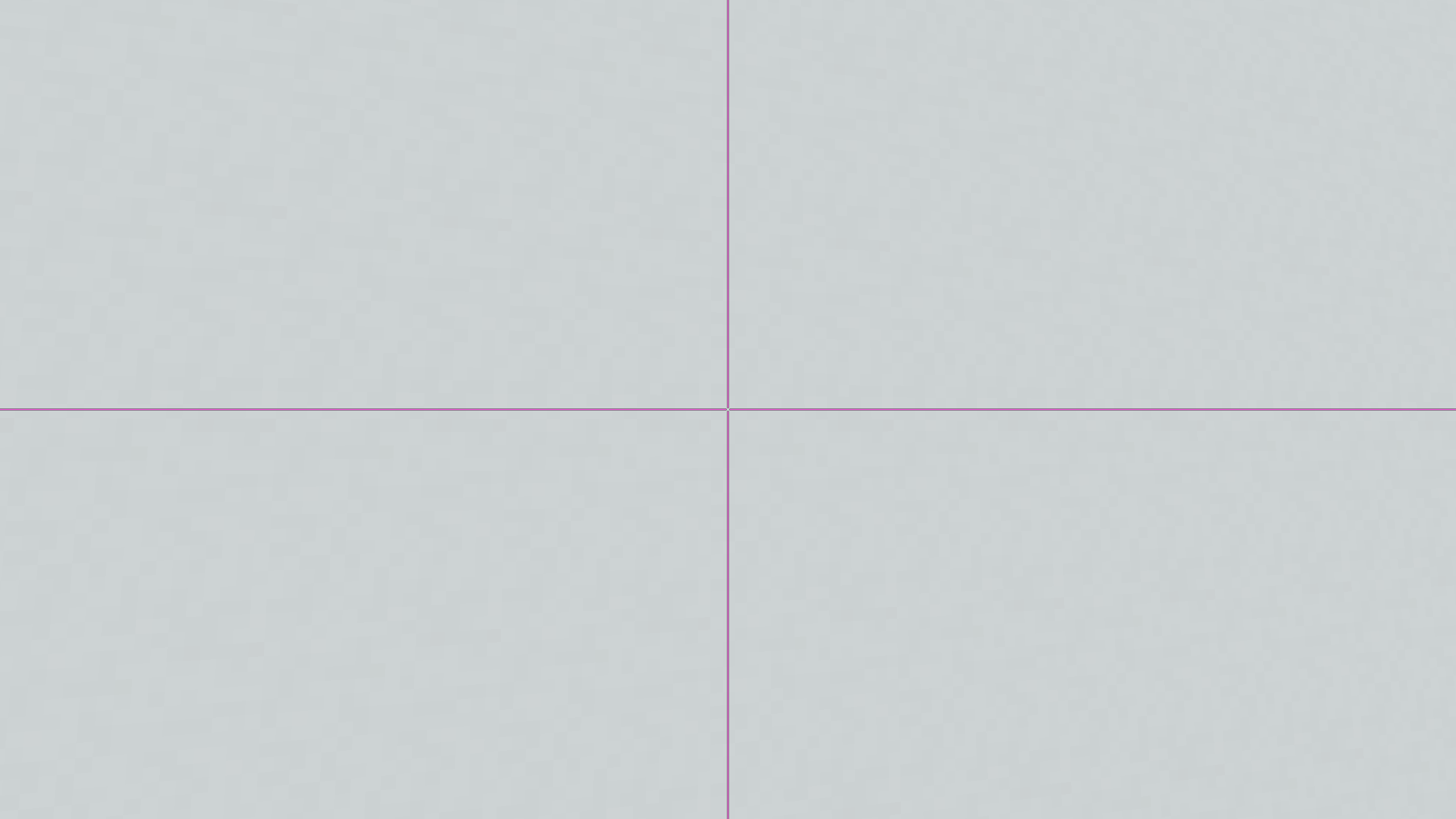
- Rule of Thirds — the standard grid
- Phi Grid — golden ratio at 0.618, tighter to centre than thirds
- Even Grid — 2 to 8 divisions, for aligning builds and checking spacing
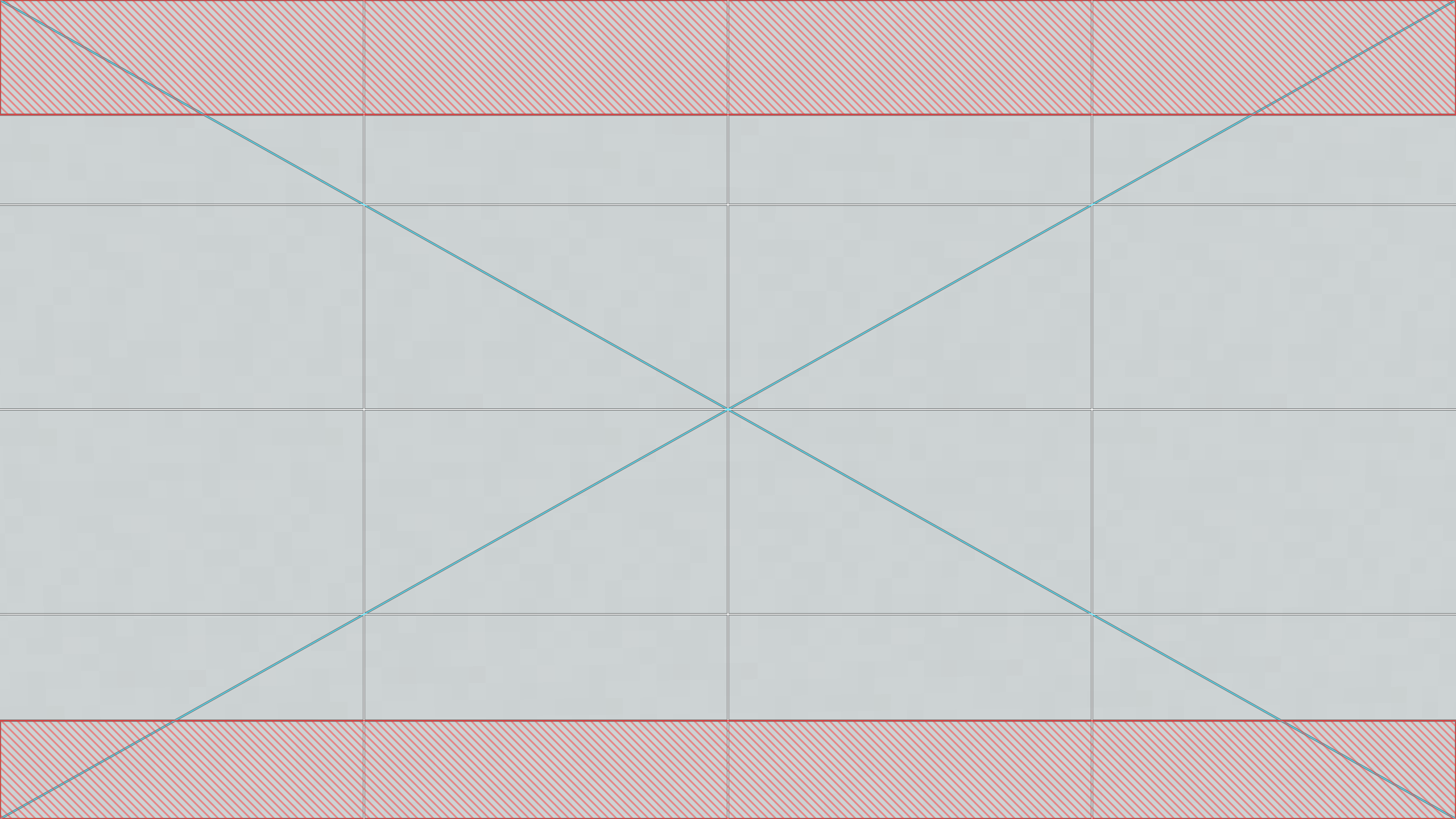
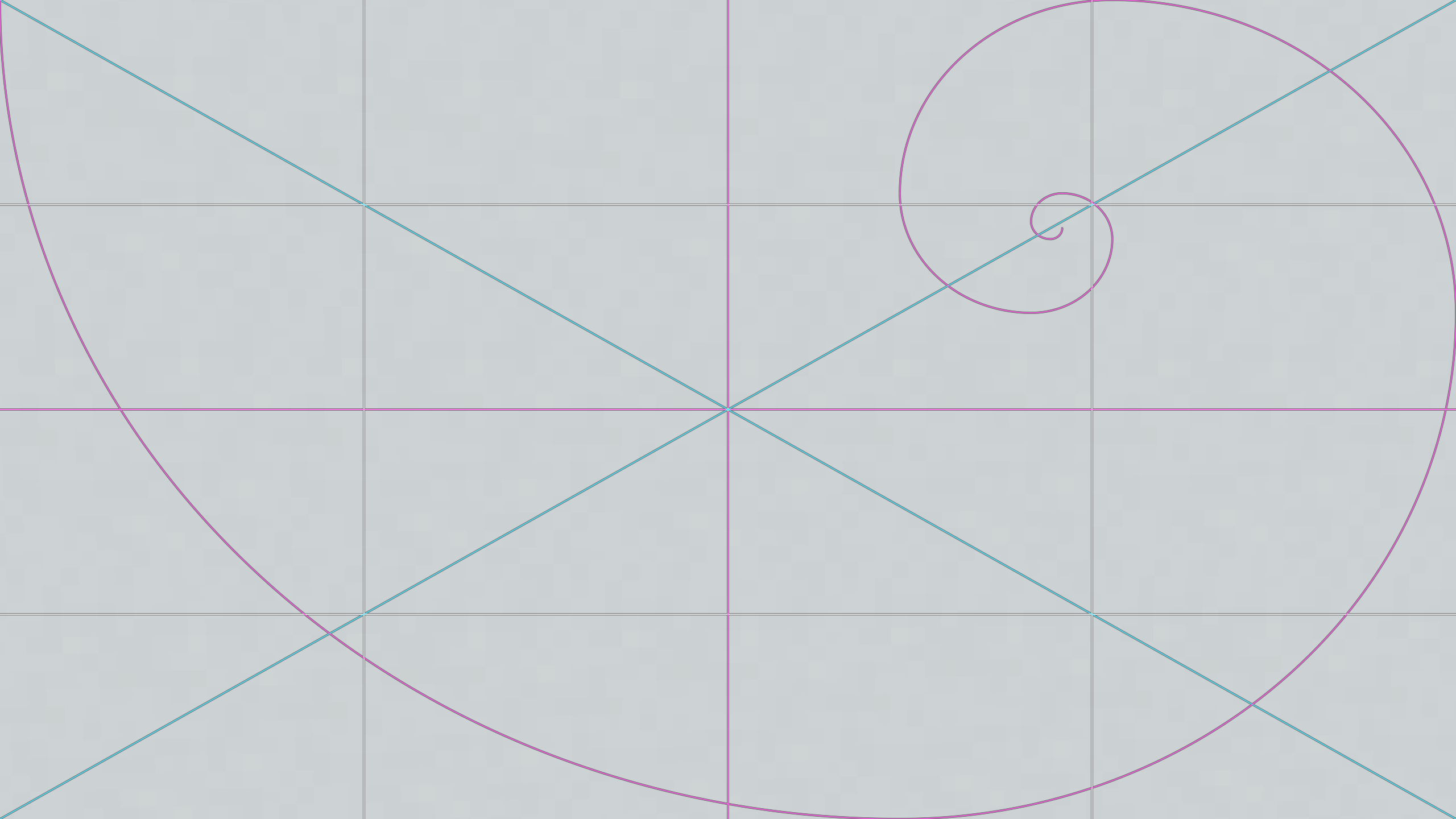
- Diagonals — corner to corner, for leading lines and terrain edges
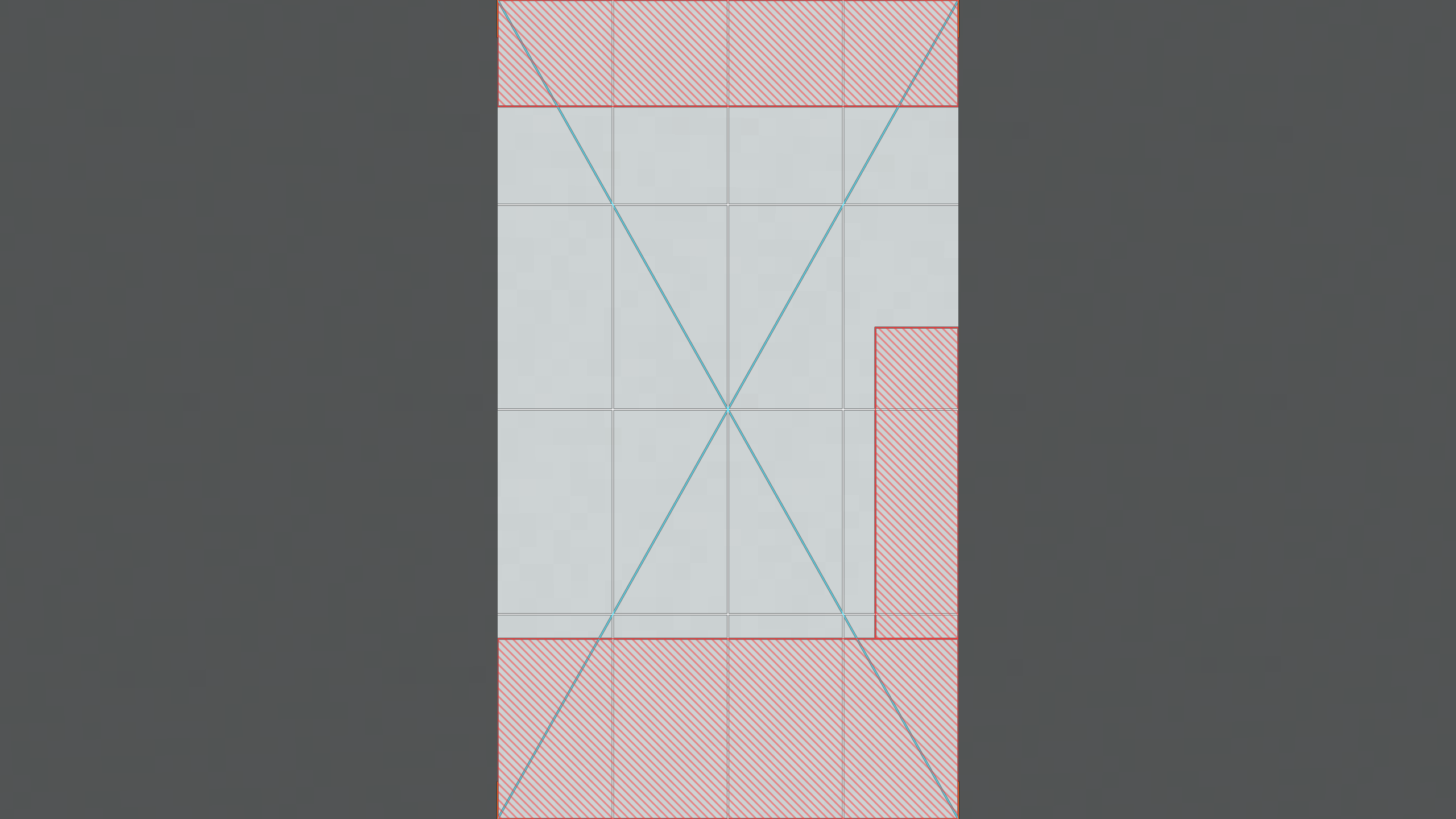
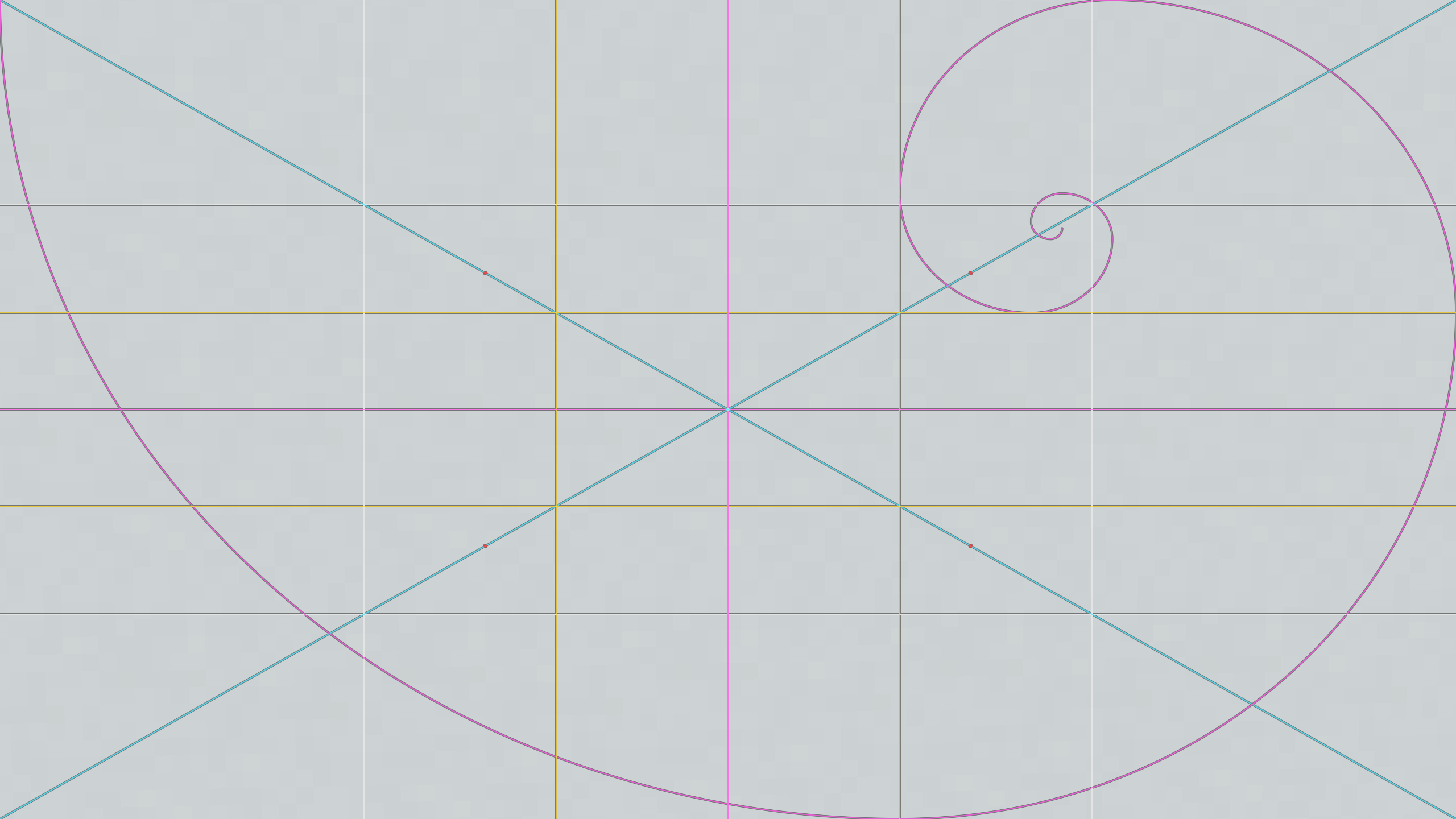
- Dynamic Symmetry — the classical armature: both diagonals plus the four perpendiculars dropped from the opposite corners. Where they cross are the natural anchor points of the frame
- Golden Spiral — a true Fibonacci spiral in four orientations, built from nested golden rectangles
- Center Reticle — broken in the middle so it doesn't sit on your subject
- Intersection Markers — dots, crosses or squares at the crossing points only, for when full lines are too noisy
Framing
- Ten aspect ratios plus a custom one — 1:1, 5:4, 4:3, 3:2, 16:9, 21:9, 4:5, 2:3, 9:16
- Adjustable mask with optional feathering. At 100% you get solid black bars you can shoot straight into
- Frame marks — full border, corner brackets, or print-style crop marks
- Safe area — an inset border showing how much you can crop later without losing anything
Export destinations
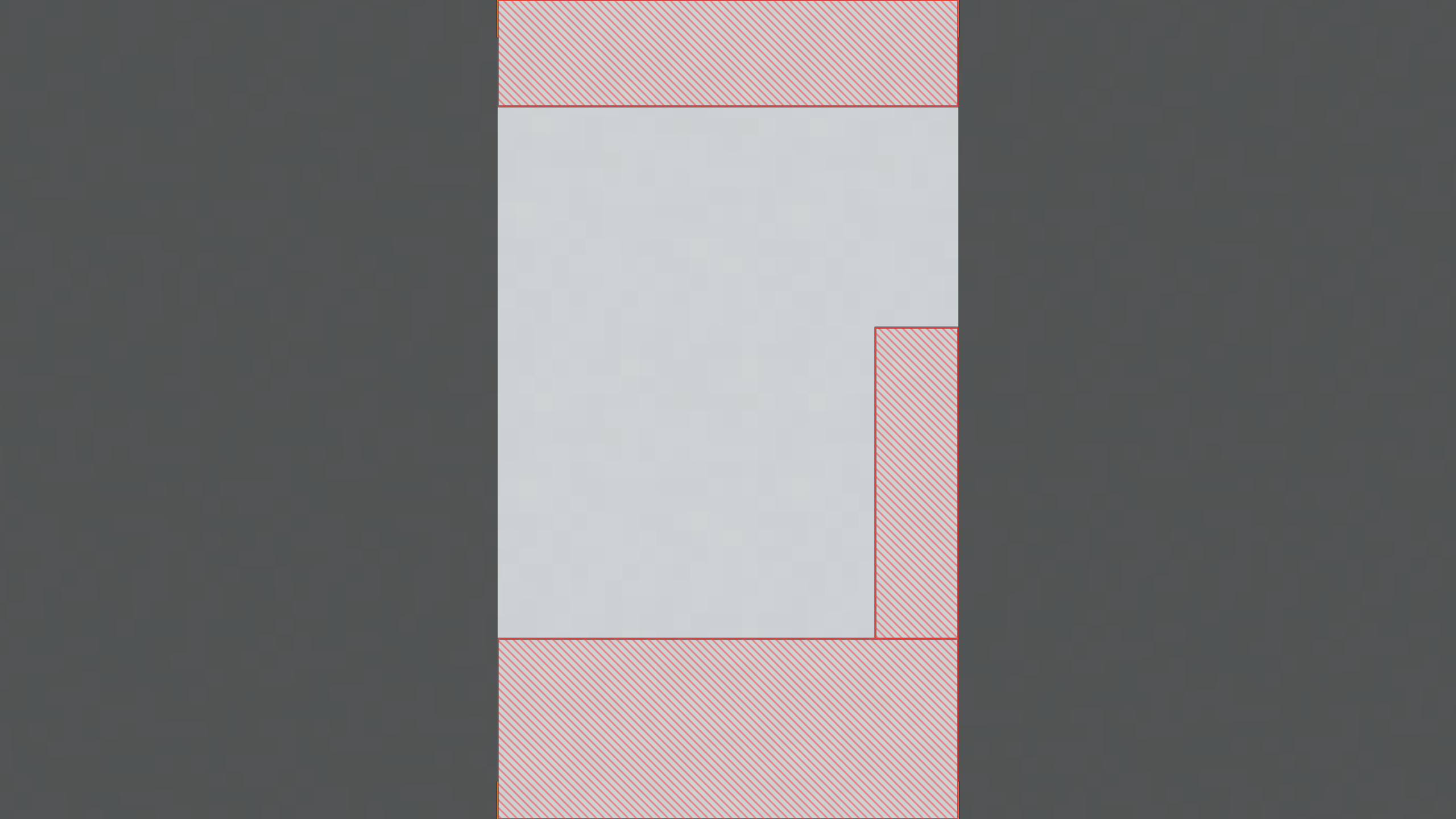
Pick where the shot is going and the frame matches it, with the areas that platform's own interface covers hatched out so you keep your subject clear of them.
| Destination | Ratio | Covered by app UI |
|---|---|---|
| Instagram Post / Portrait | 1:1, 4:5 | — |
| Instagram Story | 9:16 | profile bar, reply bar |
| Instagram Reels | 9:16 | top chrome, caption, action rail |
| TikTok | 9:16 | tabs, caption, nav, action rail |
| YouTube Thumbnail | 16:9 | duration badge, watched bar |
| YouTube Video | 16:9 | player controls, title on pause |
| YouTube Shorts | 9:16 | top chrome, title, action rail |
| X Post | 16:9 | — |
| iPhone Wallpaper | 19.5:9 | clock and widgets, torch and camera |
| Android Wallpaper | 20:9 | clock and glance, dock and nav |
| Windows Wallpaper | 16:9 | taskbar, desktop icon column |
| Ultrawide Wallpaper | 21:9 | — |
Camera readouts
- True Horizon — the real horizon worked out from the view matrices, not the terrain skyline, so it's correct at any FOV. It changes colour the moment you're level
- Alignment Ticks — marks that light up when the camera is square to the world. The top tick means you're facing dead-on north, south, east or west, which is what you want for a straight-on shot of a build
- Symmetry Check — folds the frame against its own reflection. Anything that isn't symmetrical ghosts immediately
- Highlight Warning — animated stripes over areas that will come out as featureless white, so you can reframe or wait for different light
Style
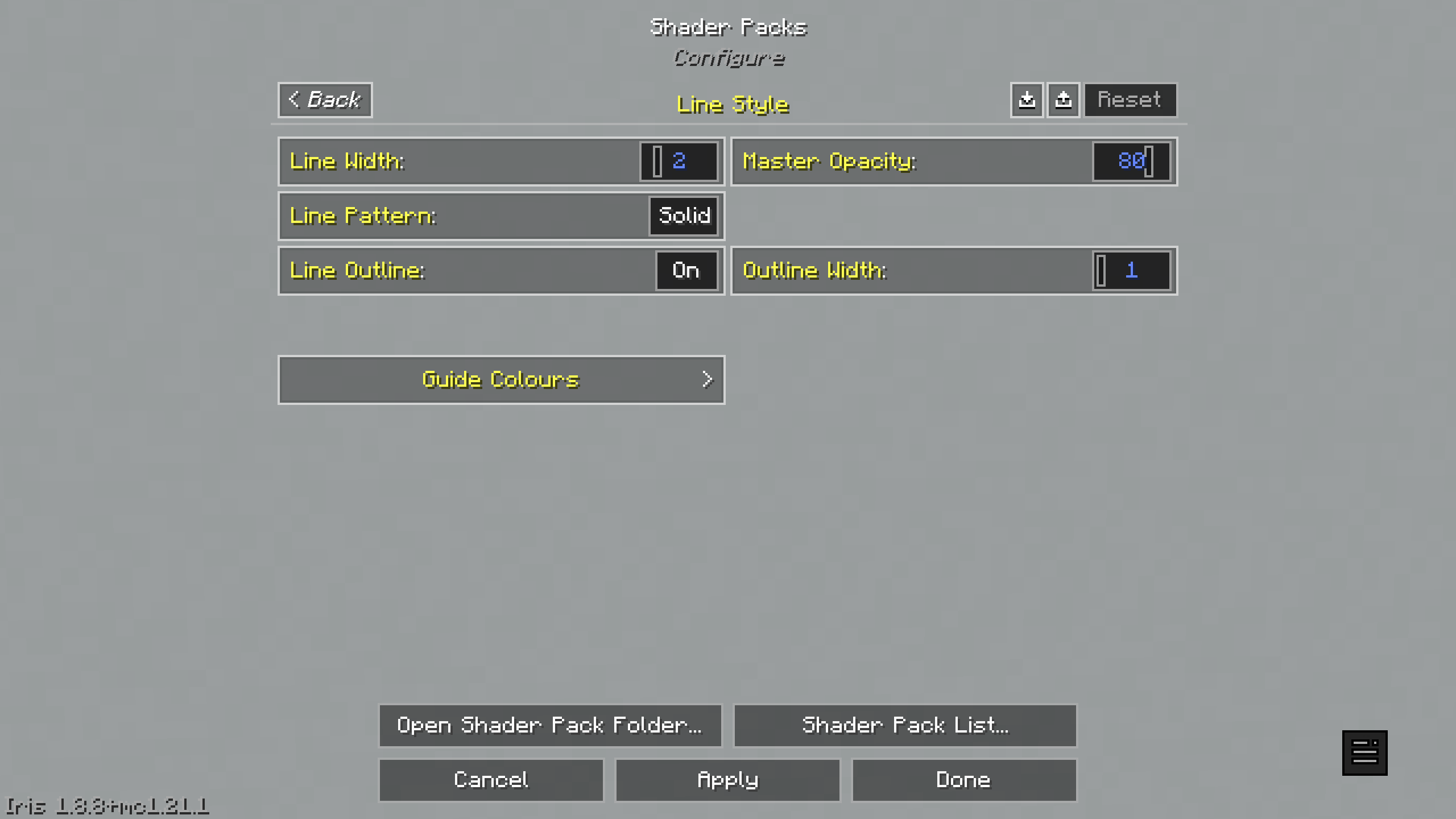
Pixel-accurate line width that stays identical on both axes at any resolution, solid / dashed / dotted patterns, a dark outline so guides stay readable over snow and sand, and a colour per guide — with every entry in the picker shown in the colour it actually draws in.
Taking the shot
The overlay is drawn into the final image, so it would normally end up in your screenshots. It doesn't, because F1 clears it.
- Frame the shot with the guides up
- Press F1 — GUI and guides both disappear
- Press F2 — clean screenshot
Hide With GUI controls what F1 removes. The default keeps the crop and its marks, so you can bake letterbox bars into the shot while the guides vanish. Or set it to clear everything for a completely untouched frame.
Video, cinematics and Replay Mod
Composition is a shaderpack, not a mod, so it sits alongside Replay Mod, camera mods and recording software without conflict.
Where it earns its place in a video workflow:
- Placing keyframes — line your subject up on a third or a phi intersection at each keyframe so it holds position through a move rather than sliding off-balance
- Level pans — the true horizon is drawn from the view matrices, so it stays correct through the whole camera path, not just where terrain happens to be visible
- Straight-on dolly shots — the alignment ticks light up when you're square to the world, which is exactly what you want tracking along the face of a build
- Vertical crops — set the destination to Shorts, Reels or TikTok and frame the move knowing where the app's own interface will sit
Replay Mod hides the HUD when it renders, which should clear the overlay along with it. Worth a short test render before committing to a long one.
Vanilla match
Vanilla fogs the sky so the dome blends into the horizon. Loading any shaderpack hands that pass to the pack, and if it isn't re-applied you get a hard horizontal line across the sky well above the terrain.
Composition reproduces the game's own linear_fog() exactly, using the same fog values vanilla feeds that pass, so the sky looks right. Everything else — terrain, entities, water, clouds, weather, the hand — is left to Iris's own fallback programs.
With every guide switched off, the pack returns the image untouched, pixel for pixel.
Getting started
- Install Iris
- Drop the
.zipinto.minecraft/shaderpacks/— don't unzip it - Select Composition in the shader menu
- Open Shader Pack Settings
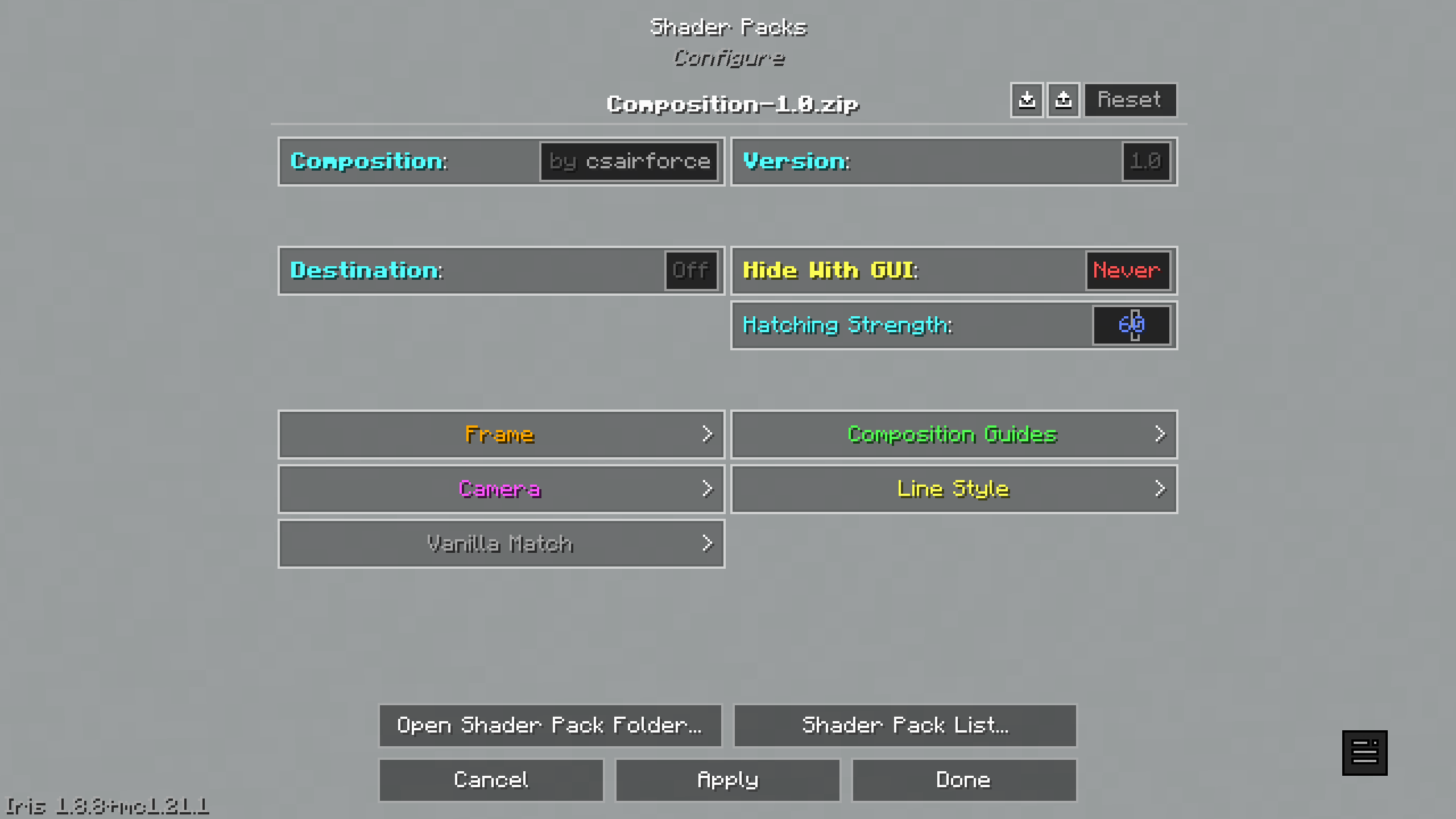
Out of the box you get the rule of thirds and nothing else. That's the intended starting point. Three settings worth knowing right away:
- Destination (main screen) — pick where the shot is going
- Hide With GUI (main screen) — what F1 removes
- Master Opacity (Line Style) — if the guides feel loud, turn this down before turning anything off
Options are colour coded by the screen they belong to, so a setting's colour tells you what it affects.
Requirements
- Minecraft Java Edition 1.21.1
- Iris (or OptiFine)
Java Edition only. Bedrock uses a different renderer and cannot load this.
There's no lighting work, so the cost is a single fullscreen pass — it runs on anything.
Compatibility
Mods are fine. Composition works alongside Replay Mod, camera mods, Distant Horizons and anything else that isn't itself a shaderpack.
Other shaderpacks are not. Minecraft loads one shaderpack at a time, so Composition can't run at the same time as BSL, Complementary, Bliss or any other visual pack. It's built to sit on vanilla rendering.
The practical workflow is to compose or set your camera path with Composition loaded, then switch to your visual pack for the final capture or render.
Licence
Copyright © 2026 csairforce. All rights reserved.
Your screenshots and videos are entirely yours. This pack claims nothing over what you capture with it, no credit is needed, and you may publish and monetise that work freely.
The pack itself may not be reuploaded, mirrored, bundled into modpacks, or republished in modified form without permission. Ask first — reasonable requests are usually fine.
shaderpack iris photography videography cinematic overlay composition framing screenshots replay-mod content-creation instagram youtube vertical-video
- Edition: Minecraft Java
- File type: .zip (resource pack)
- Minecraft version listed: 1.21.1
- How to install: Download the .zip resource pack — do not unzip it. → Put it in .minecraft/resourcepacks. → Enable it in Options → Resource Packs.
- Where to get it: Opens on CurseForge — not every file is mirrored on our own servers.
Install steps are the general flow for this file type — see the MC Java Mods guides for the full walkthrough.
Composition is a free Minecraft Java shader. Compatible with Minecraft 1.21.1. Downloaded 262 times (via CurseForge). Download it and open it directly in the game.