![Craftable Uncraftable Objects [CUO]](https://media.forgecdn.net/avatars/1568/85/639016655507490576.png)
![Craftable Uncraftable Objects [CUO] — screenshot 1](https://media.forgecdn.net/attachments/1753/354/screenshot_20260624_072847-png.png)
![Craftable Uncraftable Objects [CUO] — screenshot 2](https://media.forgecdn.net/attachments/1753/353/screenshot_20260624_072837-png.png)
![Craftable Uncraftable Objects [CUO] — screenshot 3](https://media.forgecdn.net/attachments/1753/352/screenshot_20260624_072828-png.png)
![Craftable Uncraftable Objects [CUO] — screenshot 4](https://media.forgecdn.net/attachments/1753/351/screenshot_20260624_072745-png.png)
![Craftable Uncraftable Objects [CUO] — screenshot 5](https://media.forgecdn.net/attachments/1622/983/screenshot_20260406_043851-png.png)
![Craftable Uncraftable Objects [CUO] — screenshot 6](https://media.forgecdn.net/attachments/1622/982/screenshot_20260406_043817-png.png)
![Craftable Uncraftable Objects [CUO] — screenshot 7](https://media.forgecdn.net/attachments/1622/981/screenshot_20260406_043801-png.png)
![Craftable Uncraftable Objects [CUO] — screenshot 8](https://media.forgecdn.net/attachments/1622/980/screenshot_20260406_043742-png.png)
A Minecraft Project that adds crafting recipes for normally uncraftable items in Survival mode, along with custom advancements for a more rewarding experience.
✨ Features
- New Crafting Recipes: Craft items like the Enchanted Golden Apple, Totem of Undying, Trident, Horse Armors, Chainmail Armor, and more.
- Custom Advancements: Unique rewards for crafting special items.
- Wide Compatibility: Supports Minecraft Java Edition from version 1.13.x up to the latest snapshots.
📜 Recipes
All recipes are in Gallery section.
🏆 Advancements
1. Not Enough Recycling!
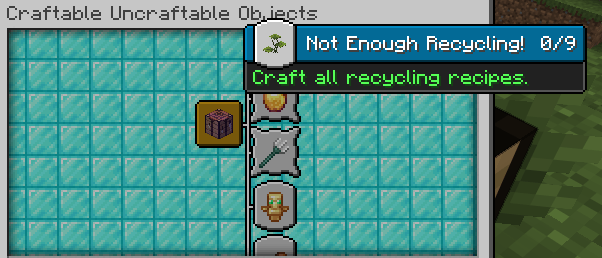
You will get this Advancement when you craft all Recycling recipes.
2. Who Enchanting Armor Those Days?
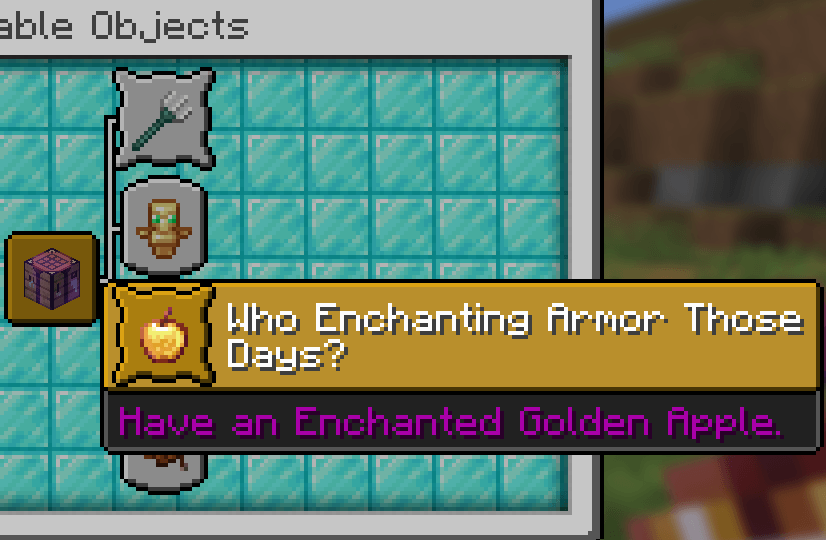
You will get this Advancement when you craft or have an Enchanted Golden Apple.
3. Forget Die.
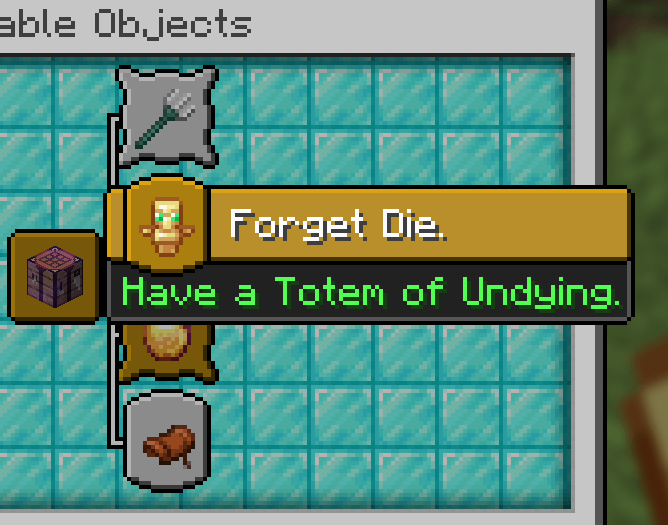
You will get this Advancement when you craft or have a Totem of Undying.
4. Water Weapon.
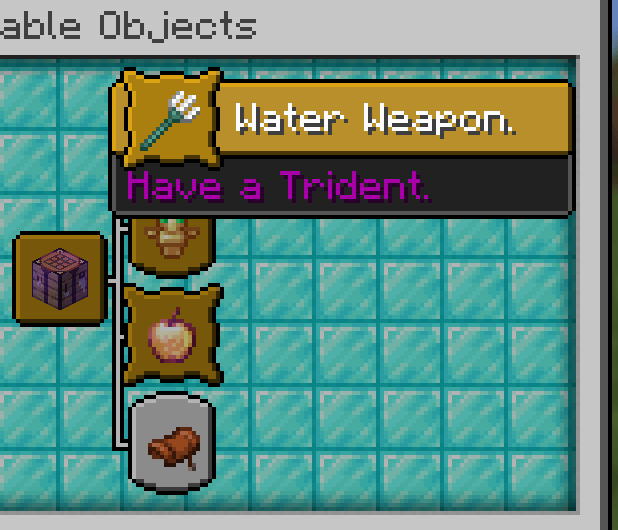
You will get this Advancement when you craft or have a Trident.
5. It's Time to Take a Horse.
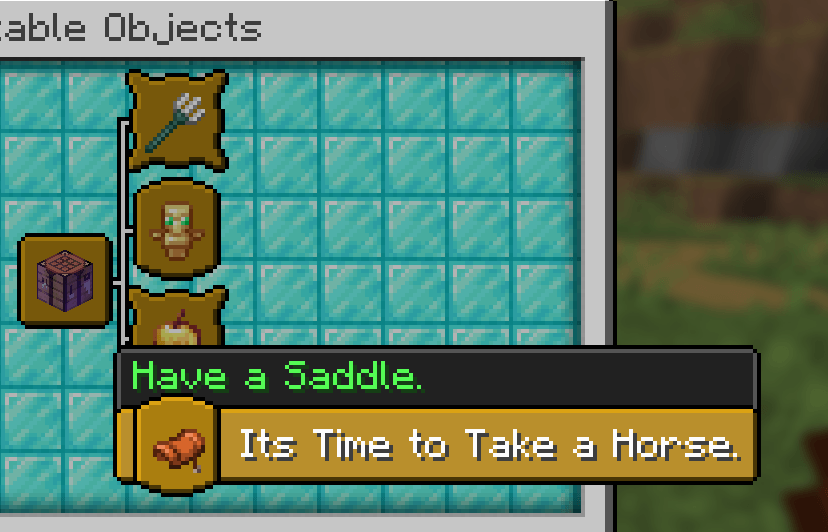
You will get this Advancement when you craft or have a Saddle.
6. WoW
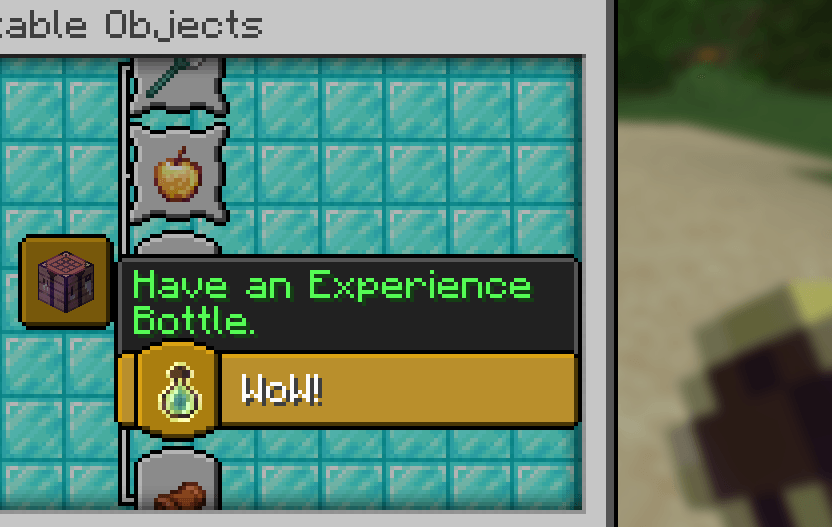
You will get this Advancement when you craft or have an Experience Bottle.
🗒️ News & Updates
See the latest News about my Projects:
Note: To recive the latest versions of the Project, go to the CUO Modrinth Project page.
📂 Source Code & Issues
GitLab (Source Code)
GitLab (Issues)
Installation 🗂️
Linux:
World that already exists:
1. Go to this location "~/.minecraft/saves/" (Make sure you are showing the hidden folders and files by pressing Left Ctrl + H).
2. Choose the world folder you want to put the Data Pack into it.
3. Open datapacks folder, then put the data pack.zip in the datapacks folder.
4. Reload the world by /reload command or by Quit the world and rejoin it.
New World:
1. Open Minecraft, then click on "Singleplayer".
2. Click on "Create New World", then click "More World Options...".
3. Click on "Data Packs" button, then drag the data pack file into Minecraft.
4. Click "Done" and "Create New World".
MacOS:
World that already exists:
1. Go to this location "~/Library/Application Support/minecraft/saves/".
2. Choose the world folder you want to put the Data Pack into it.
3. Open datapacks folder, then put the data pack.zip in the datapacks folder.
4. Reload the world by /reload command or by Quit the world and rejoin it.
New World:
1. Open Minecraft, then click on "Singleplayer".
2. Click on "Create New World", then click "More World Options...".
3. Click on "Data Packs" button, then drag the data pack file into Minecraft.
4. Click "Done" and "Create New World".
Windows:
World that already exists:
1. Press Win + R, then type %appdata%, then press Enter.
2. Open "Roaming" folder, then ".minecraft" folder, then open "saves" (Make sure you are showing the hidden folders and files by pressing Left Ctrl + Left Shift + period).
4. Choose the world folder you want to put the Data Pack into it.
5. Open datapacks folder, then put the data pack.zip in the datapacks folder.
6. Reload the world by /reload command or by Quit the world and rejoin it.
New World:
1. Open Minecraft, then click on "Singleplayer".
2. Click on "Create New World", then click "More World Options...".
3. Click on "Data Packs" button, then drag the data pack file into Minecraft.
4. Click "Done" and "Create New World".
📂 Deletion
Linux:
- Go to this location "~/.minecraft/saves/" (Make sure you are showing the hidden folders and files by pressing Left Ctrl + H).
- Find the world folder that you put the Data Pack into it.
- Open datapacks folder, then remove the data pack.zip in the datapacks folder.
- Reload the world by /reload command or by quit the world and rejoin it.
MacOS:
- Go to this location "~/Library/Application Support/minecraft/saves/".
- Find the world folder that you put the Data Pack into it.
- Open datapacks folder, then remove the data pack.zip in the datapacks folder.
- Reload the world by /reload command or by quit the world and rejoin it.
Windows:
- Press Win + R, then type %appdata%, then press Enter.
- Open "Roaming" folder, then ".minecraft" folder, then open "saves" (Make sure you are showing the hidden folders and files by pressing Left Ctrl + Left Shift + period).
- Find the world folder that you put the Data Pack into it.
- Open datapacks folder, then remove the data pack.zip in the datapacks folder.
- Reload the world by /reload command or by Quit the world and rejoin it.
Enjoy!
- Edition: Minecraft Java
- File type: .jar
- Minecraft versions listed: 1.21.11, 1.21.9, 1.21.10
- How to install: Install the matching mod loader (Forge, Fabric or NeoForge) for your Minecraft version. → Download the .jar. → Put it in the .minecraft/mods folder and launch that loader profile.
- Where to get it: Opens on CurseForge — not every file is mirrored on our own servers.
Install steps are the general flow for this file type — see the MC Java Mods guides for the full walkthrough.
- Downloads as Craftable Uncrafting Objects (v1.21.4).zip
- Download size: 7 KB
- Download link checked 26 Aug 2026 — working
These come from our own check of the pack file, not from the source page.