
TaTe's Extra Trims
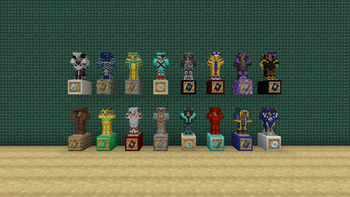
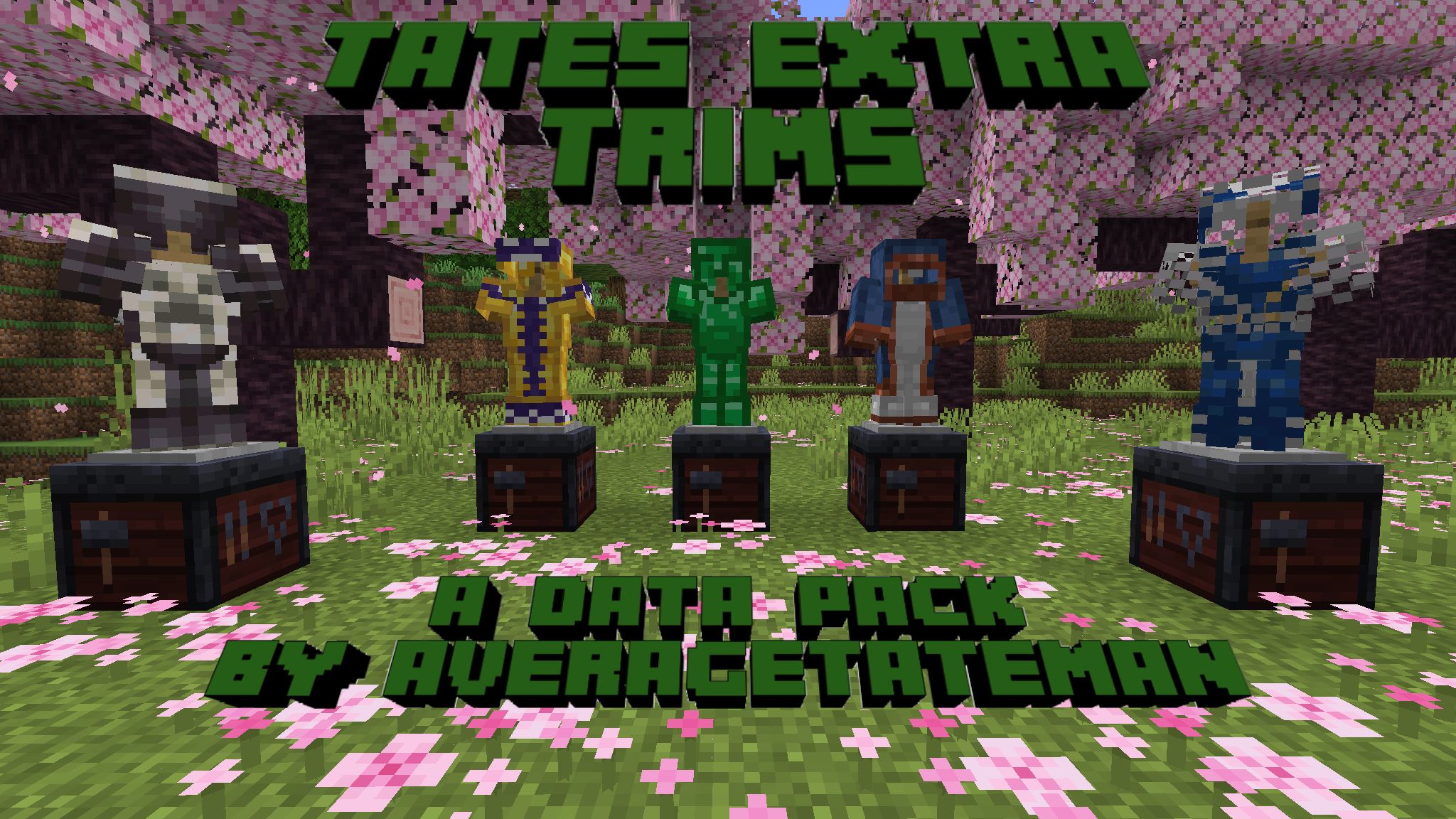
18 New Trim Patterns and 51 New Materials That Can Be Utilized Using Various Items + Extra Functionality for Modifying Trims!
⬇ Download on Modrinth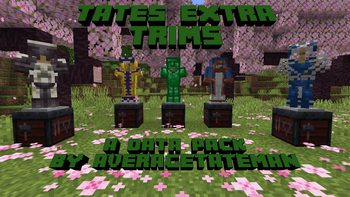


IMPORTANT - I (AverageTaTeMan) only share my content on Planet Minecraft, Modrinth, and CurseForge - If you see this project on any other site, IT IS NOT ME AND SHOULD NOT BE TRUSTED!
This pack adds an additional 18 Armor Trim patterns representing areas of the games that are unrepresented in the existing Armor Trim set. These new Trims can be obtained using various items (listed below) in place of what would be the Smithing Template in the Smithing Table. There are also 50 new Armor Trim materials to further customize the Armor's color, which can be obtained by putting the item through the Stonecutter first. It also adds functionality to remove Armor Trims from Armor by dropping it on a Grindstone and replace the Trim material by dropping the Armor with the new material on top of a Smithing Table.
List of Trims and Their Items:Patterns:
- Fool (Full Trim) - Diamond Block
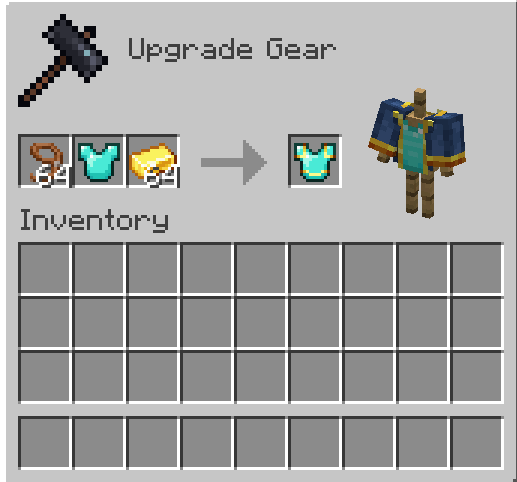
- Wanderer (Wandering Trader) - Lead
- Freeze (Igloo) - Powder Snow Bucket
- Bone (Fossil) - Bone Block
- Wart (Witch Hut) - Nether Wart
- Oasis (Desert Well) - Water Bucket
- Worker (Village) - Emerald
- Champion (Hero of the Village) - Totem of Undying
- Flood (Ocean Ruins) - Fishing Rod
- Plunder (Buried Treasure) - Heart of The Sea
- Shell (Armadillo) - Armadillo Scute
- Creep (Creeper) - TNT
- Cage (Dungeon) - Chain
- Miner (Mineshaft) - Iron Pickaxe
- Triumvirate (Wither) - Nether Star
- Gateway (Ruined Portal) - Crying Obsidian
- Crystal (Geode) - Block of Amethyst
- Dragon (Ender Dragon) - Dragon Head
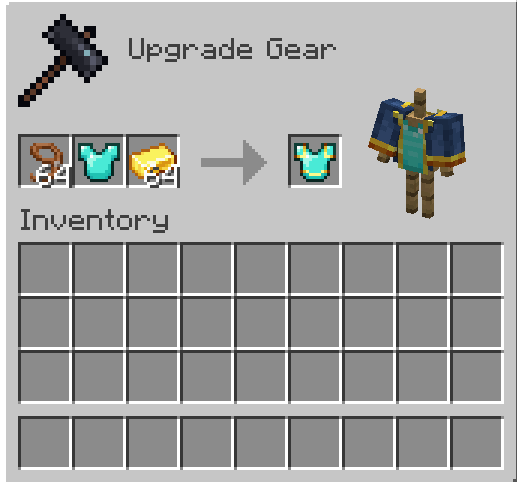
Example of Applying the Wanderer Trim
Materials:
- Armadillo Scute
- Blaze Rod
- Bone
- Breeze Rod
- Brick
- Cake
- Charcoal
- Popped Chorus Fruit
- Clay Ball
- Coal
- Cookie
- Heavy Core
- Creeper Head
- Dragon's Breath
- Echo Shard
- End Crystal
- Eye of Ender
- Ender Pearl
- Bottle o' Enchanting
- Rotten Flesh
- Glistering Melon Slice
- Glowstone Dust
- Gunpowder
- Heart of the Sea
- Honeycomb
- Leather
- Magma Cream
- Melon Slice
- Phantom Membrane
- Nautilus Shell
- Nether Brick
- Netherite Scrap
- Ominous Bottle
- Prismarine Crystals
- Pumpkin Pie
- Rabbit Hide
- Name Tag (Rainbow)
- Raw Copper
- Raw Gold
- Raw Iron
- Shulker Shell
- Slime Ball
- Sniffer Egg
- Powder Snow Bucket
- Fermented Spider Eye
- Nether Star
- Sugar
- Sulfur Spike
- TNT
- Name Tag (Toast)
- Turtle Scute


To try a pack that replaces the existing Armor Trims with these new designs, check out TaTe's Alternate Trims!
Installation Instructions to Get the Data AND Resource Packs:
Click "Versions"

Select a Version
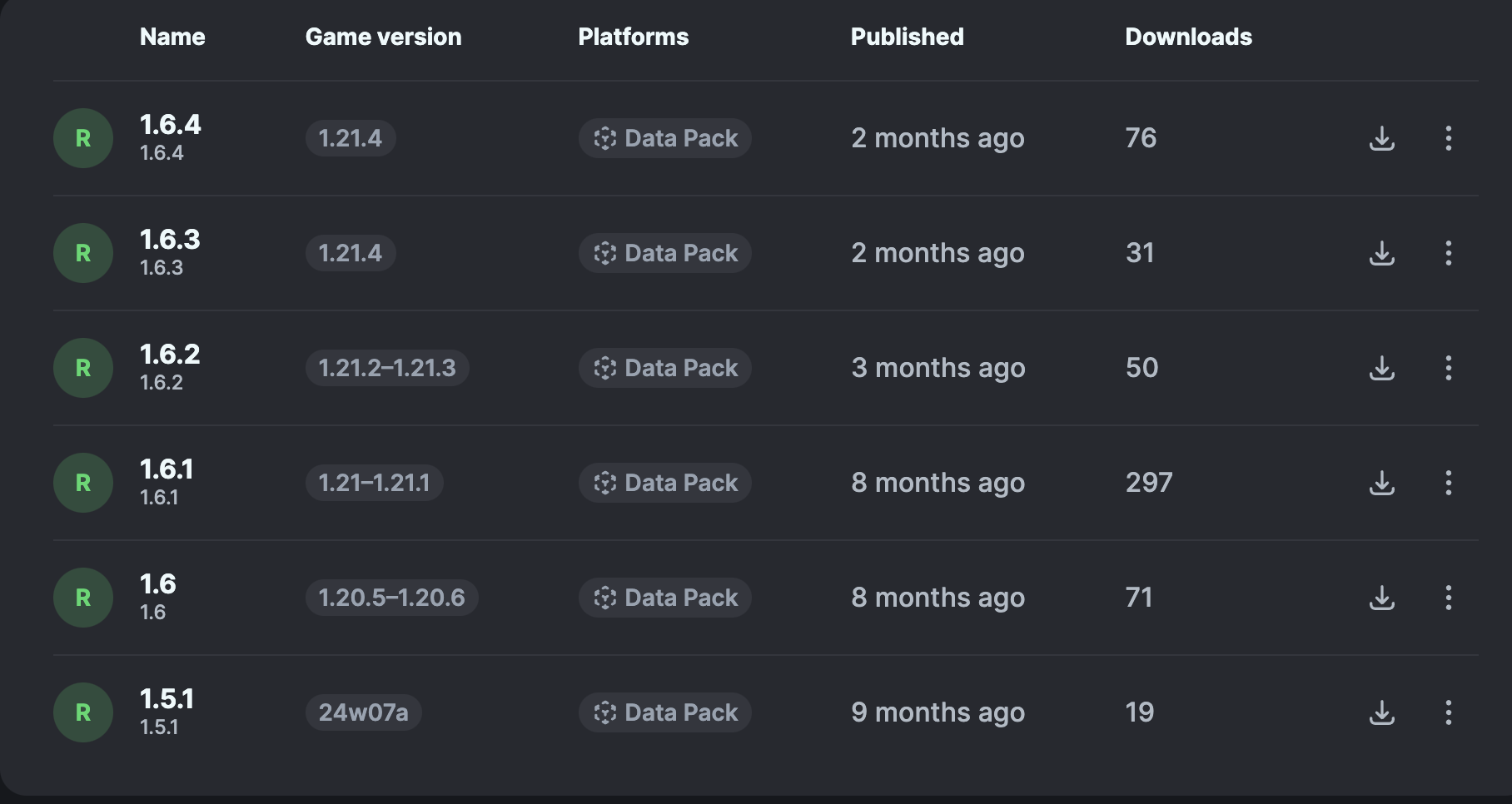
Under "Files", click "Download" on both the 'Primary' file (data pack) and 'Required resource pack' file (resource pack)
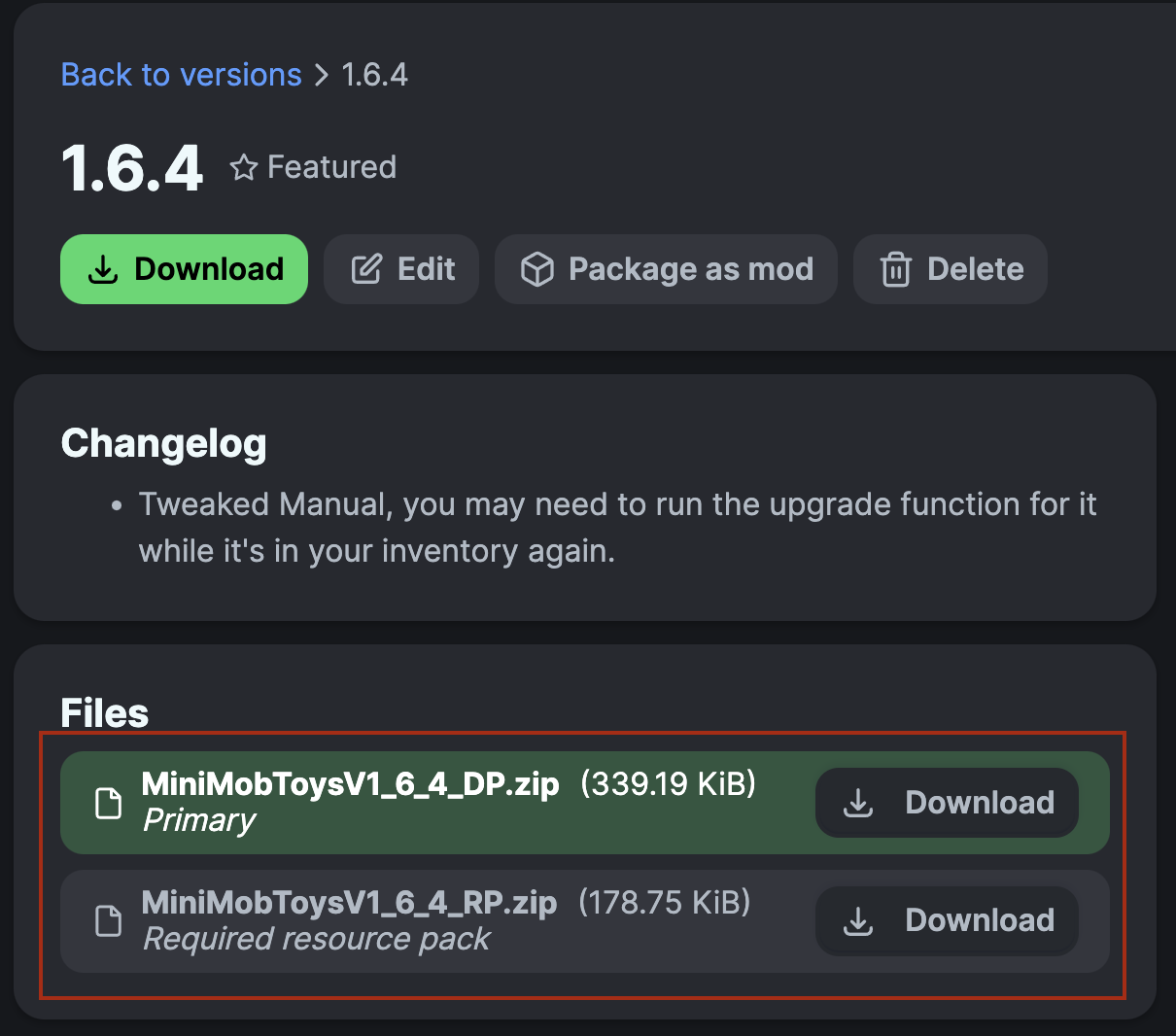
Unzip the files (optional, but recommended as that's how I use/test them).
Add the resource pack to your Selected Packs (ideally at the top) in your Resource Packs menu.
Add the data pack to either your Selected Packs in the Data Packs menu (if adding at world creation) OR put it in your world's 'datapacks' folder (if adding afterwards. Recommended to either not have world open at the time or to close and reopen it afterwards).
You may get a prompt about experimental settings not being supported when opening the world. This can safely be ignored, but it's also never a bad idea to make a backup if it's a world you care about.
- Downloads as TaTesExtraTrimsV1_8_DP.zip
- Download size: 118 KB
- Download link checked 29 Aug 2026 — working
These come from our own check of the pack file, not from the source page.