
HoloPack
I don't know my version or loader
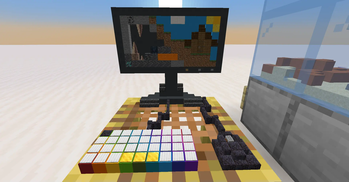
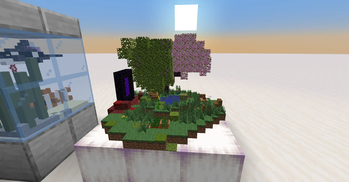
You want to build crazy Holograms in your Minecraft world?
Use this easy to use Data Pack to convert your builds into small useful Holograms!
How to get started
Installing the Data Pack: Download the newest version of the Data Pack here and put it into the "datapacks" folder of your world or server. Now use the command /reload to load the Data Pack.
Getting the Holo Editor Item (This is all you need to create Holograms and edit them) If you use the command /reload a text will appear in the chat. If you click this text you will get the Holo Editor Item. Alternative you can use the command /tag @s add holo_item to get the item.
Placing the Hologram Platform (This is the place where you can build your Holograms) If you press [Q] with the Holo Editor Item in your hand, while no other Hologram Platform exist in your world, a big Selection-Box will appear. Use your mouse to position it where you want the structure to be placed Use [Left Click] to abort or [Right Click] to confirm your placement. If you have confirmed your placement, you can freely move again and check if everything is OK. If you like the placement, use [Right Click] on the floating text again to finally place the structure! INFO: The Structure can only be placed if no blocks are in its way.
Placing the Hologram Tables (This is the place where your scanned Holograms will be displayed) If you press [Q] with the Holo Editor Item in your hand and a Hologram Platform already exist in your World, a smaller Selection-Box will appear. Use your mouse to position it where you want the structure to be placed. Use [Shift] to cycle between 3 different sizes of Hologram Tables. Use [Left Click] to abort or [Right Click] to confirm your placement. If you have confirmed your placement you can freely move again and check if everything is OK. If you like the placement use [Right Click] on the floating text again to finally place the structure! INFO: The Structure can only be placed if no blocks are in its way.
Making your first Hologram
Build whatever you want You can build what ever you want on top of the white concrete of the Hologram Platform. It is a 16x16x16 Block big area. Tip: Don't place blocks, that you can not see from the outside of the Hologram. This will improve the performance of the Hologram, because each block = 1x entity
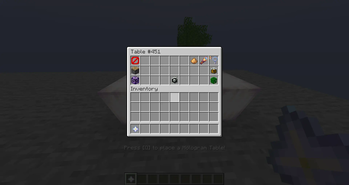
Scanning the Hologram If you have finished your Building on top of the Hologram Platform, use the Holo Editor Item to open the Barrel of an empty Hologram Table. Now click the top, left button inside the barrel and your Building will be scanned.
Editing your Hologram
If you open the barrel of a Hologram Table of a scanned Hologram with the Holo Editor Item you can do the flowing things:
- Glowing: Toggle if the Hologram is glowing
- View Range: Changes the view range of the Hologram. With 0.1 being the shortest view range and 1 being the highest view range. You can also use a view range of 0 to turn them inviable. Attention: Higher view range can lead to performance issues!
- Lighting: Changes how the Hologram is illuminated. If set to 0 it just use the lighting of the surroundings. If it is set to 1 - 15 it is forced to this fixed value and therefore darker or brighter than its surroundings.
- Move: This can be used to move the Hologram Table to a different position or to change the size of the Hologram. Click here for more details.
- Lock this Hologram: Can be used to lock the Hologram. No changes can be made while a Hologram is locked and the Barrel-Gui will not open. Can be undone by right-clicking the Hologram with the Holo Editor Item.
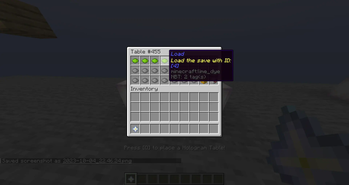
- Save this Hologram: This can be used to copy this Hologram into storage. Saved Holograms can be loaded in an empty Gui Table. Click here for more details.
- Rotate: This button rotates the Hologram 90° clockwise.
- Delete Hologram: This button can be used to delete this Hologram. If you click it, you have to confirm your action by pressing the green check mark. Or you can use the red X to abort!
If you like this Data Pack and want to see more, click here!
Heads provided by: https://minecraft-heads.com/
- Edition: Minecraft Java
- File type: .jar
- Minecraft versions listed: 1.20.3, 1.20.4
- How to install: Install the matching mod loader (Forge, Fabric or NeoForge) for your Minecraft version. → Download the .jar. → Put it in the .minecraft/mods folder and launch that loader profile.
- Where to get it: Opens on Modrinth — not every file is mirrored on our own servers.
Install steps are the general flow for this file type — see the MC Java Mods guides for the full walkthrough.
- Downloads as HoloPack_4.1.zip
- Download size: 308 KB
- Download link checked 1 Sept 2026 — working
These come from our own check of the pack file, not from the source page.