
DatapacksJava
Continental Sandwiches
I don't know my version or loader
Open the Minecraft launcher and look at the profile you play on — it names both, like fabric-loader-1.21.4. The version also shows in the bottom-right corner of the game's main menu.
No loader in the profile name? Then it's plain Minecraft, and these mods won't run — you need Fabric or NeoForge installed first.

Description
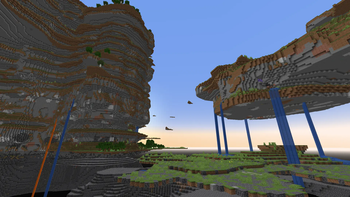
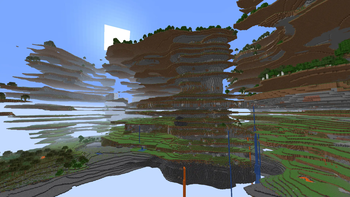
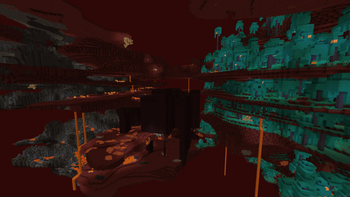
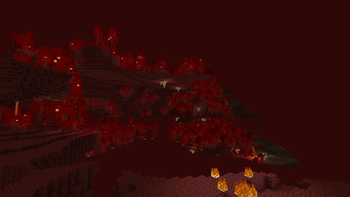
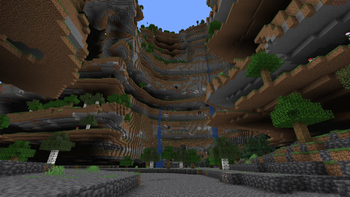
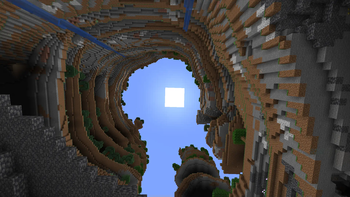
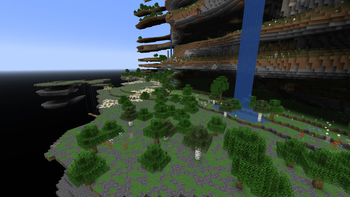
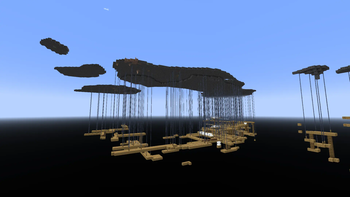
Continental Sandwiches is a world generation data pack that changes our world to get an effect similiar in look to a sandwich. This data pack changes Overworld and Nether.
Disclaimer
Continental Sandwiches does not provide official support for usage of other world generation data packs but you can modify it yourself.
Terms of Use
By using Continental Sandwiches data pack you agree to observe the rules written in TOU.
If you wouldn't like to accept the rules of TOU, just stop using this pack.
General provisions:
- You are allowed to use, share, write articles, modify and distribute modified version of the pack (with a mention of the original data pack)
- You are not allowed to: monetize, share the original from unofficial download sources, redistribute unmodified version and claim to be the author of the original data pack.
- Full Terms of Use can be found inside of README.txt file.



How to Install
- Open Minecraft: Java Edition on version corresponding to downloaded release or any variation of it.
- Click on a button labeled Singleplayer.
- If you have created any world before, click Create New World. If you have never created any world before go to step no. 4.
- Click on a button labeled Data Packs.
- Click on a button labeled Open Pack Folder.
- Now you can see temporary folder created by the game. Open another instance of File Explorer and find the downloaded .zip file.
- Drag the downloaded .zip file into temporary folder.
- Click on Minecraft window and hover your mouse above the icon of the pack on the left side of the window, and click on the arrow pointing right.
- Click on a button labeled Done.
- Click on a button labeled Create New World.

Programs and Sources Used to Create
-Minecraft Assets
-Minecraft Vanilla Worldgen File
-Data pack updater by Misode
Created and Released by

Quick facts
- Edition: Minecraft Java
- File type: .jar
- Minecraft versions listed: 1.20, 1.20.1
- How to install: Install the matching mod loader (Forge, Fabric or NeoForge) for your Minecraft version. → Download the .jar. → Put it in the .minecraft/mods folder and launch that loader profile.
- Where to get it: Opens on Modrinth — not every file is mirrored on our own servers.
Install steps are the general flow for this file type — see the MC Java Mods guides for the full walkthrough.
Verified by MCModsHub
- Downloads as §6§lContinental Sandwiches.zip
- Download size: 905 KB
- Download link checked 5 Sept 2026 — working
These come from our own check of the pack file, not from the source page.