
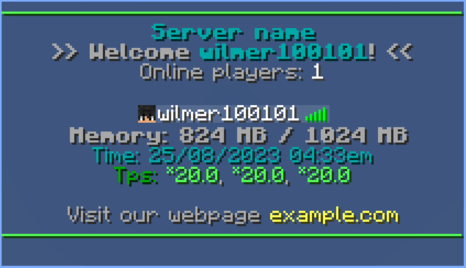
How you use
- Open your
config.yml - Check which
placeholdersfit your server here - Add your placeholders through
%example%inconfig.yml - Customize colors in tab with
§
Screenshot
Example Config
# Header, Over all players in the list
header:
  - '§a§m                                                    '
  - '§3§lServer name'
  - '§7§l>> %animation:Welcome%§3 §l%player_name%§7§l! §7§l<<'
  - '§7Online players: §f%server_online%'

# footer, Below all players in the list
footer:
  - '§7§l Memory: %server_ram_used% MB / %server_ram_total% MB'
  - '§3Time: %localtime_time%'
  - '§2Tps: %server_tps%'

  - '§7Visit our webpage §eexample.com'
  - '§a§m                                                    '

# You can add multiple animations to this section
animations:
  Welcome:  #this is name of the animation
    change-interval: 400  #this is refresh interval of the animation in milliseconds
    texts:  #the frames of animation
      - '§7§lW_'
      - '§7§lW_'
      - '§7§lWe_'
      - '§7§lWel_'
      - '§7§lWelc_'
      - '§7§lWelco_'
      - '§7§lWelcom_'
      - '§7§lWelcome_'
      - '§7§lWelcome_'
      - '§7§lWelcome_'
      - '§7§lWelcome_'
      - '§7§lWelcom_'
      - '§7§lWelco_'
      - '§7§lWelc_'
      - '§7§lWel_'
      - '§7§lWe_'
      - '§7§lW_'
      - '§7§lW_'

# To use an animation in the tab, use the format %animation:<name>%
# For Example, to use the Welcome animation, type %animation:Welcome%                                                    '
Quick facts
- Edition: Minecraft Java
- File type: .jar
- Minecraft versions listed: 1.2.1, 1.2.2, 1.2.3
- How to install: Install the matching mod loader (Forge, Fabric or NeoForge) for your Minecraft version. → Download the .jar. → Put it in the .minecraft/mods folder and launch that loader profile.
- Where to get it: Opens on Modrinth — not every file is mirrored on our own servers.
Install steps are the general flow for this file type — How to install Minecraft Java mods & modpacks walks through it step by step.
Verified by MCModsHub
- Ships as Tab.jar — drop this file into the mods folder
- Download size: 3 KB
- Download link checked 29 Aug 2026 — working
These come from our own check of the pack file, not from the source page.