
CineFrame
CineFrame lets Minecraft Java servers play video clips with synced audio on item frames. It auto-builds resource packs, uses FFmpeg for easy setup, and…
⬇ Download on Modrinth


CineFrame
Play real video clips on item frames with synced audio on a Minecraft Java server.
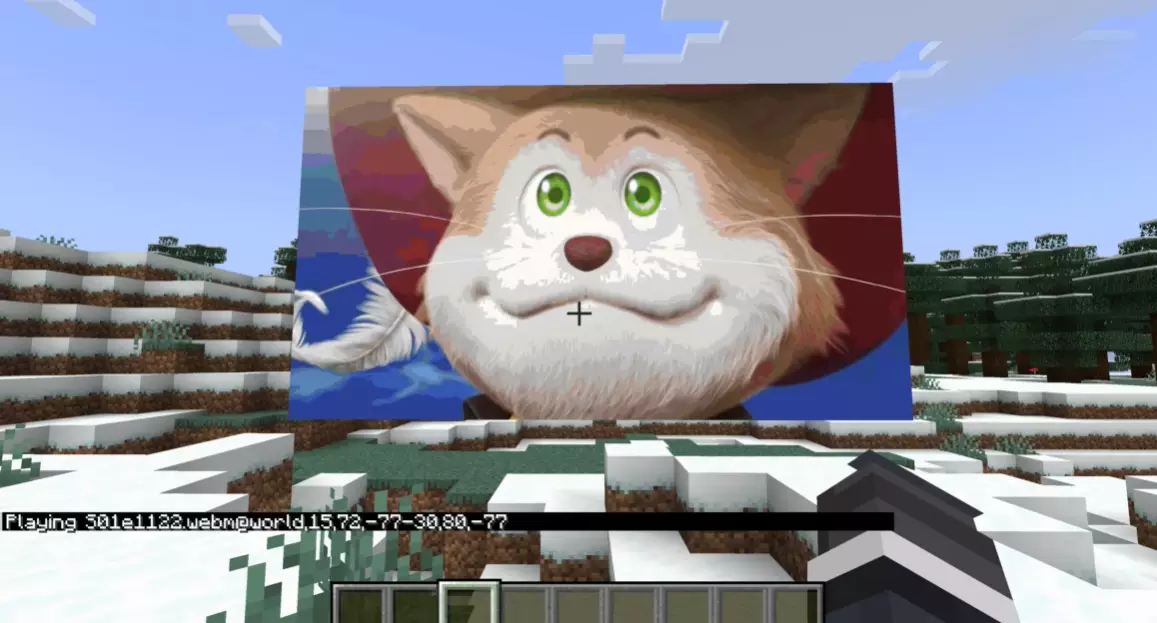
For video preview go here
Features
- Turns a wall of item frames into a video screen
- Plays map video at up to 20 FPS
- Synced audio through a resource pack that CineFrame builds and hosts
- Pause and resume support, with audio rebuilt from the paused time
- Auto replay support
- Command based screen placement for command blocks and setup tools
- PacketEvents map updates, so players only get the map data they need
- Distance based packet range, so far away players stop getting screen packets
- Folia scheduler support
Requirements
- A Minecraft Java server running Paper 26.2 or a compatible fork
- Java 25
- PacketEvents installed
- CineFrame installed
- A video file in
plugins/CineFrame/media/
Tested server types can include Paper, Purpur, Pufferfish, Leaf, and Folia, as long as the build supports the same API version CineFrame was built for.
Windows is the safest setup right now. Linux can work, and Linux ARM has a config option for frame format if playback is flaky.
Install
- Drop PacketEvents 26.2 into your
plugins/folder. - Drop CineFrame into your
plugins/folder. - Restart the server once so CineFrame can make its folders.
- Put videos in
plugins/CineFrame/media/.
Supported video files:
.mp4.mov.webm.mkv.avi
After that, edit plugins/CineFrame/config.yml so players can download the audio resource pack. Restart the server after changing the config.
Upgrade note
If you are updating from an older CineFrame build, check your config.yml.
Older configs may be missing the newer settings for debug level, packet range, map FPS, and Linux ARM frame format. You can add the keys below by hand, or back up your old config and let CineFrame create a fresh one.
Config
These keys are used by CineFrame to host the resource pack zip and control video packet sending.
# Port used for datapack download for users
datapack-port: 25564

# Public URL or IP for remote players
# Do not include http:// or https://
# You can find your public IP at https://whatismyipaddress.com/
# You can also use a domain if you already have one set up
datapack-public-host: "mydomain.com"
datapack-scheme: "http"
datapack-public-port: 25564

# LAN URL for players on the same network as the server
# This should be the server's LAN IP, not localhost
# On Windows:
# Press Win + R, type cmd, press enter, type ipconfig, press enter,
# then find the IPv4 for the current network adapter.
datapack-local-host: "10.0.0.42"
datapack-local-scheme: "http"
datapack-local-port: 25564

# Loopback URL for clients connected from 127.0.0.1 or ::1
datapack-loopback-host: "localhost"
datapack-loopback-scheme: "http"
datapack-loopback-port: 25564

# Debug logging for pack choice
# Shows which resource pack URL was sent to each player
datapack-debug-pack-url: false

# Debug logging for the HTTP server
# Shows pack download requests and responses
datapack-http-debug: false
datapack-http-log-headers: false

# Debug log level
# 0 = off
# 1 = basic info
# 2 = normal
# 3 = more logs
# 4 = very chatty
# 5 = spammy
cineframe-debug-level: 0

# How far away a player can be from a screen before CineFrame stops sending map packets
# Range is measured in blocks from the center of the screen
cineframe-packet-range-blocks: 64

# How often CineFrame checks which players are close enough to receive packets
# Value is in milliseconds
cineframe-packet-range-check-ms: 1000

# The frame rate used for map image updates
# Must be between 1 and 20
cineframe-map-fps: 20

# Linux ARM frame format for live playback
# png = safer on ARM
# mjpeg = can be faster on some systems, but can be less stable if decoding is flaky
linuxarm-frame-format: "mjpeg"
Commands
All commands use the cineframe.use permission. This permission is enabled for everyone by default.
Start placing a video screen
/media <filename>
Example:
/media trailer.mp4
If the file name has spaces, type the full name.
Example:
/media my video file.mp4
After running /media, left click the first corner of the screen, then left click the opposite corner. The two corners must be on the same flat wall. They must share either the same X or the same Z value.
CineFrame will spawn item frames and show the first frame of the video.
Place a screen with coordinates
/mediacorners <x1> <y1> <z1> <x2> <y2> <z2> [north|south|east|west]
This only works after /media <filename> has been run.
Example:
/media trailer.mp4
/mediacorners 10 65 20 14 62 20 south
You can leave the facing out if you are running the command as a player. CineFrame will try to pick the facing from where you are standing.
The facing can be:
northsoutheastwest
For command blocks and console use, include the player name:
/mediacorners <player> <x1> <y1> <z1> <x2> <y2> <z2> [north|south|east|west]
Example:
/mediacorners Steve 10 65 20 14 62 20 south
The player must already have a pending /media <filename> selection.
Play or resume a screen
/play [id]
If there is only one active display, you can use:
/play
If there is more than one active display, use tab complete to pick the display ID.
Pause a screen
/pause [id]
If there is only one active display, you can use:
/pause
Pausing a video with audio can take a little time because CineFrame rebuilds the resource pack from the paused time.
Toggle auto replay
/autoreplay [id] [on|off]
Examples:
/autoreplay
/autoreplay on
/autoreplay trailer.mp4@world,10,65,20-14,62,20 on
/autoreplay trailer.mp4@world,10,65,20-14,62,20 off
If there is only one active display, /autoreplay toggles it. If there is more than one active display, use tab complete to pick the display ID.
Auto replay starts the video again after it reaches the end.
Remove a screen
Remove by display ID:
/delmedia <id>
Remove by coordinates:
/delmedia <x> <y> <z>
Coordinate removal is meant for players because CineFrame uses the player's current world when matching the screen.
Tab completion
CineFrame has tab completion for:
- Media files in
plugins/CineFrame/media/ - Active display IDs
- Auto replay on and off values
- Coordinate suggestions for
/mediacorners - Facing values for
/mediacorners
Display IDs
Display IDs are made from the file name and the screen coordinates.
They look like this:
filename.mp4@world,x1,y1,z1-x2,y2,z2
Use tab complete for /play, /pause, /autoreplay, and /delmedia so you do not have to type the full ID by hand.
Audio notes
CineFrame builds a resource pack for audio and sends it to players. If the resource pack host is set up wrong, players will see the video but will not hear audio.
The plugin picks a pack URL based on the player's connection:
- Loopback players get the loopback URL
- LAN players get the LAN URL
- Remote players get the public URL
Make sure the port in datapack-public-port is open if remote players need audio.
When a video is paused or resumed, CineFrame may rebuild and resend the audio pack. Audio is not ready until the player gets the resource pack update.
Current limits
- Audio is best treated as one active audio display at a time.
- Multiple screens can work for video, but multiple audio screens can conflict because the resource pack sound key is shared.
- Larger videos take longer to prepare.
- Pausing a video with audio takes longer because the audio pack is rebuilt from the paused time.
- If no players are close enough to a screen, CineFrame can stop sending packets for that screen until players come back into range.
- Linux ARM users can try
linuxarm-frame-format: "png"ifmjpegplayback has decoding issues.
Support
If you run into any issue, report it in the discord.
Please include:
- Server type and version
- Java version
- CineFrame version
- PacketEvents version
- Operating system
- The video file type
- Any console errors
- Edition: Minecraft Java
- File type: .jar
- Minecraft version listed: 26.2
- How to install: Install the matching mod loader (Forge, Fabric or NeoForge) for your Minecraft version. → Download the .jar. → Put it in the .minecraft/mods folder and launch that loader profile.
- Where to get it: Opens on Modrinth — not every file is mirrored on our own servers.
Install steps are the general flow for this file type — How to install Minecraft Java mods & modpacks walks through it step by step.
- Ships as CineFrame-26.2.jar — drop this file into the mods folder
- Download size: 1.9 MB
- Download link checked 5 Sept 2026 — working
These come from our own check of the pack file, not from the source page.