
TigerReportsSupports by MrTigreroux
Depends on TigerReports plugin
Description
TigerReportsSupports adds supports to TigerReports plugin.
Currently, it is adding Discord support.
Pictures
Alert of a new report:
In progress report:
Important report:
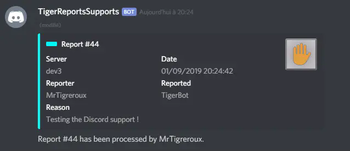
Processed report:
Commands:
Installation
Creation of the Discord bot- Go on this web page: https://discordapp.com/developers/applications/me (You must be logged on Discord)
- Click on the New App button:

- Put the bot name of your choice under Name. Then click on Create.

- Convert the App to Bot by clicking on Add Bot button:

- Untick Public bot, untick Requires OAuth2 Code Grant and tick Message Content Intent, then Save Changes:
 )
)
- Open a new web page and paste, without validating, this URL:
https://discordapp.com/api/oauth2/authorize?client_id=<ID>&scope=bot&permissions=0

- Replace the
<ID>in the above link with your bot Client ID, then press Enter:


- Select your Discord server, then authorize the bot to join:


The Discord bot is now created and is a member of your Discord server.
Installation of TigerReportsSupports
- Stop your Spigot server.
- Install the latest version of TigerReports plugin if you don't already have it.
- Download and put TigerReportsSupports.jar file in the
pluginsfolder of your server. - Launch your server.
If you have a BungeeCord network, you can install this plugin:
on only 1 Spigot server (recommended):
- Advantages:
- You only need to edit 1 config.yml file to change settings of your Discord bot.
- The bot is managed by only 1 Spigot server, that means that all your other Spigot servers don't consume their resources (CPU, RAM, ...) for the Discord bot.
- Disadvantage:
- The server where TigerReportsSupports is installed needs at least 1 player to receive BungeeCord notifications and then update the Discord bot. That means that the reports aren't displayed by the Discord bot if there is no player on the server where the plugin is installed.
- Advantages:
on all your Spigot servers (not recommended):
You need to set NotifyOnlyLocalReports setting toyesin the config.yml file of all your Spigot servers.- Advantage:
- All reports will be displayed on Discord, whereas there is at least 1 player on the Spigot server or not.
- Disadvantages:
- All settings in config.yml file only concern the Spigot server where they are. That means that if you want to change a setting of your Discord bot, you will have to change the config.yml file of all your Spigot servers.
- All your Spigot servers will use their resources (CPU, RAM, ...) to run the TigerReportsSupports plugin and therefore manage the Discord bot.
- Advantage:
- Open config.yml file in
./plugins/TigerReportsSupportsfolder. - Replace "false" to "true" for
Discord: Enabled. - Copy the Discord bot Token from the web page of the bot (here if you closed it) by clicking on Copy button and put it for
Discord: Token.

- Go on your Discord server and right click on the text channel you want the bot to use and then click on
Copy the id:

Other way of getting the id: type the name of the text channel you want the bot to use with a "" before, then copy it (highlighted below)

- Put the channel ID (previously copied) in the config to
Discord: Channel. - Type in a channel of your Discord server the reload command:
/tigerreports reload.
That's it, the bot will now display all new reports in this channel.
You can change every message in messages.yml file and then reload with the previous command.
Config
The plugin can be configured in config.yml file.
Discord:
  Enabled: Define if the Discord support is used.
  Token: Define the Token of the Discord bot.
  Channel: Define the channel used by the Discord bot.
  Managers: Define users who can use the /tigerreports command.
            Remove the "none" and the "#" and replace "pseudo" with the Discord (unique) name of an user.
  ServerInfo: Display or not the server field in alerts.
The default config.yml settings are here.
Messages
Messages are by default in french but all can be modified in messages.yml file.
Why? Because I'm french I don't want the default messages of the plugin to have bad english but I nevertheless wrote a base of english below if you don't have the time/motivation to translate them by yourself.
They are updated after all new versions.
In order to make the Discord bot tag(/mention) a Discord role, you can put <@&ROLE_ID> in messages.yml file with ROLE_ID replaced by the id of the role that you can get by typing \@ROLE_NAME in a Discord channel with ROLE_NAME replaced by the name of the role.
Important: If you use Minecraft 1.8 or less, you must encode messages.yml file with ANSI, else you must encode it with UTF-8.
If messages are not changed, it means that you encoded with wrong format.
Also, you can't put a comment (#Message) at first line of the file. If you do it messages will simply not be implemented.
Update your messages
If you recently updated TigerReportsSupports to the latest version, you can update your messages (in messages.yml file) with this online tool:
Default messages
Click on your language below, then press CTRL and A keys to select all the messages and then copy/paste them (CTRL and C then CTRL and V).
(thanks to people who shared these translations, their pseudo is at the top of the file)
Commands
There are currently 2 commands for the Discord bot:
/tigerreports reload: Reloads the config files (config.yml and messages.yml)./tigerreports stop: Disconnect the bot.
Terms of Service
Please respect my work respecting these directions:
- Do not claim this plugin as yours.
- Do not distribute or sell this plugin on this site or another, just redirect to this page.
- Do not copy part or all of source code without quoting me and notifying me (MrTigreroux).
And that's all, thank you for reading this page.
If you want to look at sources, the plugin is on GitHub.
If you encounter any bug or have suggestions, let me know them here:
I will answer as soon as possible.
Please keep in mind that I made this plugin for free to help people who don't know how to create their own plugin, a like or feedback is highly appreciated. :)
- Edition: Minecraft Java
- File type: .jar
- Minecraft versions listed: 1.7.2, 1.7.3, 1.7.4
- How to install: Install the matching mod loader (Forge, Fabric or NeoForge) for your Minecraft version. → Download the .jar. → Put it in the .minecraft/mods folder and launch that loader profile.
- Where to get it: Opens on Modrinth — not every file is mirrored on our own servers.
Install steps are the general flow for this file type — How to install Minecraft Java mods & modpacks walks through it step by step.
- Ships as TigerReportsSupports.jar — drop this file into the mods folder
- Download size: 7.0 MB
- Download link checked 9 Sept 2026 — working
These come from our own check of the pack file, not from the source page.