
ModsJava
HereEngy
Java mod listed for Minecraft 1.21–26.x. Downloads from the MC Java Mods app on Android.
⬇ Download on Modrinth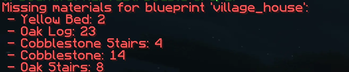
HereEngy
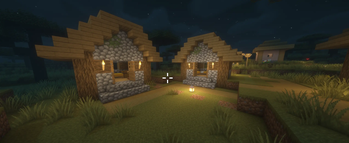
A premium Paper Minecraft plugin for automated building, schematic recording, and construction animation — capture structural blueprints using a Compass selection tool, view material lists, dynamically preview building footprints using local client particle outlines, and watch structures construct block-by-block with sound and particle effects!
Features
- Compass Selection Tool — Left-click a block with a standard Compass to set Point A (Anchor/relative origin), and Right-click to set Point B (opposite corner). Receives structural size and volume summaries instantly in chat.
- Global Blueprint Sharing — Blueprints are saved to a shared global directory (
plugins/HereEngy/blueprints/<name>.json). Any player can load, view, and construct any blueprint on the server. - Shopping Lists (
/he info) — Detailed blueprint viewer displaying dimensions, block count, creator, and a compiled material list indicating the exact blocks and quantities required for construction. - Visual Bounding Box Previews (
/he preview) — Project a glowing bounding box particle outline around the target footprint before building. Alignment updates dynamically as you adjust your line of sight. - Gradual Build Tasks — Constructs blueprints layer-by-layer (sorted Y-ascending, from the foundation up) at a safe rate of 10 blocks per tick. Minimizes server lag, avoids anti-cheat blocks, and creates a satisfying building animation with sound effects and block particles.
- Double-Block Optimization — Intelligently detects and manages multi-block items (doors, beds, double tall plants) so they only count and consume one inventory item instead of two.
- HereRolePlay Integration — Integrates with the HereRolePlay plugin, granting players Crafting/Engineering Experience upon completing blueprint constructions.
- Security Protection — Only the original creator of a blueprint or a server Operator (
/op) can delete saved blueprints from the server.
Commands
All commands can be prefixed with /hereengy, /he, or /engy.
| Command | Description | Permission |
|---|---|---|
/he select |
Start a real-time visual selection box session targeting the block in sight. | hereengy.use |
/he save <name> |
Save current selection area as a blueprint. | hereengy.use |
/he load <name> |
Load blueprint as the player's active build template. | hereengy.use |
/he rotate <left|right|mirror|flip> |
Rotate or mirror the loaded blueprint in memory (supports /he blueprint rotate <op>). |
hereengy.use |
/he list |
List all saved blueprints and their creators. | hereengy.use |
/he info [name] |
View blueprint details and required item quantities. | hereengy.use |
/he preview |
Toggle dynamic visual particle bounding box of loaded blueprint. | hereengy.use |
/he cancel |
Stop the player's running active building task. | hereengy.use |
/he delete <name> |
Delete a blueprint (Creator or Operator only). | hereengy.use |
How to Use (Step-by-Step HOWTO)
1. Selecting and Saving a Building
- Stand near the building you want to capture.
- Look at the base/ground block directly below the starting corner of your building, and run
/he select.- A green particle bounding box will instantly render around the target block.
- An interactive selection session starts in your chat (with a 60-second inactivity timeout).
- Adjust the Selection Box: Type sizing commands in chat to wrap your building:
- Multi-axis assignment: Type
x 10 y 15 z 12to instantly resize. - Negative / Inverted Selection: You can select underground or backwards by typing negative numbers! For example,
x 20 y -10 z -20to select down into the ground. - Quick Adjustments: Type
xorx+to expand the X-axis by 1 block,x-to shrink it by 1 block (works foryandztoo).
- Multi-axis assignment: Type
- Compass Adjustment: You can also hold a Compass in your main hand and click blocks:
- Left-click a block to update/re-center the starting anchor point.
- Filters & Conversions: When saving, HereEngy automatically:
- Ignores water, lava, grass, and non-placeable clutter blocks (like portal gates or frogspawn) so they aren't written to the blueprint.
- Converts farmland (
FARMLAND) and grass/dirt paths (DIRT_PATH) into normalDIRTblocks.
- Save: Once the green particle outline perfectly wraps your building, type a single word in chat (e.g.
stone_towerorcozy_cabin). This automatically verifies the box has blocks, saves the blueprint to disk, and ends selection mode. (You can also typecancelat any time to abort).
2. Loading and Orienting the Blueprint
- Load your saved blueprint using
/he load <name>. - Rotate or Mirror: You can dynamically rotate or flip the building before placing it:
/he rotate right(or/he blueprint rotate right) — Rotates the structure 90 degrees clockwise (swaps width/depth)./he rotate left(or/he blueprint rotate left) — Rotates the structure 90 degrees counter-clockwise./he rotate mirror— Mirrors the structure along the X-axis./he rotate flip— Flips the structure along the Z-axis.- Note: This rotation is applied in-memory for your session (not on disk). Directional blocks (stairs, chests, doors, etc.) automatically rotate their block states.
3. Previewing and Placing
- Look at the ground block where you want to construct the building and run
/he preview.- A red particle outline will appear showing exactly where the blueprint will build.
- Notice: The outline automatically sits +1 block above the ground block you target, so the building sits nicely on top of the soil instead of sinking.
- Walk to your desired placement spot.
- Make sure you have the required materials in your inventory (check
/he info). If you are in Creative Mode, materials are not consumed. - Hold a Compass in your main hand, sneak, and Shift+Right-click the ground block.
- The building will construct block-by-block, sitting perfectly on top of the ground block you clicked! You can cancel the construction task at any time using
/he cancel.
Quick facts
- Edition: Minecraft Java
- File type: .jar
- Minecraft versions listed: 1.21, 1.21.1, 1.21.2
- How to install: Install the matching mod loader (Forge, Fabric or NeoForge) for your Minecraft version. → Download the .jar. → Put it in the .minecraft/mods folder and launch that loader profile.
- Where to get it: Opens on Modrinth — not every file is mirrored on our own servers.
Install steps are the general flow for this file type — How to install Minecraft Java mods & modpacks walks through it step by step.
File checked by MCModsHub
- Ships as HereEngy-1.0.1.jar — drop this file into the mods folder
- Download size: 51 KB
- Download link checked 25 Oct 2026 — working
These come from our own check of the pack file, not from the source page.