
Features
 Network Health Scanner
A diagnostic tool for detecting network issues:
- Loop Detection: Scans your AE2 network to find cable loops that may cause network instability. Do note that loops are not necessarily a problem, as AE2 can handle them just fine, but they can cause issues in some specific cases. Loops are only relevant if all other potential issues have been ruled out.
- Non-Chunkloaded Chunks Detection: Identifies network components in non-chunkloaded chunks. Cables and wireless connectors in unloaded chunks should also be detected (as long as they are connected to a loaded chunk), but unloaded Quantum Bridges cannot be detected, due to only being registered when the chunk is loaded. Detecting them would involve scanning every unloaded chunk in the world.
- Channel Chokepoints: Finds locations where channel demand exceeds cable capacity, with per-direction flow breakdown. Due to slight differences in how AE2 calculates channel flow, the exact chokepoints may differ from what cables actually see, but it should still give you a good idea of where the bottlenecks are.
- Missing Channels: Lists devices that require a channel but couldn't get one. This category usually pairs with the chokepoints, as they point to the exact places where the channels are missing. Providing enough channels to the chokepoints should make these issues disappear.
- Pattern issues: Detect issues with patterns in the network, such as :
- Duplicate outputs: Multiple patterns producing the same item, which will cause conflicts. One of the patterns will be chosen at random by AE2, which can lead to unpredictable crafting behavior.
- Broken patterns: Crafting patterns whose recipe is not valid anymore, usually due to a mod update/removal. These patterns will be ignored by the crafting system, which can lead to crafting failures if they were used in any active recipes.
- Nested patterns: Patterns that require the output as an input. These patterns will fail to craft, as AE2 cannot handle this kind of recipe. Note that this cannot detect a loop of patterns, only direct self-dependencies in a pattern, as detecting loops of patterns would require simulating the crafting of each pattern, which is very expensive performance-wise.
- Fatal Errors: Detects critical issues that may cause the network to work in a degraded state or not work at all. As these issues are unusual, they are aggregated instead of having their own categories. This currently includes:
- Main Network connected to itself via Subnet: This creates a loop that causes ghost items, desync, and general instability.
- Multiple Storage Buses on the same block: This causes double counting (ghost items), resulting in desync and instability.
- Visual Overlay: Shows directional arrows pointing to problem locations.
- Interactive GUI: Browse and select detected issues, organized by dimension.
- Subnet Scanning: Toggle whether to include components from connected subnets in the scan.
Usage:
- Right-click on any network component to start a scan
- Right-click in air to open the results GUI
- Shift-right-click to toggle the overlay display
 Priority Tuner
A tool for quickly setting and applying storage priorities:
- Set Priority: Shift-right-click in air to open a GUI and set the stored priority value
- Apply Priority: Right-click on any AE2 block to apply the stored priority
- Auto-Apply: When held in off-hand, automatically applies stored priority when placing AE2 blocks
Usage:
- Shift-right-click in air to open the Priority GUI and set a stored value
- Right-click on AE2 blocks (ME Drives, ME Chests, Buses, etc.) to apply the stored priority
- Hold in off-hand for automatic priority application on block placement
 Cards Distributor
A tool to distribute cards from your inventory to Molecular Assemblers on the network. Supports:
- Acceleration Cards for AE2 Molecular Assemblers
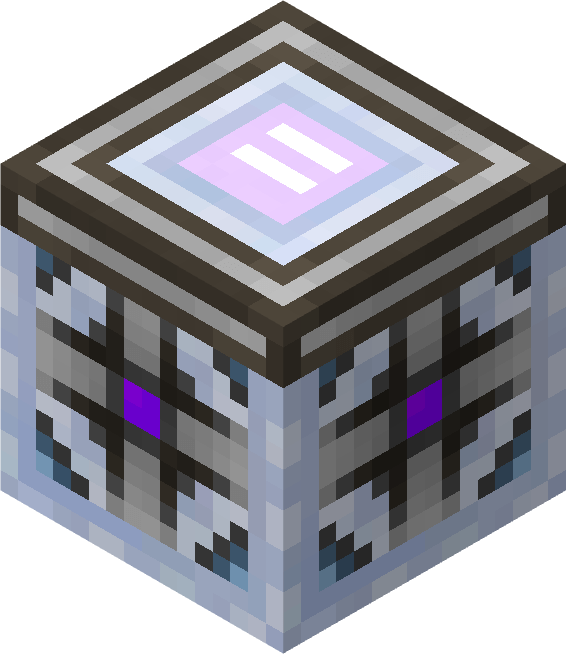 Better Level Maintainer
A block that automatically maintains item quantities in your AE2 network by scheduling crafting jobs.
Features:
- Multiple Recipes: Manage an unlimited(-ish) number of things to maintain (supports items, fluids, and gases).
- Target Quantities: Set the desired quantity for each item (shift-scroll the entry to double/halve quantity quickly).
- Batch Crafting: Configure how many items to craft per run. The maintainer WILL NOT ask less than the batch size, so do not set it too high, or you may end up with no request at all if the network can't reach the required amount of input resources.
- Customizable Frequency: Set check intervals from seconds to days (ctrl-scroll the entry to double/halve the time quickly).
- CPU Management: Automatically queues tasks when no CPU is available, up to a certain limit (configurable). Any tasks that exceed this limit will be marked as "error" until a CPU is available again. This prevents the maintainer from scheduling an unmanageable amount of tasks when the network is under heavy load or can't keep up with the demand.
- Status Indicators: Visual color coding shows the state of each recipe:
- Gray: Recipe is disabled (click the item name or right-click the entry to enable/disable)
- No color: Idle, waiting for next check
- Light Blue: Scheduled to run
- Green: Currently crafting
- Yellow: Stalled (waiting for resources)
- Red: Error (no recipe, no CPU, missing resources)
- Purple: Post-crafting error (no space for output)
Usage:
-
- Place the Better Level Maintainer block and right-click to open the GUI
- Click on an empty slot to add a recipe
- In the modal, click the item slot to select a craftable item from your network
- Set the target quantity (how many items you want to maintain)
- Set the batch size (how many to craft at once)
- Set the frequency (how often to check, e.g., "1h 30m" for every 1.5 hours)
- The maintainer will automatically craft <batch size> items when quantity falls below target
Tips:
- Set batch size high to avoid frequent crafting (you may even set it to several times the target quantity). Be mindful of setting it too high, as it may cause resource shortages or crafting failures if the network can't keep up.
- Use subnets to reduce the load when calculating the recipes, as the load scales with the number of items and patterns in the network.
- Try to keep the recipes simple and avoid long crafting chains, as they are exponentially more expensive to calculate and schedule.
- Prefer longer check intervals. You can batch 10k every 100 minutes instead of 100 every minute, which will be much easier on the network and still keep your stock at the desired level.
- Make sure you have enough CPUs, energy, and crafting resources to keep up with the scheduled tasks, especially if you have many recipes, long recipes, or short check intervals.
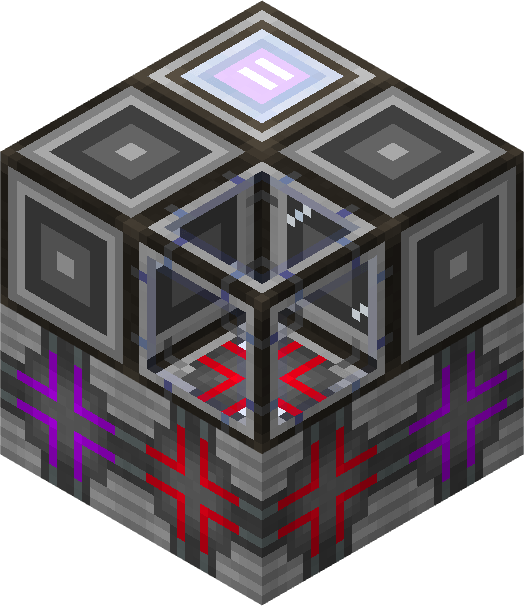 AutoCrafter
A powerful automation block that automatically crafts items using patterns from your AE2 network. Think of it as a RFTools Crafter with 12 recipe slots and a whole AE2 Network as both input and output. You can use it on-demand by using it in a subnet: interface (mainnet) -> interface (subnet) -> AutoCrafter -> insert-only storage bus (subnet) -> interface (mainnet).
Features:
- 12 Recipe Slots: Configure up to 12 different recipes.
- Pattern Support: Insert any AE2 crafting pattern to define the recipe (does not work with PROCESSING patterns, for obvious reasons). You can insert patterns from the outside by right-clicking the block with them, or from the inside by placing them in the pattern slot of each recipe entry.
- Pattern Multi-Tool support: If you have the Pattern Multi-Tool in your inventory/baubles, you can access its patterns directly from the AutoCrafter GUI. The x2/x3/+1 buttons do not work as they make no sense for CRAFTING patterns (converting the patterns into PROCESSING patterns when used).
- Recipe Preview: Visual 3x3 input grid showing required ingredients and output.
- Catalyst Inventory: Local 9-slot internal inventory per recipe for reusable/duplication items, or intermediary tools with durability (if the last recipe didn't completely consume them). AE2 is notoriously bad at handling reusable or nested items in crafting recipes, so this is a necessary workaround to be able to use them in automation.
- Performance Optimization: Caches recipe simulation on load and only recalculates it the when recipe changes. This means the expensive part (when it comes to crafting) is only done once, and then the AutoCrafter will just rely on the cached results for subsequent crafts, which is very fast.
- Batch Crafting: Configure how many items to craft per operation, while decreasing the crafting speed accordingly. A batch size of 50x means 50x the inputs, for 50x the output, but will run 1/50th of the speed. It will still consume the same amount of resources per second, just in bigger, slower bursts. This is ideal for performance, as the importing/exporting of resource will run less frequently, while keeping the same overall throughput. A Crafter Speed Upgrade card (tier I/II/III/IV) can be used to increase this batch size even further, without speed penalty (the batch size is increased instead of the speed to avoid spamming the network, which causes lag). The base batch per operation can be set in config.
- Speed Control: Set crafting interval from 1 second to days (1s, 1m, 1h, 1d increments). NOTE: this setting explicitly slows down crafting. You may want to use "Batch size" instead, to craft more items per operation without slowing down the overall crafting speed.
- Partial Crafting: If there aren't enough resources to craft the full batch size, the crafter will automatically scale down the batch size to craft as many items as possible with the available resources, instead of just waiting for a full batch worth of resources to be available. You can see precise statistics about the error rate (see States Indicators) and occupancy (how much the recipe had to be scaled down) of each recipe in the Overview page, to help identify bottlenecks or resource shortages. The efficiency% of a recipe can be calculated as (1 - error rate%) * occupancy%, so a recipe with 50% error rate and 50% occupancy would have an overall efficiency of 25%, while a recipe with 0% error rate and 50% occupancy would have an overall efficiency of 50%.
- Network Integration: Automatically extracts inputs from ME storage and inserts outputs back. There is no external inventory, the whole network is the inventory. Just make sure to have enough drives/interfaces/storage buses to hold the required items, and the AutoCrafter will take care of the rest.
- State Indicators: Color-coded status for each recipe entry:
- Gray (Disabled): Recipe is disabled
- No color (Idle): Waiting for next craft cycle
- Orange (Missing Catalyst): Required catalyst items (insert manually in the internal inventory)
- Red (Missing Input): Required ingredients not available in network (couldn't even make a single item)
- Purple (No Output Space): Network storage full
- Yellow (Simulation Failed): Recipe simulation failed
- Blue (Holding Output): Waiting to insert output into network
- Overview Mode: See all 12 recipes at a glance on a single page, without having to switch between pages. The output item, state indicator, and error rate/occupancy (since world load) are shown for each recipe, to help identify bottlenecks or resource shortages.
- Fake Player Crafting: Compatible with mods that require player context for crafting.
Usage:
-
- Place the AutoCrafter block and right-click to open the GUI
- Insert a crafting pattern into the pattern slot
- The recipe preview will show required inputs and output
- Add the required reusable/duplication items to the 9-slot internal inventory
- Configure batch size (how many to craft per cycle) via the Batch button
- Configure speed (base crafting interval) via the Speed button
- Toggle entries on/off by clicking the state indicator
- Use page navigation or Overview button to switch between recipes
- Add drives to hold the input/output items
- Add interfaces to interact with your main AE2 network, like you would do a normal crafter
Tips:
- Use larger batch size to avoid querying the network too often.
- The Overview mode lets you quickly check the status of all 12 recipes
- Shift-click on +/- buttons in Speed GUI for 10x increments
 Network Advanced Component Locator
An advanced tool for finding and navigating to specific components in your AE2 network:
- Component Grid: Displays all component types on your network in a scrollable grid (similar to AE2's Network Tool)
- Location Browser: Click any component type to see all its locations sorted by distance from you
- Visual Overlay: Highlights selected component locations with in-world wireframe outlines and directional arrows
- Distance Display: Shows distance to each component location, with automatic unit conversion (m/km)
- Multi-Selection: Select multiple locations to highlight them simultaneously
- Subnet Scanning: Toggle whether to include components from connected subnets in the scan
- Compact/Tall View: Switch between a compact 4-row view or a taller view that fits more items on screen
Usage:
- Right-click on any network component to scan the network and open the component grid GUI
- Right-click in air to reopen the GUI with the last scan results
- Shift-right-click to toggle the overlay display
GUI Navigation:
-
- The grid view shows all component types with their count (like AE2's Network Status)
- Click a component type to enter detail view and see all locations
- Click locations to select/deselect them (selected locations show overlays in-world)
- Use "Select All" / "Clear All" buttons to manage selections quickly
- Use the style button (left of GUI) to toggle between compact and tall view
- Use the subnet button (left of GUI) to toggle subnet scanning on/off
- Click the back arrow or press Escape to return to the grid view
Tips:
- Past a configurable distance, the overlay shows directional arrows pointing toward selected locations, helping you navigate
- Locations are automatically sorted by distance, so the closest ones appear first
- Use subnet scanning when you need to find components across multiple connected networks
- Toggle overlay off when not needed to reduce screen clutter, if you may hold it in hand for prolonged periods of time
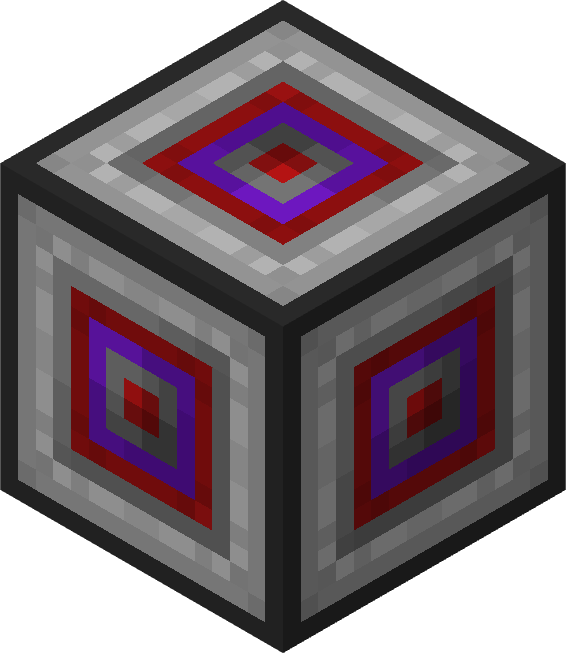
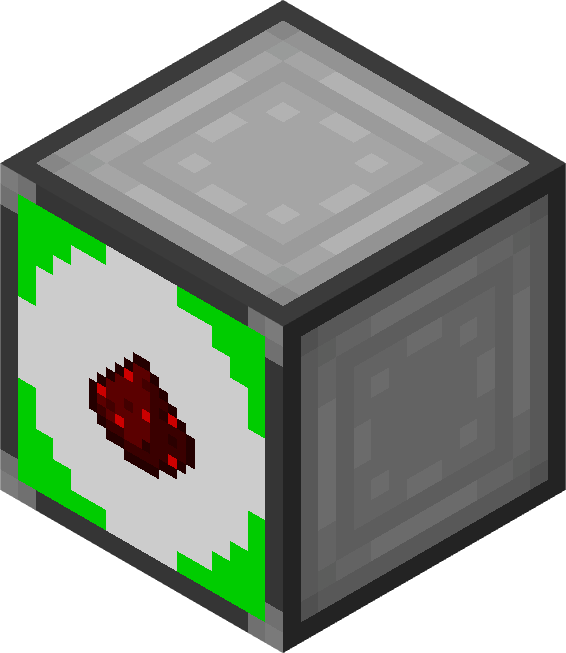 Storage Level Emitter & Display
A full-block/part variant of the Level Emitter and Storage Monitor, with a configured polling type and item/fluid/gas/essentia support.- Polling Interval: Set how often to check the quantity in the network (from 1 second to days). This keeps the process efficient by avoiding constant checks and updates, while still providing timely information.
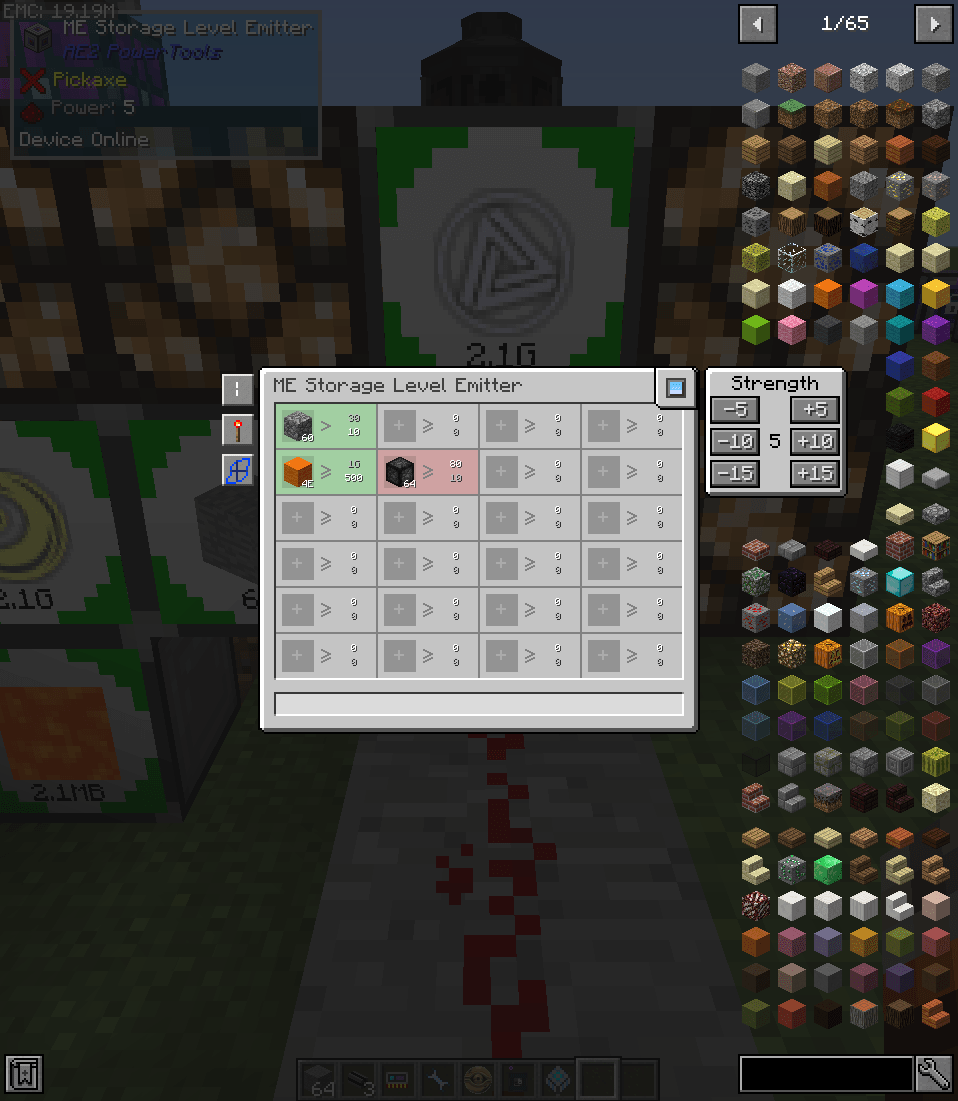
- Multiple resources: You can set up to 24 resources in a single block, which will decide on the state. Using the AND/OR logic, you can create complex conditions to trigger redstone signals based on multiple resource levels. For example, you could set it to emit a signal if "Iron Ingots <= 100 OR Redstone > 50", or "Water > 500 AND Buckets > 500".
- Colored corners: The Storage Display block has colored corners that visually indicate the state of the matching logic, telling you at a glance if the conditions are met or not.
Remote Storage Monitor
A bauble/held item that shows the quantity variation of configured content in the network as an overlay on the screen, over a set period of time.- Configurable Content: Set any item/fluid/gas/essentia to monitor from your network
- Configurable Time Window: Choose the time period over which to track quantity changes (e.g., last 5 minutes)
- Real-Time Overlay: See the quantity variation as an overlay on your screen, updating every time the time window elapses. This means a 5-minute window will update every 5 minutes, showing the change in quantity over the last 5 minutes.
- Reduced Screen Clutter: Only the resources that changed within the last time window are shown, so you can easily track active resources without being overwhelmed by the full 81 slots of the Storage Monitor GUI.
Usage:
- Configure the monitor by right-clicking it in air, and selecting the content to track and the time window
- Hold the monitor in your main/off-hand or baubles to see the overlay on screen
- Once you do not need it anymore, you can simply put it in your inventory or a chest, and the overlay will disappear
Level Monitor Alarm
A block that monitors contents in the attached AE2 network and alerts any registered player (register in the GUI) when the level of any monitored content falls below a specified threshold. You will get a warning overlay for as long as any of your monitored alarms are active, with location details. You can also use the Level Monitor Alarm Locator to get a visual overlay pointing to the location of the active alarms. The overall system works very similarly to the Storage Level Emitter, but with direct user feedback instead of redstone output. You can import filters from any Better Level Maintainer, AE2 AutoCrafter, Storage Level Emitter, or Storage Display via Memory Card. If you do, I would recommend setting the threshold to a fraction of the target quantity in the source block, to avoid getting constant alarms when the level fluctuates around the threshold.NOTE: This block is intended as a safety net for automation systems. It is usually recommended to pair it with a Better Level Maintainer, an AutoCrafter, or any passive setup, to warn you when something broke or cannot keep up with the demand. For a monitoring tool, prefer the Storage Level Emitter/Storage Display or the Remote Storage Monitor. The warning overlay WILL NOT DISAPPEAR until the content levels are back above the threshold!
Textures:
- Priority Tuner, Network Health Scanner: SangreBK
- Storage Level Emitter block, Storage Display block: NerdySpider
- Edition: Minecraft Java
- File type: .jar
- How to install: Install the matching mod loader (Forge, Fabric or NeoForge) for your Minecraft version. → Download the .jar. → Put it in the .minecraft/mods folder and launch that loader profile.
- Where to get it: Opens on CurseForge — not every file is mirrored on our own servers.
Install steps are the general flow for this file type — How to install Minecraft Java mods & modpacks walks through it step by step.
- Ships as ae2-powertools-1.4.1.jar — drop this file into the mods folder
- Download size: 246 KB
- Download link checked 18 Sept 2026 — working
These come from our own check of the pack file, not from the source page.