
Picture Axe
Java mod listed for Minecraft 1.21. Downloads from the MC Java Mods app on Android.
Place images from the web into your Minecraft world in various ways. From beds, banners, and shields you can put images onto vast array of things.
I don't know my version or loader


Decorate your world with any image from the web!
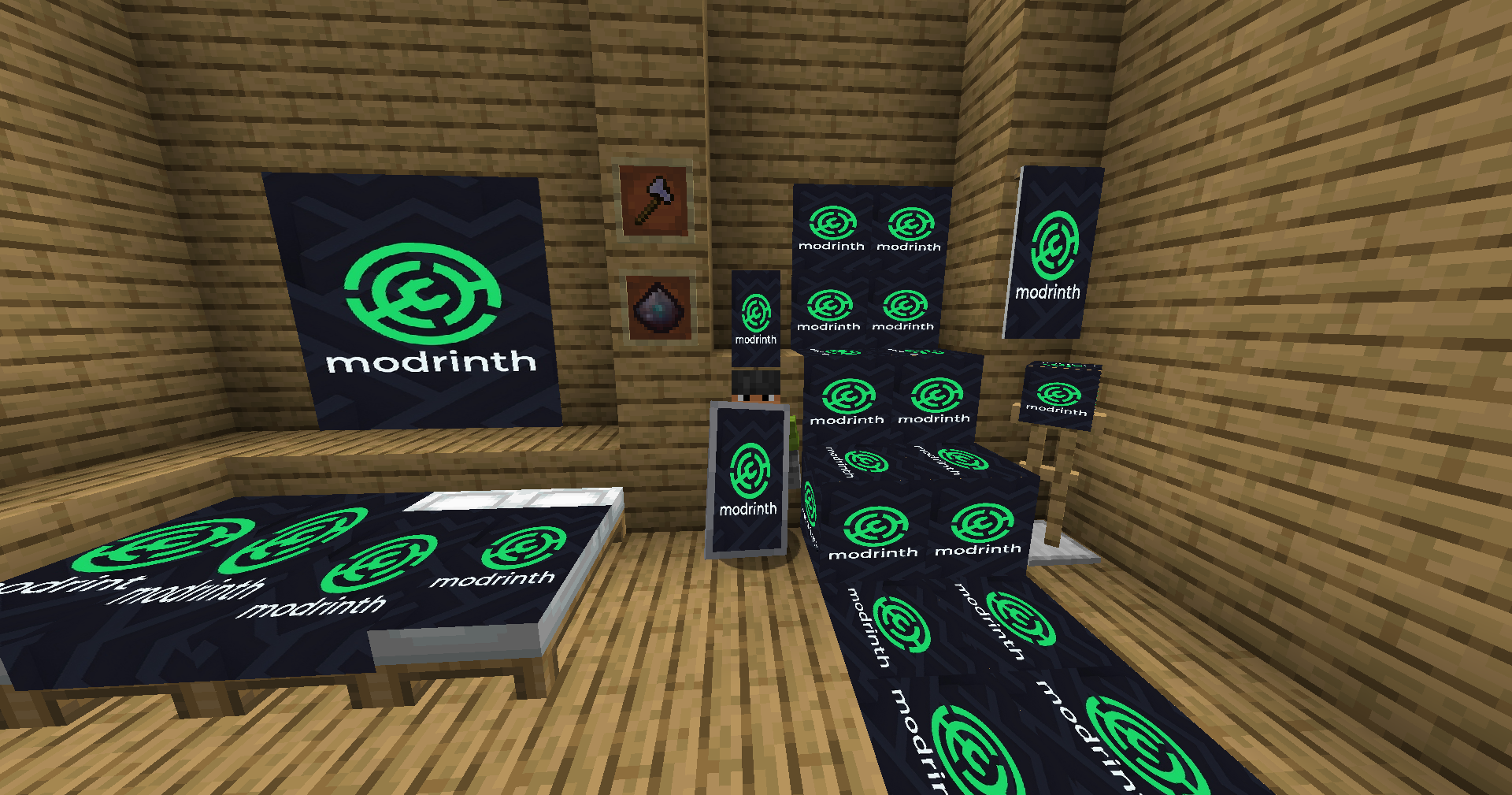
PicAxe is the ultimate decoration mod that gives you the power to bring any image from the internet directly into your Minecraft world. Personalize your base like never before by applying custom textures to beds, banners, shields, and a variety of new, versatile blocks. Make your world uniquely yours!
Features
- The PicAxe Tool: A special tool used to copy and paste image URLs. Sneak + Right-Click in the air to open a simple UI and store your link.
- Image Beds: Convert any vanilla bed into a canvas! Apply your image and cycle through different styles, from a full drape to a simple sheet pattern.
- Image Banners & Shields: Turn a banner into a high-definition picture that waves in the wind. Combine it with a shield in a crafting grid to take your art into battle!
- 6-Sided Image Block: A creative block that can have a different, unique image applied to each of its six faces. Perfect for detailed displays and hidden art.
- Resizable Image Frame: A dynamic frame block that can be resized from 1x1 up to 6x6. Configure it to either stretch the image to fit or keep its original aspect ratio.
- Simple to Use: A single, unified system controls everything. Just Right-Click with the PicAxe to apply images and configure your blocks.
How to Use
- Copy an Image URL: Find an image on the web and copy its URL. (Pro-tip: Use URLs that end in .png or .jpg for best results!)
- Store the URL: Hold your PicAxe and Sneak + Right-Click in the air to open the URL input screen. Paste your link and click "Confirm".
- Apply the Image:
- Right-click on any vanilla Bed, Banner, or one of the new blocks (Image Frame, 6-Sided Block) to apply the stored image. This will convert the vanilla block into its "Image" version.
- Configure Blocks:
- Image Beds: Right-click an Image Bed again with the same URL on your PicAxe to cycle through its different rendering styles.
- 6-Sided Block: To apply an image to a specific face, simply right-click on that face with the PicAxe.
- Image Frame: After applying an image, right-click the frame again to open its config screen where you can set its size (Width/Height) and toggle the stretch mode.
Crafting Recipes
Pixel Dust (x16)
A mystical powder that fuels all image-based crafting.
Shapeless Recipe:
- 4x Redstone
- 4x Lapis Lazuli
- 1x Diamond
PicAxe Tool
A magical axe used to store and apply image URLs.
 P
PAP
 P
- P = Pixel Dust
- A = Iron Axe
Image Frame
A resizable frame for your pictures.
GPG
PLP
GPG
- G = Glass Pane
- P = Pixel Dust
- L = Any Log
6-Sided Image Block
A block with a canvas on every face.
GPG
PLP
GPG
- G = Glass
- P = Pixel Dust
- L = Any Log
Image Shield
Display your art while defending yourself.
Shapeless Recipe:
- 1x Shield
- 1x Image Banner
Inspiration
This mod was inspired by the original Images mod.
Installation
This mod requires the Architectury API or Balm API. Please make sure to install the right one for your version!
For Fabric 1.20-1.21:
- Download and install the Fabric Loader.
- Download the Fabric API.
- Download the Architectury API.
- Place the PicAxe mod .jar and the downloaded APIs into your
modsfolder.
For NeoForge 1.20-1.21:
- Download and install the latest version of NeoForge.
- Download the Architectury API.
- Place the PicAxe mod .jar and Architectury API into your
modsfolder.
For Fabric 1.21.5+:
- Download and install the Fabric Loader.
- Download the Fabric API.
- Download the Balm API.
- Place the PicAxe mod .jar and the downloaded APIs into your
modsfolder.
For NeoForge 1.21.5+:
- Edition: Minecraft Java
- File type: .jar
- Minecraft versions listed: 1.21.6, 1.21.7, 1.21.8
- How to install: Install the matching mod loader (Forge, Fabric or NeoForge) for your Minecraft version. → Download the .jar. → Put it in the .minecraft/mods folder and launch that loader profile.
- Where to get it: Opens on Modrinth — not every file is mirrored on our own servers.
Install steps are the general flow for this file type — How to install Minecraft Java mods & modpacks walks through it step by step.
- Ships as picaxe-neoforge-1.21.8-1.0.9.jar — drop this file into the mods folder
- Download size: 222 KB
- Download link checked 10 Oct 2026 — working
These come from our own check of the pack file, not from the source page.