HomeJavaModsCamera Obscura
Camera Obscura
ModsJava

Camera Obscura

by tomalbrc · on Modrinth

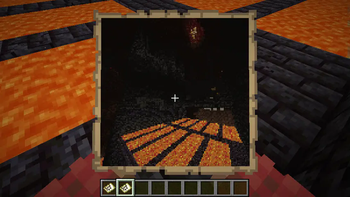
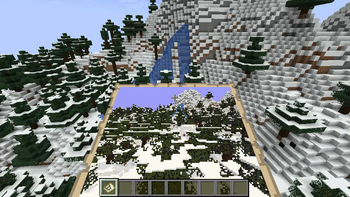
Take Photos of your world or server as Map Item, no client-side mods required!. Free Minecraft Java mod for 26.1, 26.1.1, 26.1.2.

Which Minecraft do you have?

Every version of the game needs its own build. Pick yours, then download — the wrong build installs fine and then does nothing in the game. This mod is built for Fabric only.

⬇ Download for 26.1–26.1.2⬇ Download for 1.21.11⬇ Download for 1.21.9–1.21.10⬇ Download for 1.21.6–1.21.8⬇ Download for 1.21.5⬇ Download for 1.21.4⬇ Download for 1.21.2–1.21.3⬇ Download for 1.21–1.21.1⬇ Download for 1.20.6⬇ Download for 1.20.4⬇ Download for 1.20.1
I don't know my version or loader
Open the Minecraft launcher and look at the profile you play on — it names both, like fabric-loader-1.21.4. The version also shows in the bottom-right corner of the game's main menu.
No loader in the profile name? Then it's plain Minecraft, and these mods won't run — you need Fabric or NeoForge installed first.
Camera Obscura — screenshot 1Camera Obscura — screenshot 2Camera Obscura — screenshot 3Camera Obscura — screenshot 4Camera Obscura — screenshot 5Camera Obscura — screenshot 6Camera Obscura — screenshot 7Camera Obscura — screenshot 8

This mod will no longer be updated on modrinth!

See https://www.curseforge.com/minecraft/mc-mods/camera-obscura-serverside-rendering for the latest version!

Camera Obscura

Animated Render

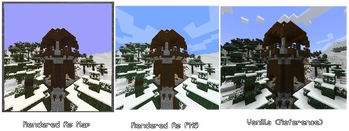
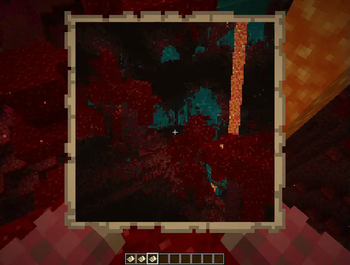
Camera Obscura is a server‑side software rasterizer that renders the world as seen by any entity (player, mob, etc.) directly on the server, producing Photos or Videos as Minecraft maps. It has deep integrations for custom items (Nexo, ItemsAdder) and a custom preset system.


Features

PNG Render


Installation

Fabric Server

  1. Install Fabric API and Polymer (for virtual items).
  2. Place camera-obscura-fabric.jar into your mods/ folder.
  3. The configuration file will be created on start.

Configuration

The configuration file is config/cameraobscura/config.json.

{
  "renderDistance": 32,
  "showSystemMessages": false,
  "renderEntities": true,
  "fullbright": false,
  "fov": 70,
  "biomeBlend": 1,
  "ssaa": 2,
  "maxChunkRebuildsPerTick": 5,
  "debug": false,
  "cameraConsumesItem": true,
  "cameraConsumeItem": "map",
  "commandPermissionLevel": 2
}
Option Description
renderDistance View distance in blocks (higher = longer render time).
showSystemMessages Show “Taking photo…” / “Done!” messages in chat.
renderEntities Whether to render entities (players, mobs, item frames) in the picture.
fullbright Ignore lighting (everything appears at full brightness).
fov Field of view in degrees (default is 70).
biomeBlend Radius for blending block colors (biome tint). 0 = no blending.
ssaa Supersampling anti‑aliasing factor (1 = off, 2 = 2x supersampling, 3 = 3x).
maxChunkRebuildsPerTick Maximum chunks rebuilt per frame per video recording and live-map (to limit CPU spikes).
debug Print frame timings and show FPS overlay on the output image.
cameraConsumesItem Whether taking a photo consumes an item (e.g. a map).
cameraConsumeItem Required item material (e.g. map, paper).
commandPermissionLevel Base permission level for commands.

Commands & Permissions

Base permission cameraobscura.command.

All commands use the root /camera-obscura

1. Take a map from your perspective

/camera-obscura [scale]

2. Take a map of another entities perspective

/camera-obscura <entity> <player> [scale]

3. Save as PNG image

/camera-obscura save [entity] [scale]

4. Reload configuration

/camera-obscura reload

Reloads the config file.

5. Clear resource/model cache

/camera-obscura clear-cache

6. Give a camera item

/camera-obscura give <preset> [player]

Examples:


📷 Using the Camera Item

Basic Camera

Camcorder


Components

The mod uses data components to store camera settings on the item stack.

This allows you to create cameras with different resolutions, color modes, and video parameters using standard commands, recipes, or loot tables.

Available Components

Component ID Type Description
camera-obscura:color string (ColorMode) "COLOR", "MONOCHROME", "GRAYSCALE", "SEPIA"
camera-obscura:resolution {width:int, height:int} Resolution in pixels (e.g. {width:256, height:256})
camera-obscura:dither string (DitherMode) "NONE", "BAYER_2X2", "FLOYD_STEINBERG", etc. (see full list below)
camera-obscura:video {frame_rate:int, max_frames:int, loop_playback:bool} Video recording parameters
camera-obscura:map unit Marks the item as a live map (internal)
camera-obscura:camera_entity entity_reference Stores the entity that took the photo (internal)
camera-obscura:data {id:uuid, video_params:...} Internal video data

DitherMode values: NONE, BAYER_2X2, BAYER_4X4, BAYER_8X8, FLOYD_STEINBERG, ATKINSON, JARVIS_JUDICE_NINKE, STUCKI, SIERRA, BURKES


Using Components in Commands

/give

/give @p camera-obscura:camera[camera-obscura:color="SEPIA",camera-obscura:resolution={width:512,height:512},camera-obscura:dither="FLOYD_STEINBERG"]

/item modify

Create a data pack with an item modifier:

{
  "function": "set_components",
  "components": {
    "camera-obscura:color": "GRAYSCALE",
    "camera-obscura:resolution": { "width": 192, "height": 192 },
    "camera-obscura:dither": "BAYER_8X8"
  }
}

Then run: /item modify entity @s weapon.mainhand my_pack:camera_settings


Using Components in Recipes

In a crafting recipes:

{
  "type": "minecraft:crafting_shaped",
  "pattern": ["###", "#P#", "###"],
  "key": {
    "#": "minecraft:iron_ingot",
    "P": "minecraft:ender_pearl"
  },
  "result": {
    "id": "camera-obscura:camera",
    "components": {
      "camera-obscura:color": "SEPIA",
      "camera-obscura:resolution": { "width": 128, "height": 128 },
      "camera-obscura:dither": "NONE"
    }
  }
}

For a camcorder (video mode), include video:

"components": {
  "camera-obscura:color": "COLOR",
  "camera-obscura:resolution": { "width": 256, "height": 256 },
  "camera-obscura:video": { "frame_rate": 15, "max_frames": 300 }
}

Giving a Camcorder with Default Video Settings

The basic camcorder item (without components) uses global config defaults. To explicitly set video parameters:

/give @s camera-obscura:camcorder[camera-obscura:video={frame_rate:10,max_frames:200,loop_playback:true}]

Built-in Items

On Fabric, Camera Obscura adds a few built‑in camera and camcorder items with pre‑configured settings (color mode, resolution, video parameters).

Camera Items (Photo Mode)

Item ID color Mode Resolution Dithering
camera-obscura:camera COLOR 128×128 NONE
camera-obscura:grayscale_camera GRAYSCALE 128×128 NONE
camera-obscura:primitive_camera MONOCHROME 128×128 NONE
camera-obscura:retro_camera SEPIA 128×128 NONE

Camcorder Items (Video Mode)

Record videos with pre‑set framerate and max frame count.

Item ID color Mode Resolution Dithering Video (FPS / Max Frames)
camera-obscura:camcorder COLOR 128×128 NONE 10 FPS / 400 frames
camera-obscura:grayscale_camcorder GRAYSCALE 128×128 NONE 20 FPS / 400 frames
camera-obscura:primitive_camcorder MONOCHROME 128×128 NONE 20 FPS / 400 frames
camera-obscura:retro_camcorder SEPIA 128×128 NONE 20 FPS / 400 frames

Usage example:

/give @s camera-obscura:grayscale_camera

Video Playback

To play back a video maps:

Presets

You can add your own presets, pre‑configured camera items with custom materials, display names, and camera settings (resolution, color mode, dither mode, video parameters).

Presets are stored in presets.json and can be given to players using the /camera-obscura give <preset> <player> command.


Preset Configuration Format

The presets.json file contains a JSON object where each key is a preset name and the value is an object with the following fields:

Field Description
material Item ID (e.g. "paper", "clock")
camera Camera‑specific options (see below)
components Optional vanilla data components to apply to the item stack (1.20.5+)

Camera Options

All fields are optional

Field Type Description
resolution { width, height } Output resolution in pixels (e.g. { "width": 256, "height": 256 })
color_mode string "COLOR", "MONOCHROME", "GRAYSCALE", "SEPIA"
dither_mode string "NONE", "BAYER_2X2", "FLOYD_STEINBERG", etc.
video_params { frame_rate, max_frames } Video recording parameters

Default Presets

The mod ships with several ready‑to‑use presets. You can modify or delete them as you like.

{
  "camera": {
    "material": "paper",
    "camera": {
      "resolution": { "width": 128, "height": 128 },
      "color_mode": "COLOR",
      "dither_mode": "NONE",
      "video": { "frame_rate": 0, "max_frames": 1 }
    },
    "components": {
      "minecraft:item_name": { "text": "Camera", "color": "gold" },
      "minecraft:max_stack_size": 1
    }
  },
  "camcorder": {
    "material": "paper",
    "camera": {
      "resolution": { "width": 128, "height": 128 },
      "color_mode": "COLOR",
      "dither_mode": "NONE",
      "video": { "frame_rate": 20, "max_frames": 200 }
    }
  },
  "instant": {
    "material": "paper",
    "camera": {
      "resolution": { "width": 256, "height": 256 },
      "color_mode": "SEPIA",
      "dither_mode": "BAYER_4X4"
    },
    "components": {
      "minecraft:item_name": { "text": "Instant Camera", "italic": false }
    }
  },
  "polaroid": {
    "material": "paper",
    "camera": {
      "resolution": { "width": 512, "height": 512 },
      "color_mode": "GRAYSCALE",
      "dither_mode": "FLOYD_STEINBERG"
    },
    "components": {
      "minecraft:item_name": { "text": "Polaroid", "color": "white" },
      "minecraft:custom_model_data": 1
    }
  },
  "pro_camera": {
    "material": "ender_eye",
    "camera": {
      "resolution": { "width": 128, "height": 128 },
      "color_mode": "COLOR",
      "dither_mode": "NONE",
      "video": { "frame_rate": 30, "max_frames": 600 }
    },
    "components": {
      "minecraft:item_name": { "text": "Pro Camera", "color": "light_purple", "bold": true },
      "minecraft:max_stack_size": 1,
      "minecraft:custom_model_data": 2
    }
  },
  "handycam": {
    "material": "clock",
    "camera": {
      "resolution": { "width": 256, "height": 256 },
      "color_mode": "COLOR",
      "dither_mode": "BAYER_2X2",
      "video": { "frame_rate": 15, "max_frames": 450 }
    },
    "components": {
      "minecraft:item_name": { "text": "Handycam", "color": "aqua" },
      "minecraft:max_stack_size": 1
    }
  },
  "cctv": {
    "material": "observer",
    "camera": {
      "resolution": { "width": 192, "height": 192 },
      "color_mode": "MONOCHROME",
      "dither_mode": "SIERRA",
      "video": { "frame_rate": 5, "max_frames": 30000 }
    },
    "components": {
      "minecraft:item_name": { "text": "CCTV Camera", "color": "dark_gray" },
      "minecraft:max_stack_size": 1
    }
  }
}

Using Presets in Commands

/camera-obscura give camera
/camera-obscura give camcorder
/camera-obscura give instant
/camera-obscura give handycam Notch

Tab completion suggests available preset names.

Reloading Presets

After editing presets.json while the server is running, run:

/camera-obscura reload

This reloads both the main configuration and all presets without restarting the server.


How It Works (Technical Overview)

Camera Obscura runs completely on the server and uses a software rasterizer to draw the scene pixel by pixel.

Performance considerations


Troubleshooting

Problem Check
Photo doesn't appear in inventory Check that cameraConsumesItem is false or you have the required item (e.g. a map).
“Missing required item” message You need the configured cameraConsumeItem material in your inventory.
Very long render times (> 5 seconds) Reduce renderDistance, ssaa, or resolution. Enable debug to see per‑frame timings.
Server crashes with OOM error Increase server memory (-Xmx2G or more). Lower renderDistance and ssaa.
Custom Nexo/ItemsAdder item ignored Ensure the camera section is correctly indented and the mechanic is spelled exactly camera.

Verified by MCModsHub

These come from our own check of the pack file, not from the source page.

Explore more