
Province of Music
Java mod listed for Minecraft 1.21. Downloads from the MC Java Mods app on Android.
⬇ Download on Modrinth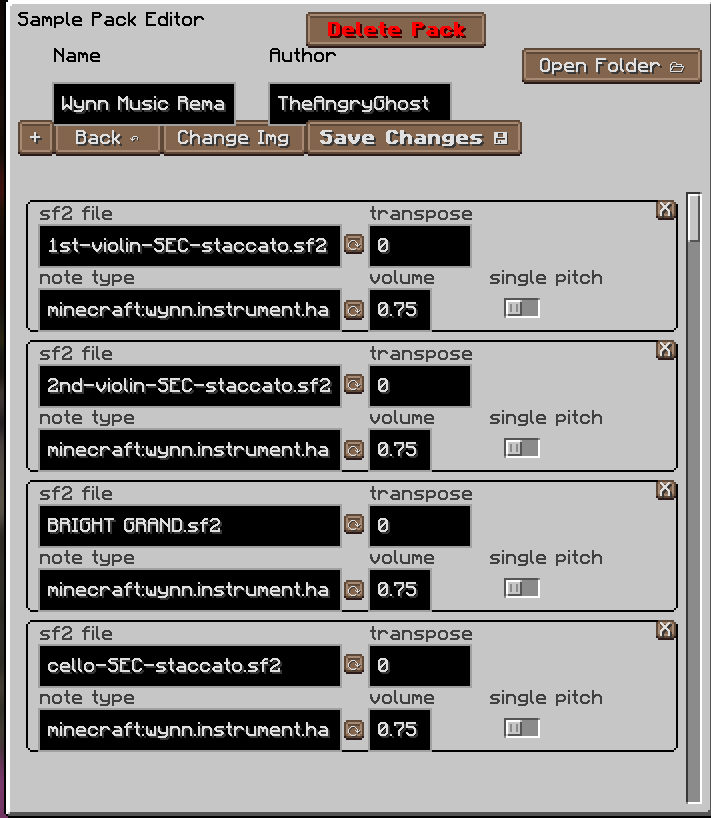
What does Province Of Music do?
Province of Music is the Ultimate Wynncraft Music Mod.
This mod allows you to replace the Wynncraft noteblock song instruments with digital instruments the same kind that is used in professional music. This mod also allows you to record the noteblock Wynncraft OST and convert it to a midi file which makes the ability to make song remixes faster and easier.
Many people think that the music in Wynncraft could be improved upon significantly. Many people used resource packs to make the instruments sound better but it wasn't very customizable and was very hard to do. This mod uses a new format specifically made to replace noteblock instruments. Similar to a resource pack, texture pack, or data pack this format is known as a sample pack. Sample packs can be created inside this mod and replace the sound files entirely with sf2 soundfont files. sf2s can be made with many different programs but I personally recommend Polyphone.
Helpful Links:
If you run into any issues or find bugs when installing or using the mod, contact me on my discord server linked above
How do I use a sample pack?
Starting in version 1.3.0 the Wynn Music Remastered Sample Pack I created can be auto installed. When running the mod for the first time a prompt to install the sample pack should appear simply click yes and then close window to install. If the prompt doesn't appear or you want to update your version of the sample pack to the latest one use the command /updateWMR.
Getting to the configuration menu
First go to Province of Music's config menu. To get there press these buttons From the Title Screen: Mods > Province Of Music > Configure...



Importing the Sample Pack
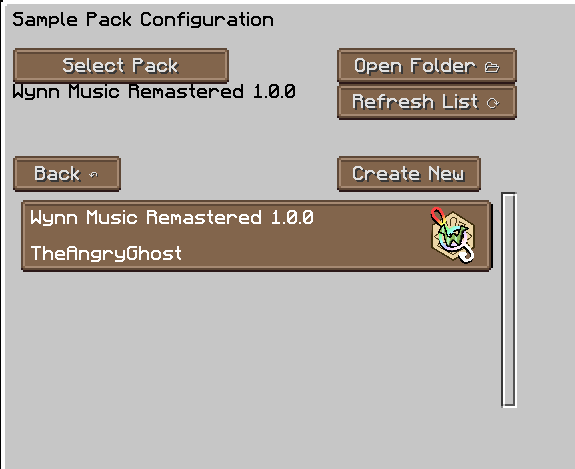
Then to change your sample pack click "Sample Pack Editor" to get to the sample pack configuration menu

Then click "Open Folder" to get to where your sample packs are stored
Then put the sample pack you want in there make sure it is a folder not a zip > note: if you don't have one here is a link to one I made
After that once you have the sample pack you want click "Refresh List"
You should now see the sample pack in the list Click "Select Pack" followed by the sample pack in the list you will know you did it right if the name of the sample pack appears under the "Select Pack" button



After you have selected your pack there is one more step. You need to save the changes so go back to the previous menu with the "Back" button and then hit "Save Changes"

Note: It will take a few seconds for it to load
Note: If you want to hear the difference between the sample pack and default use the "Toggle Replace Music" keybind

How do I record Midi files with this mod?
Recording
Setup the keybind "Record Midi"
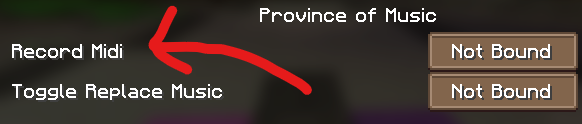
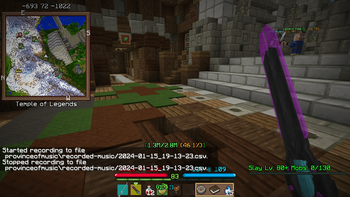
Once you have done that when in game wait for the song you want to record to start playing then hit the key you bound to "Record Midi". When it is done press the key again to stop.
Finding your recording
To find your recording go to Province of Music's config menu. To get there press these buttons From the Title Screen: Mods > Province Of Music > Configure...
Then press the "Recorded Music Editor" button

when you started recording it showed a bunch of numbers find that in the list. > Note: it is also the date and time you took the recording Click that option in the list below Hit the "Replay" button to replay the song to make sure its the correct recording
Converting your recording to Midi
Then hit the "Export" button to turn the recording into a midi file
From there the "Open Folder" button will take you to that midi file

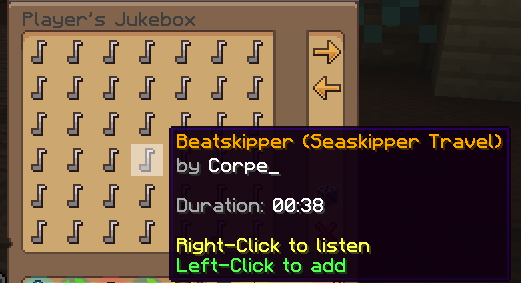
Note: If you make a lot of remixes I'd recommend buying VIP+, Hero, or Champion rank on Wynncraft's store to get the jukebox which allows you to play any of the songs in game at any time anywhere
- https://store.wynncraft.com/#ranks
How do I create sample packs with this mod?
Getting to the Sample Pack Editor
To create a sample pack go to Province of Music's config menu. To get there press these buttons From the Title Screen: Mods > Province Of Music > Configure...
Press the "Sample Pack Editor" button
Press the "Create New" button
Then click the new sample pack on the list
Changing the Name and Author and Icon

Change "Unnamed" to what you want to name the sample pack and the "None Listed" to the author of this sample pack The Change Img button will change the icon of the sample pack. Click it and find a png icon that you want to use as the icon with the file explorer popup.
Creating an Instrument Rule
To replace a noteblock instrument create a rule by hitting the "+" button

This is what a rule looks like
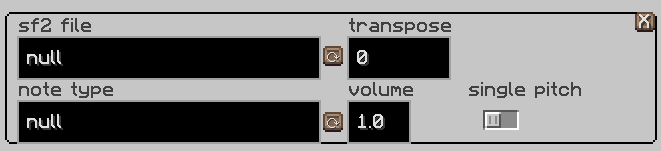
Note Type
the note type is the note block instrument you want to replace hit the
button to change it
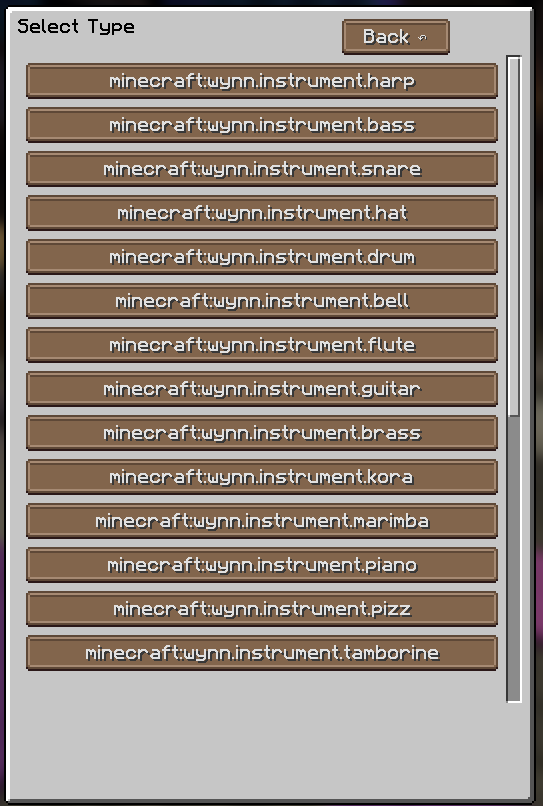
click the one you want to replace out of the list
SF2 File
the sf2 file is the actual digital instrument file that you want to replace with. to change it click the
Note: Polyphone can also convert sf3, sfArk and sfz soundfonts to sf2
to add it to the sample pack hit the "Open Folder" button
then add it to the folder "instrumentfiles"

after that you should be able to find it from the list after hitting the
Transpose
this will change the pitch of the notes by the number in the box in semitones. Note: there are 12 semitones in an octave Negative numbers pitch down Positive numbers pitch up
Volume
the number in this box controls the volume of the notes. 1.0 is the max 0 is the min
Single Pitch
when this is on every note will be changed to a single pitch if it follows the rule the pitch starts at Middle C (Midi Note 60) and can be pitched with the transpose option to reach the desired pitch this is useful for drums
The "X" button in the top-left corner will delete the rule

After you have made all the changes you want hit the "Save Changes" button
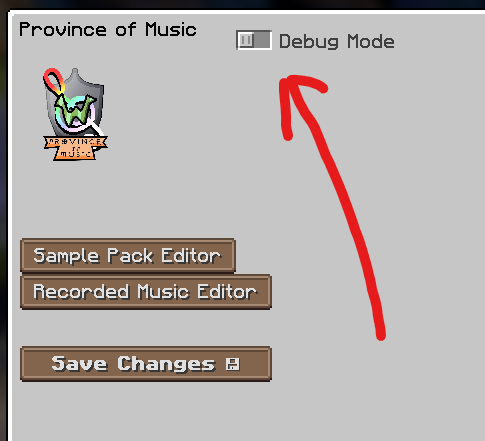
Note: the debug mode toggle tells you what instruments are being played in a song so if you don't know the names of the instruments that's how you can figure it out
Additional Notes
There are keybinds to get to the Config Menu and Sample Pack Editor Menu (1.1.0) The /updateWMR can be used to update or install the latest version of the Wynn Music Remastered Sample Pack (1.3.0) This mod requires 8GB of ram allocated to Minecraft otherwise no music will play
Credits
This project uses code from these sources:
- Edition: Minecraft Java
- File type: .jar
- Minecraft version listed: 1.21.11
- How to install: Install the matching mod loader (Forge, Fabric or NeoForge) for your Minecraft version. → Download the .jar. → Put it in the .minecraft/mods folder and launch that loader profile.
- Where to get it: Opens on Modrinth — not every file is mirrored on our own servers.
Install steps are the general flow for this file type — How to install Minecraft Java mods & modpacks walks through it step by step.
- Ships as provinceofmusic-2.0.4.jar — drop this file into the mods folder
- Download size: 730 KB
- Download link checked 11 Oct 2026 — working
These come from our own check of the pack file, not from the source page.