

Beautiful Statistics Screen
A comprehensive statistics overhaul mod that completely reimagines how you track, visualize, and interact with your Minecraft statistics. Features an intuitive UI, advanced custom statistics with visual condition editing, real-time HUD, interactive charts, and extensive customization options.
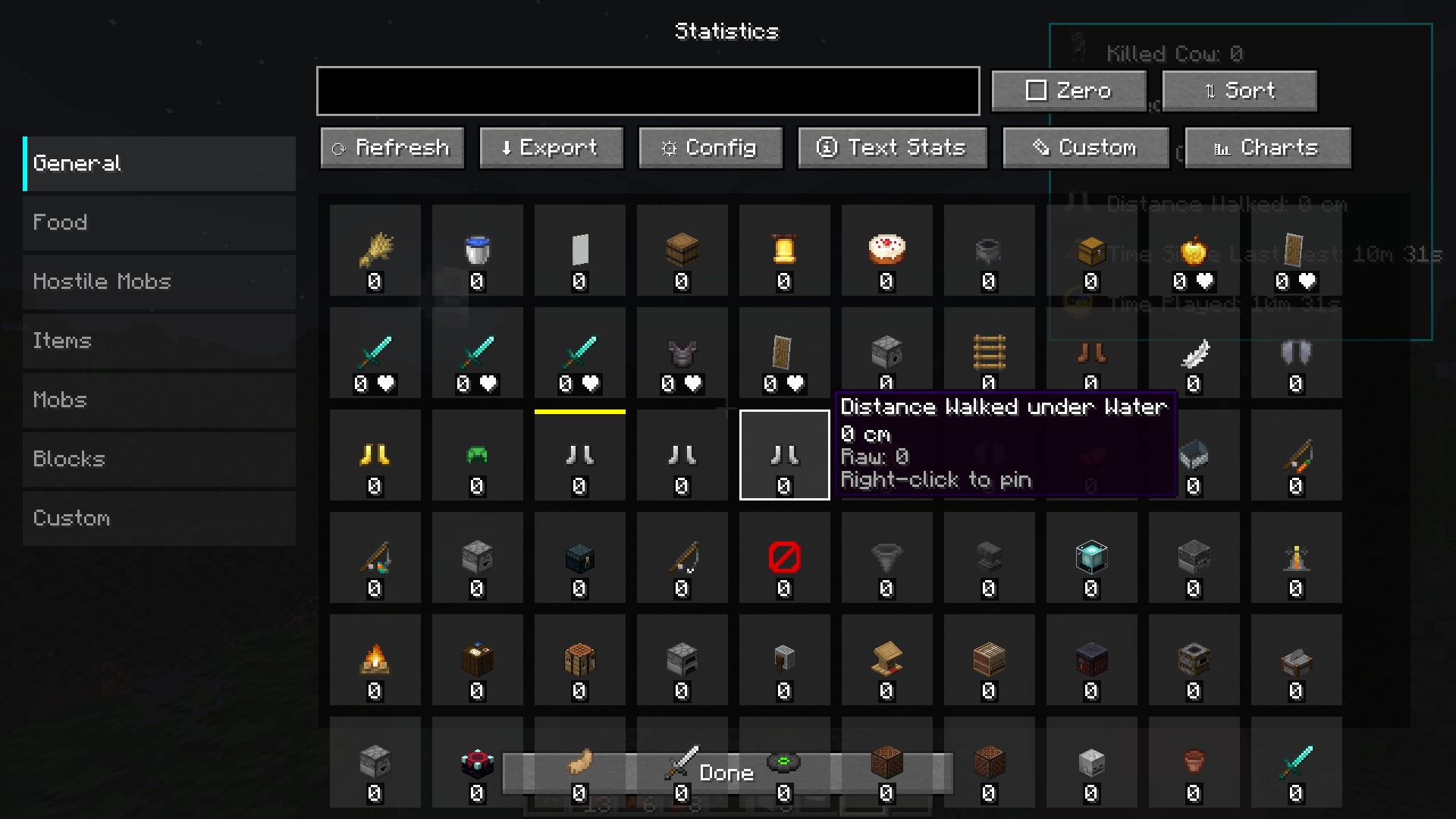 The enhanced statistics interface with categorized tabs, search, and grid layout
Overview
Beautiful Statistics Screen transforms Minecraft's statistics system into a powerful analytics tool. Track vanilla stats, create custom statistics with complex conditions, visualize your data with interactive charts, and monitor your progress in real-time with a customizable HUD overlay.
Platform Support: Available for both Fabric and Forge
Version: 1.20.1
Built with: Architectury API for cross-platform compatibility
Feature Showcase
 Visual tour of major features: Enhanced UI, Custom Stats, Visual Editor, HUD, Charts, and more
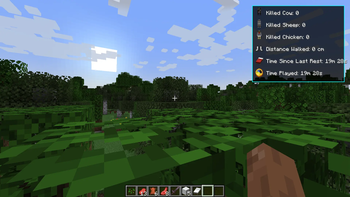
 Beautiful Statistics Screen in action during gameplay
Core Features
Enhanced Statistics Interface
The main statistics screen provides a complete overhaul of the vanilla statistics interface with modern UI elements and improved organization.
Features:
- Categorized Stats: Statistics are automatically organized into categories (General, Food, Items, Mobs, Hostile Mobs, Blocks, Custom)
- Real-time Search: Instantly filter statistics with a live search bar
- Flexible Sorting: Sort by name (A-Z, Z-A) or value (High to Low, Low to High)
- Zero Filtering: Toggle to show/hide statistics with zero values
- Tab Memory: The interface remembers your last selected category
- Grid Layout: Stats displayed in an organized grid with icons and values
- Smooth Scrolling: Navigate large lists of statistics with mouse wheel support
- Theme Support: Dark and Light themes available
Accessing:
- Press
K(default keybinding) to open the statistics screen - Or navigate through the pause menu
 Browse stats by category: General, Food, Items, Mobs, Hostile, Blocks, and Custom
 Real-time search and filtering options with sorting controls
Custom Statistics System
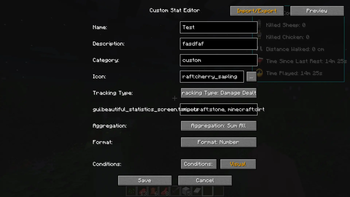
Create your own statistics that track exactly what you want, with support for complex conditions and multiple tracking types.
Tracking Types
Custom statistics support multiple tracking methods:
- Block Mined: Track specific blocks broken
- Item Used: Monitor item usage (eating, placing, etc.)
- Item Crafted: Count crafting events
- Item Picked Up: Track items collected
- Item Dropped: Monitor items dropped
- Entity Killed: Count mob kills
- Killed By Entity: Track deaths by specific mobs
- Distance: Measure travel distance with various methods
- Time: Track time played or specific durations
- Event Count: Count custom game events
Target Specification
Define what to track using resource IDs:
- Single Target:
minecraft:diamond_ore - Multiple Targets:
minecraft:stone, minecraft:dirt, minecraft:cobblestone - Wildcard:
*to match all items/blocks/entities
Aggregation Methods
Choose how to combine values from multiple targets:
- Sum: Add all values together
- Average: Calculate the mean value
- Maximum: Take the highest value
- Minimum: Take the lowest value
- Count: Count how many targets have non-zero values
Display Formats
Control how statistics are displayed:
- Number: Plain numeric value (e.g., 1234)
- Distance: Formatted with units (e.g., 5.2 km)
- Time: Human-readable duration (e.g., 2h 15m)
- Percentage: Shown as percent (e.g., 75%)
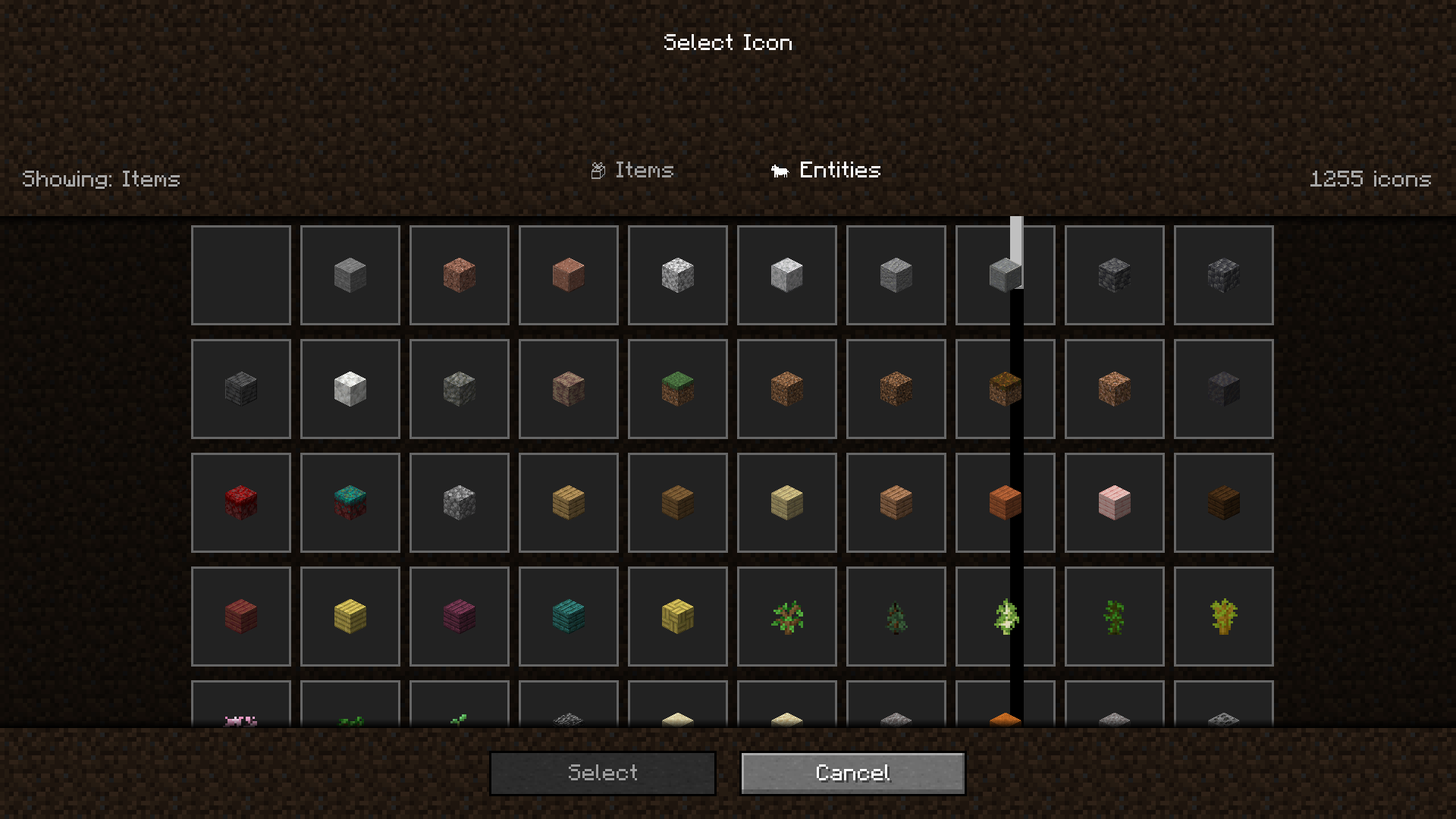
Icons
Customize stat appearance:
- Choose any Minecraft item as the icon
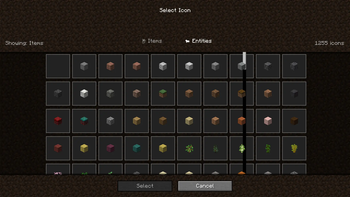
- Visual icon picker with searchable item list
- Preview icons before applying
 Create custom statistics with tracking types, targets, aggregation, and formatting options
Visual icon picker with search functionality to choose the perfect icon
Visual Condition Editor (Scratch Blocks)
The revolutionary visual condition editor allows you to create complex tracking conditions without writing code, using an intuitive drag-and-drop block system inspired by Scratch.
How It Works
Build logical conditions using visual blocks that snap together:
Basic Logic Blocks:
- IF: Define a primary condition
- AND: All conditions must be true
- OR: At least one condition must be true
- NOT: Inverts the condition result
Advanced Logic Blocks:
- XOR: Exactly one condition must be true (exclusive or)
- NAND: Not all conditions are true (not and)
- NOR: None of the conditions are true (not or)
- IMPLIES: If first is true, second must be true
Control Flow:
- ELSE IF: Alternative condition if previous IF/ELSE IF was false
- ELSE: Fallback when no conditions match
Condition Types
Each block can test different game conditions:
Location-Based:
- Biome: Check current biome (e.g., minecraft:plains)
- Dimension: Test which dimension player is in (overworld, nether, end)
- Y Level: Check vertical position (useful for mining stats)
Environmental:
- Light Level: Test block or sky light levels
- Time of Day: Check game time (day, night, specific times)
- Weather: Test if raining, thundering, or clear
Player State:
- Health: Check player health level
- Hunger: Test food level
- Experience: Check XP level
- Game Mode: Test survival, creative, adventure, spectator
Equipment:
- Holding Item: Check held item
- Wearing Armor: Test equipped armor pieces
Advanced:
- Block Below: Check block player is standing on
- Nearby Entities: Detect entities within range
- Advancement: Test if advancement is completed
- Effect: Check for active potion effects
Operators
Compare values using standard operators:
- Equals: Exact match (=)
- Not Equals: Different from (≠)
- Greater Than: Larger than (>)
- Less Than: Smaller than (<)
- Greater or Equal: At least (≥)
- Less or Equal: At most (≤)
- Contains: String contains substring
- Starts With: String begins with
- Ends With: String ends with
Visual Editor Interface
Canvas:
- Drag blocks to arrange them
- Snap blocks together to form logic trees
- Color-coded blocks for easy identification
- Nested block structure shows hierarchy
Palette:
- All available block types organized by category
- Click to add blocks to the canvas
- Tooltips explain each block type
Actions:
- Edit: Modify block conditions and values
- Delete: Remove individual blocks
- Clear: Remove all blocks from canvas
- Done: Save and return to stat editor
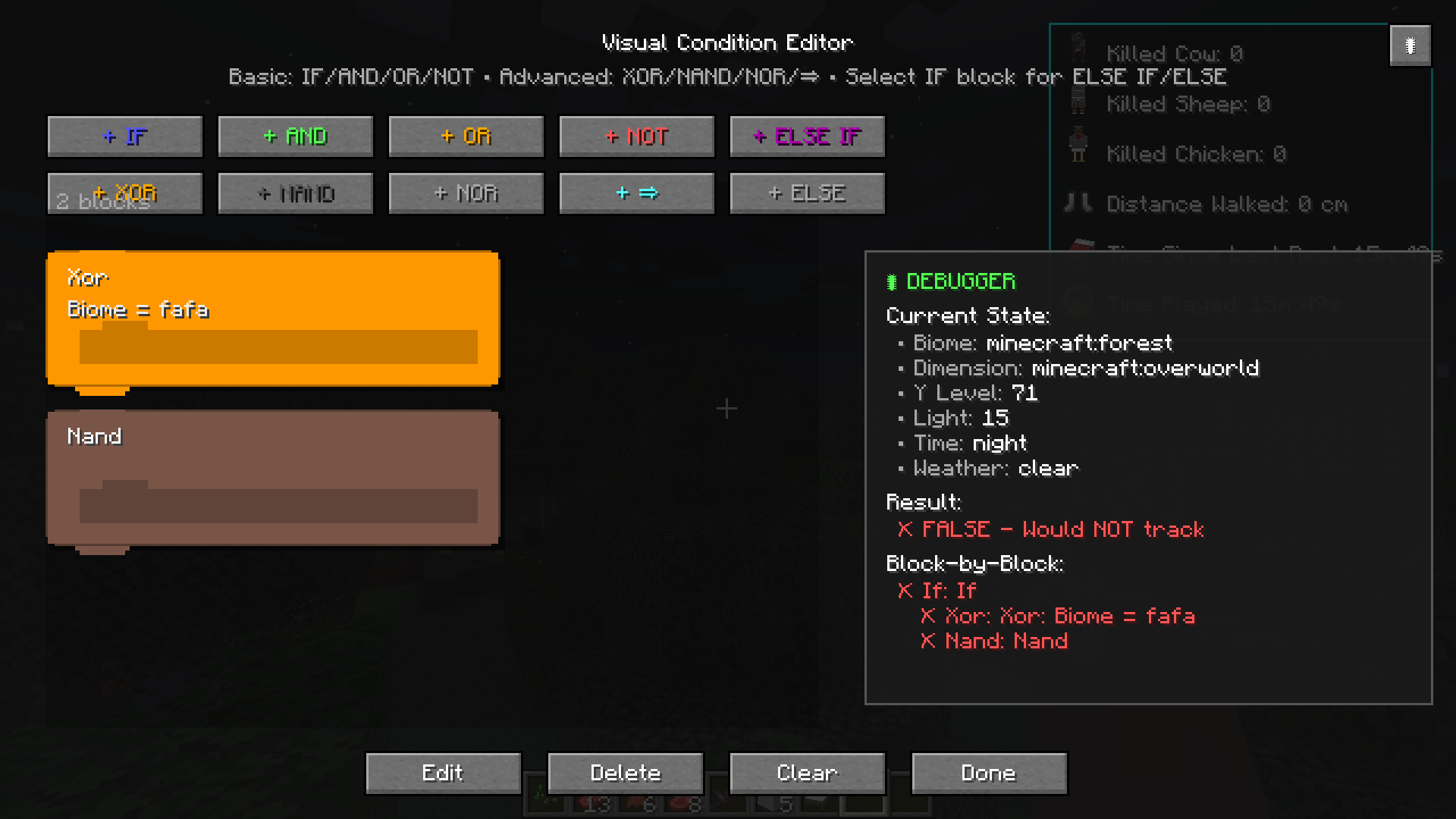 Build complex logic with visual Scratch-style blocks - no coding required
 Example: Track diamonds mined only in caves at night below Y=16
Live Debugger
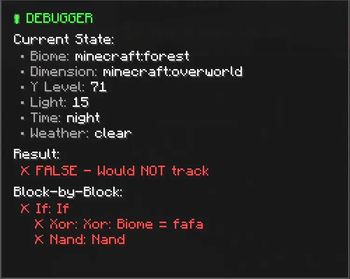
Test conditions in real-time without saving:
Features:
- Shows current game state (biome, dimension, Y level, light, time, weather)
- Real-time condition evaluation (TRUE/FALSE)
- Block-by-block breakdown showing which conditions pass/fail
- Color-coded results (green for true, red for false)
- Updates as you move or game state changes
Usage: Click the debugger button (bug icon) in the visual editor to open the live debugger panel. It displays:
- Current environmental conditions
- Overall result (Would track: YES/NO)
- Individual block evaluation results
- Helpful for understanding why conditions match or don't match
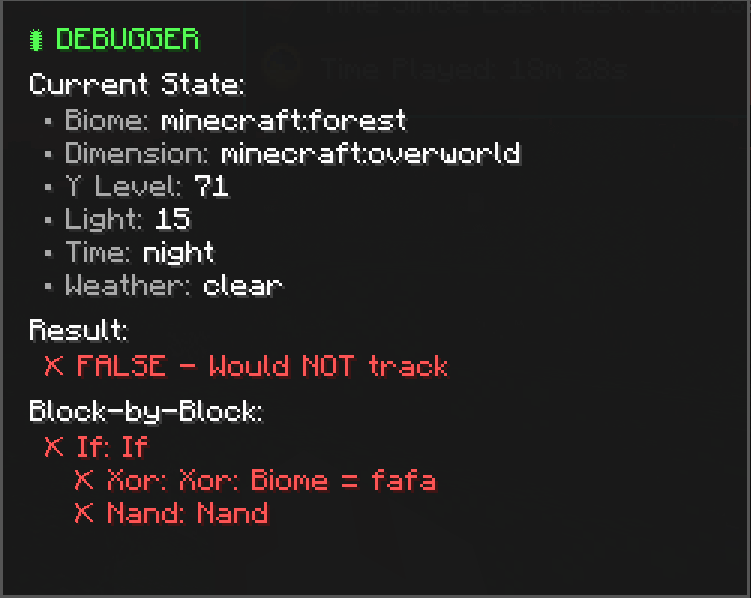 Real-time condition testing showing current game state and block-by-block evaluation
Stat Templates
Quickly create common statistics using pre-built templates.
Included Templates:
- Diamond Miner: Track diamonds mined in caves (Y < 16)
- Surface Farmer: Count crops harvested above ground (Y > 60)
- Nether Explorer: Monitor distance traveled in the Nether
- Night Hunter: Track mobs killed at night
- Ocean Fisher: Count fish caught in ocean biomes
- Desert Survivor: Track time spent in desert biomes
- Mountain Climber: Monitor blocks placed at high altitude (Y > 120)
Using Templates:
- Click "Templates" button in custom stats screen
- Browse available templates
- Click "Create from Template" on desired template
- Template is automatically created as a new custom stat
- Customize the generated stat if desired
Templates include pre-configured:
- Tracking type and targets
- Conditional logic using Scratch blocks
- Appropriate icons
- Descriptions
 Browse and create from pre-built stat templates for common use cases
Real-Time HUD Overlay
Monitor your most important statistics without opening menus.
HUD Features
Display Options:
- Pin up to 10 statistics for constant monitoring
- Real-time value updates as you play
- Show/hide stat icons
- Customizable position (Top Left, Top Right, Bottom Left, Bottom Right, Center)
- Adjustable scale (50% to 200%)
- Offset adjustment for fine positioning
- Semi-transparent background for readability
Quick Toggle:
- Press
H(default keybinding) to show/hide HUD - Enable/disable in configuration screen
- HUD state persists between sessions
Pinning Stats:
- Open statistics screen
- Right-click any statistic
- Select "Pin to HUD"
- Stat appears in HUD overlay
- Right-click again to unpin
Performance:
- Minimal performance impact
- Optional smooth stat updates for real-time tracking
- Configurable refresh rate (default: 1.5 seconds)
- Client-side prediction for smooth value changes
Real-time statistics displayed on your HUD - customizable position, scale, and appearance
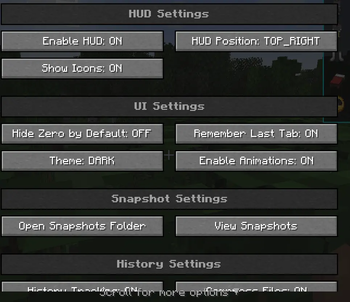
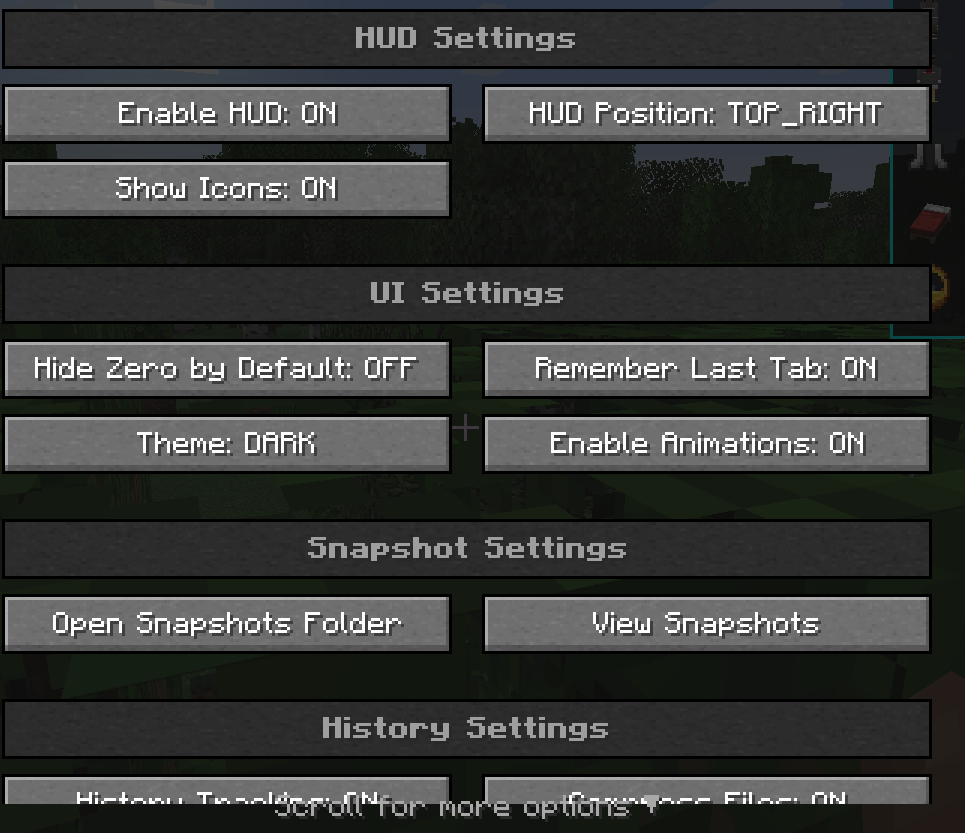 Configure HUD position, scale, offset, and which stats to display
Interactive Charts
Visualize your statistics with multiple chart types and customization options.
Chart Types
Line Chart:
- Shows trends over time
- Compare multiple statistics on the same graph
- Zoom and pan controls
- Hover for exact values
- Ideal for tracking progression
Bar Chart:
- Compare values across statistics
- Horizontal or vertical orientation
- Sort by value or name
- Color-coded bars
- Perfect for comparing categories
Pie Chart:
- Show proportional distribution
- Percentage labels
- Interactive legend
- Click to highlight segments
- Great for composition analysis
Chart Features
Multi-Dataset Support:
- Add up to 10 statistics to a single chart
- Each dataset has unique color
- Toggle datasets on/off with legend clicks
- Compare related statistics side-by-side
Customization:
- Choose chart colors
- Show/hide grid lines
- Adjust axis scales
- Title and label customization
- Export charts as images
Interaction:
- Hover tooltips with exact values
- Click legend items to show/hide datasets
- Zoom in/out on specific ranges
- Pan across time periods
Accessing: Click the "Charts" button in the main statistics screen to open the advanced charting interface.
 Track stat progression over time with interactive line charts
 Compare multiple statistics side-by-side with bar charts
 Visualize proportional distribution with pie charts
 Multi-dataset support with color customization and interactive legends
Import & Export System
Share custom statistics and Scratch block configurations with other players.
Export Features
Single Stat Export:
- Export individual custom statistics
- Includes all configuration (targets, conditions, Scratch blocks)
- JSON format for readability
- Choose custom filename
Bulk Export:
- Select multiple statistics to export at once
- Export all custom statistics in one file
- Preserves all Scratch block logic
- Organized JSON structure
Quick Export:
- Press
Ctrl+E(default) for quick export dialog - Export currently selected statistic
- Automatic filename generation based on stat name
Import Features
File Selection:
- Browse for .json files
- Preview stat names before importing
- Select specific stats to import from file
- Import all or choose individual stats
Conflict Resolution:
- Detects duplicate stat names
- Options to rename, replace, or skip
- Preserves existing stats by default
Validation:
- Checks file format validity
- Verifies condition syntax
- Reports any import errors
- Safe import with rollback on failure
Use Cases
Sharing:
- Share custom stats with friends on servers
- Distribute stat packs to community
- Create themed stat collections
Backup:
- Export all stats before major updates
- Preserve configurations across worlds
- Backup before experimenting
Migration:
- Transfer stats between installations
- Move configurations to new computers
- Sync stats across multiple instances
 Export individual stats or bulk export multiple statistics with all conditions
 Select which stats to import from exported files with conflict resolution
Configuration System
Extensive configuration options accessible in-game or via config file.
General Settings
HUD Configuration:
- Enable/disable HUD overlay
- Position selection (5 preset positions)
- X/Y offset adjustments (-100 to +100)
- Scale adjustment (0.5x to 2.0x)
- Show/hide stat icons in HUD
Interface Settings:
- Theme selection (Dark/Light)
- Animation toggle
- Remember last tab setting
- Hide zero stats by default
- Smooth stat updates toggle
Performance:
- Stat refresh interval (1-60 seconds)
- Client-side stat tracking (experimental)
- HUD update rate configuration
Color Themes
Dark Theme:
- Dark backgrounds for reduced eye strain
- High contrast text
- Subtle UI elements
- Default theme
Light Theme:
- Bright, clean interface
- Clear visibility in daylight
- Traditional appearance
 Comprehensive in-game configuration with all settings organized and accessible
 Dark theme (left) for reduced eye strain and Light theme (right) for traditional appearance
Keybindings
Configurable Shortcuts:
- Open Statistics: Default
K- Opens main statistics screen - Toggle HUD: Default
H- Shows/hides HUD overlay - Quick Export: Default
Unbound- Opens quick export dialog
Customization:
- Rebind any key in controls menu
- Support for modifier keys (Ctrl, Shift, Alt)
- Conflict detection with other mods
- Reset to defaults option
Text Stats View
Alternative text-based statistics interface for power users.
Features:
- Compact list view of all statistics
- Quick search and filter
- Inline editing of custom stats
- Bulk selection and operations
- Fast navigation with keyboard
- Sort by multiple columns
- Export selected stats
Accessing: Click "Text Stats" button in the main statistics screen.
 Compact text-based view for power users with quick editing and bulk operations
Advanced Features
Stat Snapshots
Snapshot System:
- Take snapshots of all statistics at any time
- Compare current stats to previous snapshots
- Calculate differences and growth
- Name and organize snapshots
- Export snapshots for sharing
Use Cases:
- Track progress between gaming sessions
- Compare "before and after" on projects
- Set goals and measure achievement
- Create progress reports
 Take snapshots and compare statistics across different time periods
Network Features (Server Support)
Multiplayer Integration:
- Stats sync from server to client
- Custom stats work on servers
- Shared stat templates on servers
- Import/export works in multiplayer
Server Commands:
/stats <player>- View player statistics/stats reload- Reload custom statistics/stats export <player>- Export player stats- Permission-based access control
Data Management
Statistics Storage:
- Custom stats saved per-world
- Scratch block configurations preserved
- Automatic backup before modifications
- JSON format for manual editing if needed
Data Location:
- Fabric:
.minecraft/config/beautiful_statistics_screen/ - Forge:
.minecraft/config/beautiful_statistics_screen/ - Per-world data:
saves/[world]/data/beautiful_statistics_screen/
Localization
Full localization support for international players.
Translation:
- All UI text translatable via resource packs
- 290+ translation keys
- Support for any language
- Community translations welcome
Creating Translations:
- Copy
assets/beautiful_statistics_screen/lang/en_us.json - Rename to your language code (e.g.,
es_es.json,fr_fr.json) - Translate all values (keep keys unchanged)
- Place in resource pack or mod folder
Current Languages:
- English (en_us) - Complete
Technical Details
Performance
Optimizations:
- Lazy loading of statistics
- Efficient caching system
- Minimal render overhead
- Asynchronous data loading
- Smart refresh intervals
Resource Usage:
- Low memory footprint
- Client-side rendering only
- No server-side performance impact for UI
- Configurable update rates
Compatibility
Mod Compatibility:
- Works with most statistic mods
- Compatible with datapacks that add stats
- No conflicts with vanilla statistics
- Extensible API for other mods
Version Support:
- Minecraft 1.20.1
- Fabric Loader 0.14.0+
- Forge 47.0.0+
- Architectury API 9.0.0+
API
For Mod Developers:
- Register custom stat categories
- Add custom condition types
- Extend tracking types
- Register stat templates
- Hook into stat events
Documentation: API documentation available in the GitHub repository for developers wanting to integrate or extend the mod.
Commands
Player Commands
/stats
- Opens the statistics screen GUI
- Shortcut for keybinding
/stats help
- Display help information
- List available commands
- Show keybinding information
Admin Commands
/stats reload
- Reload custom statistics from disk
- Refresh templates
- Requires operator permission
/stats player <username>
- View another player's statistics
- Server multiplayer only
- Requires operator permission
/stats export <filename>
- Export all custom stats to file
- Server-side export
- Requires operator permission
/stats reset <statistic>
- Reset specific statistic to zero
- Requires operator permission
- Cannot be undone
Getting Started
Installation
- Download the mod from Modrinth or CurseForge
- Install Fabric Loader or Forge for Minecraft 1.20.1
- Place the mod file in your
modsfolder - Install Architectury API (required dependency)
- Launch Minecraft and enjoy
First Use
- Open Statistics: Press
Kto open the enhanced statistics screen - Explore Categories: Click tabs on the left to view different stat categories
- Create Custom Stat: Click "Custom" button to create your first custom statistic
- Try Templates: Use the "Templates" button for quick setup
- Enable HUD: Press
Hto show the HUD overlay - Pin Stats: Right-click stats to pin them to the HUD
- Configure: Click "Config" to customize appearance and behavior
 Step-by-step visual guide for first-time users
Quick Tips
For Beginners:
- Start with stat templates to learn custom stat creation
- Use the visual debugger to understand conditions
- Pin important stats to HUD for monitoring
- Enable animations for better visual feedback
For Advanced Users:
- Combine multiple condition blocks for complex tracking
- Use wildcards (*) for broad tracking
- Export stats for backup before experimenting
- Create stat packs for specific playstyles
For Server Admins:
- Share stat templates with players
- Create themed stat collections
- Use commands for player stat management
- Export stats for leaderboards
Troubleshooting
Common Issues
Stats not updating:
- Server needs to send stat updates to client
- Try using the Refresh button in the statistics screen
- Check if "Smooth stat updates" is enabled in config
Custom stat not tracking:
- Verify target resource IDs are correct (use F3+H for IDs)
- Test conditions with the visual debugger
- Ensure tracking type matches targets (e.g., blocks for Block Mined)
HUD not showing:
- Press H to toggle HUD on
- Check if any stats are pinned (right-click stats to pin)
- Verify HUD is enabled in configuration
Import fails:
- Confirm file is valid JSON format
- Check for syntax errors in exported file
- Ensure file was exported from compatible version
Performance Issues
Low FPS with HUD:
- Reduce HUD refresh rate in config
- Disable smooth stat updates
- Unpin some stats (max 10 recommended)
- Reduce HUD scale
Slow statistics screen:
- Enable "Hide Zero" to reduce displayed stats
- Disable animations in config
- Use search to filter stats
- Consider upgrading hardware
Support & Community
Getting Help
Issues: Report bugs on the GitHub issue tracker with:
- Minecraft version
- Mod version (Fabric/Forge)
- Steps to reproduce
- Log files if applicable
Questions: Join our Discord community for:
- Usage questions
- Feature suggestions
- Sharing custom stats
- Template contributions
Contributing
Translations:
- Submit translations via GitHub pull requests
- Language files located in
assets/beautiful_statistics_screen/lang/ - Follow existing format
Templates:
- Share your custom stat templates
- Submit creative Scratch block combinations
- Help build template library
Bug Reports:
- Include detailed reproduction steps
- Provide log files
- Specify mod versions
Credits
Development:
- Built with Architectury API for cross-platform support
- Uses Minecraft's native statistics system
- Visual editor inspired by MIT Scratch
Special Thanks:
- Minecraft modding community
- Architectury team for cross-platform tools
- Testers and early adopters
License
This mod is available under the terms specified in the LICENSE.txt file included with the mod.
Changelog
See CHANGELOG.md for version history and update notes.
Transform your Minecraft statistics experience today!
- Edition: Minecraft Java
- File type: .jar
- Minecraft version listed: 1.20.1
- How to install: Install the matching mod loader (Forge, Fabric or NeoForge) for your Minecraft version. → Download the .jar. → Put it in the .minecraft/mods folder and launch that loader profile.
- Where to get it: Opens on Modrinth — not every file is mirrored on our own servers.
Install steps are the general flow for this file type — How to install Minecraft Java mods & modpacks walks through it step by step.
- Ships as beautifulstats-fabric-1.2-SNAPSHOT.jar — drop this file into the mods folder
- Download size: 414 KB
- Download link checked 21 Sept 2026 — working
These come from our own check of the pack file, not from the source page.