


MineBench
Test your computer's performance with Minecraft!
Bench Guide
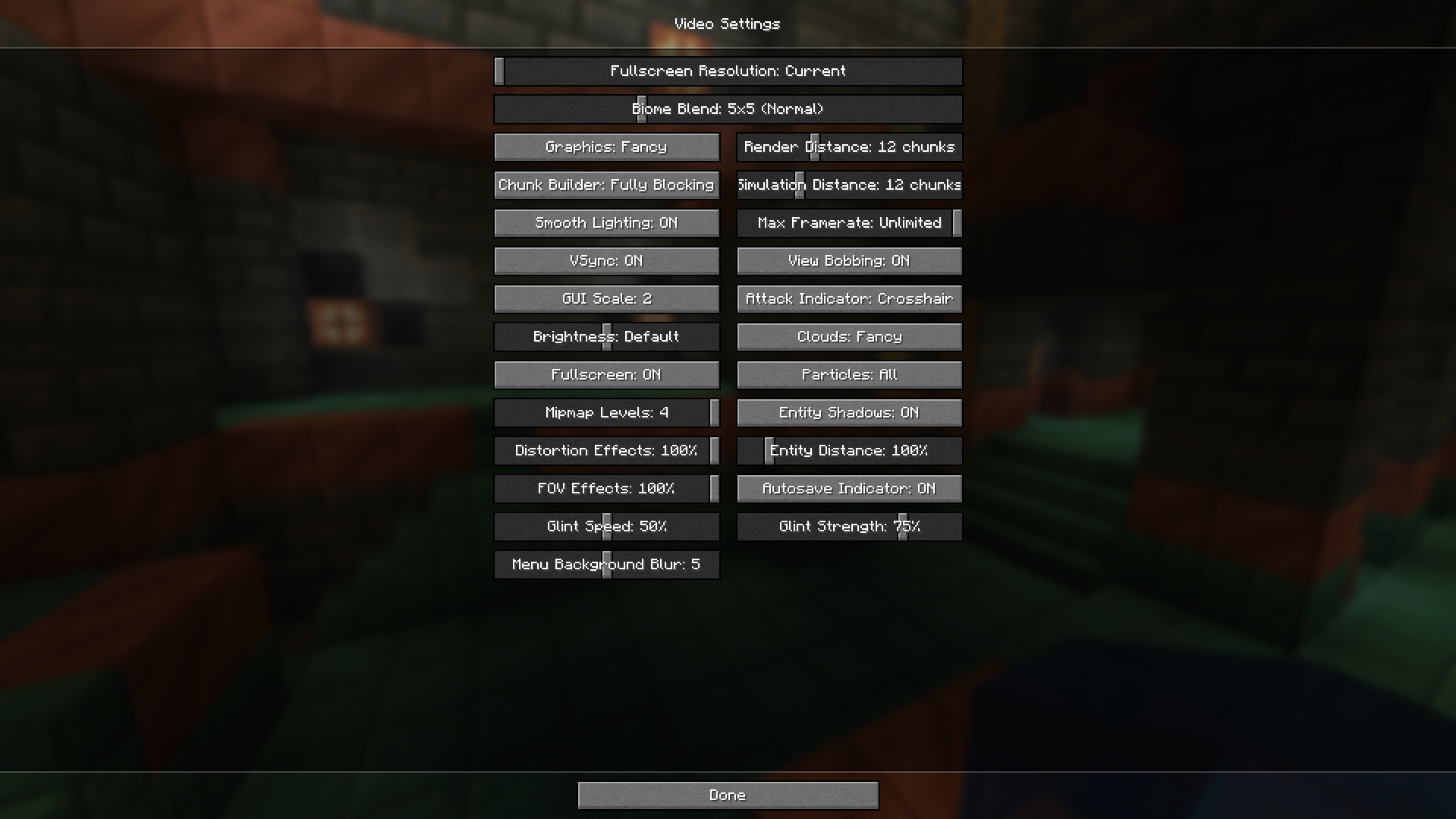
1. First, open NeoForge Minecraft with MineBeench and change the video settings as shown below. (Or use the options.txt to your local Minecraft).
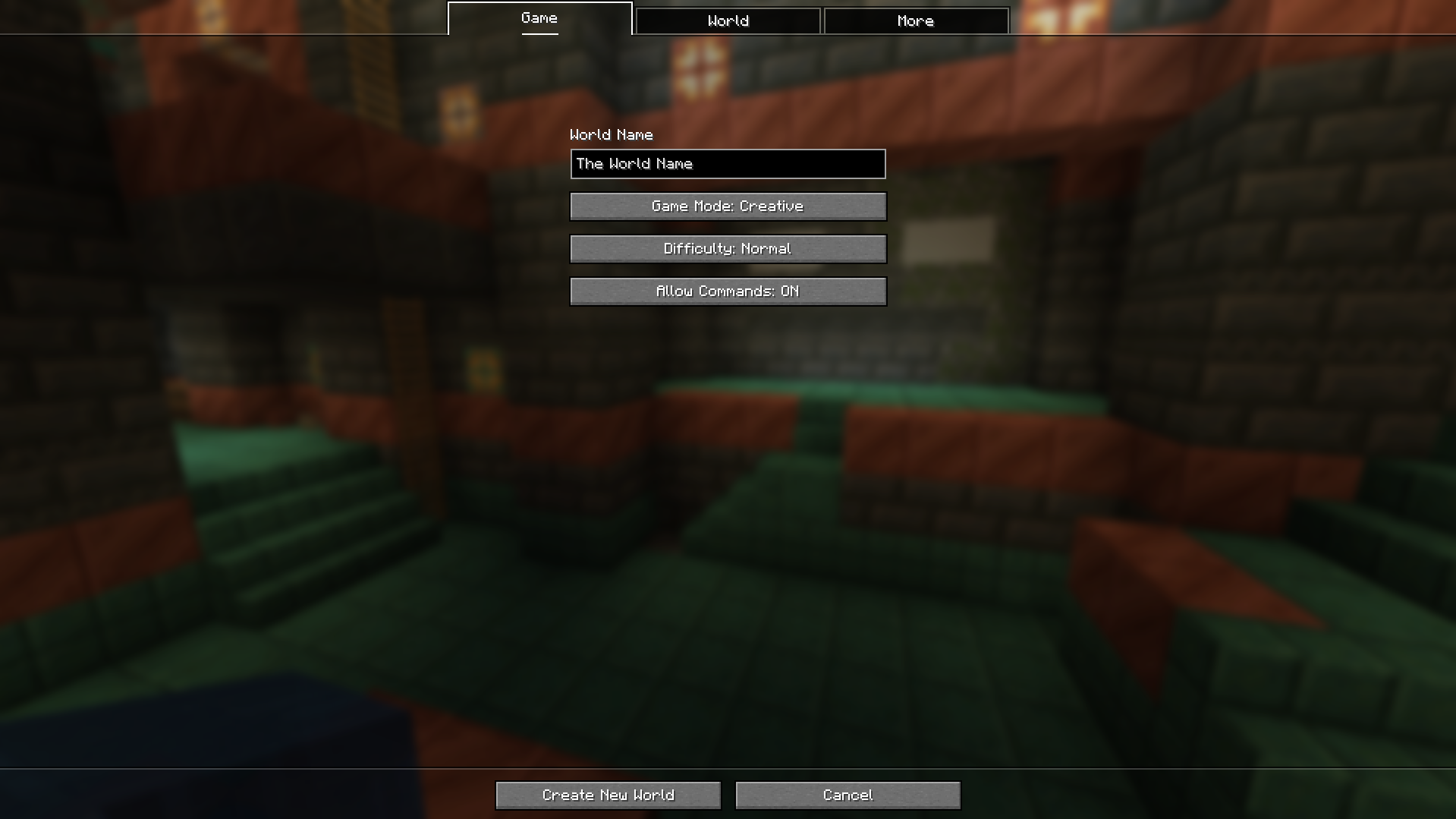
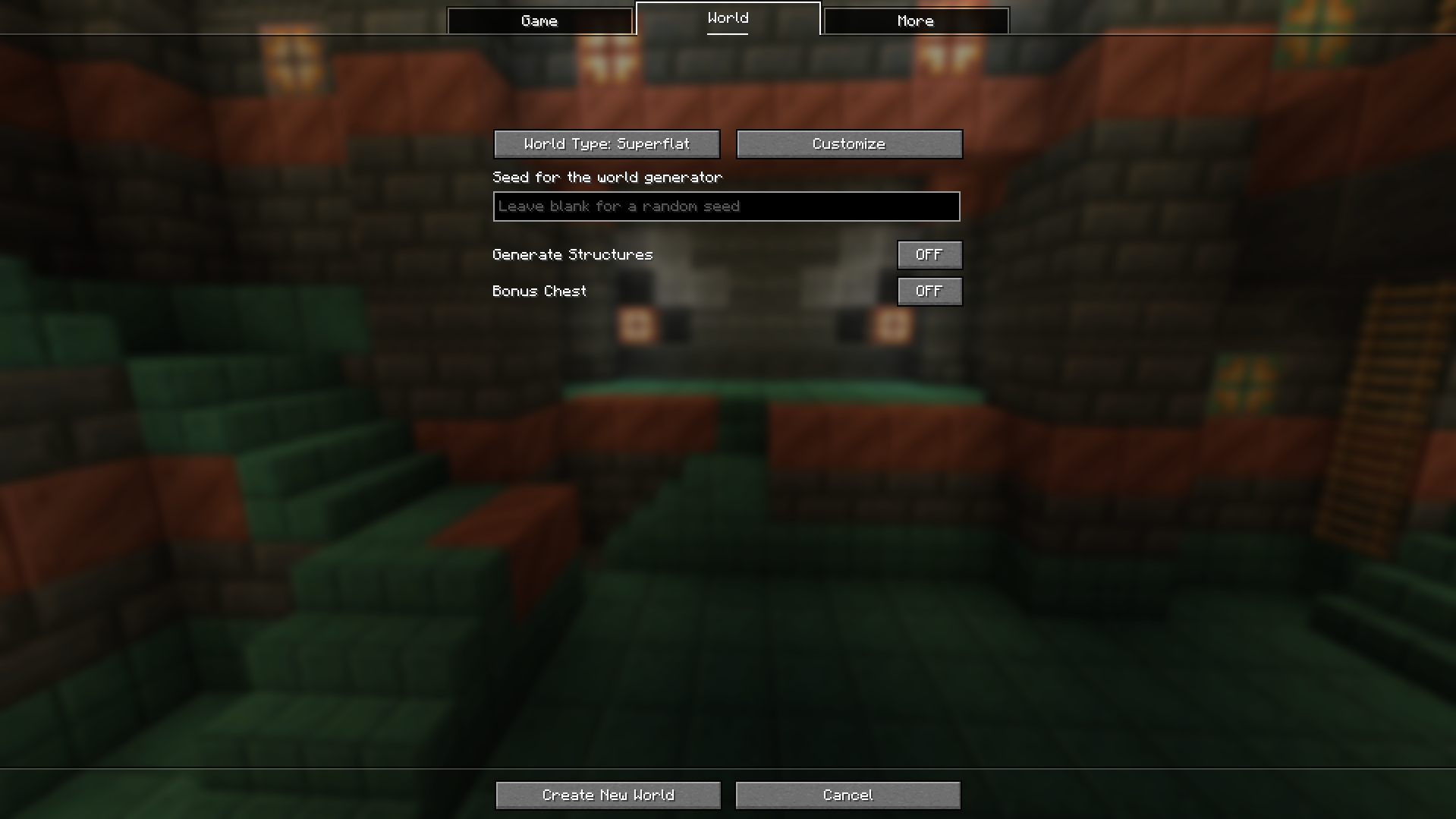
2. Second, create a new world using the settings below.
3. Third, run the command "/setbenchrule".
4. Fourth, after the message "Setting is done." is displayed, run the command "/startbench".
5. Fifth, if Minecraft crashes and shuts down, go to the logs folder in your local Minecraft Log folder and check lastest.log.
(e.g. C:\Users\UserName\AppData\Roaming.minecraft\logs\latest.log).
6. Finally, the number ending in mbs at the end of latest.log is the benchmark result of your MineBench test.
Warning
PLEASE DO NOT USE ANY OTHER MODS.
The numbers shown in chat may not be accurate. Please check the log for detailed numbers.
Bench score
CPU and video card redirects are not advertisements or solicitations to purchase. This is for reference only.
CPU: AMD Ryzen™ 5 9600X, GPU: NVIDA GeForce RTX™ 4070 SUPER, RAM: TeamGroup DDR5-5600 CL46 Elite(16GBx2), Max RAM: 20GB, MineBeench Version: 1.0.0 => 605,841mbs
Quick facts
- Edition: Minecraft Java
- File type: .jar
- Minecraft version listed: 1.21.1
- How to install: Install the matching mod loader (Forge, Fabric or NeoForge) for your Minecraft version. → Download the .jar. → Put it in the .minecraft/mods folder and launch that loader profile.
- Where to get it: Opens on Modrinth — not every file is mirrored on our own servers.
Install steps are the general flow for this file type — How to install Minecraft Java mods & modpacks walks through it step by step.
Verified by MCModsHub
- Ships as minebeench-1.0.0-neoforge-1.21.1.jar — drop this file into the mods folder
- Download size: 15 KB
- Download link checked 1 Sept 2026 — working
These come from our own check of the pack file, not from the source page.