
MPhone Mod - Minecraft Phone Mod
A phone mod for Minecraft 1.12.2.
Features
- Adds phone item to the game
- Right-click phone to open GUI interface
- 16:9 Full Screen Phone design - More modern widescreen ratio
- Status Bar - Displays signal strength, carrier, game time, battery percentage
- Three Navigation Keys - Bottom navigation bar with back, home, and multitask keys
- Phone interface includes app buttons: Contacts, SMS, Camera, Settings, Apps, Store
- Real Game Time Display - Status bar shows Minecraft world time
- Signal Strength Display - Status bar shows base station signal and SIM card status
- Battery System - Phone requires battery to use, status bar shows battery percentage
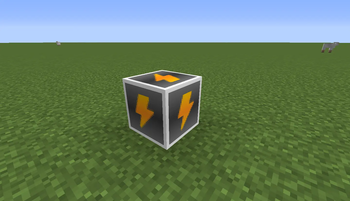
- Charging Station - Place charging station to charge phone
- Camera Photo Function - Click camera button to take photos and save
- Gallery System - View taken photos, support zoom and delete
- SMS System - Send and receive SMS messages, support multi-line message bubbles
- Contacts Function - Each phone has independent contact list, support add, edit, delete contacts, colored avatar display, detail page can directly send SMS
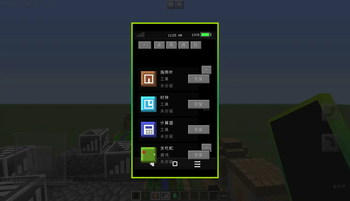
- App Store - Free install/uninstall various apps
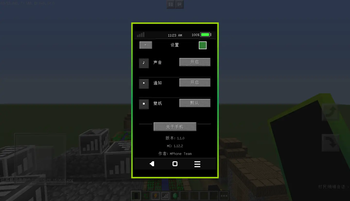
- Phone Settings - Sound, notification, wallpaper and other settings
- SIM Card System - 6-digit phone number, insert SIM card to use communication functions
- Base Station System - Place base station to provide signal coverage, cannot send SMS without signal
- App State Memory - Close GUI and reopen to return to last used app
- Data Persistence - SMS data saved to world archive, not lost after exiting game
- Villager Trading - Phone seller villager, can trade phones, SIM cards, charging stations, base stations
- Spawn Egg - Phone seller spawn egg, convenient for spawning villagers
- Support Chinese and English localization
- Creative mode toolbar can find phone items
Install Mod
- Ensure Forge 1.12.2 is installed
- Copy
MPhone-1.12.2-1.1.0.jarto.minecraft/mods/folder - Launch Minecraft, select Forge version
- Find "MPhone", "SIM Card", "Base Station", "Charging Station" and "Phone Seller Spawn Egg" in creative mode toolbar
Usage Instructions
Base Station
Features:
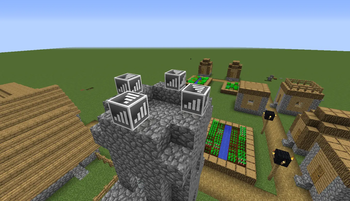
- Provides 64-block radius signal coverage
- Phone needs to be within base station range to show signal
- Signal strength attenuates based on distance: 4 bars (0-16 blocks) → 3 bars (16-32 blocks) → 2 bars (32-48 blocks) → 1 bar (48-64 blocks)
Usage:
- Find "Base Station" in creative mode toolbar
- Place anywhere in the world
- Base station will glow, serving as decorative and functional block
Charging Station
Features:
- Provides charging function for phone
- Each right-click charge increases 20% battery
- Plays sound effect when charging
- Phone will notify when fully charged
Usage:
- Find "Charging Station" in creative mode toolbar
- Place anywhere in the world
- Hold phone in hand, right-click charging station to charge
- Hover over phone in inventory to view current battery
Battery Consumption:
- Open phone GUI: Consumes 2% battery
- Send SMS: Consumes 3% battery
- Take photo: Consumes 5% battery
- Standby: Consumes 1% battery per minute
Contacts
Features:
- Each phone has independent contact list (isolated based on SIM card number)
- Add, view, edit and delete contacts
- Contacts display colored avatars (first character of name)
- Contact detail page can directly send SMS
- Contact data saved to world archive
- Automatically display contact name in SMS system
Usage:
- Open phone GUI, click "Contacts" button
- Contact List Interface:
- View current phone's saved contacts
- Click "New" button to add contact
- Click "View" button to view contact details
- Contact Detail Interface:
- Display contact avatar, name and phone number
- Click "Send SMS" to directly send SMS to this contact
- Click "Edit" to modify contact information
- Click "Delete" to delete contact
- New/Edit Contact:
- Enter contact name (max 20 characters)
- Enter 6-digit phone number
- Click "Save"
Note: Each SIM card (each phone)'s contact list is independent, after changing SIM card it will display the contact list corresponding to that SIM card
SMS System
Features:
- Send and receive SMS messages
- Support multi-line message bubble display (automatic line break)
- Session list displays all contacts
- Unread message mark (red dot)
- Need base station to send SMS
- SMS data saved to world archive, not lost after exiting game
Usage:
- Ensure SIM card is inserted and within base station range
- Open phone GUI, click "SMS" button
- Session List Interface:
- View all SMS sessions
- Click "New" button to send new SMS
- Click session to view chat history
- Chat Interface:
- Green bubble = Message you sent
- Gray bubble = Received message
- Enter message and click "Send" or press Enter
- New SMS:
- Enter 6-digit recipient number
- Enter SMS content (max 100 characters)
- Click "Send"
Gallery System
Features:
- View photos taken in game
- Support real image display (maintain original ratio)
- Support zoom in/out (mouse wheel)
- Support delete photos
- Photo list grid display
- Single photo view mode
Usage:
- Open phone GUI, click "Gallery" button
- Photo List Interface:
- View all taken photo thumbnails
- Click photo to enter view mode
- Click left/right arrows to page
- Photo View Interface:
- View full photo
- Mouse wheel up to zoom in
- Mouse wheel down to zoom out
- Click "Delete" to delete current photo
- Click "Reset" to restore original size
- Click "Previous"/"Next" to switch photos
Photo Storage Path:
- Photos saved in
.minecraft/screenshots/mphone/directory - Support PNG and JPG formats
SIM Card
Features:
- Each SIM card has unique 6-digit phone number
- Must insert into phone to use communication functions
- Can view phone number in inventory
Usage:
- Find "SIM Card" in creative mode toolbar
- Hold SIM card in hand, right-click phone to insert
- Sneak + right-click phone to remove SIM card
Phone Seller Villager
Features:
- Special villager profession, specifically trades phone-related items
- 5 trading levels: Novice, Apprentice, Journeyman, Expert, Master
- More trading options unlocked as trading level increases
Trading List:
| Level | Trading Content |
|---|---|
| Novice | 8-12 Emeralds → Phone; 2-4 Emeralds → SIM Card |
| Apprentice | 5-8 Emeralds + 2 Iron Ingots → Phone; 10-19 Redstone → SIM Card |
| Journeyman | 20-29 Emeralds → 2 Phones; 3-5 Gold Ingots → 2 SIM Cards; 15-24 Emeralds + 2 Iron Blocks → Charging Station |
| Expert | 2-3 Diamonds → Phone; Phone → 3-5 Emeralds (Recycle); 3-5 Diamonds + 5 Redstone Blocks → Base Station |
| Master | 32-47 Emeralds → 3 Phones; 5 Gold Ingots + 10 Emeralds → 2 Phones |
Spawn Methods:
- Spawn Egg - Find "Phone Seller Spawn Egg" in creative mode toolbar
- Command - Use
/spawnphoneseller [x] [y] [z]command to spawn
How to Use Phone
- Find "MPhone" in creative mode toolbar
- Hold phone in hand, right-click to open GUI interface
- Status Bar Display:
- Left: Signal strength (4-bar vertical display) + Carrier name
- Middle: Game time
- Right: Battery percentage + Battery icon
- In GUI interface you can see app icons (4 rows 4 columns layout, max 16 apps per page):
- System Apps (Fixed display)
- Contacts - View and manage contacts
- SMS - Send and receive SMS
- Camera - Photo function
- Gallery - View taken photos
- Settings - Phone settings (sound, notification, wallpaper)
- Store - App store
- Installed Apps - Apps installed from app store will display here
- System Apps (Fixed display)
- Page Browsing - If apps exceed 16, click left/right arrows to page
- App State Memory - Close GUI and reopen will automatically return to last used app interface
- Battery Management - Phone requires battery to use, cannot open phone when battery depleted
- Hover over phone in inventory to view current battery
- Use charging station to charge phone
Phone Settings
Features:
- Sound - Turn on/off phone sound
- Notification - Turn on/off notifications
- Wallpaper - Change phone wallpaper (Default/Blue/Green/Purple/Dark)
- About Phone - Display version information
Usage:
- Open phone GUI, click "Settings" button
- Click corresponding option to set
- Click top-left "←" to return to main interface
App Store
Features:
- Browse and install various apps
- Filter by category: All, Utility, Game, Social, Productivity, Entertainment
- Free install and uninstall apps
- Support up/down scrolling to browse all apps
Built-in App List:
| App Name | Category | Description |
|---|---|---|
| Compass | Utility | Practical tool showing direction |
| Clock | Utility | Display current game time |
| Calculator | Utility | Perform basic math calculations |
| Snake | Game | Classic snake game |
| Tetris | Game | Classic block elimination game |
| Chat Room | Social | Chat with server players |
| Social | Send and receive mail | |
| Memo | Productivity | Record important matters |
| Music Player | Entertainment | Play game music |
| My House | Entertainment | Enter private house dimension |
Usage:
- Open phone GUI, click "Store" button
- Browse app list in app store interface
- Click top category buttons to filter app types
- Click "Install" button on right side of app to install
- Installed apps will show "Uninstall" button, click to uninstall
Camera Function
Usage:
- Open phone GUI
- Click "Camera" button
- Wait 3-second countdown (3... 2... 1...)
- Photo automatically saved to
screenshots/mphone/directory - Photo has watermark: "MPhone Camera" + Shooting time
Photo Features:
- Format: PNG
- Resolution: Game window resolution
- Save Path:
.minecraft/screenshots/mphone/ - File Name:
MPhone_Photo_yyyy-MM-dd_HH-mm-ss.png - Automatic watermark added
GUI Interface Features
- Full Screen Design - Green shell
- 16:9 Widescreen Ratio - 180x320 pixels, more modern display effect
- 16 App Buttons - 4 rows 4 columns layout, square design, colored icons, support page turning
- Status Bar - Top display, includes signal strength, carrier, time, battery percentage
- Three Navigation Keys - Bottom navigation bar: Back key ◁, Home key ○, Multitask key □
- Optimized App Layout - All app interfaces have reasonable and beautiful layout, convenient operation
- Visual Effects - Button hover highlight, 3D shadow, text shadow effects
Three Navigation Keys
Features:
- Back Key ◁ - Return to phone main interface
- Home Key ○ - Return to phone main interface
- Multitask Key □ - Show multitask prompt (in development)
Usage:
- Can click three navigation keys at bottom of any app interface
- Back key and home key both return to phone main interface
- Convenient for quickly switching apps or exiting current app
App Interface Layout
Contacts App:
- Contact list: 24x24 pixel avatar, name and number displayed in two rows
- Contact detail: 80x80 pixel large avatar centered, information clearly arranged
- Edit interface: Input box label left-aligned, input area right-aligned
SMS App:
- Session list: 28x28 pixel avatar, name, preview content, time compact layout
- Chat interface: Message bubble adaptive width, input box fixed at bottom
- Unread messages show red dot mark
Gallery App:
- Photo list: 2x3 grid layout, 64x48 pixel thumbnails
- Photo view: Full screen display, support zoom
- Operation buttons: Delete, Previous, Next, Reset Zoom
Settings App:
- Settings list: Icon + Name + Status, each item consistent height
- Wallpaper preview displayed in top-right corner
- About information bottom center display
App Store:
- Category filter buttons arranged horizontally
- App list: 32x32 pixel icon, name, type, status vertically arranged
- Scroll indicator clearly shows page number
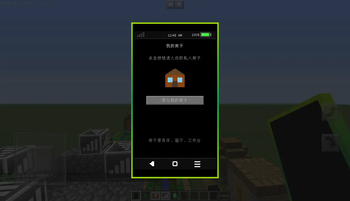
My House App
Features:
- Enter your private house dimension
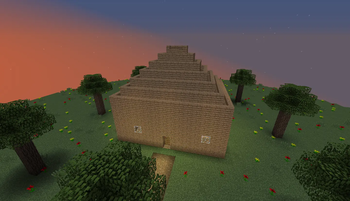
- Large floating island design, includes a spacious house
- House has bed, chest, crafting table, furnace and other facilities
- Bed can be used normally, won't explode
- Can safely set respawn point
- Return to main world will return to position before teleport
House Dimension Features:
- Large circular floating island base (radius 40 blocks)
- 15x13 size spacious house
- Has door, multiple windows, pyramid-shaped roof
- Interior decoration: Bed, chest, crafting table, furnace, bookshelf, torch lighting
- Trees and flowers decoration around island
- Small path in front of door extending to island edge
- Permanent daytime, no rain, no mob spawning
- Fall into void will automatically teleport back to safe position
- Cancel fall damage
Usage:
- Install "My House" app from app store
- Open phone, click "My House" icon
- Click "Enter My House" button
- In house dimension, click "Return to Overworld" to return to original position
Time Display
Phone status bar displays Minecraft world time:
- Format: 12-hour format (e.g.: 3:30 PM)
- Based on in-game world time
MPhone Mod - 我的世界手机模组
这是一个为Minecraft 1.12.2开发的手机模组。
功能特点
- 添加手机物品到游戏中
- 右键点击手机可以打开GUI界面
- 16:9全面屏手机设计 - 更现代的宽屏比例
- 状态栏 - 顶部显示信号强度、运营商、游戏时间、电量百分比
- 三大金刚键 - 底部导航栏包含返回、主页、多任务键
- 手机界面包含应用按钮: 联系人、短信、相机、设置、应用、商店
- 真实游戏时间显示 - 状态栏显示Minecraft世界时间
- 信号强度显示 - 状态栏显示基站信号强度和SIM卡状态
- 电池系统 - 手机需要电量才能使用,状态栏显示电量百分比
- 充电台 - 放置充电台为手机充电
- 相机拍照功能 - 点击相机按钮拍摄照片并保存
- 相册系统 - 查看拍摄的照片,支持缩放和删除
- 短信系统 - 发送和接收短信,支持多行消息气泡
- 联系人功能 - 每个手机独立的联系人列表,支持添加、编辑、删除联系人,彩色头像显示,详情页可直接发短信
- 应用商店 - 免费安装/卸载各种应用
- 手机设置 - 声音、通知、壁纸等设置
- 电话卡系统 - 6位电话号码,插入SIM卡才能使用通信功能
- 基站系统 - 放置基站提供信号覆盖,无信号时无法发送短信
- 应用状态记忆 - 关闭GUI后重新打开会回到上次使用的应用
- 数据持久化 - 短信数据保存到世界存档,退出游戏不丢失
- 村民交易 - 手机商人村民,可交易手机、SIM卡、充电台、信号基站
- 刷怪蛋 - 手机商人刷怪蛋,方便生成村民
- 支持中英文本地化
- 创造模式工具栏可找到手机物品
安装模组
- 确保已安装Forge 1.12.2
- 将
MPhone-1.12.2-1.1.0.jar复制到.minecraft/mods/文件夹 - 启动Minecraft,选择Forge版本
- 在创造模式工具栏中找到"MPhone手机"、"电话卡"、"信号基站"、"充电台"和"手机商人刷怪蛋"
使用说明
信号基站
功能介绍:
- 提供64格半径的信号覆盖范围
- 手机需要在基站范围内才能显示信号
- 信号强度根据距离衰减:4格(0-16格) → 3格(16-32格) → 2格(32-48格) → 1格(48-64格)
使用方法:
- 在创造模式工具栏中找到"信号基站"
- 放置在世界中任意位置
- 基站会发光,作为装饰和功能性方块
充电台
功能介绍:
- 为手机提供充电功能
- 每次右键充电增加20%电量
- 充电时会播放音效
- 手机充满电后会提示
使用方法:
- 在创造模式工具栏中找到"充电台"
- 放置在世界中任意位置
- 手持手机,右键点击充电台即可充电
- 物品栏悬停手机可查看当前电量
电量消耗说明:
- 打开手机GUI:消耗2%电量
- 发送短信:消耗3%电量
- 拍照:消耗5%电量
- 待机:每分钟消耗1%电量
联系人
功能介绍:
- 每个手机拥有独立的联系人列表(基于SIM卡号码隔离)
- 添加、查看、编辑和删除联系人
- 联系人显示彩色头像(名字首字)
- 联系人详情页可直接发送短信
- 联系人数据保存到世界存档
- 在短信系统中自动显示联系人名称
使用方法:
- 打开手机GUI,点击"联系人"按钮
- 联系人列表界面:
- 查看当前手机已保存的联系人
- 点击"新建"按钮添加联系人
- 点击"查看"按钮查看联系人详情
- 联系人详情界面:
- 显示联系人头像、姓名和电话
- 点击"发短信"直接给该联系人发送短信
- 点击"编辑"修改联系人信息
- 点击"删除"删除联系人
- 新建/编辑联系人:
- 输入联系人姓名(最多20字)
- 输入6位电话号码
- 点击"保存"
注意: 每个SIM卡(每个手机)的联系人列表是独立的,更换SIM卡后会显示该SIM卡对应的联系人列表
短信系统
功能介绍:
- 发送和接收短信消息
- 支持多行消息气泡显示(自动换行)
- 会话列表显示所有联系人
- 未读消息标记(红色圆点)
- 需要信号基站才能发送短信
- 短信数据保存到世界存档,退出游戏不丢失
使用方法:
- 确保已插入SIM卡且在信号基站范围内
- 打开手机GUI,点击"短信"按钮
- 会话列表界面:
- 查看所有短信会话
- 点击"新建"按钮发送新短信
- 点击会话查看聊天记录
- 聊天界面:
- 绿色气泡 = 你发送的消息
- 灰色气泡 = 收到的消息
- 输入消息后点击"发送"或按回车
- 新建短信:
- 输入6位收件人号码
- 输入短信内容(最多100字)
- 点击"发送"
相册系统
功能介绍:
- 查看游戏中拍摄的照片
- 支持真实图片显示(保持原始比例)
- 支持放大缩小(鼠标滚轮)
- 支持删除照片
- 照片列表网格显示
- 单张照片查看模式
使用方法:
- 打开手机GUI,点击"相册"按钮
- 照片列表界面:
- 查看所有拍摄的照片缩略图
- 点击照片进入查看模式
- 点击左右箭头翻页
- 照片查看界面:
- 查看完整照片
- 鼠标滚轮向上滚动放大
- 鼠标滚轮向下滚动缩小
- 点击"删除"删除当前照片
- 点击"重置"恢复原始大小
- 点击"上一张"/"下一张"切换照片
照片存储路径:
- 照片保存在
.minecraft/screenshots/mphone/目录 - 支持 PNG 和 JPG 格式
电话卡
功能介绍:
- 每张电话卡有唯一的6位电话号码
- 必须插入手机才能使用通信功能
- 可在物品栏中查看电话号码
使用方法:
- 在创造模式工具栏中找到"电话卡"
- 手持电话卡,右键点击手机即可插入
- 潜行+右键手机可取出电话卡
手机商人村民
功能介绍:
- 特殊的村民职业,专门交易手机相关物品
- 5个交易等级:新手、学徒、老手、专家、大师
- 随着交易等级提升,解锁更多交易选项
交易列表:
| 等级 | 交易内容 |
|---|---|
| 新手 | 8-12绿宝石 → 手机;2-4绿宝石 → SIM卡 |
| 学徒 | 5-8绿宝石+2铁锭 → 手机;10-19红石 → SIM卡 |
| 老手 | 20-29绿宝石 → 2个手机;3-5金锭 → 2个SIM卡;15-24绿宝石+2铁块 → 充电台 |
| 专家 | 2-3钻石 → 手机;手机 → 3-5绿宝石(回收);3-5钻石+5红石块 → 信号基站 |
| 大师 | 32-47绿宝石 → 3个手机;5金锭+10绿宝石 → 2个手机 |
生成方式:
- 刷怪蛋 - 在创造模式工具栏中找到"手机商人刷怪蛋"
- 命令 - 使用
/spawnphoneseller [x] [y] [z]命令生成
如何使用手机
- 在创造模式工具栏中找到"MPhone手机"
- 将手机拿在手中,右键点击打开GUI界面
- 状态栏显示:
- 左侧:信号强度(4格竖条显示)+ 运营商名称
- 中间:游戏时间
- 右侧:电量百分比 + 电池图标
- 在GUI界面中可以看到应用图标(4行4列布局,每页最多16个):
- 系统应用(固定显示)
- 联系人 - 查看和管理联系人
- 短信 - 发送和接收短信
- 相机 - 拍照功能
- 相册 - 查看拍摄的照片
- 设置 - 手机设置(声音、通知、壁纸)
- 商店 - 应用商店
- 已安装应用 - 从应用商店安装的应用会显示在这里
- 系统应用(固定显示)
- 翻页浏览 - 如果应用超过16个,点击左右箭头翻页
- 应用状态记忆 - 关闭GUI后重新打开会自动回到上次使用的应用界面
- 电量管理 - 手机需要电量才能使用,电量耗尽时无法打开手机
- 物品栏悬停手机可查看当前电量
- 使用充电台为手机充电
手机设置
功能介绍:
- 声音 - 开启/关闭手机声音
- 通知 - 开启/关闭通知
- 壁纸 - 更换手机壁纸(默认/蓝色/绿色/紫色/暗色)
- 关于手机 - 显示版本信息
使用方法:
- 打开手机GUI,点击"设置"按钮
- 点击对应选项进行设置
- 点击左上角"←"返回主界面
应用商店
功能介绍:
- 浏览和安装各种应用
- 按分类筛选: 全部、工具、游戏、社交、生产力、娱乐
- 免费安装和卸载应用
- 支持上下滚动浏览所有应用
内置应用列表:
| 应用名称 | 分类 | 说明 |
|---|---|---|
| 指南针 | 工具 | 显示方向的实用工具 |
| 时钟 | 工具 | 显示当前游戏时间 |
| 计算器 | 工具 | 进行基本数学计算 |
| 贪吃蛇 | 游戏 | 经典贪吃蛇游戏 |
| 俄罗斯方块 | 游戏 | 经典方块消除游戏 |
| 聊天室 | 社交 | 与服务器玩家聊天 |
| 邮件 | 社交 | 发送和接收邮件 |
| 备忘录 | 生产力 | 记录重要事项 |
| 音乐播放器 | 娱乐 | 播放游戏音乐 |
| 我的房子 | 娱乐 | 进入私人房子维度 |
使用方法:
- 打开手机GUI,点击"商店"按钮
- 在应用商店界面浏览应用列表
- 点击顶部分类按钮筛选应用类型
- 点击应用右侧的"安装"按钮安装应用
- 已安装的应用会显示"卸载"按钮,点击可卸载
相机功能
使用方法:
- 打开手机GUI
- 点击"相机"按钮
- 等待3秒倒计时 (3... 2... 1...)
- 照片自动保存到
screenshots/mphone/目录 - 照片带有水印: "MPhone Camera" + 拍摄时间
照片特点:
- 格式: PNG
- 分辨率: 游戏窗口分辨率
- 保存路径:
.minecraft/screenshots/mphone/ - 文件名:
MPhone_Photo_yyyy-MM-dd_HH-mm-ss.png - 自动添加水印
GUI界面特点
- 全面屏设计 - 绿色外壳
- 16:9宽屏比例 - 180x320像素,更现代的显示效果
- 16个应用按钮 - 4行4列布局,方形设计,彩色图标,支持翻页
- 状态栏 - 顶部显示,包含信号强度、运营商、时间、电量百分比
- 三大金刚键 - 底部导航栏:返回键◁、主页键○、多任务键□
- 优化的应用布局 - 所有应用界面布局合理美观,操作便捷
- 视觉效果 - 按钮悬停高亮、立体阴影、文字阴影效果
三大金刚键
功能介绍:
- 返回键◁ - 返回手机主界面
- 主页键○ - 返回手机主界面
- 多任务键□ - 显示多任务提示(开发中)
使用方法:
- 在任何应用界面底部都可以点击三大金刚键
- 返回键和主页键都会返回到手机主界面
- 方便快速切换应用或退出当前应用
应用界面布局
联系人应用:
- 联系人列表:24x24像素头像,名称和号码分两行显示
- 联系人详情:80x80像素大头像居中,信息清晰排列
- 编辑界面:输入框标签左对齐,输入区域右对齐
短信应用:
- 会话列表:28x28像素头像,名称、预览内容、时间布局紧凑
- 聊天界面:消息气泡自适应宽度,输入框固定在底部
- 未读消息显示红点标记
相册应用:
- 照片列表:2x3网格布局,64x48像素缩略图
- 照片查看:全屏显示,支持缩放
- 操作按钮:删除、上一张、下一张、重置缩放
设置应用:
- 设置项列表:图标+名称+状态,每项高度一致
- 壁纸预览显示在右上角
- 关于信息底部居中显示
应用商店:
- 分类筛选按钮水平排列
- 应用列表:32x32像素图标,名称、类型、状态垂直排列
- 滚动指示器清晰显示页码
我的房子应用
功能介绍:
- 进入你的私人房子维度
- 大空岛设计,包含一个宽敞的房子
- 房子内有床、箱子、工作台、熔炉等设施
- 床可以正常使用,不会爆炸
- 可以安全地设置重生点
- 返回主世界时会回到传送前的位置
房子维度特点:
- 大型圆形空岛底座(半径40格)
- 15x13大小的宽敞房子
- 有门、多个窗户、金字塔形屋顶
- 内部装饰:床、箱子、工作台、熔炉、书架、火把照明
- 岛周围有树木和花草装饰
- 门前有小径延伸到岛边缘
- 永久白天,不会下雨,不会刷怪
- 掉入虚空会自动传送回安全位置
- 取消摔落伤害
使用方法:
- 在应用商店安装"我的房子"应用
- 打开手机,点击"我的房子"图标
- 点击"进入我的房子"按钮
- 在房子维度中,点击"返回主世界"可以回到原来的位置
时间显示
手机状态栏显示Minecraft世界时间:
- 格式: 12小时制 (例如: 3:30 PM)
- 基于游戏内世界时间
- Edition: Minecraft Java
- File type: .jar
- Minecraft version listed: 1.12.2
- How to install: Install the matching mod loader (Forge, Fabric or NeoForge) for your Minecraft version. → Download the .jar. → Put it in the .minecraft/mods folder and launch that loader profile.
- Where to get it: Opens on Modrinth — not every file is mirrored on our own servers.
Install steps are the general flow for this file type — How to install Minecraft Java mods & modpacks walks through it step by step.
- Ships as MPhone-1.12.2-1.1.0.jar — drop this file into the mods folder
- Download size: 159 KB
- Download link checked 7 Sept 2026 — working
These come from our own check of the pack file, not from the source page.