

This mod's development is currently on hiatus, but feel free to check it out regardless!
Chronological Chronicles
Modloader NOT required, see install instructions below
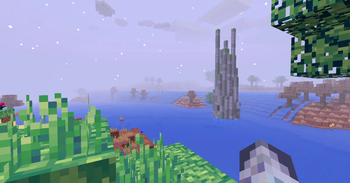
The Chronological Chronicles mod is a Minecraft Alpha 1.1.2_01 mod based around exploring, and combat.
It adds:
- Cards, that grant passive effects upon being equipped
- New weapons and armors
- Many new magical staves
- New structures
- Ability to set spawn point
- Hub world functionality
- New decorative blocks
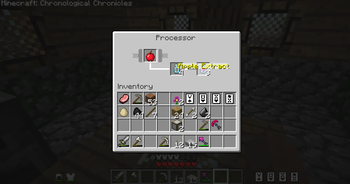
- New artisan food crafting system
- New mobs
- A new world type: Desert
- Two texture modes
- Bug fixes
And reworks:
- All textures
- Mobs to be much more agressive
- Day/Night
- Dungeons
- World generation
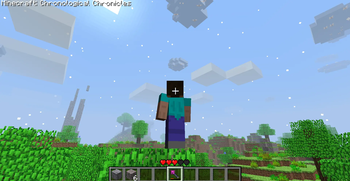
- HUD
This mod was originally hosted on my website https://chimneyegg.github.io/#Chronological%20Chronicles, where older versions can also be found alongside the wiki!
Also check out the latest trailer!
This mod's aesthetics were inspired by the Minecraft Alpha 1.0.16 Versions YouTube ARG and associated mods! Check them out!
Install Instructions
Due to the introduction of the hub (and my laziness in implementing a proper system), Chronological Chronicles is now distributed as a zip file that contains two things: The actual modded .jar and The Hub world
In order for everything to work properly, the .jar and the saved world need to be put into their correct places
BetaCraft (recommended)
1. Download the provided zip file
2. Create a new alpha 1.1.2_01 instance, name it 'Chronological Chronicles'
3. Launch the instance at least once (to set up everything according to your system and download resources)
4. Extract the zip file, this will extract the 'Hub' world file and the 'chronological_chronicles' .jar. The world file MUST be placed in the instance's 'saves' directory (if a 'saves' directory does NOT exist, create one). The .jar must be placed in the betacraft's 'versions' directory
5. Change the instance version from alpha 1.1.2_01 to the 'chronological_chronicles' .jar at the bottom of the Select Version list
Prism Launcher
1. Download the provided zip file
2. Create a new alpha 1.1.2_01 instance, name it 'Chronological Chronicles'
3. Extract the zip file anywhere
4. Take the .jar file and place it into the libraries directory of the instance (or graphically, pick 'Replace Minecraft.jar' in the edit window, and select the .jar
5. Take the directory that contains the 'saves' directory, and copy the **contents** of it into the .Minecraft directory of the instance
For socials and contact: https://linktr.ee/chimneyeggs
- Edition: Minecraft Java
- File type: .jar
- Minecraft version listed: a1.1.2_01
- How to install: Install the matching mod loader (Forge, Fabric or NeoForge) for your Minecraft version. → Download the .jar. → Put it in the .minecraft/mods folder and launch that loader profile.
- Where to get it: Opens on Modrinth — not every file is mirrored on our own servers.
Install steps are the general flow for this file type — How to install Minecraft Java mods & modpacks walks through it step by step.
- Downloads as ChronologicalChronicles1-2-2.zip
- Download size: 16.1 MB
- Download link checked 20 Aug 2026 — working
These come from our own check of the pack file, not from the source page.