
About
NaikaiFont by Max is a fork from SetoFont by 瀬戸のぞみ. This font is made for Chinese users and contains over 40k glyphs. All I did was made this into a resource pack, please consider to support the original author if you like it.
內海字體是基於瀨戶字體的開放原始碼中文字型,我只是把它包成資源包而已,如果你喜歡的話請考慮支持一下原作者。
Versions
There are 3 different versions: Vanilla, Caxton-Raster, and Caxton-MSDF.
本資源包有三種版本:Vanilla (原版)、Caxton-Raster,和 Caxton-MSDF。
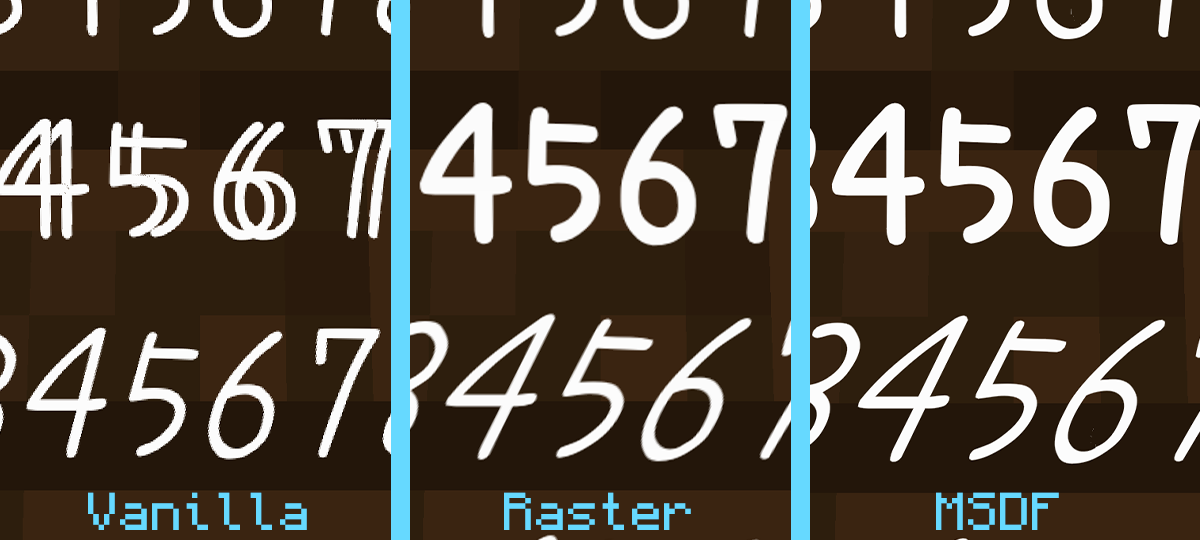
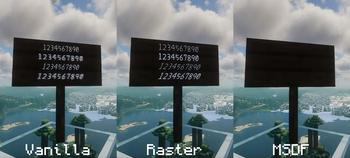
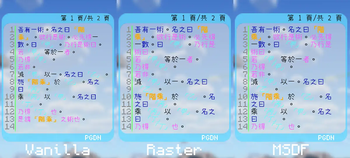
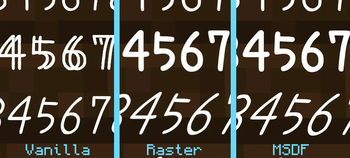
- Vanilla version doesn't require any mods but looks not ideal. Besides, bold texts look weird. Should be able to work on any version after Minecraft 1.13.
- Caxton-MSDF version needs Caxton and has basically infinite resolution. However, Caxton's MSDF rendering method doesn't compatible with Iris. In world texts won't be rendered when shaders is on (UI texts aren't affected).
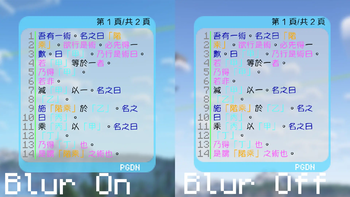
- Caxton-Raster version uses Caxton's raster rendering method, the difference between this and vanilla method is Caxton offers blur and mipmap to prevent the aliasings (jagged edges).
- Vanilla 版本不需任何模組,但字體的邊緣有惱人的鋸齒;此外,粗體字無法正常渲染。1.13以後的版本都支援TTF字體,理論上都能使用。
- Caxton-MSDF 版本需要Caxton模組,因為採用了向量圖來渲染,所以不管怎麼放大都不會失真。缺點是開啟Iris光影時,告示牌上的文字無法顯示(UI文字不影響)。
- Caxton-Raster 版本是一個折衷的方案,雖然和原版一樣都是用點陣圖渲染,但Caxton提供了模糊效果和mipmap,可以消除礙眼的鋸齒。
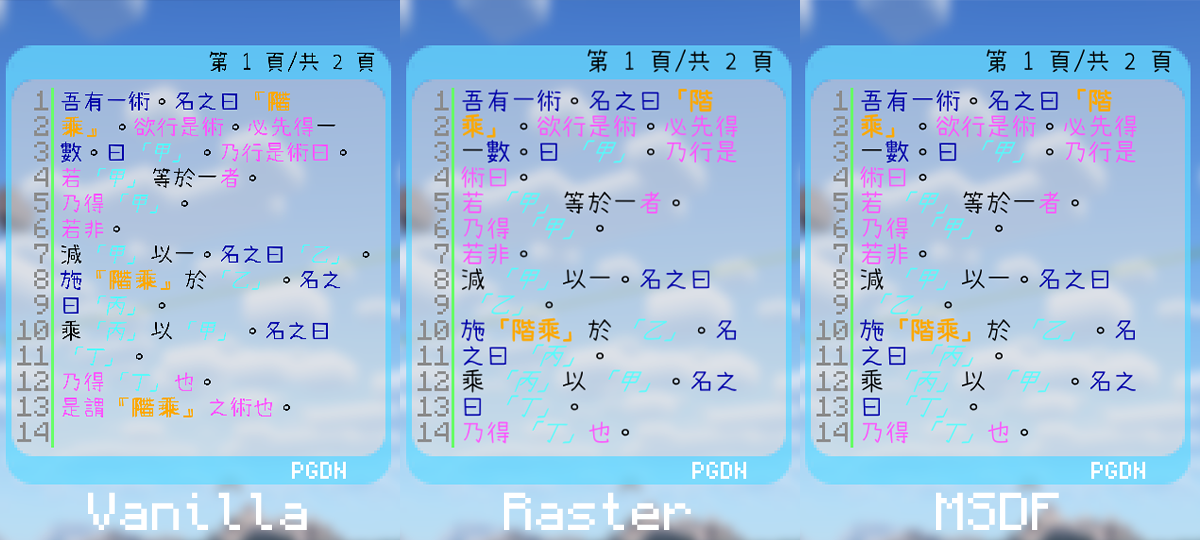 ▲ There isn't much difference between Caxton-Raster and Caxton-MSDF in small texts.\
 - ▲ Caxton-Raster 和 Caxton-MSDF 在較小的文字上幾乎沒有差別。
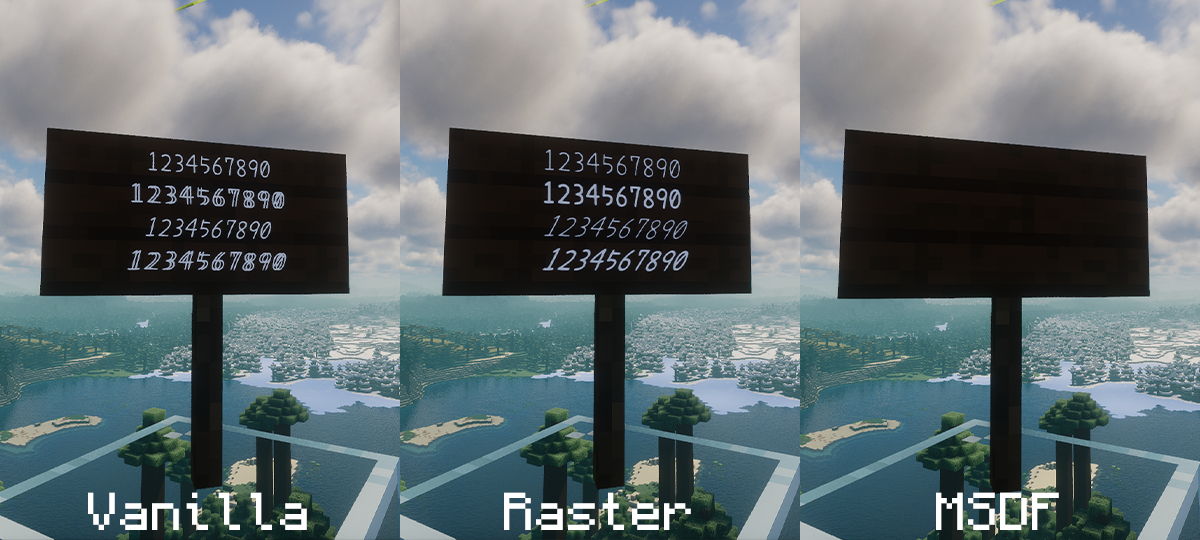 ▲ Caxton-MSDF doesn't compatible with Iris.
▲ Caxton-MSDF 和Iris不相容。
Options
Respackopts is required to modify these options.
需安裝Respackopts以變更設定
- Text Shadow (default is off)
- 字體陰影 (預設為關)
Caxton Configurations
Don't like how the Caxton fonts look or using a different GUI scale? Then you can try to edit the configuration files. I'll show you how.
不喜歡Caxton的顯示效果嗎?那你可以試試更改字體設定檔,說明如下。
assets/minecraft/font/default.json
"blur": true
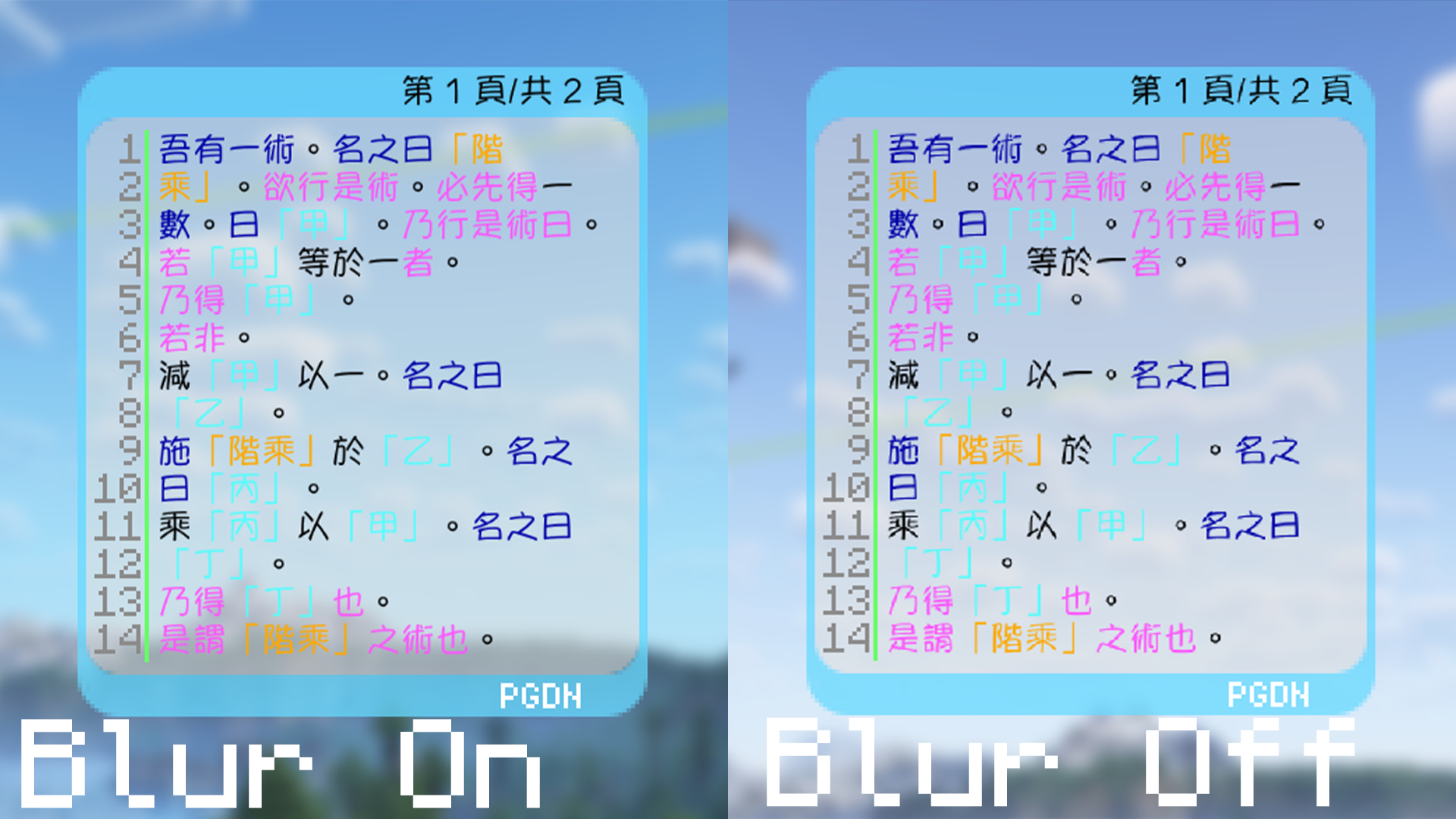 Only has an effect on raster tech. If true, texels in the glyph bitmap will be interpolated.
"scale_factor": 1.1,
"shadow_offset": 0.5,
"shift": [0, -0.3]
Control the glyph size, shadow size and glyph offset.
"the_font_designer_couldnt_be_assed_to_make_an_italic_variant_so_slant_the_text": 1056964608
Automatically generating italic fonts. I think this is a joke made by the author, you need to convert float32 to int32 yourself then Caxton will convert it back (what the heck?). There is a dirty way to get the int number you want via Python:
import struct
# change 0.5 to whatever you want
slant = 0.5
# the output should be 1056964608
print(struct.unpack('!i', struct.pack('!f', slant))[0])
assets/caxton/textures/font/NaikaiFont-Light.ttf.json and NaikaiFont-Bold.ttf.json
"margin": 4
The number of pixels to leave around the glyph bounding box on each side. Should be "range ≤ margin ≤ 255".
Honestly, I don't even know what it does. I have tried to set it to different numbers, but nothing happened.
"range": 4
The width of the range around the glyph between the minimum and maximum representable signed distances. This is a positive integer no greater than 255. This also determines the width of the border drawn for glowing sign text.
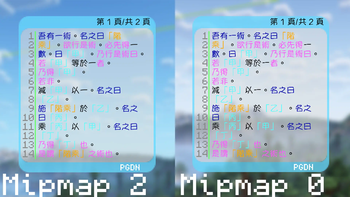
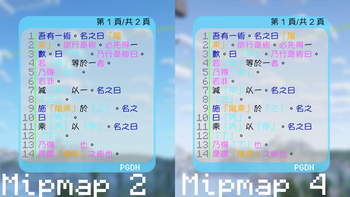
"max_mipmap": 2
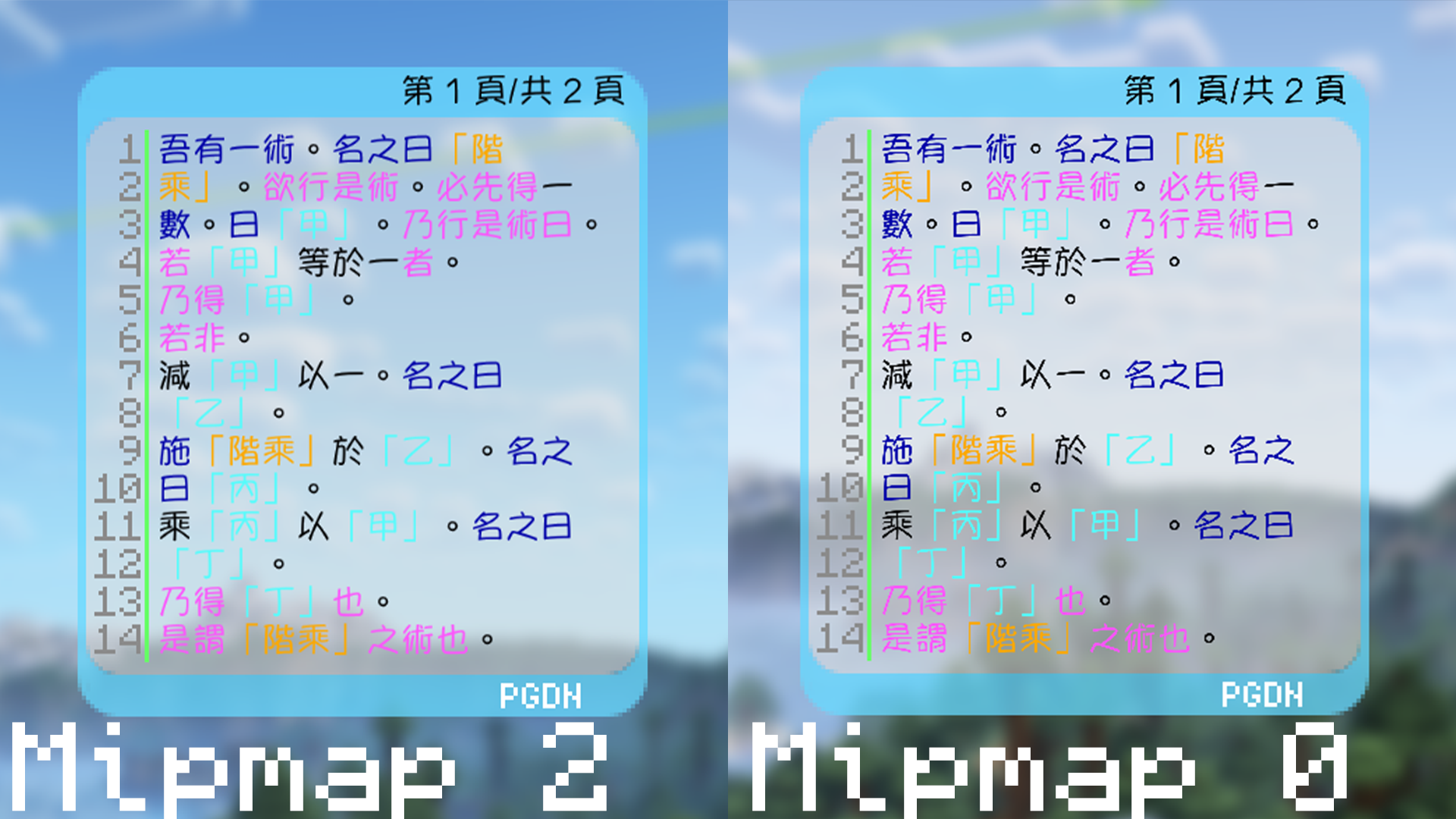
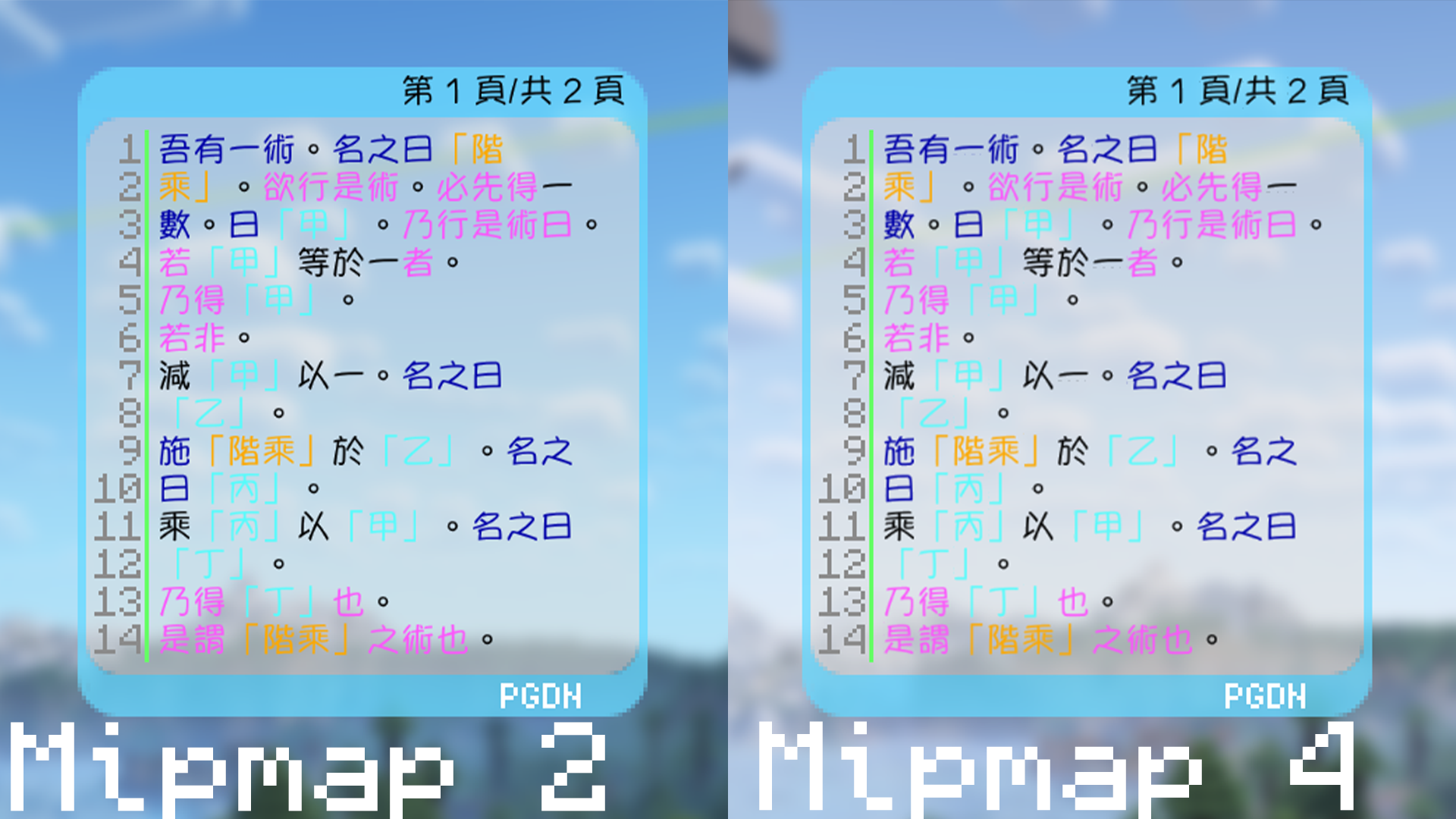 The maximum mipmap level (0 – 4). This is pointless to set if you’re using the MSDF rendering tech. However, it can be useful for non-pixel fonts when you’re using the raster rendering tech.
Higher values mean lower resolution for small texts, which means less aliasings. However, some unwanted artifact may occur. Note there is a strange line under the glyph "一" in the mipmap level 4 picture.
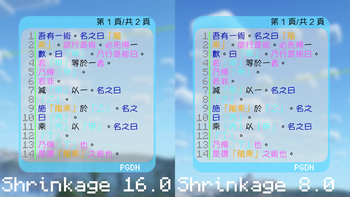
"shrinkage": 16.0
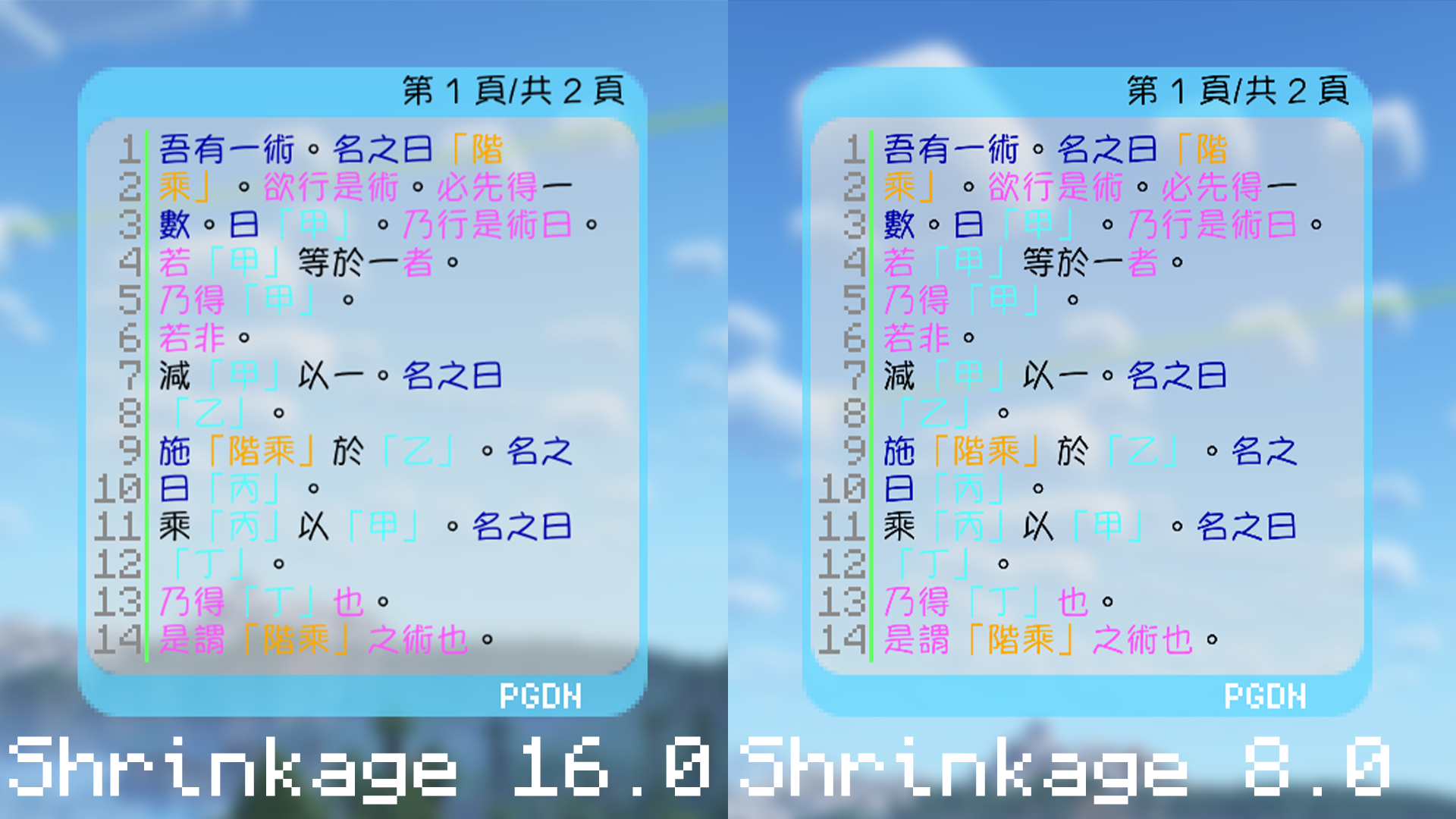 The number of font units corresponding to each pixel in the texture atlas. This can be set to a high value if using the "msdf" font rendering tech. If you’re using "raster", then you should set this to a lower value.
"tech": "raster"
Specifies whether to use the MSDF-based rendering method ("msdf") or to use glyph bitmaps ("raster" – EXPERIMENTAL). "msdf" is recommended for most fonts, but "raster" is more suitable for pixel fonts. In addition, only "raster" is fully compatible with Iris Shaders – text in MSDF fonts will not show up inside the world if a shader is loaded.
- Edition: Minecraft Java
- File type: .zip (resource pack)
- Minecraft versions listed: 1.21, 1.21.1
- How to install: Download the .zip resource pack — do not unzip it. → Put it in .minecraft/resourcepacks. → Enable it in Options → Resource Packs.
- Where to get it: Opens on Modrinth — not every file is mirrored on our own servers.
Install steps are the general flow for this file type — How to install Minecraft Java resource packs walks through it step by step.
- Downloads as NaikaiFont Vanilla.zip
- Download size: 20.5 MB
- Download link checked 31 Aug 2026 — working
These come from our own check of the pack file, not from the source page.