
EnderLink
A simple and reliable connection system for linking Minecraft and Discord.
This description might not be the latest version, To check the most up to date description head on over to github.com/finnjosten/EnderLink
✅ Supported Versions
- Minecraft/Bukkit:
1.21.3 - Built and tested on Purpur 1.21.3
- Other versions may work but are not officially tested.
💡 Features
Ever heard of DiscordSRV? This is a fresh take on that idea. With EnderLink, you can:
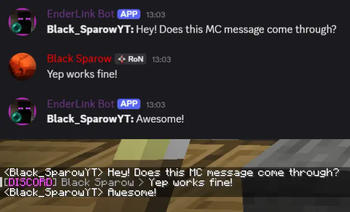
- Cross-Chat: Send messages in Discord or Minecraft and have them appear on the other platform.
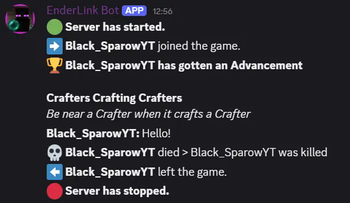
- Death Messages: Want to flex on your players by only broadcasting their tragic deaths? Totally possible.
- Server Status Updates: Notify a Discord channel when the server starts up or shuts down.
- And more: Its not just limited to only this, install the plugin and find out!
⚙️ How It Works
It’s pretty simple. Let’s define the key parts:
- Discord – Your Discord server (guild).
- Discord Bot – The bot invited to your server that sends and receives messages.
- WebSocket/WSS – The bridge server that relays all data.
- Minecraft – Your Minecraft server running the EnderLink plugin.
The flow looks like this:
MC Event Happens → Sent to WebSocket → Discord Bot Receives Event → Bot Sends Message
Example:
Player sends message in MC → Plugin relays to WebSocket → Discord Bot receives it → Message appears in Discord channel
🔧 Requirements
You’ll need:
- A Discord bot running the code from: finnjosten/EnderLinkDiscord
- A WebSocket server, either:
- The official hosted WebSocket, or
- Your own instance running this code: finnjosten/EnderLinkWebsocket
🛠️ Setup Guide
Prepare the Bot & WebSocket
- Make sure your Discord bot is nearly ready and the WebSocket is online.
- To setup the Discord bot follow this instruction: finnjosten/EnderLinkDiscord/README
- If you want to use our websocket leave those values as is, If you want to setup your own follow this instruction: finnjosten/EnderLinkWebsocket/README
Install the Plugin
- Place the EnderLink plugin
.jarinto your Minecraft server’spluginsfolder. - Reload with
/plugman load EnderLink-{version}(requires PlugmanX)
or simply restart the server.
- Place the EnderLink plugin
Configure the Plugin
- Go to
plugins/EnderLink/config.yml. - Copy the values for
room-idandroom-secret.
- Go to
Configure the Discord Bot
- Open the
.envfile for your bot (copyexample.envand rename to.envif needed). - Fill in:
ROOM_ID=<your room-id>
ROOM_SECRET=<your room-secret>
- Open the
Launch Everything
- Start or restart your Discord bot. In the console you should see a message that its connected to the websocket.
- Check your Minecraft console, you should see a successful registration message.
Test It!
- Send a message in the configured Discord channel → it should appear in your Minecraft server (and console).
- Chat in-game → the message will show up in Discord.
🛠️ Optional configuration
Custom room ID and Secret
In the plugins config.yml you can set the room id and room secret to what ever you want.
room-id: UUID
room-secret: SECRET
Here you can set the ID to something you would like, we suggest you keep this as random as possible and keep the length at or under 32 characters.
Besides the ID you can also set your own Secret or better called Password. This again we suggest keeping as random as possible and at or under 32 characters.
Why do we suggest random characters? Any one who works with some kind of security already knows that the more random something is the harder to guess it is. If you choose your password to be password123 you can guranteed it will be guessed. Besides it being more secure its not like a password you need to remember. You copy it once and just paste it into the bots that need it. After that there is no reason to remember this secret.
Enabling / Disabling MC events
Again in the plugins config.yml you can set what Minecraft events the plugin should be listening to.
events:
  - chat
  - join
  - leave
  - death
  - advancement
  - server-start
  - server-stop
In this list you can just set the events to listen to. The options are as follows:
chat: All types of chat messages in minecraft.join: Joining of a player.leave: Leaving of a player.death: A player dying for some reason.advancement: A player getting an achievement (or now called advancements in MC).server-start: Once the server is started up it will send out this event.server-stop: Once the server is stopped it will send out this event.
Both power events (server-start/stop) should in only be send out if the server actually starts and stop and not on plugin load / unload but errors could occur.
🎉 Done!
That’s it. You now have seamless Minecraft ↔ Discord chat integration with EnderLink.
Go ahead, send a message and watch the magic happen!
- Edition: Minecraft Java
- File type: .jar
- Minecraft version listed: 1.21
- How to install: Install the matching mod loader (Forge, Fabric or NeoForge) for your Minecraft version. → Download the .jar. → Put it in the .minecraft/mods folder and launch that loader profile.
- Where to get it: Opens on Modrinth — not every file is mirrored on our own servers.
Install steps are the general flow for this file type — How to install Minecraft Java mods & modpacks walks through it step by step.
- Ships as EnderLink-1.4.0.jar — drop this file into the mods folder
- Download size: 117 KB
- Download link checked 10 Sept 2026 — working
These come from our own check of the pack file, not from the source page.