Andy's Handy Hotbar Reloader
Automatically refill hotbar slots, anchor preferred items, and save 16 per-player Hotbar Blueprints with visual previews for Minecraft Bedrock.
⬇ Download on CurseForge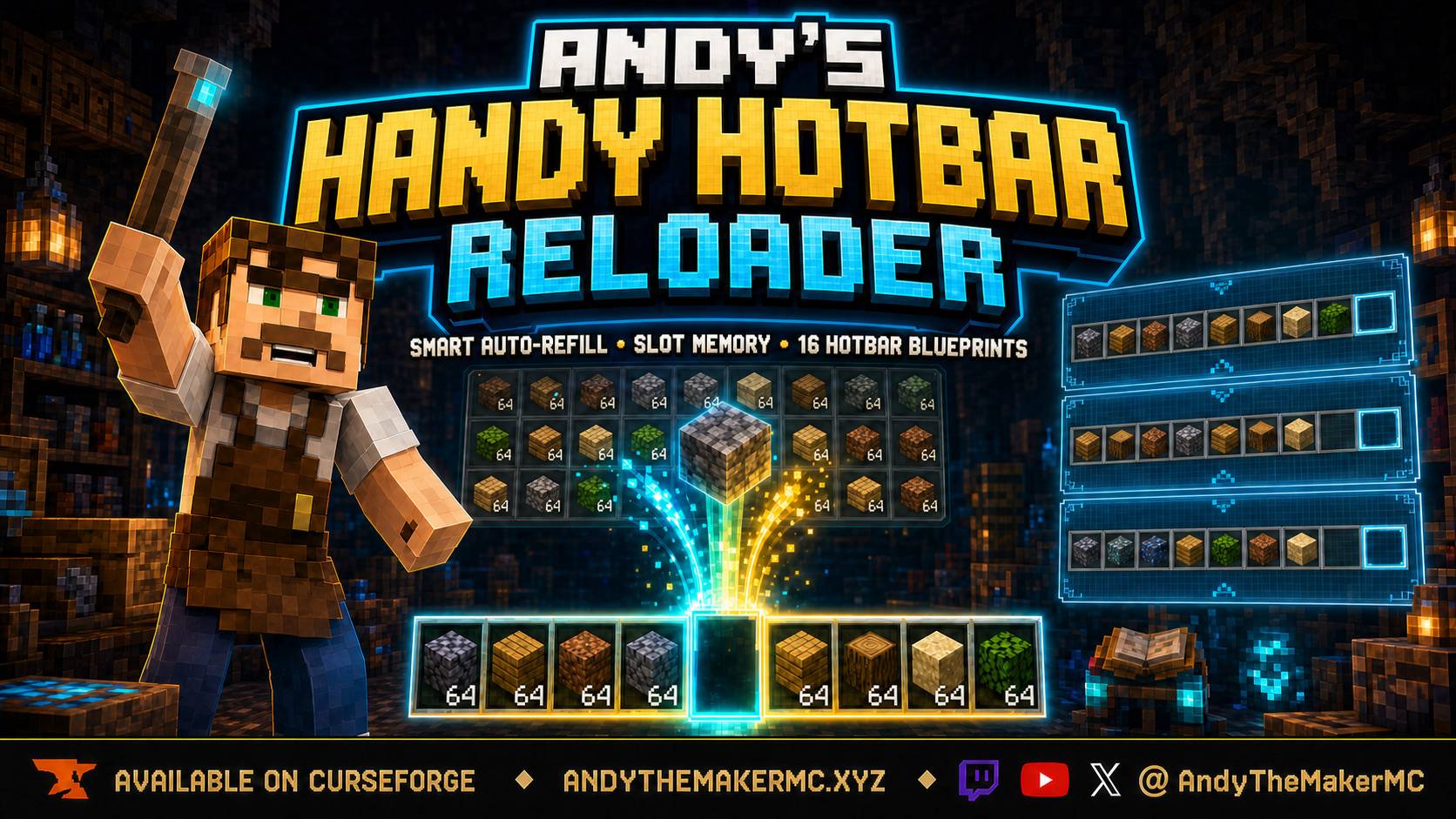
Andy's Handy Hotbar Reloader
Smart Auto-Refill, Slot Memory & Hotbar Blueprints for Minecraft Bedrock
Andy's Handy Hotbar Reloader keeps selected hotbar slots supplied with matching items already carried in the player's inventory. When building blocks, food, projectiles, consumables, ammunition, tools, or weapons run out through normal use, a compatible replacement can be moved into the same position automatically.
The add-on is designed to reduce repetitive inventory interruptions without taking control away from the player. Every hotbar slot can be left completely unmanaged, set to refill only after genuine use, or anchored to a remembered item that should remain assigned to that position.
Players can also save up to 16 named Hotbar Blueprints each. Every Blueprint records all nine hotbar positions and their Slot Memory rules. Opening a Blueprint displays its saved blocks and items before anything is moved, making it practical to maintain separate layouts for building, mining, exploration, farming, Redstone, the Nether, combat, or any other activity.
Handy Hotbar Reloader never creates supplies, crafts replacements, or pulls items from nearby containers. If a compatible item is not already in the player's own inventory, the slot remains unresolved and the player is informed according to their selected feedback settings.
Features
- Event-driven hotbar refilling from items the player already carries
- Independent control for all nine hotbar slots
- Unmanaged, Refill, and Anchored Slot Memory modes
- Up to 16 named Hotbar Blueprints per player
- Visual nine-slot Blueprint inspection before loading
- Recognizable vanilla block and item icons with names and Slot Memory modes
- Availability checks that identify missing Blueprint supplies
- Exact Item Details and Same Item ID matching options
- Smallest Stack, Largest Stack, and Nearest Inventory Slot priorities
- Compatible replacement tools and weapons after breakage
- Replenishment for supported ammunition and thrown items
- Safe handling for returned bottles, bowls, and buckets
- Configurable low-stock warnings
- Quiet, Action Bar, Sound, or combined feedback
- In-game settings through menus and the ReloaderControl stick
- Player commands that do not require Cheats
- Persistent per-player settings and Blueprints
- Multiplayer world and Realm support
- Stable Script APIs with no Beta API experiment required
- No required Resource Pack or add-on dependency
Requirements
- Minecraft Bedrock Edition 26.30 or newer
- Andy's Handy Hotbar Reloader Behavior Pack activated on the world
- Stable
@minecraft/server2.8.0 support - Stable
@minecraft/server-ui2.1.0 support - No Cheats required
- No experimental gameplay toggles required
- No separate Resource Pack required
Public achievement compatibility is not advertised as guaranteed. Minecraft makes the final eligibility decision for each world and platform, so achievement behavior should be confirmed against the exact retail version and world configuration being used.
Installation
- Download
andys-handy-hotbar-reloader-v1.0.2.mcaddon. - Open the file with Minecraft Bedrock.
- Wait for Minecraft to report a successful import or update.
- Create a world or edit an existing world.
- Open Behavior Packs → My Packs.
- Select Andy's Handy Hotbar Reloader and choose Activate.
- Enter the world.
- Open the menu with
/ahh:menu, or create a ReloaderControl stick in an anvil.
On a Realm or server, activate the add-on on the world before uploading or launching it. Joining players receive the Behavior Pack through Minecraft's normal world-pack delivery.
Back up an important world before installing or updating any add-on.
Updating
- Back up the world.
- Import the newer
.mcaddonfile. - Wait for Minecraft to confirm that the newer version imported successfully.
- Edit the world and confirm that the newest Andy's Handy Hotbar Reloader version is active.
- Remove or deactivate older duplicate copies if Minecraft retained them.
- Completely leave and reopen the world before testing the update.
If Minecraft reports Duplicate Pack Detected, confirm that the new file has a higher version number. If the message continues, remove the obsolete copy under Settings → Storage → Behavior Packs, restart Minecraft, and import the new file again.
Per-player settings and Blueprints are stored against the player and are designed to persist when the pack is updated with the same project UUIDs.
Quick Start
- Enter the world and run
/ahh:menu. - Enable Auto-Refill.
- Open Slot Memory.
- Choose Unmanaged, Refill, or Anchored for each hotbar position.
- Keep matching replacement supplies in the player's inventory.
- Use or place the managed hotbar item normally.
- Open Hotbar Blueprints to save frequently used layouts.
Auto-refill begins disabled for every player. Installing the add-on therefore does not immediately rearrange anyone's hotbar.
How Auto-Refill Works
Handy Hotbar Reloader watches genuine inventory changes associated with normal item use. When a managed hotbar item is consumed, placed, thrown, fired, or broken, the add-on checks the player's inventory for a compatible replacement.
When a replacement is found, it is moved into the depleted hotbar position. The add-on does not summon a new item, duplicate the original stack, use materials stored inside another container, or search nearby chests, barrels, Shulker Boxes, or storage systems.
If no compatible replacement is available, the slot remains empty or unchanged. Depending on the selected feedback mode, the player can receive an Action Bar message, a sound, both, or no interruption.
Manual inventory changes
Refill mode is designed to distinguish normal depletion from deliberate inventory management. Manually moving or dropping the final item does not normally cause it to return.
Anchored mode is intentionally stronger. If a player manually removes an Anchored item, the add-on attempts to restore the remembered assignment whenever compatible stock exists. Use Refill or Unmanaged mode for positions that should remain freely editable.
Low-stock warnings
The warning threshold can be set from 0 to 256 items. When the remaining compatible supply reaches the chosen threshold, feedback warns the player before the reserve is completely exhausted.
A threshold of 0 disables low-stock warnings.
Slot Memory
Every hotbar position has an independent Slot Memory mode.
| Mode | Behavior | Good uses |
|---|---|---|
| Unmanaged | The add-on never refills, moves, or restores the slot automatically. | Temporary items, manually managed tools, maps, or flexible positions |
| Refill | Replaces an item after genuine placement, consumption, throwing, ammunition use, or breakage. Deliberate manual removal is respected. | Building blocks, food, seeds, projectiles, and ordinary supply stacks |
| Anchored | Remembers the assigned item and attempts to restore it whenever a compatible replacement exists, including after manual removal. | Torches, scaffolding, food, a preferred building block, or another permanent position |
Remembering an Anchored item
- Put the desired item in the hotbar position.
- Open Slot Memory.
- Select that slot.
- Change its mode to Anchored.
- Use Remember Current Item if the assignment was not captured automatically.
The slot editor displays both the item currently present and the item remembered by Anchored mode. Clear Remembered Item removes the saved assignment without deleting anything from the player's inventory.
Hotbar Blueprints
Every player receives 16 independent Blueprint slots. A Blueprint is a saved inventory arrangement, not a kit or item generator.
Example names include:
- Builder
- Mining
- Exploration
- Nether
- Farming
- Redstone
- Combat
- Ocean Monument
What a Blueprint stores
- The desired item identity in each of the nine hotbar positions
- Positions intentionally saved as empty
- All nine Unmanaged, Refill, or Anchored rules
- Remembered Anchored assignments
- Exact or Same Item ID matching preference
- Replacement priority
- Feedback mode
- Low-stock threshold
- Returned-container behavior
Saving a Blueprint
- Arrange the hotbar exactly as desired.
- Configure the Slot Memory rules that belong with that layout.
- Open Hotbar Blueprints.
- Select any empty Blueprint position from 1 through 16.
- Enter a recognizable name.
- Choose Save Current Hotbar.
Saving records the layout and preferences without consuming, moving, or duplicating inventory items.
Inspecting a saved Blueprint
Select an occupied Blueprint to open its saved-hotbar screen. All nine positions are shown before any load action is available. Each row displays:
- Slot number
- Saved item or block name
- Recognizable vanilla texture icon when a verified texture is available
- Empty saved positions
- Saved Slot Memory mode
The 16-Blueprint list also uses a representative saved item as a visual cue for occupied Blueprints.
Vanilla icon paths are generated from Mojang's current block, terrain, and item texture metadata. If no verified vanilla texture exists—most commonly for an item supplied by another add-on—the item name and slot details remain visible without an image instead of displaying a missing-texture checkerboard.
Previewing availability
Choose Preview Availability & Load to check the player's current inventory. The confirmation screen reports how many assigned items can be located and lists missing supplies.
Canceling the confirmation moves nothing.
Loading a Blueprint
Loading rearranges only items the player already carries. Populated positions use inventory swaps, allowing the displaced hotbar item to take the selected replacement's former position. This means a populated layout does not normally require an unused inventory slot.
Positions saved as empty are cleared only when their current contents can be moved safely into the main inventory. Locked, restricted, missing, or otherwise unavailable items remain unresolved and are reported instead of being deleted or overwritten.
Loading also activates the Blueprint's saved Slot Memory and general refill preferences.
Managing Blueprints
Each occupied Blueprint can be:
- Loaded after an availability preview
- Overwritten with the current hotbar and settings
- Renamed
- Deleted
- Reached through next-Blueprint cycling
Deleting a Blueprint removes the saved layout record. It does not remove any inventory items.
Item Matching
Exact Item Details
Exact Item Details is the default and safest matching mode. Where Bedrock's stable Script API exposes the relevant information, it distinguishes:
- Custom names
- Lore
- Enchantments and levels
- Potion effect and delivery type
- Dye color
- Supported item dynamic properties
- Unbreakable state
Durability wear is intentionally ignored while identifying a compatible replacement. This allows another matching tool or weapon with more remaining durability to replace one that broke.
Use Exact Item Details for enchanted, named, dyed, potion, or add-on-provided items whose identity matters.
Same Item ID
Same Item ID accepts any item with the same identifier. It is more flexible but does not protect every exposed item detail.
This mode is useful when any stack or tool of the same basic type is acceptable. Avoid it for valuable named or enchanted items unless that broader behavior is intentional.
Replacement Priority
When several compatible replacements exist, choose how the source is selected:
| Priority | Behavior |
|---|---|
| Smallest Stack First | Uses partial stacks first to consolidate inventory space |
| Largest Stack First | Chooses the fullest stack for the longest uninterrupted run |
| Nearest Inventory Slot | Uses the earliest compatible position in the player's inventory |
For otherwise equal durable tools and weapons, the compatible candidate with the most remaining durability is preferred.
Tools, Weapons, Ammunition, and Consumables
Handy Hotbar Reloader supports more than building stacks. Compatible replacements can be selected after a tool or weapon breaks, and supported ammunition or thrown supplies can be replenished after genuine use.
The add-on still follows the selected Slot Memory and matching rules. A named or enchanted tool in Exact Item Details mode will not be replaced by an unrelated copy merely because both items share a general category.
Keep replacements in the player's inventory. Items stored inside Bundles, Shulker Boxes, chests, barrels, or other nested and nearby containers are not used.
Returned Bottles, Bowls, and Buckets
Some consumables leave a container behind in the hotbar. When Move bottles, bowls, and buckets aside when safe is enabled, the add-on attempts to move that returned container into the main inventory before restoring the consumed supply.
The returned item is moved only when it can be placed safely. If sufficient capacity is not available, the refill is refused instead of deleting or overwriting the bottle, bowl, bucket, or another inventory item.
ReloaderControl
For an entirely in-game settings shortcut, rename one ordinary vanilla stick in an anvil:
ReloaderControl
Use ReloaderControl on any block to open the main menu. Capitalization and accidental surrounding spaces are ignored.
A correctly named control stick can also be received with:
/ahh:tool
This convenience command does not require Cheats.
ReloaderControl remains an ordinary stick. It does not introduce a custom item, recipe, texture, or Resource Pack requirement.
Settings Guide
Main Menu
The main menu shows whether auto-refill is enabled and identifies the currently active Blueprint. From it, players can open Slot Memory, Hotbar Blueprints, General Settings, Diagnostics, and Help.
General Settings
| Setting | Purpose |
|---|---|
| Auto-refill enabled | Turns automatic slot management on or off for the player |
| Item matching | Chooses Exact Item Details or Same Item ID |
| Replacement priority | Chooses Smallest Stack, Largest Stack, or Nearest Inventory Slot |
| Refill feedback | Chooses Quiet, Action Bar, Sound, or Action Bar and Sound |
| Low-stock warning | Sets the remaining-supply threshold from 0 through 256 |
| Move returned containers aside | Safely relocates bottles, bowls, and buckets before a refill |
Settings are saved per player rather than globally. One player's choices do not replace another player's configuration.
Diagnostics
Diagnostics reports:
- Current item in every hotbar position
- Current Slot Memory mode
- Remembered Anchored assignment
- Session refill count
- Unresolved refill attempts
- Blueprint load count
- Most recent refill result
Use this screen when a slot behaves differently than expected or when reporting a problem.
Commands
All Handy Hotbar Reloader commands are player-only and do not require Cheats.
| Command | Purpose |
|---|---|
/ahh:menu |
Open the main settings menu |
/ahh:toggle |
Toggle auto-refill on or off |
/ahh:on |
Enable auto-refill |
/ahh:off |
Disable auto-refill |
/ahh:status |
Show current settings and the active Blueprint |
/ahh:blueprints |
Open all 16 Blueprint positions |
/ahh:save <1-16> |
Save the current hotbar into a Blueprint position |
/ahh:load <1-16> |
Load an occupied Blueprint directly |
/ahh:next |
Load the next occupied Blueprint position |
/ahh:tool |
Receive a correctly named ReloaderControl stick |
/ahh:help |
Display concise in-game help |
Direct /ahh:load commands do not provide the same visual confirmation workflow as opening and inspecting a Blueprint through the menu. Use the menu when the saved arrangement or current availability needs to be reviewed first.
Multiplayer and Realms
- Every player has an independent master toggle.
- All nine Slot Memory rules are stored per player.
- All 16 Blueprint positions are stored per player.
- Matching, priority, feedback, warning, and returned-container settings are stored per player.
- One player's refill never uses another player's inventory.
- One player's Blueprint load never moves another player's items.
- Settings and Blueprints persist across reconnects and world restarts.
The world owner installs the Behavior Pack once. Individual players then configure their own hotbars without changing anyone else's setup.
Compatibility and Limitations
- Designed for Minecraft Bedrock 26.30 or newer
- Uses stable Script APIs
- Requires no Beta API experiment
- Requires no separate Resource Pack
- Requires no additional add-on dependency
- Does not replace vanilla blocks, items, entities, recipes, loot tables, or interface files
- Searches only inventory carried by the player
- Does not use nearby containers or nested storage items
- Blueprints rearrange items only when explicitly loaded
- Locked or restricted positions may remain unresolved
- Custom items are supported when their relevant identity data is exposed through the stable Script API
- Custom item preview icons are not guaranteed because another add-on's texture path is not exposed through the saved item identity
Test unusual third-party items in a backed-up world. Other add-ons may store private item data that Minecraft's stable Script API does not expose for comparison.
Troubleshooting
Nothing refills
- Open
/ahh:menuand confirm that Auto-Refill is enabled. - Confirm that the hotbar position uses Refill or Anchored mode.
- Keep a compatible replacement in the player's inventory.
- Use or deplete the item normally instead of manually dragging away the last item.
- Check whether Exact Item Details is rejecting a differently named, enchanted, dyed, or customized replacement.
- Open Diagnostics and review the most recent refill result.
The wrong replacement is selected
- Review Item matching under General Settings.
- Use Exact Item Details when names, enchantments, potion data, dyes, lore, or other exposed properties must match.
- Review the selected Smallest, Largest, or Nearest replacement priority.
- Confirm that the Blueprint did not load a different saved matching preference.
A manually removed item keeps returning
The position is probably Anchored. Anchored mode deliberately restores its remembered assignment.
Change that position to Refill when it should replace only genuine use, or Unmanaged when the add-on should never control it.
A Blueprint reports missing items
- Confirm that every required item is somewhere in the player's carried inventory.
- Items inside Bundles, Shulker Boxes, or external containers are not available.
- Exact Item Details may require the saved name, lore, enchantments, potion data, dye, or other exposed properties.
- The Blueprint does not create missing supplies; unresolved positions remain unchanged.
A Blueprint position meant to be empty was not cleared
The current hotbar item could not be moved safely into the main inventory. Make inventory space, remove any slot restriction, and load the Blueprint again.
A Blueprint icon is blank
The saved item may be supplied by another add-on or may not have a verified vanilla texture path available to the menu. The item name and Slot Memory mode remain accurate, and the Blueprint can still be loaded when a compatible item exists.
Version 1.0.2 replaces guessed vanilla texture paths with Mojang's current block, terrain, and item mappings. If a vanilla item displays a magenta missing-texture checkerboard in 1.0.2, include the exact item name in the problem report.
ReloaderControl does not open the menu
- Confirm that the held item is an ordinary stick.
- Confirm that its custom name is
ReloaderControl. - Use it directly on a block.
- Run
/ahh:toolto receive a correctly named replacement. - Run
/ahh:menuto confirm that menus can open normally.
The import reports Duplicate Pack Detected
- Confirm that the downloaded package is newer than the installed version.
- Remove obsolete copies under Settings → Storage → Behavior Packs.
- Restart Minecraft.
- Import the newer
.mcaddonagain. - Confirm that the world has the newest version active.
Menus close immediately
Minecraft can cancel an add-on form when another screen, chat, or menu is already open. Close the other interface and try ReloaderControl or /ahh:menu again.
Settings or Blueprints appear to be missing
- Confirm that the same player account joined the same world.
- Confirm that the newest pack version is active.
- Completely leave and reopen the world after an update.
- Check whether an older duplicate pack is still active.
Reporting Problems
Include the following when reporting an issue:
- Andy's Handy Hotbar Reloader version
- Minecraft Bedrock version and platform
- Single-player, multiplayer, server, or Realm
- Hotbar position and Slot Memory mode
- Exact item that ran out
- Expected replacement and where it was stored
- Exact Item Details or Same Item ID setting
- Replacement priority
- Active Blueprint name and position, when relevant
- Diagnostics screen information
- Exact reproduction steps
- Screenshot or video for menu and icon problems
- Relevant Content Log messages
- Whether the problem remains in a new test world with other add-ons disabled
Status
Version 1.0.2 is the current Beta testing build. It includes smart auto-refill, nine-slot Slot Memory, 16 per-player Hotbar Blueprints, visual Blueprint inspection, verified vanilla icon mappings, availability previews, safe inventory swaps, ReloaderControl, commands, diagnostics, and multiplayer persistence.
Public achievement compatibility remains unclaimed until it has been verified against the exact retail Minecraft build and world configuration.
Follow and Support Andy
Visit AndyTheMakerMC.xyz for Andy's add-ons, guides, videos, and other Minecraft content.
Follow @AndyTheMakerMC on:
- YouTube
- Twitch
- <input disabled="disabled" type="checkbox" checked="checked" />(https://x.com/AndyTheMakerMC)
- TikTok
Support future projects through Ko-fi or a direct Stripe contribution.
Content Creator Permission
Content creators may use an official, unmodified release of Andy's Handy Hotbar Reloader in Minecraft worlds, multiplayer worlds, Realms, servers, videos, livestreams, screenshots, tutorials, reviews, showcases, articles, guides, and other original gameplay content, including monetized content.
Credit to AndyTheMakerMC and a link to the official CurseForge project page are appreciated whenever practical.
This permission allows normal Minecraft delivery of the official, unmodified add-on to players joining an authorized world, Realm, or server. It does not grant permission to offer the add-on file as a separate download or to redistribute any project contents.
License
All Rights Reserved. Copyright © 2026 Andy / AndyTheMakerMC.
You may not redistribute, reupload, mirror, resell, sublicense, bundle, modify and publish, translate, adapt, decompile, disassemble, reverse engineer, extract, or reuse the add-on, its source code, documentation, branding, or artwork. You may not create derivative works or incorporate any portion into another add-on, pack, application, or project without prior written permission from the copyright holder.
The Content Creator Permission above is a limited permission to display normal gameplay and commentary. It does not transfer ownership or grant permission to distribute or modify the project files.
The promotional artwork is original AI-assisted concept artwork directed for this project. It is not an in-game screenshot.
Minecraft is a trademark of Microsoft Corporation. This project is not affiliated with, endorsed by, or sponsored by Microsoft or Mojang Studios.
- Edition: Minecraft Bedrock
- File type: .mcpack or .mcaddon
- Minecraft version listed: 26.30
- How to install: Download the .mcpack or .mcaddon file. → Open it — Minecraft imports it. → In your world: Behavior Packs → Available → Activate, then the same under Resource Packs.
- Where to get it: Opens on CurseForge — not every file is mirrored on our own servers.
Install steps are the general flow for this file type — How to install Minecraft Bedrock addons & mods walks through it step by step.
Andy's Handy Hotbar Reloader is a free Minecraft Bedrock addon. Compatible with Minecraft 26.30. Downloaded 77 times (via CurseForge). Download it and open it directly in the game.