HomeJavaModsCinewolf Autodirector
Cinewolf Autodirector
ModsJava

Cinewolf Autodirector

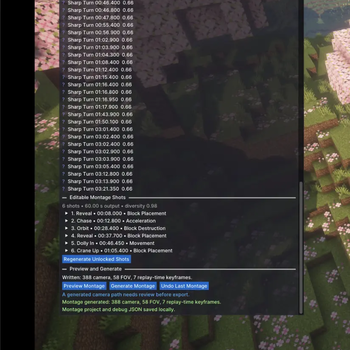
CineWolf AutoDirector is an extension for Flashback that automatically generates professional cinematic camera movements and inserts them into the replay…

⬇ Download on Modrinth
Cinewolf Autodirector — screenshot 1

CineWolf AutoDirector

CineWolf AutoDirector is a client-side Fabric extension for Flashback that turns replay activity into editable cinematic camera work. It generates single shots or multi-shot montages with deterministic local replay analysis.

Version 1.3.5 targets Minecraft Java Edition 26.2, Java 25, Fabric Loader 0.19.3, Fabric API 0.153.0+26.2, and Flashback 0.41.1.

Privacy and determinism

Montage generation runs entirely on the local client. CineWolf uses no AI service, large language model, cloud API, external server, online video processing, telemetry, or remote non-deterministic service. Given the same replay samples, configuration, preset, and selected targets, analysis and planning use stable ordering and deterministic rules.

Features

Montage presets

Duration, aspect ratio, pacing, shot range, event priorities, intro/outro templates, framing, movement intensity, cut frequency, and replay-speed preferences are separate fields.

Preset Default output Aspect Pacing Shot count
15 Seconds 15 s 16:9 Fast 3–5
30 Seconds 30 s 16:9 Moderate 5–8
60 Seconds 60 s 16:9 Narrative 8–14
Trailer 45 s 16:9 Progressive 7–12
TikTok 30 s 9:16 Fast 7–12
YouTube Short 45 s 9:16 Moderate 7–12
Cinematic Showcase 60 s 16:9 Cinematic 5–12

Built-ins live in a registry that also accepts validated user-defined presets (import/export under config/cinewolf-autodirector/presets). Templates only select generators actually present in ShotGeneratorRegistry.

Installation

  1. Install Fabric Loader for Minecraft 26.2.
  2. Install Fabric API 0.153.0+26.2 or a compatible newer 26.2 build.
  3. Install Flashback 0.41.1.
  4. Put cinewolf-autodirector-1.3.5.jar in the client mods folder.
  5. Open a replay in Flashback. The CineWolf AutoDirector window appears in the replay editor.

Flashback is an external required dependency. CineWolf does not shade, bundle, copy, or modify it.

Generate Montage

  1. Mark a Flashback In/Out range.
  2. Open the Generate Montage section.
  3. Select a preset and either a main target or automatic target detection.
  4. Optionally adjust duration, aspect ratio, pacing, shot bounds, event categories, collision avoidance, replay-speed preferences, and advanced sampling limits. Camera smoothing controls are shared with manual shots; changing only those controls keeps the completed replay analysis and edited montage plan.
  5. Select Analyze Replay. Sampling is cancellable and does not run in a render callback.
  6. Review events and scoring reasons on CineWolf's own compact event mini-timeline.
  7. Review the proposed shot list. Disable, reorder, lock, remove, replace, or regenerate unlocked shots as needed.
  8. Preview the montage. Vertical presets display a centered 9:16 safe-area guide.
  9. Confirm generation and resolve any camera, FOV, or replay-time conflict.
  10. Edit the generated native Flashback keyframes or undo the whole CineWolf montage.

The event mini-timeline belongs to the CineWolf panel. Version 1.2.0 does not inject markers into Flashback's native timeline and never modifies native replay markers.

Manual shots

  1. Select an entity target.
  2. Select a shot type (including Reveal, Crane, Spiral, tracking, Chase, Close Detail, Vehicle Profile) and adjust its fields.
  3. Mark Flashback In/Out points, or use the current replay time plus Duration.
  4. Select Preview Path, inspect the 3D path and warnings, then select Generate Shot.
  5. Resolve conflicts using Cancel, Add without deleting, or Replace inside interval. Cancel is the safe default.

Camera-path smoothing

The filter runs before local-world collision checks and never moves collision-constrained samples afterward. Position strength smooths the target-relative camera path while retaining Orbit radius and programmed Dolly distance. Rotation strength smooths the aim point before recalculating yaw and pitch. Window controls the centered time span, so it introduces no forward-only lag. Optional outlier rejection removes only an isolated high-speed out-and-back pulse above both configured thresholds; sustained fast motion, real turns, endpoints, and teleport/discontinuity boundaries are retained.

Output time and replay time

CineWolf keeps output duration, source replay time, replay speed, and native camera-track time separate. Flashback evaluates native tracks on the source replay-tick axis. CineWolf therefore writes Timelapse points whose key positions are source replay ticks and whose values are elapsed output ticks; Flashback derives playback TPS from the ratio between those axes.

Flashback 0.41.1 does not provide a stable source-cut abstraction for arbitrary non-adjacent replay segments. Version 1.2.0 consequently plans one continuous, strictly increasing source window and does not reverse, relocate, or splice source-bound camera content. Replay-speed changes within that window remain inside configured minimum, maximum, and adjacent-change bounds. A non-chronological Trailer request is reported and planned chronologically rather than represented inaccurately.

Configuration

Preferences are stored in config/cinewolf-autodirector.json. Schema version 4 adds a shared pathSmoothing section with position/rotation strengths, a time window, and isolated-motion rejection controls. The montage section retains detector-threshold, event-scoring, shot-diversity, output, sampling, collision, replay-speed, safe-area, and debug settings. Legacy manual-shot and montage values are preserved during migration. Malformed files are moved to cinewolf-autodirector.json.malformed and replaced with safe defaults.

Verified by MCModsHub

These come from our own check of the pack file, not from the source page.

Explore more