Painted Biomes
Minecraft Java mod. Downloads from the MC Java Mods app on Android.
⬇ Download on CurseForge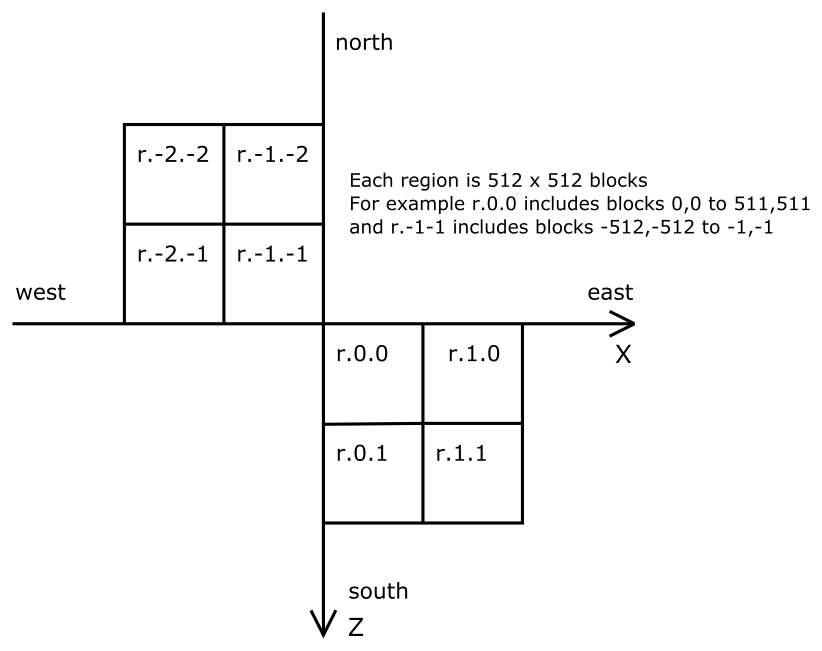
Description
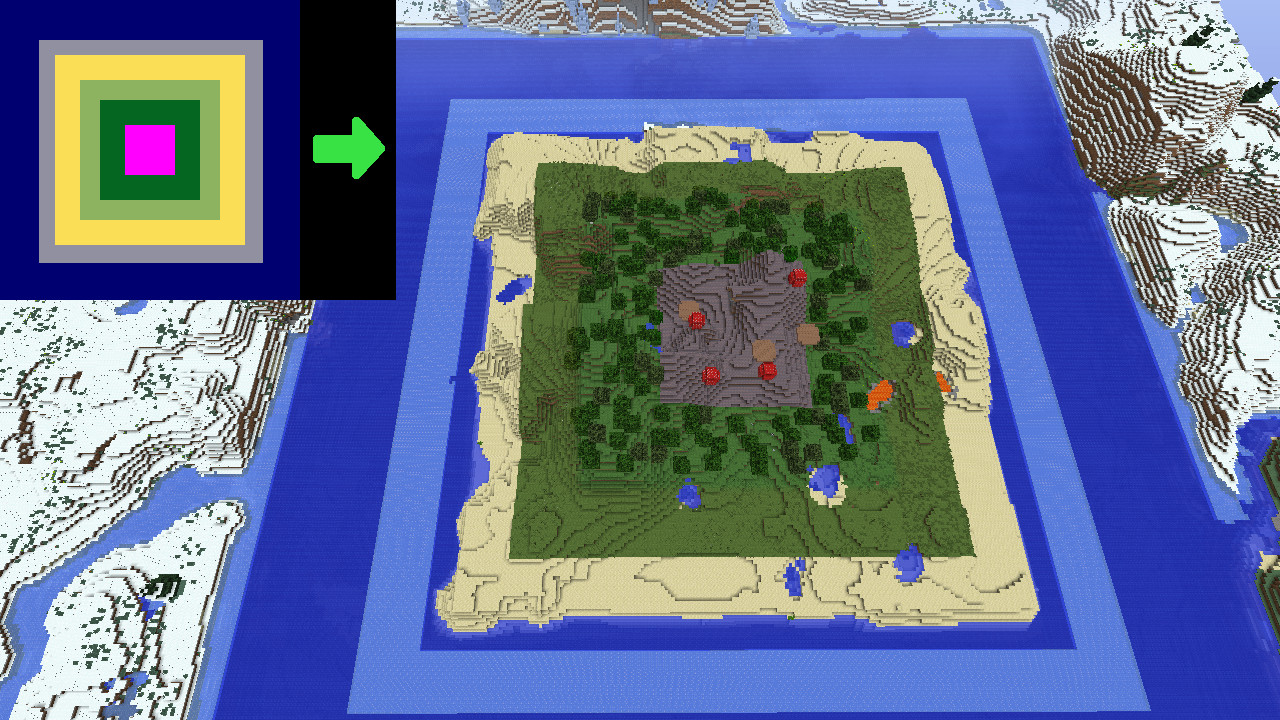
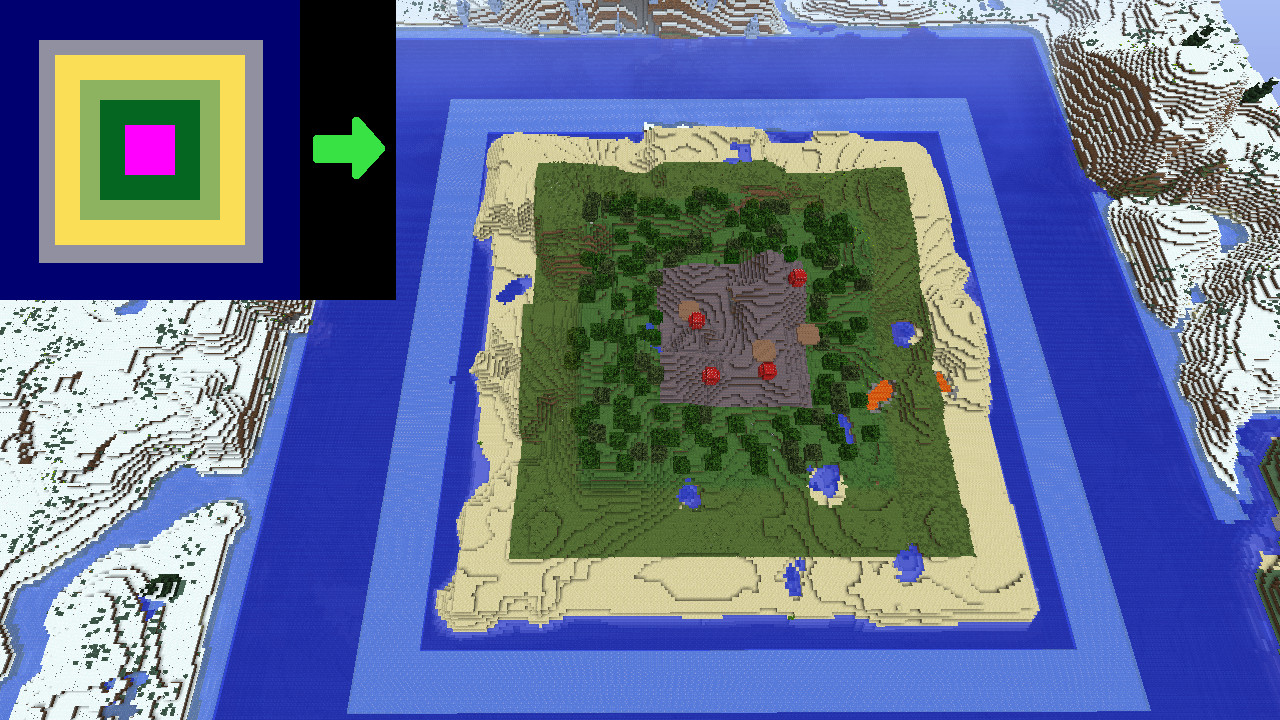
Painted Biomes allows using image templates for the biome layout.
See at the bottom of this page for a quick start quide for basic operation.
There are two different template image modes:
- Use a single template image, which can be positioned in the world using three config options for the coordinates and the alignment
- Use separate template images per regions. These follow the Minecraft McRegion/Anvil regions. This allows you to theoretically map the entire Minecraft world's biomes (if you just had enough time to make the templates and enough disk space to store the images)
Template Repeating
In the Single Template mode you can optionally use template repeating. It can be enabled or disabled individually in all four directions (+x, -x, +z, -z). There are two modes when enabling repeating:
- Repeat the entire template image
- Repeat the biome from the edge-most pixel of the template image
Note: The areas of world beyond the corner of the template image are only handled by the repeating, if the two sides that are adjacent to that area also have template repeating enabled, and are using the same mode, be it repeat the entire template, or repeat the edge pixel's biome.
About the biome replacement
- Before release 0.4.0 Painted Biomes used a biome GenLayer override. Unfortunately that only worked in very limited number of cases (mostly overworld, and only with some WorldTypes/BiomeProviders like the vanilla DEFAULT and also BIOMESOP). It also did not allow per-dimension settings or templates.
- As of version 0.4.0 the main method of replacing the biomes is via a custom BiomeProvider wrapper. This should allow using Painted Biomes in any dimension.
- Note: If you are using other tweak mods for replacing the BiomeProvider (formerly called WorldChunkManager), then there is a possibility for incompatibilities here. If you encounter any, please report them and I'll see if they can be fixed. At least Dimensional Control should work for this however, but I haven't personally tested it.
- You can set the dimensions you want Painted Biomes to work in via the configuration file (the enabledInDimensions setting, which is a list of the dimension numbers).
- Replacing the biome in itself doesn't have any effect to the terrain generation in some cases, for example the vanilla Nether and End look exactly the same after just replacing the biome.
- To enable biome-based terrain generation, there is now also the option to override the used ChunkProvider.
- For the overridden ChunkProvider there are four options available:
- VANILLA_DEFAULT, VANILLA_FLAT, VANILLA_NETHER, VANILLA_END
- Note: If you are using other tweak mods like Dimensional Control, it's then most likely best to use that mod for replacing the ChunkProvider, and leave those options disabled in Painted Biomes. The override option in this mod is provided as sort of a backup, in case you aren't using or simply can't use Dimensional Control or some other similar tweak mod.
- Note: By default, leave the B:overrideChunkProvider option to false!! It is mostly of use if you want custom terrain based on the biomes in the Nether or the End. And even so, see the note above.
Configuration overriding
- As of the 0.4.0 release, the configurations can be overridden in a few different ways.</span
- The main configuration file is at config/paintedbiomes/paintedbiomes.cfg</span
- The main configuration can be overridden per-world by placing a config file in <worldsavedirectory>/paintedbiomes/paintedbiomes.cfg</span
- Those "main" configurations can be overridden per-dimension, both globally and per-world.</span
- Global per-dimension configuration overrides are at config/paintedbiomes/paintedbiomes_dim<dimension number>.cfg (for example paintedbiomes_dim0.cfg or paintedbiomes_dim-1.cfg)</span
- Per-world, per-dimension configuration overrides are at <worldsavedirectory>/paintedbiomes/paintedbiomes_dim<dimension number>.cfg</span
- The overriding config files are not created/filled if they don't exist in the first place. To get them populated, create an empty file in the correct location.</span
- Not all values can be overridden per-dimension. Create an empty file to get it populated to see which ones are available.</span
- Basically the useGenLayer, enabledInDimensions and the color definitions are only available in the global and the per-world main configurations.</span
Required configuration values
Since the 0.4.0 version, for the mod to actually do anything, you have to enable it in the dimensions where you want it to handle the biome overriding (or alternatively use the old method of operation via the useGenLayer config value, which is not recommended in most cases due to the limitations of it).
To enable the mod in some dimensions, add the dimension ID (= number) of those dimensions to the enabledInDimensions list.
For example, to enable biome overriding in the overworld (id 0), the End (id 1) and some mod dimension with an id of -100, it will look like this (only one number per line!):

Colors
The colors used for each biome can and should be set in the configuration file.
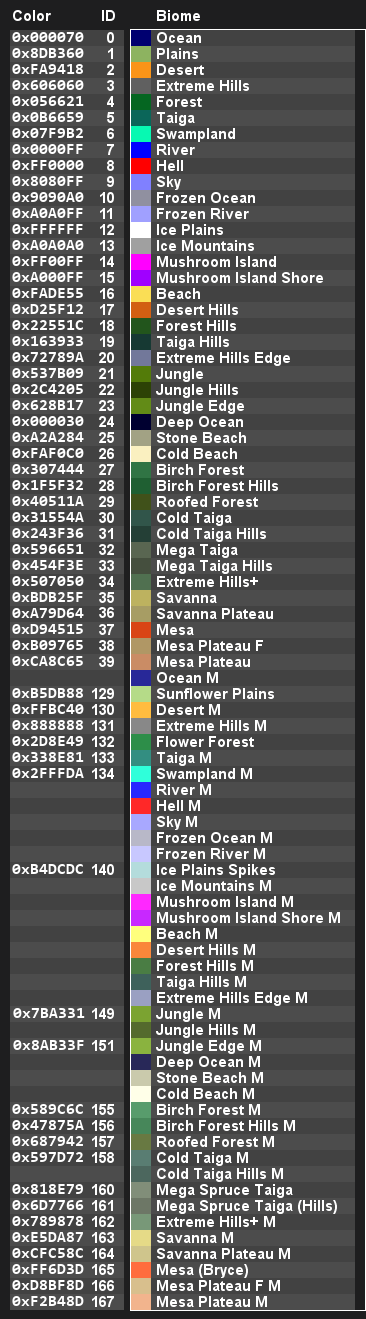
The B:useCustomColorsAsDefaults value controls what colors get assigned by default for biomes that aren't yet in the configuration file. If set to true, then vanilla biomes are by default assigned the colors used in the Amidst program. It does nothing for mod biomes, nor after the vanilla biomes are already added to the configuration file. If set to false, then the vanilla biomes are by default assigned a color so that the red channel is the biome ID. This is also what happens to all other (= mod) biomes by default. Since the value is true by default, if you want to use the red channel mapping for vanilla biomes, just change the value to false and then remove all those ColorToBiome mappings from the configuration file and let them be re-generated.
Unpainted areas
You can configure what happens to areas that are not "painted", in two different cases:
- Areas that are NOT covered by the template image(s): use I:unpaintedAreaBiomeID
- Areas that are inside the template image, but the template is completely transparent: use I:templateUndefinedAreaBiomeID
- To use the biome from the regular terrain generation, set the value to -1
- To use a pre-defined biome, set the value to the biome ID you want
- The values are validated when the configuration is read, and if the biome ID is invalid, then the value gets reset to -1.
Template images
- The template images need to be saved as PNG
- One pixel in the template image corresponds to one block in world
- The template images need to be saved in the config/paintedbiomes/templates/dim<dimension number>/ directory (for example config/paintedbiomes/templates/dim0/ for the overworld, or config/paintedbiomes/templates/dim-1/ for the Nether etc.)
- (The location has changed between versions. In 0.2.0 and 0.3.0 the location is config/paintedbiomes/templates/)
- For the single template image mode, save the image as biomes.png
- For the per-region templates mode, save the images as r.0.0.png, r.-1.-1.png etc.
- If you have alternate templates enabled, then save the alternate template images named like this: for the single template mode: biomes_alt_1.png, biomes_alt_2.png, ... and for the region mode: r.0.0_alt_1.png etc.
- The template images can also be overridden/defined per-world, by placing them in <worldsavedirectory>/paintedbiomes/templates/dim<dimension number>/
- The way this works, is that if the directory <worldsavedirectory>/paintedbiomes/templates/dim<dimension number>/ exists (even if it's empty!), then that will override the global config/paintedbiomes/templates/dim<dimension number>/ directory for that dimension.
Adding variation/randomness to the world
Starting from version 0.5.0, there are three new config options to add more variety to the world:
- useTemplateRandomRotation
- useTemplateRandomFlipping
- useAlternateTemplates plus the maxAlternateTemplates option that goes with it
The random rotation option will apply a random rotation to each template image, the flipping option will randomly flip the template (= mirror it along the x and/or z axis) and the use alternates option will randomly select an alternate template image to use. The "random result" of those actions is based on the world seed and the template's relative position in the world (since they need to be deterministic ie. remain the same in the same world using the same settings). These options are probably most useful in the single template mode, when template repeating is enabled, but they will work in every mode.
Since you most likely don't want nasty looking template edges with mismatched terrain, the template repeating and random rotations are best used with templates that have the same biome around the edges. A good example of this would be templates that contain one or more (or why not zero, especially with alternate templates, to make the islands rarer) islands in the middle of an ocean.
Note: If you have a large template image for the single template mode, then using several alternate templates will significantly increase the memory requirements to hold the raw image data in memory. It might be best to pre-generate (especially) such worlds before they are actually played on, so that the mod doesn't have to be used and consume that memory while the game is actually being played.
Template alignment
In the single template image operation mode, the template image's position in the world can be set with the I:templateAlignmentMode, I:templateAlignmentX and I:templateAlignmentZ values.
- I:templateAlignmentMode=0: The template image will be centered on the set coordinates
- I:templateAlignmentMode=1: The template image's top left corner will be at the set coordinates
- I:templateAlignmentMode=2: The template image's top right corner will be at the set coordinates
- I:templateAlignmentMode=3: The template image's bottom right corner will be at the set coordinates
- I:templateAlignmentMode=4: The template image's bottom left corner will be at the set coordinates
To use the biome from the regular terrain generation inside a template area, leave those areas in the image completely transparent and set the I:templateUndefinedAreaBiomeID config value to -1.
Reference images
You can use this image (made based on a screenshot from Amidst) as a quick reference for picking the colors for vanilla biomes in Gimp or whatever image editor you use:
Here is a quick reference of how the region files are laid out, if you want to use the per-region template mode:
Quick Start Guide
To get the most basic mode of this mod working, you mostly need to do the following things:
- Start the game to get a default configuration file generated. You can edit it now, before loading a world. It will get re-read every time you load a world, so you can just exit to main menu and edit it and load a new world.
- Enable the mod in the dimension you want, (usually the overworld, so add 0 to the list I:enabledInDimensions like so
- Make a template image. See above for more details and a reference image to pick colors from for vanilla biomes.
- Assuming you want a single template image, place that template in config/paintedbiomes/templates/dim0/biomes.png Note that everything needs to be lower case!!
- Set the undefined and unpainted area biome IDs to how you want those areas to get handled.
- Try it out! And then start tweaking things to your liking.
Some tips
Tip: The configuration file(s) and the template images are reloaded every time the server starts, so you don't have to close and restart the game completely (in single player at least...). Just save and exit to main menu, make your config and/or template changes and reload the world or start a new world.
Tip: If you are testing something that requires re-generating the terrain, you don't have to delete/re-create the entire world/save. You can just delete the region files from <worldsavedirectory>/region/r.* for the overworld, or from <worldsavedirectory>/DIM<number>/region/r.* for other dimensions. That way you keep your gamerules, the world spawn position, world time, your player position/inventory etc.
Making the per-region template images
There is a small utility program to automatically split large template images into the per-region template images available here: https://github.com/maruohon/template_regionalizer.
The README file in the repository explains how to run the program.
Mod packs/permissions
- Mod packs: go ahead!
- Re-hosting the mod file in any other cases is not cool, mmkay?
- (Please include a link back to this CurseForge project page somewhere in the description, if possible.)
- Basically follow Wheaton's Law (= Don't be a dick.).
Source
The source code can be found in the Github repo.
- Edition: Minecraft Java
- File type: .jar
- How to install: Install the matching mod loader (Forge, Fabric or NeoForge) for your Minecraft version. → Download the .jar. → Put it in the .minecraft/mods folder and launch that loader profile.
- Where to get it: Opens on CurseForge — not every file is mirrored on our own servers.
Install steps are the general flow for this file type — How to install Minecraft Java mods & modpacks walks through it step by step.
- Ships as paintedbiomes-1.8.8-0.3.0.jar — drop this file into the mods folder
- Download size: 26 KB
- Download link checked 13 Oct 2026 — working
These come from our own check of the pack file, not from the source page.