ImageToWorld
Java mod listed for Minecraft 1.19–1.21. Downloads from the MC Java Mods app on Android.
I don't know my version or loader
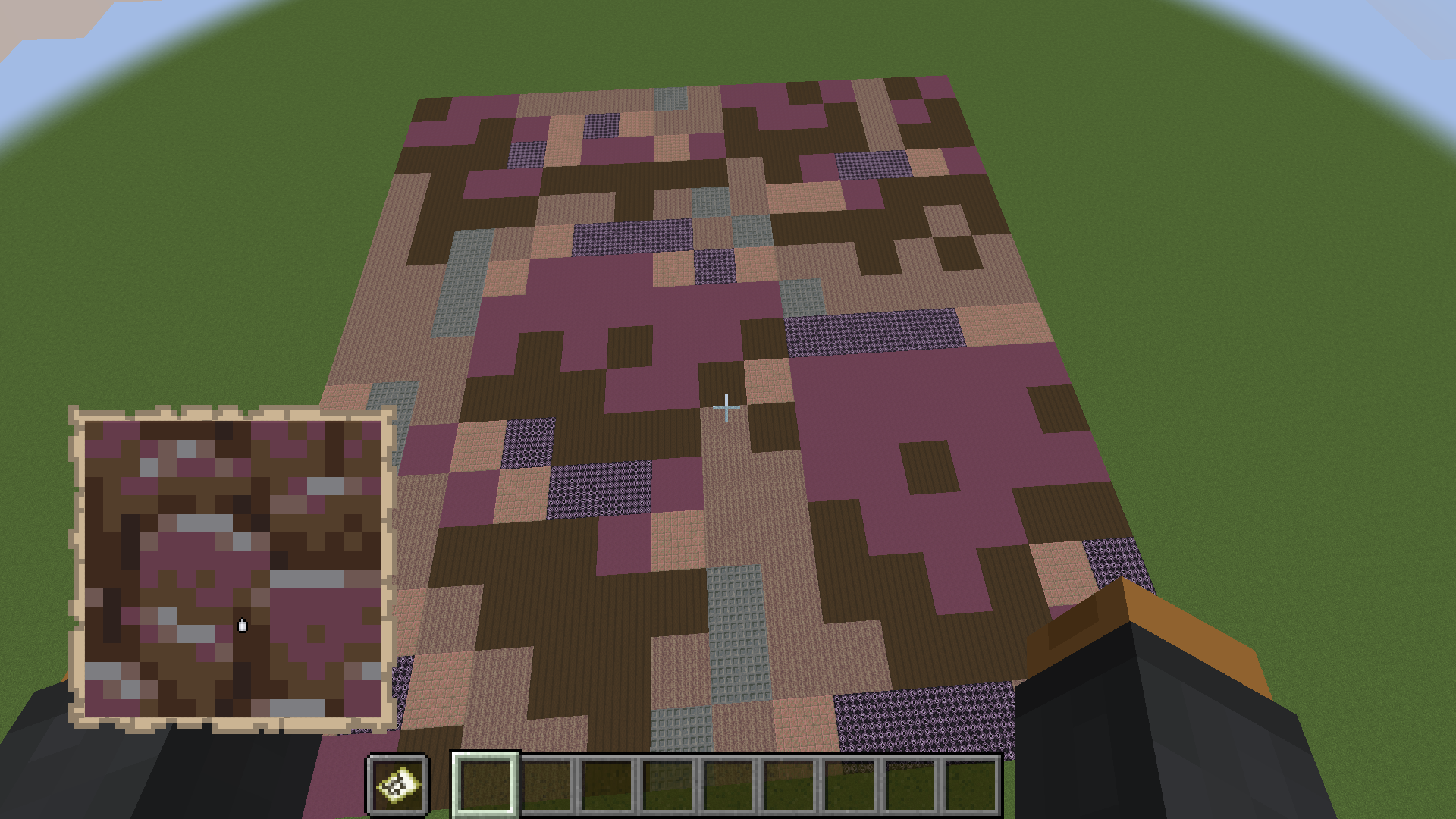
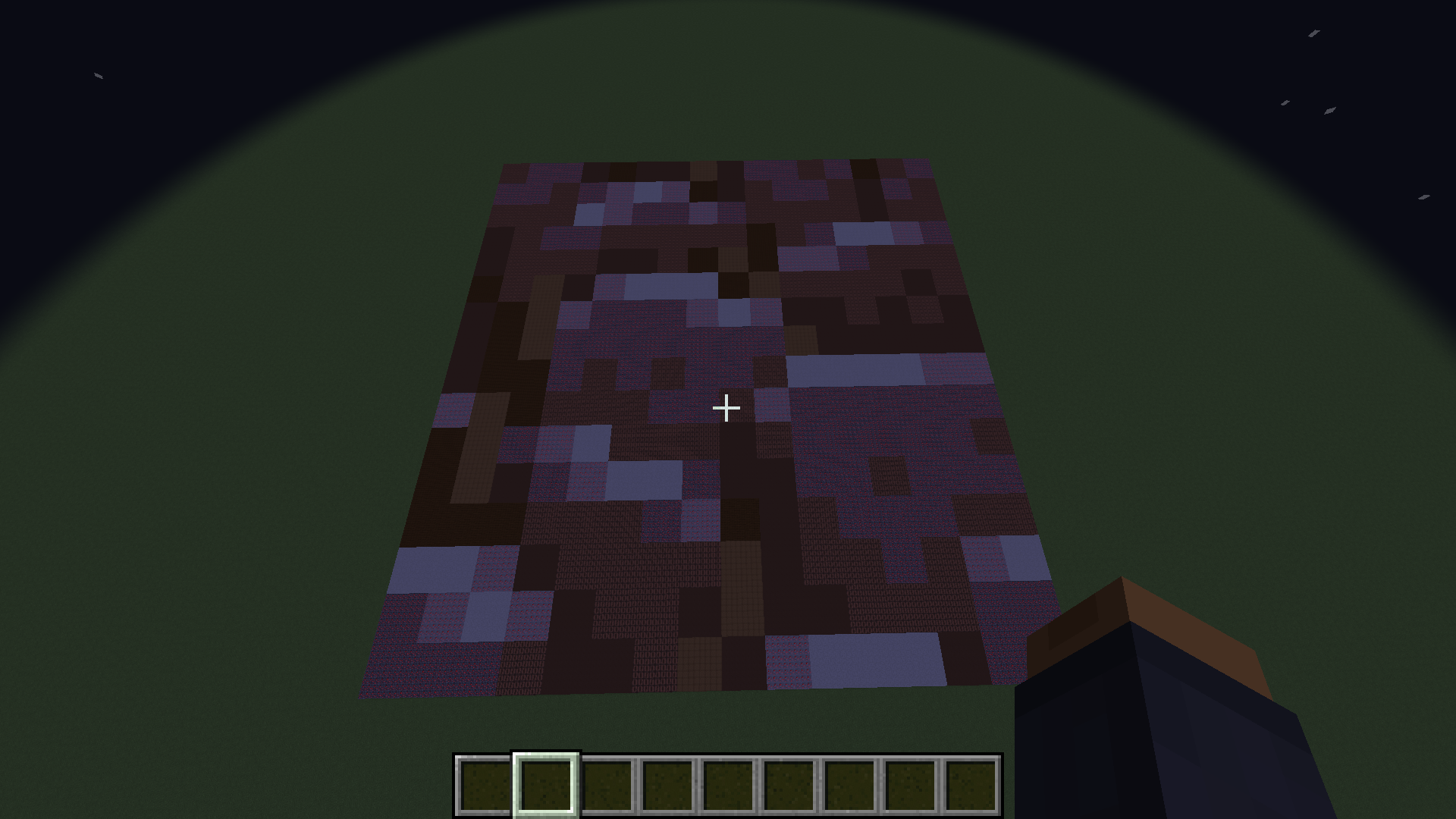
ImageToWorld
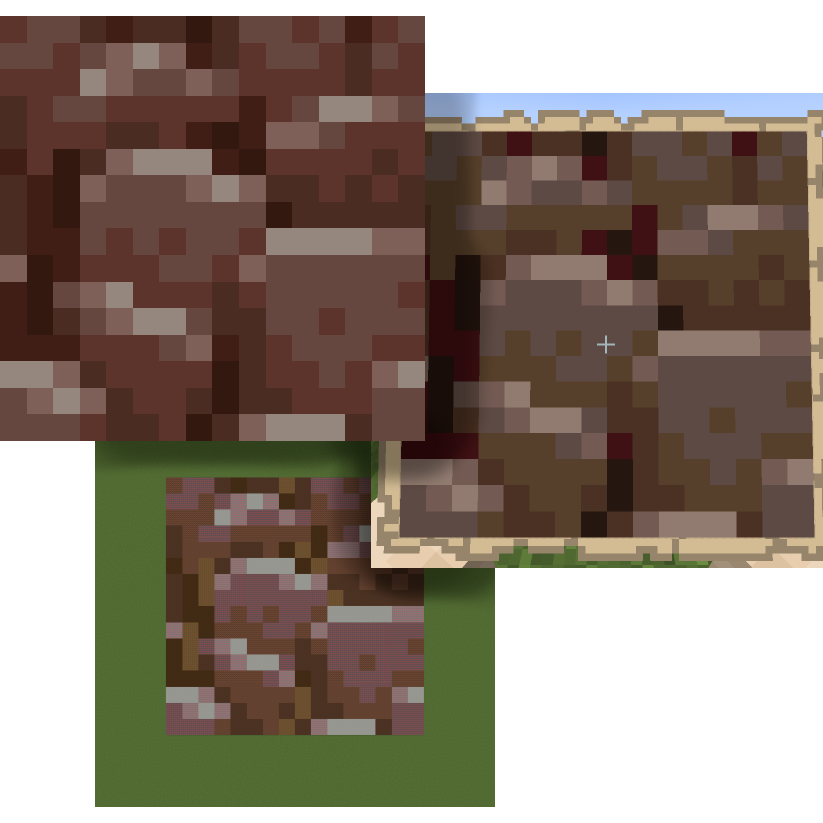
Image To World is a utility mod for pasting images into your Minecraft world.
Mod must be installed on both the client and the server.
General Info:
This mod gives a variety of ways you can add images to your world:
- Paste them directly into the world
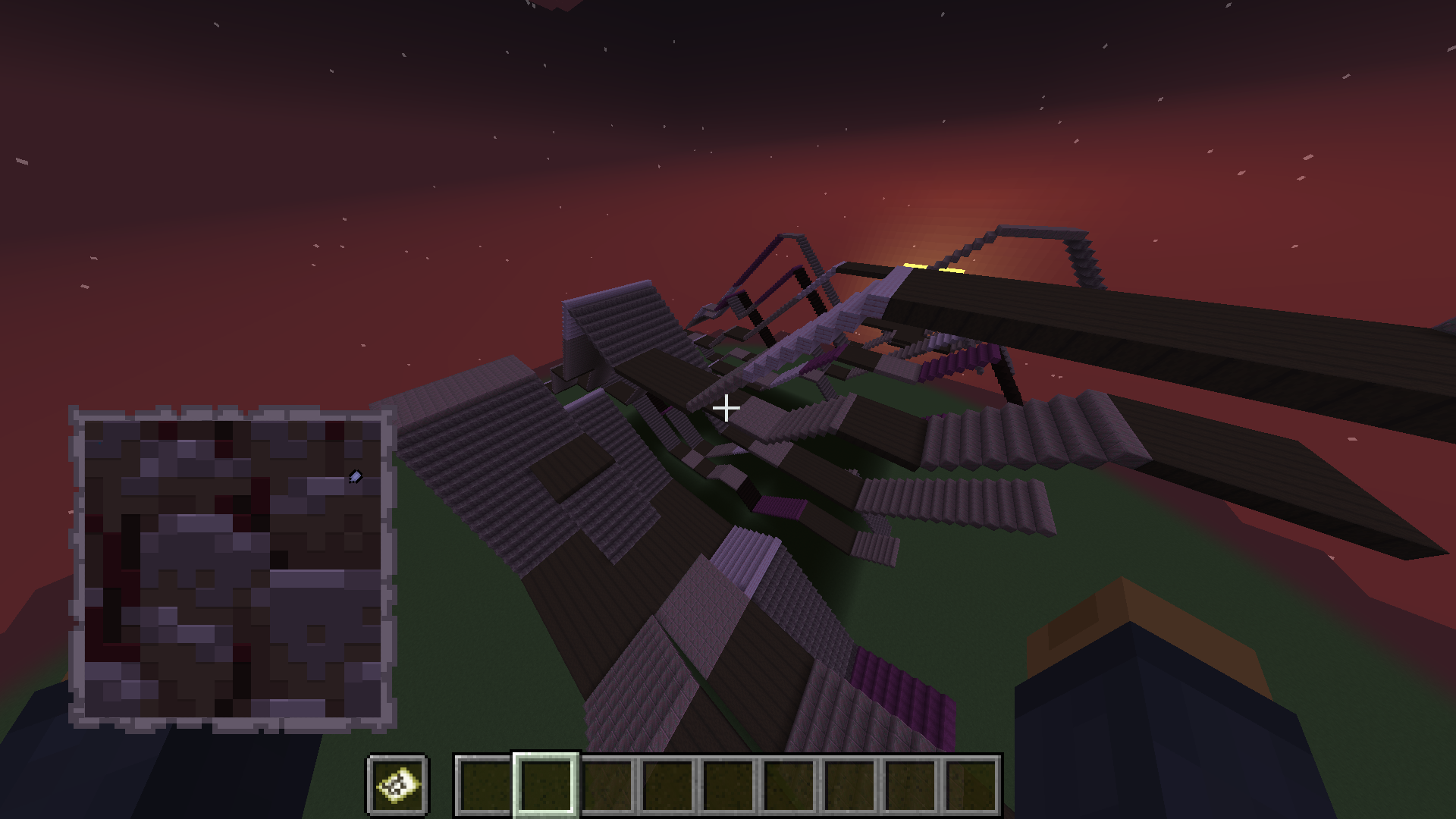
- Paste as map art into the world
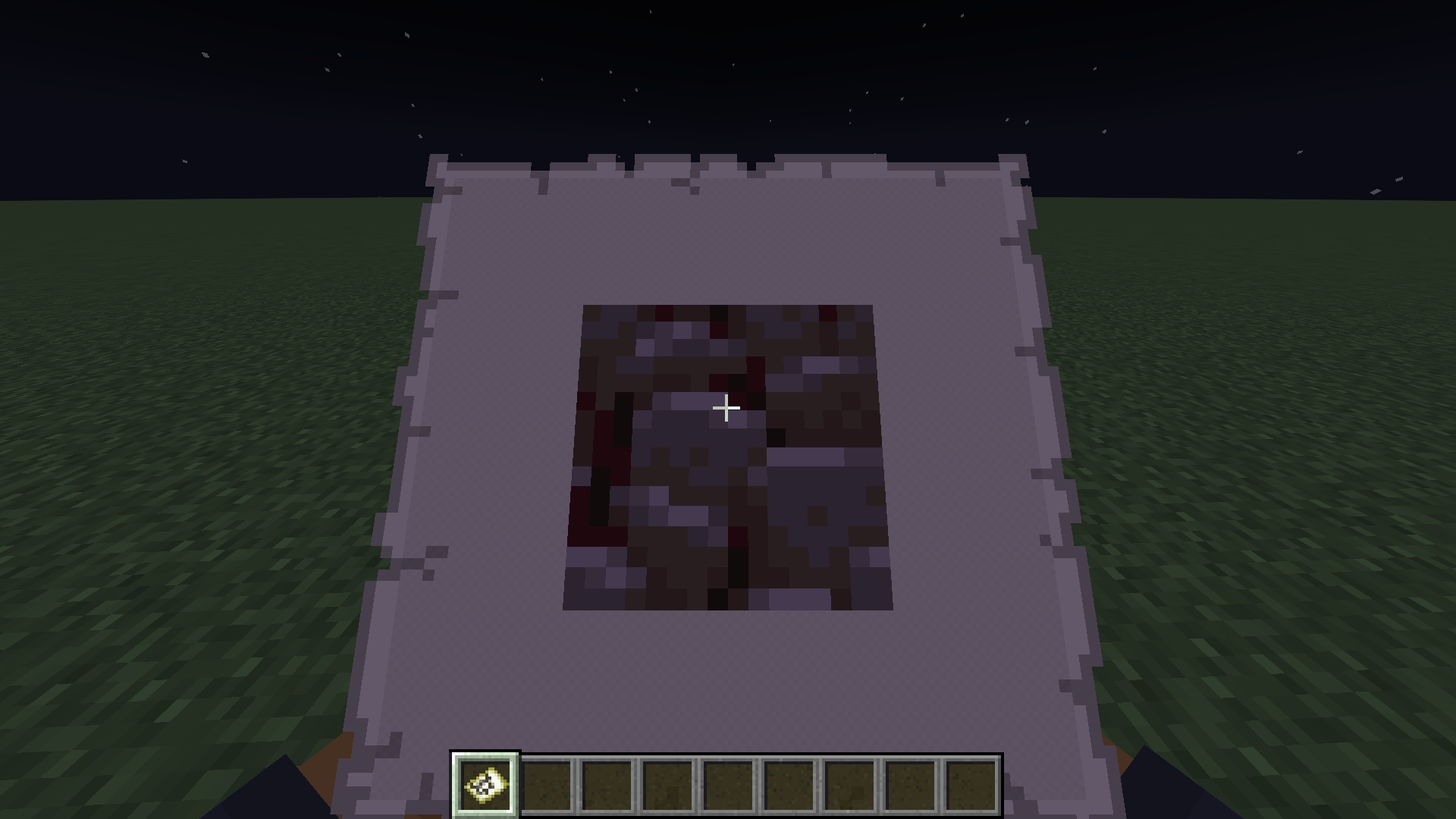
- Paste directly to a map without placing blocks in the world
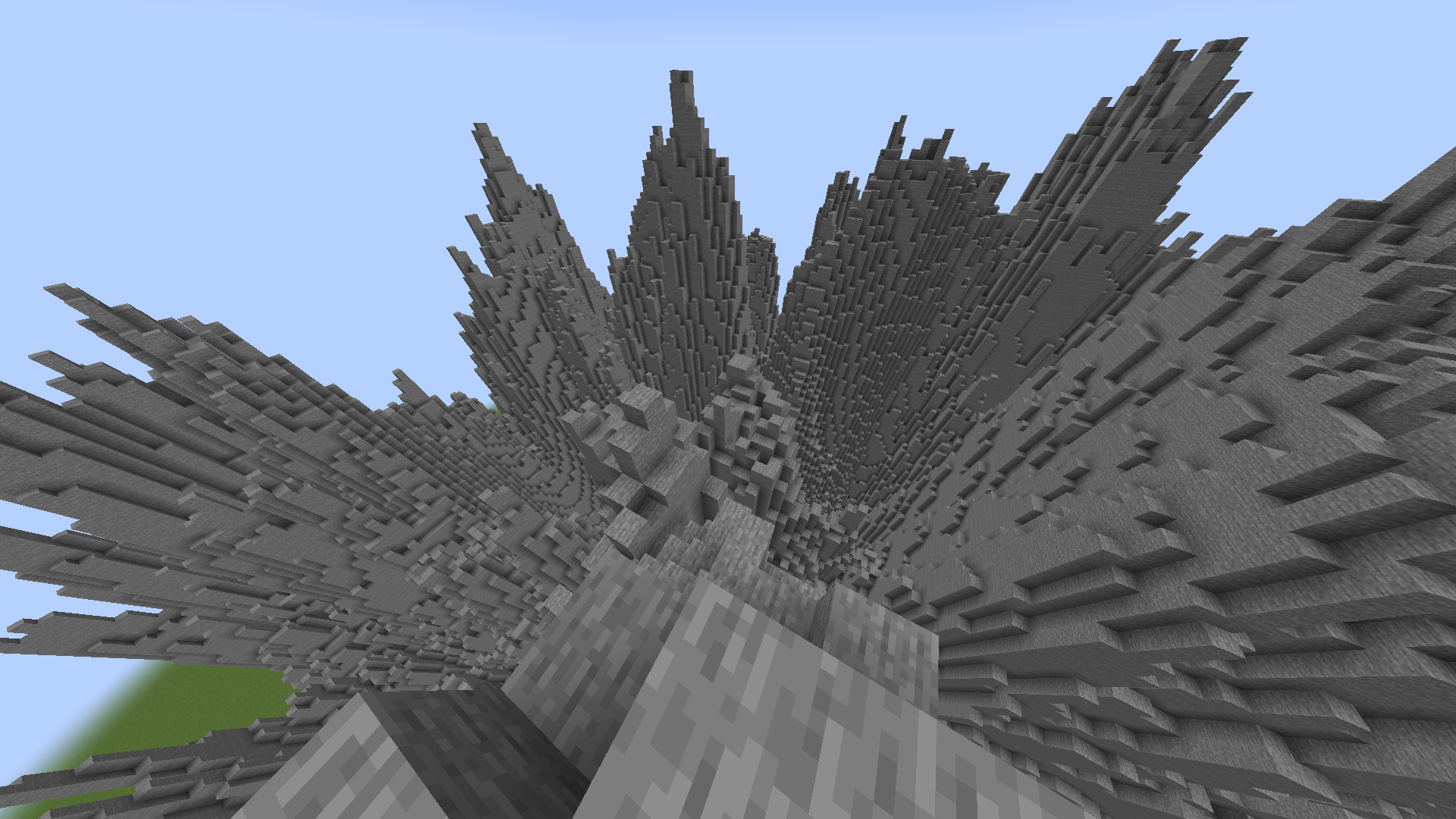
- Paste Images as Heightmaps
Images you want to load into your world should be put in the new images folder in the .minecraft directory so that this mod can access them.
When pasting your images keep in mind that the max size the image can be at full resolution is 1024x1024. Any larger and you will have to scale it down to an appropriate size.
Usage
When pasting images into your world, you are given a few options to configure how your image will generate, such as scale, facing direction, and patterns.
Paste directly into world:
This will paste your image into the world based on which block textures best match the colors in your image.
/image paste imagePath position [scaleX] scaleZ [vertical|direction;]
Arguments:
imagePath: The name of your image. (Stored in a new images folder in your .minecraft directory)
position: The center position where the image will be generated.
scaleX: The scale of your image on the X axis, written as a ratio: 1:8.
scaleZ: The scale of your image on the Z axis, written as a ratio: 1:8.
vertical: Boolean determining whether to paste the image vertically.
direction: The horizontal direction your image will face.
Paste as map art:
This will paste your image into the world using blocks with map colors that best match the colors in the image.
/image pasteToMap imagePath position [scale;] scaleZ [direction|useStaircaseHeightmap]
Arguments:
imagePath: The name of your image. (Stored in a new images folder in your .minecraft directory).
position: The center position where the image will be generated.
scaleX: The scale of your image on the X axis, written as a ratio: 1:8.
scaleZ: The scale of your image on the Z axis, written as a ratio: 1:8.
direction: The horizontal direction your image will face.
useStaircaseHeightmap: Boolean determining whether to generate map art using the Staircasing method.
Paste directly to map:
This will paste your image directly to a map without placing blocks in the world. Unlike the other commands, if your image is too large, it will simply auto-scale it down to a resolution that fits the map
/image give imagePath [scaleX] scaleZ
Arguments:
imagePath: The name of your image. (Stored in a new images folder in your .minecraft directory).
scaleX: The scale of your image on the X axis, written as a ratio: 1:8.
scaleZ: The scale of your image on the Z axis, written as a ratio: 1:8.
Paste as Heightmap:
This will paste your image as a heightmap, this is intended to work with heightmap images for terrain building
/image heightmap imagePath block position [scaleX] scaleZ [scaleY] [direction]
Arguments:
imagePath: The name of your image. (Stored in a new images folder in your .minecraft directory).
block: The block to build the heightmap out of.
position: The center position where the image will be generated.
scaleX: The scale of your image on the X axis, written as a ratio: 1:8.
scaleZ: The scale of your image on the Z axis, written as a ratio: 1:8.
scaleY: The scale of your image on the Y axis, written as a ratio: 1:8.
direction: The horizontal direction your image will face.
- Edition: Minecraft Java
- File type: .jar
- Minecraft versions listed: 1.21, 1.20.5, 1.20.6
- How to install: Install the matching mod loader (Forge, Fabric or NeoForge) for your Minecraft version. → Download the .jar. → Put it in the .minecraft/mods folder and launch that loader profile.
- Where to get it: Opens on CurseForge — not every file is mirrored on our own servers.
Install steps are the general flow for this file type — How to install Minecraft Java mods & modpacks walks through it step by step.
- Ships as imagetoworld-1.0.0-1.21.jar — drop this file into the mods folder
- Download size: 172 KB
- Download link checked 27 Sept 2026 — working
These come from our own check of the pack file, not from the source page.