
FarmWatch: Farm & Redstone Monitor
Monitor farms, storage, redstone, and automation, detect stalled systems, and get alerts when activity stops or returns.
⬇ Download on CurseForgeThe author built this one for Minecraft 26.40. On other versions it may install and then do nothing.
FarmWatch: Farm & Redstone Monitor
Monitor your farms, storage, redstone, and automation — without replacing the vanilla builds you already use.
FarmWatch is a survival-friendly Minecraft Bedrock addon that lets you create monitors for supported blocks and define what you expect them to do.
Watch for activity stopping, storage filling up, or redstone signals being in the wrong state. FarmWatch warns you when something needs attention and lets you know when it recovers.
Everything is managed through the reusable FarmWatch Terminal.
One Dashboard. Every Monitor.
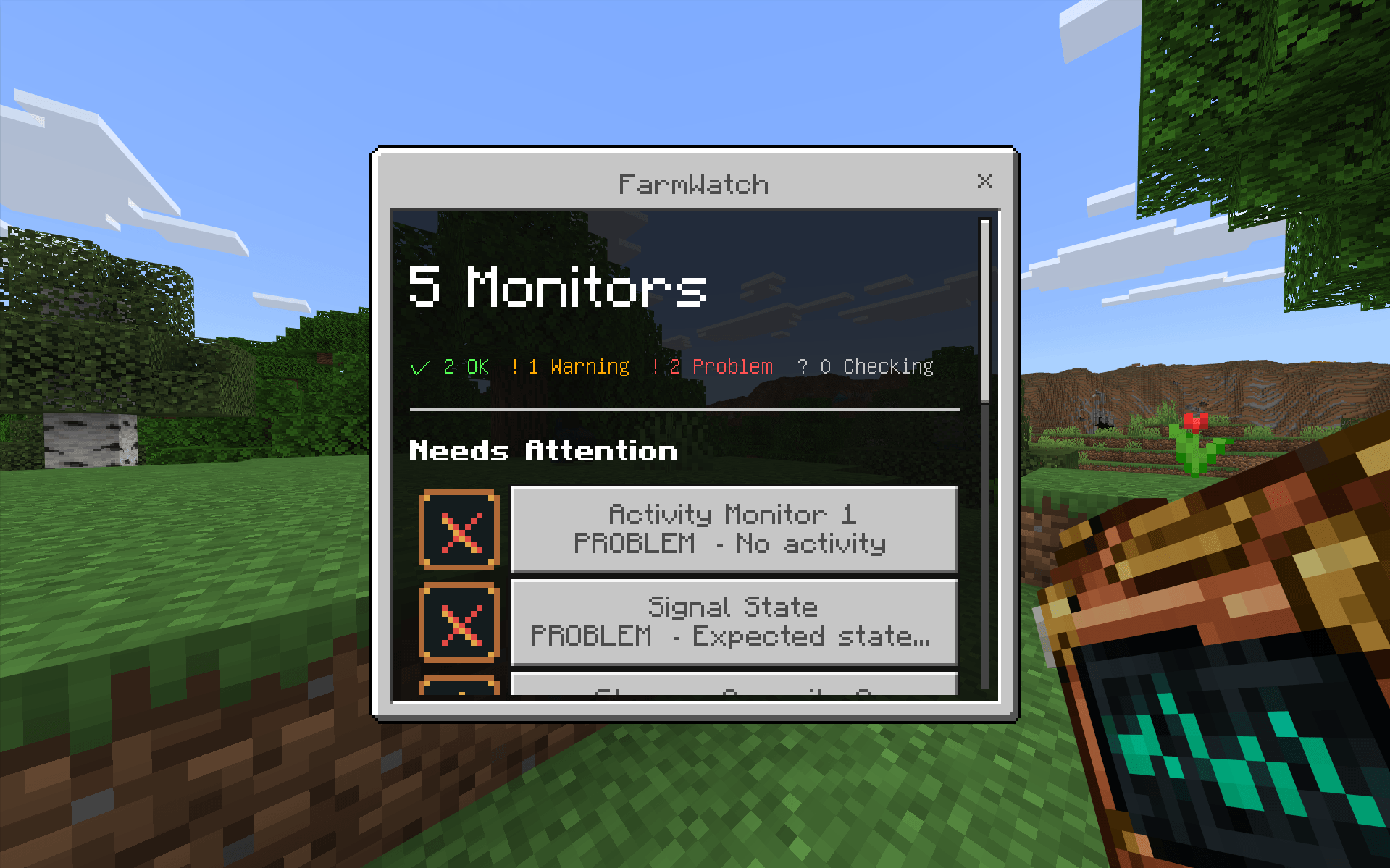
The FarmWatch Terminal gives you one place to see the condition of all your monitored systems.
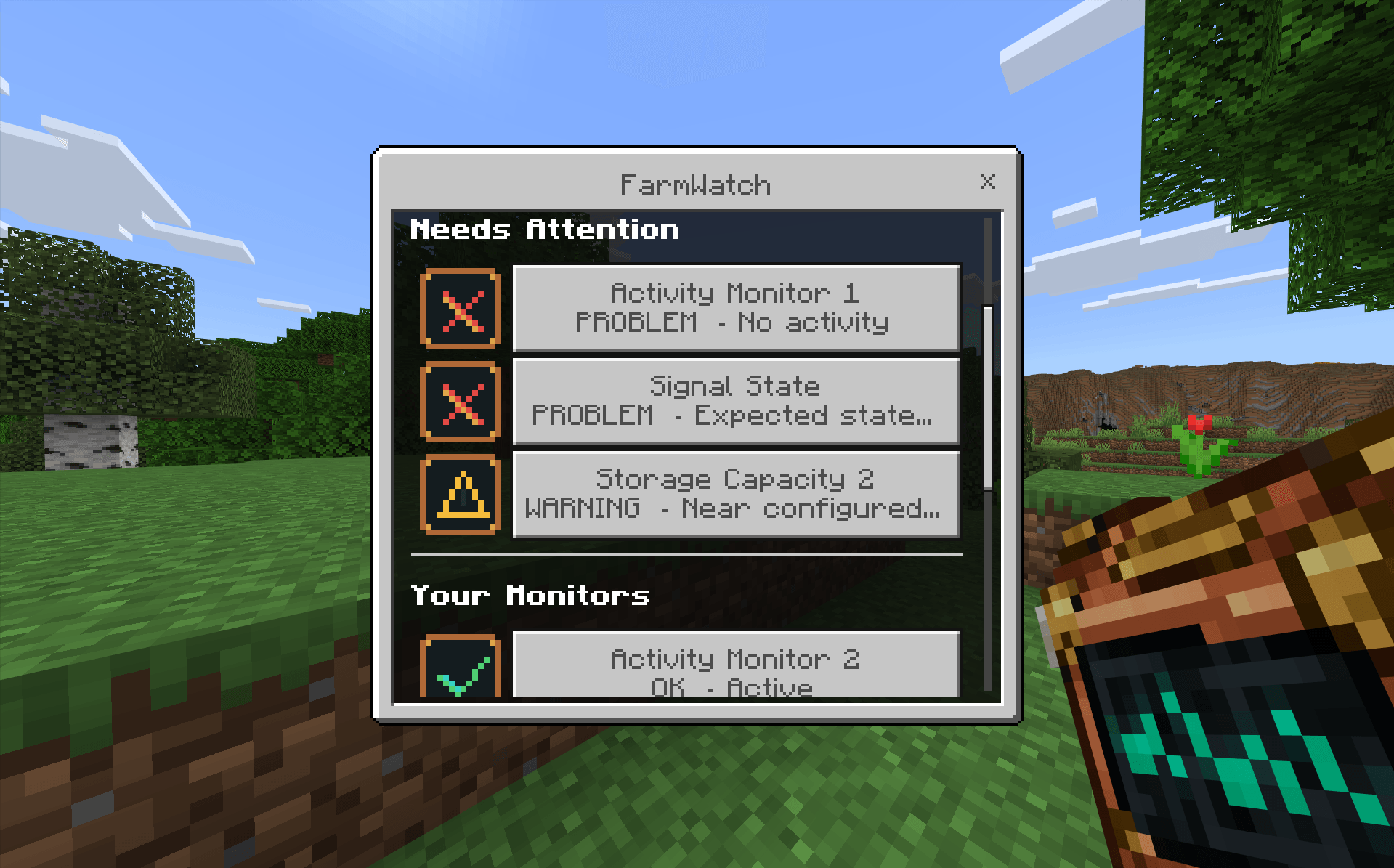
The dashboard puts the most important monitors first:
PROBLEM → WARNING → CHECKING → OK → PAUSED
You can immediately see how many systems are working normally and which ones need your attention.
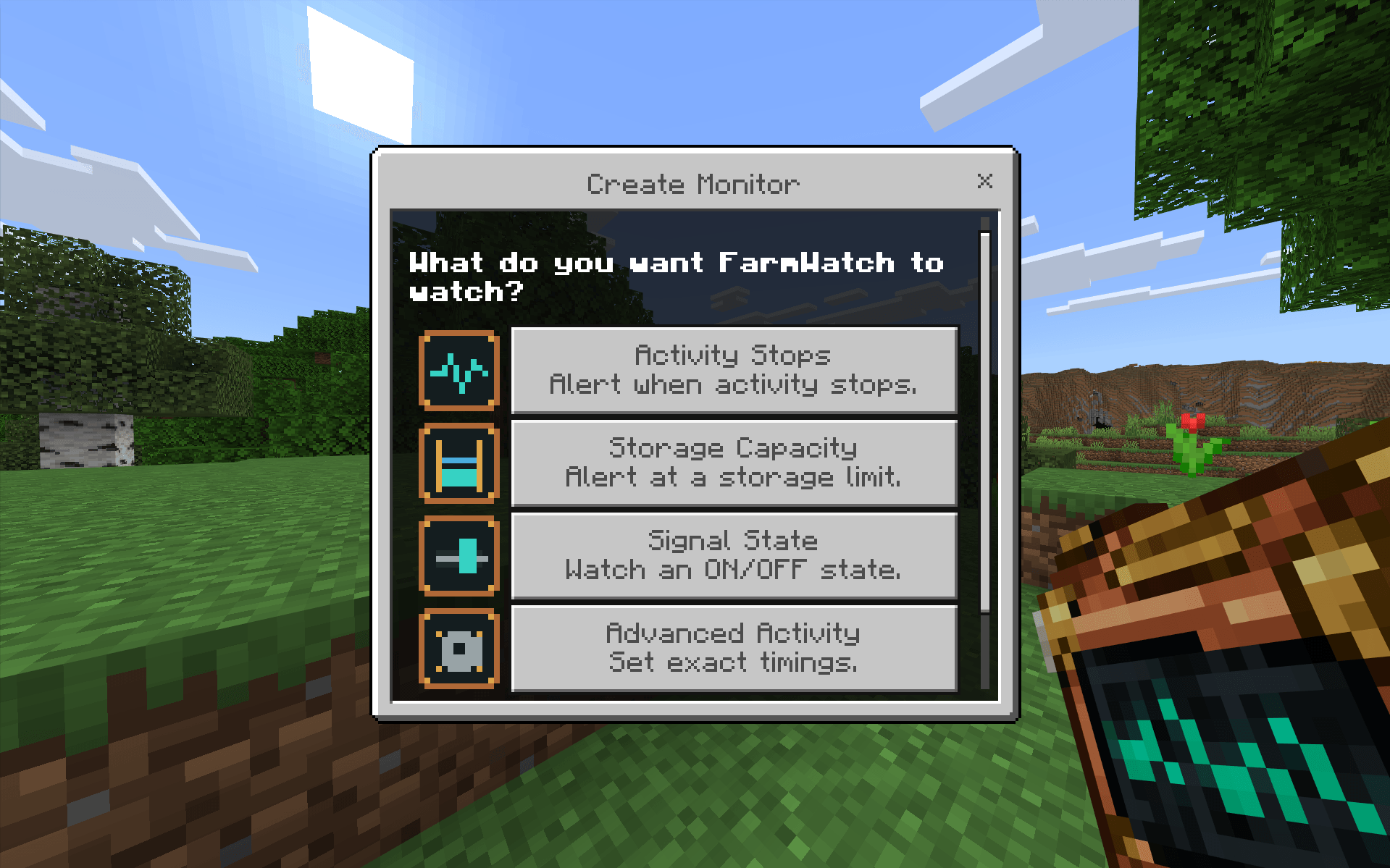
Three Ways to Monitor Your Builds
FarmWatch uses three main monitoring rules.
Activity Watch
Watch a supported block for activity.
If activity stops, FarmWatch progresses through warning and problem states based on the timing you choose.
Available timing options include:
- Fast
- Normal
- Slow
- Advanced custom timings
When activity returns, FarmWatch detects the recovery automatically.
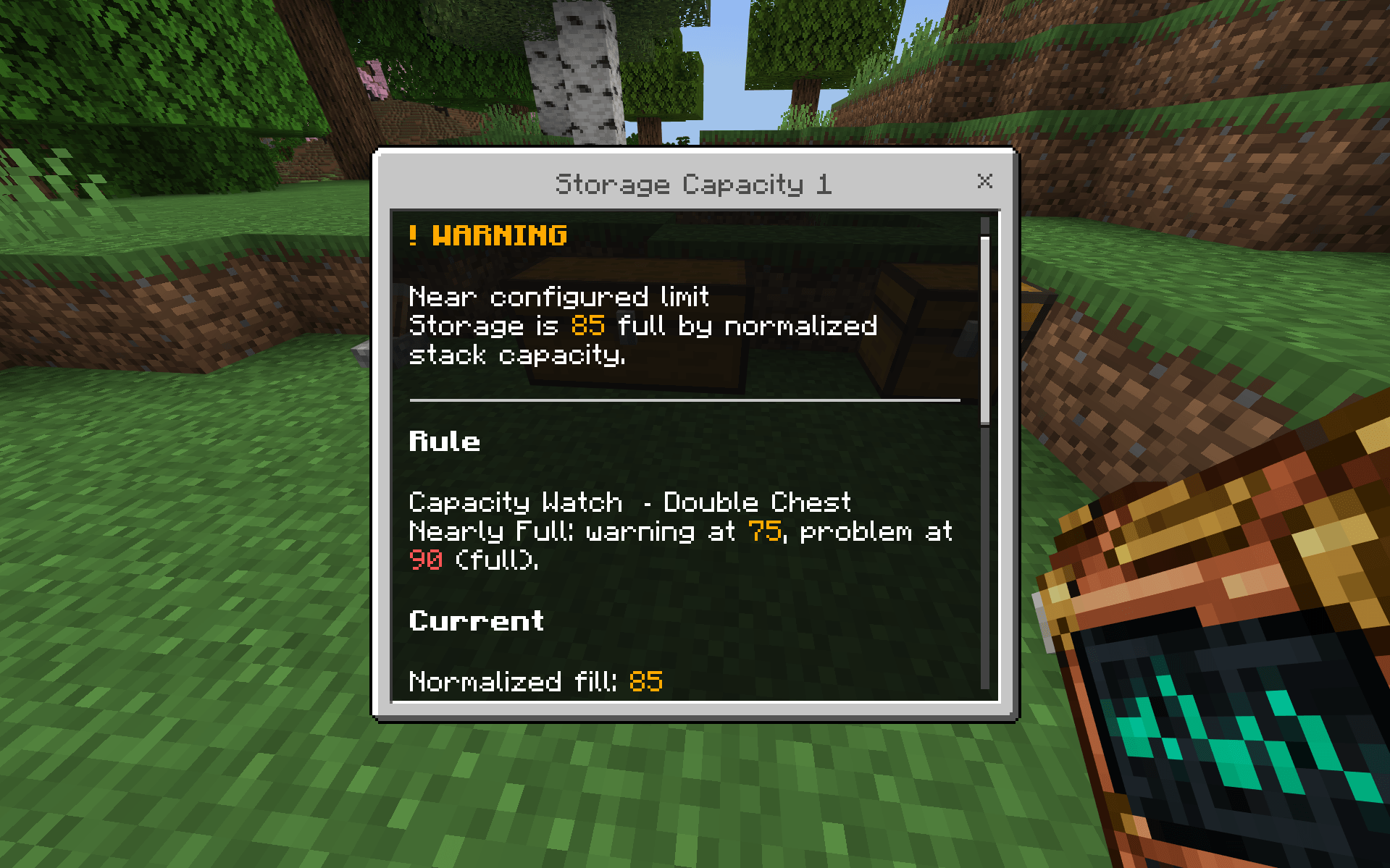
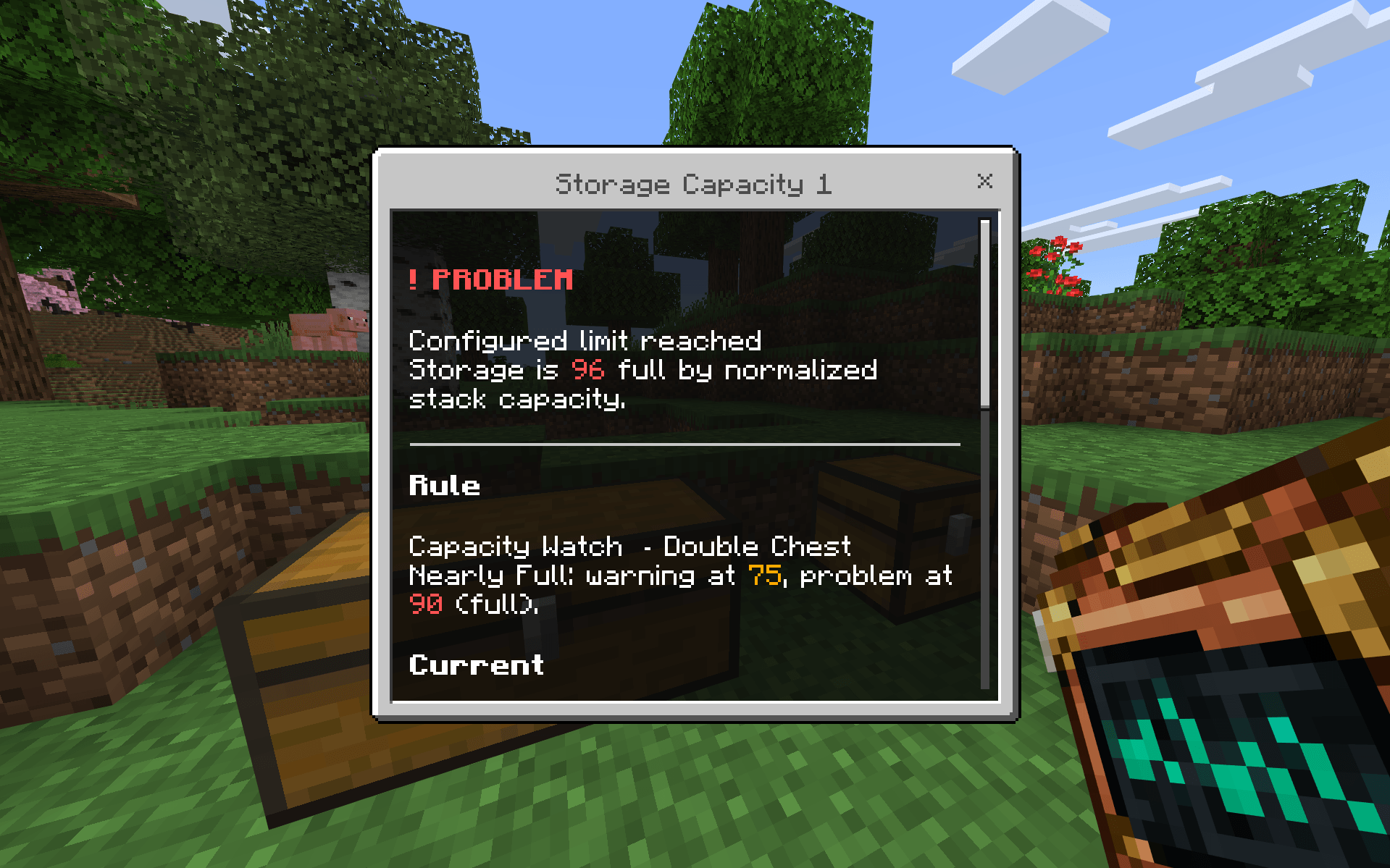
Capacity Watch
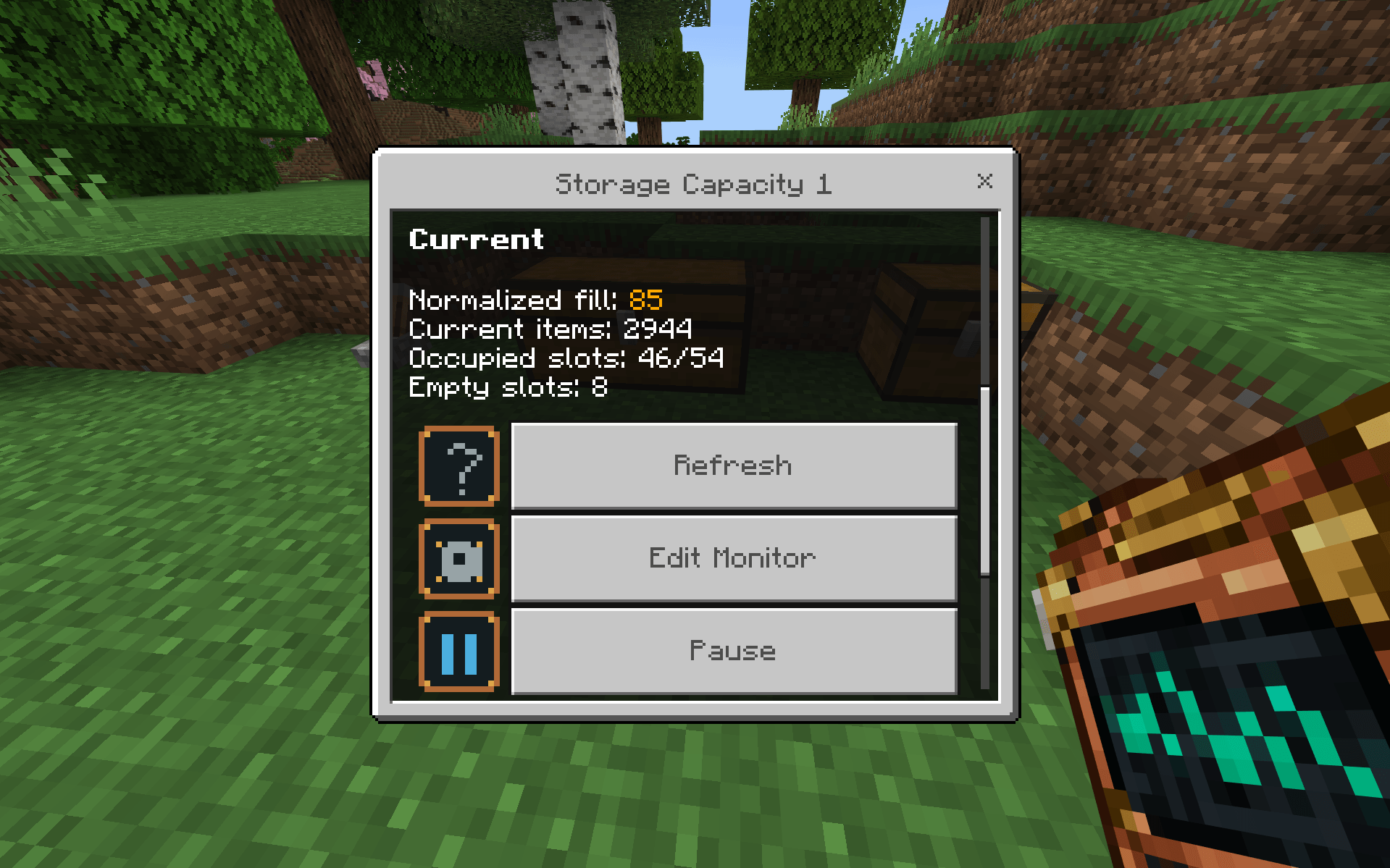
Monitor how full supported storage is.
FarmWatch can show:
- Normalized fill percentage
- Current item quantity
- Occupied slots
- Empty slots
- Warning and problem thresholds
The default Nearly Full configuration warns at 75% and becomes a problem at 90%.
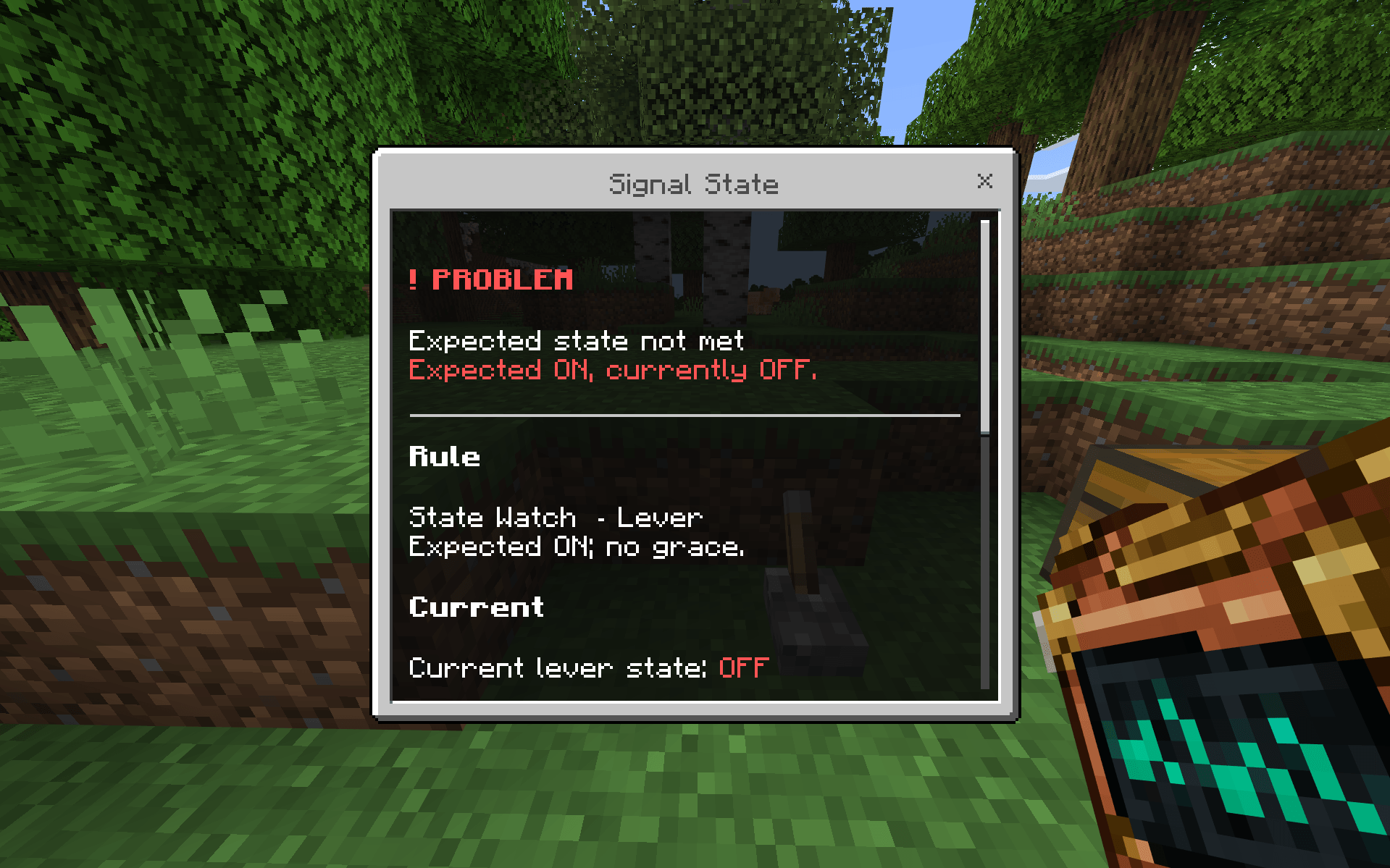
State Watch
Tell FarmWatch what state a supported redstone target should be in.
For example:
Expected ON + Current OFF = PROBLEM
Expected ON + Current ON = OK
Optional grace periods can be used before a mismatch becomes a full problem.
Double Chest Monitoring
FarmWatch supports full monitoring of:
- Double Chests
- Trapped Double Chests
A paired chest is treated as one combined 54-slot inventory.
You can use both Activity Watch and Capacity Watch on the same Double Chest.
Capacity Watch can tell you how full the entire paired inventory is and warn you before your storage reaches its configured limit.
If one half of a monitored Double Chest disappears, FarmWatch does not silently turn the monitor into a normal 27-slot chest.
Instead, FarmWatch reports the target as missing and sends a one-time alert.
When the pair becomes available again, monitoring resumes with a fresh baseline.
Redstone State Monitoring
State Watch currently supports:
- Lever
- Redstone Wire
Choose the state you expect — ON or OFF — and FarmWatch watches for mismatches.
A state that does not match your expectation can become a warning or problem depending on your configured grace period.
When the expected state returns, the monitor automatically recovers.
Supported Blocks & Rules
| Target | Activity Watch | Capacity Watch | State Watch |
|---|---|---|---|
| Standalone Chest | ✅ | ✅ | — |
| Double Chest | ✅ | ✅ | — |
| Trapped Chest | ✅ | ✅ | — |
| Trapped Double Chest | ✅ | ✅ | — |
| Barrel | ✅ | ✅ | — |
| Hopper | ✅ | ✅ | — |
| Lever | ✅ | — | ✅ |
| Stone Button | ✅ | — | — |
| Wooden Pressure Plate | ✅ | — | — |
| Tripwire Segment | ✅ | — | — |
| Piston | ✅ | — | — |
| Redstone Wire | ✅ | — | ✅ |
Available rules depend on the target being monitored.
Same Target, Multiple Rules
A supported target can use more than one type of monitor.
For example, the same Double Chest can have:
- Activity Watch
- Capacity Watch
FarmWatch shares physical observations where possible instead of unnecessarily checking the same target multiple times.
Duplicate monitors using the same rule on the same target are prevented.
Easy to Use
FarmWatch includes built-in help directly inside the Terminal.
The basic workflow is:
Choose → Link → Expect → Watch
- Choose what you want FarmWatch to monitor.
- Link a supported block.
- Tell FarmWatch what behavior you expect.
- FarmWatch watches the loaded target.
- You are warned when the expectation is not met.
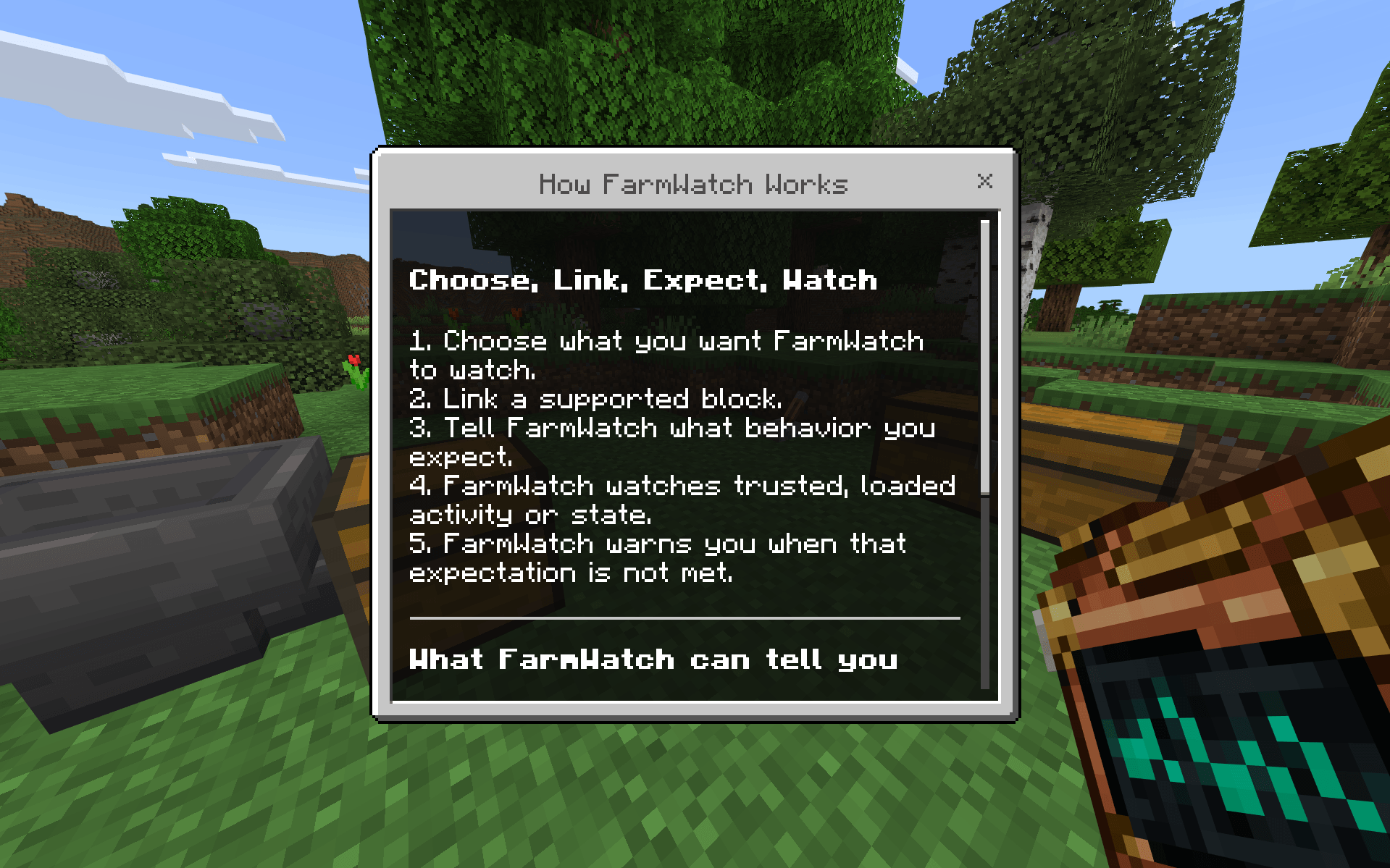
The Terminal also contains a Supported Blocks / Rules reference for checking which monitoring options are available for each target.
FarmWatch Terminal
The FarmWatch Terminal is the main way to access the addon.
Craft it once, keep it in your inventory, and use it whenever you want to open your monitoring dashboard.
The Terminal is reusable and is not consumed when used.
Recipe
| Copper Ingot | Glass Pane | Copper Ingot |
| Redstone Dust | Compass | Redstone Dust |
| Copper Ingot | Redstone Torch | Copper Ingot |
Monitor Details
Every monitor includes a detailed view based on its rule.
Activity Watch can show
- Current activity status
- Trusted loaded inactivity time
- Warning timing
- Problem timing
Capacity Watch can show
- Normalized fill percentage
- Current item quantity
- Occupied slots
- Empty slots
- Warning and problem thresholds
State Watch can show
- Expected state
- Current observed state
- Grace period
- Match or mismatch status
Monitors can also be refreshed, edited, paused, and inspected through additional diagnostic details.
Status System
✅ OK
The monitored target currently matches its configured expectation.
⚠ WARNING
The target is approaching a configured limit or has temporarily stopped matching the expected condition.
❌ PROBLEM
The configured expectation is not currently being met.
? CHECKING
FarmWatch does not currently have enough trusted information to make a safe decision.
⏸ PAUSED
Monitoring was manually paused.
Alerts & Recovery
FarmWatch can notify you when monitored conditions change.
Examples include:
- Activity stopping
- Activity recovering
- Storage approaching its configured limit
- Storage reaching a problem limit
- Redstone state mismatches
- State recovery
- Paired storage targets becoming unavailable
- Paired storage targets becoming available again
Alerts are transition-based to avoid repeatedly sending the same message while the condition remains unchanged.
Installation
- Download the
.mcaddonfile. - Open it with Minecraft.
- Wait for both FarmWatch packs to import.
- Enable FarmWatch: Farm & Redstone Monitor and FarmWatch Resources in your world.
- Enter the world.
- Craft the FarmWatch Terminal.
- Use the Terminal to create your first monitor.
Experiments are not required.
Important Notes
FarmWatch observes supported vanilla blocks while the relevant area of the world is loaded.
Inventory changes show that an inventory changed, but they do not prove that a specific farm or machine caused the change.
Redstone Wire is sampled, so extremely short pulses can occur between samples and may sometimes be missed.
FarmWatch reports what it can safely observe. It does not guess the exact root cause of a problem.
Time while the world is closed is not counted as monitored inactivity.
Alerts are intended for players who are currently online. FarmWatch does not provide offline or external notifications.
Linked targets maintain their identity instead of silently changing to another nearby block.
What FarmWatch Does Not Do
FarmWatch does not:
- Automatically build farms
- Automatically repair systems
- Add custom automation machines
- Add cable or machine networks
- Remotely control your builds
- Diagnose exact root causes
- Send external or offline notifications
The goal is simple:
Keep your existing vanilla builds — and make it easier to know when they need your attention.
Privacy
FarmWatch runs locally inside Minecraft.
- No telemetry
- No analytics
- No cloud services
- No external networking
License
FarmWatch is proprietary closed-source software.
Copyright © 2026 DraGoN3DD. All Rights Reserved.
Redistribution, resale, modified redistribution, source redistribution, and reuse of FarmWatch's original assets are not permitted without prior written permission.
- Edition: Minecraft Bedrock
- File type: .mcpack or .mcaddon
- Minecraft version listed: 26.40
- How to install: Download the .mcpack or .mcaddon file. → Open it — Minecraft imports it. → In your world: Behavior Packs → Available → Activate, then the same under Resource Packs.
- Where to get it: Opens on CurseForge — not every file is mirrored on our own servers.
Install steps are the general flow for this file type — How to install Minecraft Bedrock addons & mods walks through it step by step.
- Pack type: .mcaddon — behaviour and resource pack in one file
- Download size: 198 KB
- Download link checked 3 Oct 2026 — working
These come from our own check of the pack file, not from the source page.