
Create: Factory HUD Goggles
Persistent, editable Create goggle data dashboard for Minecraft 1.21.1 NeoForge.
⬇ Download on Modrinth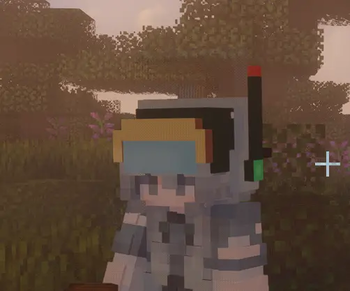
工厂仪表护目镜(Factory HUD Goggles)

English
Pin Create engineer-goggle information to your screen and build a persistent factory dashboard.
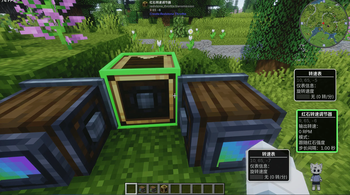
Factory HUD Goggles saves block data as independent HUD cards. Every card can be moved, resized, made transparent and given a custom note, making it useful for monitoring stress, rotation speed, inventories and factory machinery.
Bindings, layout and display settings are stored on the goggles ItemStack rather than the player. Give the goggles to another player and the complete dashboard travels with them.
Features
- Pin Create engineer-goggle information as persistent HUD cards.
- Bind an unlimited number of data sources to each pair of goggles.
- Store all bindings and layout settings on the goggles ItemStack.
- Drag cards directly in a transparent layout editor.
- Add a custom purpose note to every card.
- Resize individual cards from
50%–200%. - Adjust card background opacity from
20%–100%. - Automatically dim cards whose source is destroyed, unloaded, in another dimension or temporarily unavailable.
- Highlight a targeted bound block and its matching card with a green border.
- Never force-load chunks just to read HUD data.
- Includes a dedicated creative tab, survival recipe and custom wearable 3D model.
- Migrates data from older versions and protects data written by newer versions.
Requirements
| Component | Requirement |
|---|---|
| Minecraft | 1.21.1 |
| Mod loader | NeoForge 21.1.219 or newer |
| Required dependency | Create 6.0.10 or newer |
| Installation side | Both client and server |
Installation
- Install NeoForge for Minecraft 1.21.1.
- Install Create 6.0.10 or newer.
- Download Factory HUD Goggles.
- Place the JAR in the
modsfolder on both the client and server.
Crafting
Factory HUD Goggles is a mid-game upgrade built with Create display technology:
Brass Ingot   Electron Tube    Brass Ingot
Redstone      Engineer Goggles Redstone
              Display Link
Obtaining a Display Link unlocks the recipe in the survival recipe book.
Usage
Linking a data source
- Hold a pair of Factory HUD Goggles.
- Shift + right-click the same block twice within five seconds.
- The first interaction only displays a confirmation prompt; the second interaction creates the binding.
A normal right-click never starts the linking process, so chests, machine GUIs and other block interactions remain available.
Removing a binding
Shift + right-click an already linked block twice to remove its binding.
If the source has been destroyed or cannot be reached, open the layout editor and Shift + right-click its card instead.
Opening the layout editor
Hover over the goggles in the player inventory, equipment slots, a chest or
another container, then press Create/Ponder's configured ponder key (W by
default).
The goggles do not need to be removed from the head slot or moved into the player inventory.
Editing cards
| Input | Action |
|---|---|
| Left-click and drag | Move a card |
| Right-click | Edit the card note |
| Mouse wheel | Resize the card |
Shift + mouse wheel |
Change background opacity |
Shift + right-click |
Delete the card and its binding |
| Top-right settings button | Configure automatic dimming |
Data sources and compatibility
- Create engineer-goggle information is used whenever available.
- Third-party blocks implementing Create's goggle information interface are supported.
- Containers can display their total item count and slot count.
- Other blocks can display basic redstone signal or block-entity information.
- There is no hard binding limit; performance with very large dashboards depends on the modpack and server environment.
- Chunks containing remote data sources are never force-loaded.
Save safety
- Goggle data uses an explicit schema version.
- Older data is upgraded through incremental migrations.
- Original data is backed up inside the ItemStack before its first upgraded write.
- A corrupt individual binding does not invalidate the entire pair of goggles.
- Unknown fields are retained during ordinary saves.
- Data written by a newer mod version is opened read-only, preventing an older version from damaging it.
Frequently asked questions
Why are no cards displayed after equipping the goggles?
Make sure the current pair of goggles owns at least one binding and that the source is not in another dimension. Every pair stores its own independent dashboard.
Why did the first Shift + right-click not create a binding?
This is intentional misclick protection. Shift + right-click the same block again within five seconds.
Why has a card become dim?
Its source may have been destroyed, unloaded, moved to another dimension or be temporarily unavailable. Automatic dimming and its opacity can be adjusted from the settings button in the top-right corner of the editor.
Does the mod force-load distant factory chunks?
No. It reads only chunks that are already loaded, preventing HUD bindings from creating additional chunk-loading overhead.
Links
License
This project is released under the MIT License.
Copyright © 2026 z33awa.
简体中文
把机械动力工程师护目镜的信息固定在屏幕上,打造属于你的工厂 HUD 仪表盘。
工厂仪表护目镜可以将方块数据保存为独立 HUD 卡片。每张卡片都能自由移动、缩放、 调整透明度并添加备注,适合监控应力、转速、库存和各种机械设备。
所有绑定、布局与显示设置均保存在护目镜物品本身,而不是玩家身上。把护目镜交给其他 玩家时,整套仪表盘也会随物品一起转移。
主要功能
- 将机械动力护目镜信息固定为持续显示的 HUD 卡片。
- 每副护目镜可绑定任意数量的数据源。
- 所有绑定和布局均保存在护目镜物品中。
- 在透明布局编辑器中直接拖动卡片。
- 每张卡片都可以添加用途备注。
- 卡片大小可在
50%–200%之间调整。 - 卡片背景透明度可在
20%–100%之间调整。 - 数据源失效、区块卸载或位于其他维度时,可自动淡化对应卡片。
- 准星指向已绑定方块时,方块与对应卡片会同时显示绿色边框。
- 不会为了读取数据而强制加载区块。
- 包含独立创造模式分页、生存合成配方和自定义头戴 3D 模型。
- 支持旧版本护目镜数据迁移,并保护由更高版本写入的数据。
运行需求
| 项目 | 要求 |
|---|---|
| Minecraft | 1.21.1 |
| 模组加载器 | NeoForge 21.1.219 或更高版本 |
| 必需前置 | Create 6.0.10 或更高版本 |
| 安装位置 | 客户端与服务端均需安装 |
安装方法
- 安装 Minecraft 1.21.1 对应的 NeoForge。
- 安装 Create 6.0.10 或更高版本。
- 下载 Factory HUD Goggles。
- 将 JAR 文件放入客户端和服务端的
mods文件夹。
合成配方
工厂仪表护目镜是一件使用机械动力显示技术制作的中期装备:
黄铜锭        电子管        黄铜锭
红石粉        工程师护目镜  红石粉
              显示链接器
获得显示链接器后,配方会自动出现在生存模式配方书中。
使用方法
绑定数据源
- 将工厂仪表护目镜拿在手中。
- 在五秒内对同一个方块执行两次
Shift + 右键。 - 第一次操作只会显示确认提示,第二次才会真正绑定。
普通右键不会触发绑定,因此箱子、机器 GUI 和其他方块交互仍可正常使用。
解除绑定
对已经绑定的方块再次执行两次 Shift + 右键 即可解除绑定。
如果数据源已经被破坏或无法接近,也可以在布局编辑器中使用
Shift + 右键 删除对应卡片。
打开布局编辑器
在玩家物品栏、装备栏、箱子或其他容器中,将鼠标悬停在护目镜上,然后按机械动力
“思索”按键(默认 W)。
护目镜不需要取下,也不需要放进玩家背包。
编辑卡片
| 操作 | 功能 |
|---|---|
| 左键拖动 | 移动卡片 |
| 右键 | 编辑卡片备注 |
| 滚轮 | 调整卡片大小 |
Shift + 滚轮 |
调整卡片背景透明度 |
Shift + 右键 |
删除卡片及其绑定 |
| 右上角设置按钮 | 配置不可用卡片自动淡化 |
数据源与兼容性
- 优先显示 Create 工程师护目镜提供的信息。
- 支持实现 Create 护目镜信息接口的第三方方块。
- 容器方块可以显示物品总数和槽位数量。
- 其他方块可显示基础红石信号或方块实体信息。
- 绑定数量没有硬性上限;卡片过多时的性能开销取决于整合包和服务器环境。
- 远端数据源所在区块不会被强制加载。
存档安全
- 护目镜数据带有独立的数据结构版本。
- 旧数据会通过增量迁移升级。
- 首次升级写入前会在物品内部保存原始数据备份。
- 单条损坏的绑定不会导致整副护目镜失效。
- 未知字段会在普通保存过程中得到保留。
- 更高版本写入的数据会以只读方式打开,防止旧版本破坏存档。
常见问题
为什么戴上护目镜后没有显示卡片?
请确认已经使用当前这副护目镜完成绑定,并且数据源没有位于其他维度。每副护目镜都有 独立的绑定数据。
为什么第一次 Shift + 右键没有绑定?
这是防误触设计。需要在五秒内对同一方块再次执行一次 Shift + 右键。
为什么某张卡片变淡了?
对应数据源可能已被破坏、所在区块未加载、位于其他维度或暂时无法读取。可以在编辑器 右上角的设置中调整自动淡化功能和淡化透明度。
会强制加载远处的工厂区块吗?
不会。模组只读取已经加载的区块,避免因 HUD 绑定造成额外区块加载。
链接
许可
本项目采用 MIT License。
Copyright © 2026 z33awa.
- Ships as factory_hud-1.0.3.jar — drop this file into the mods folder
- Download size: 294 KB
- Download link checked 22 Aug 2026 — working
These come from our own check of the pack file, not from the source page.