
Storage Organizer
Java mod listed for Minecraft 1.20–1.21. Downloads from the MC Java Mods app on Android.
I don't know my version or loader
Storage Organizer
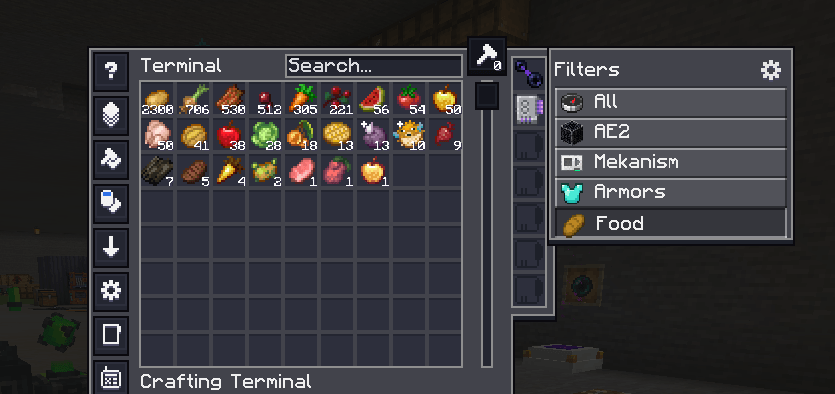
A client-side mod that adds user-defined filter tabs to Applied Energistics 2 terminals and Refined Storage 2 grids. Create tabs that narrow the view to just the items you want — by mod, item tag, name, or per-stack data component (NBT) — and switch between them with one click.
Both storage mods are optional: the jar loads cleanly with either, both, or neither installed, adding its tabs to whichever is present. It does nothing on its own.
Formerly “AE2 Organizer”. Same mod, same project, same settings — renamed in 2.0.0 because it is no longer AE2-only. Your existing tabs carry over automatically; there is nothing to migrate.
If you install mods by hand, delete the old
AE2Organizer-*.jarbefore addingStorageOrganizer-*.jar. The file name changed but the mod id didn't, so having both is the same mod twice and the game won't start. Launcher and modpack users are unaffected — it updates in place.
What it does
AE2 and RS both filter and sort their item list on the client; Storage Organizer hooks into that view, so tabs are purely client-side with zero server load — they work even when you connect to a server that doesn't have the mod.
Each storage system is kept fully separate: AE2 terminals and RS grids have their own independent tabs, windows, and settings, and never share a filter. (You can copy a filter set from one to the other with Export / Import.) The rest of this guide applies the same way to both — "terminal" below means an AE2 terminal or an RS grid.
One or more filter windows attach to every terminal. Out of the box there's a single window docked to the terminal's right edge; you can add more, move them anywhere, and lay each out as a vertical list or a horizontal icon row (see Windows).
Each window shows:
- All (optional per window) — clears the filter.
- Your tabs — click one to filter to that tab's items; click the active tab again to clear back to All. The list scrolls (mouse wheel or the scrollbar) when there are more tabs than fit.
- Settings icon — opens the editor.
Windows are drawn in each backend's native look: on an AE2 terminal they use AE2's own GUI style (so AE2 "dark mode" resource packs reskin them too) and AE2's gear icon; on an RS grid they use RS's grid style and RS's own wrench icon. A tab's filter combines with the storage's own search box (AND), so you can pick a broad tab and then type to narrow further. Only one tab is active at a time per storage system.
Editing tabs
Click the settings icon to open the editor. The left panel is a tree: each window node expands to the tabs inside it. Select a window row to edit that window; select a tab row to edit the tab (name, icon, match mode, conditions) on the right.
Toolbar: +Win (new window) · +Tab (new tab in the selected window) · Copy (duplicate the selected tab — or the whole window, with its tabs) · Del · ▲ ▼ (reorder within the window/among windows). A tab's "Window…" button opens a picker to move it to another window. Deleting a window that still has tabs asks first.
Set a tab's icon and the item for mod / tag / text conditions in any of three ways:
- Built-in picker — click the icon slot or a condition's
…button to open a searchable item grid (works without JEI). - Drag from your inventory — shown along the bottom of the editor.
- Drag from JEI — if JEI is installed, its item list appears beside the editor.
What a chosen item does, by condition type: mod → its mod id · text → its display name · tag → opens a list of that item's tags to pick from (no need to know tag ids) · the icon slot → sets it as the tab icon.
Tab criteria
Each tab combines its conditions with Match ANY (OR) or Match ALL (AND):
| Type | Matches | Example |
|---|---|---|
mod |
items from a mod id | create |
tag |
items in an item tag | c:ingots |
text |
display name contains text (case-insensitive) | sword |
component |
a per-stack data component (see below) | — |
Each condition also has an Is / Not toggle. Not turns it into an exclusion — anything it matches is hidden. Exclusions always apply on top of the positive conditions regardless of the match mode, so a tab reads as (positives combined by ANY/ALL) and none of the exclusions. For example: Match ANY, Is tag c:oak_logs, Is tag c:spruce_logs, Not mod sophisticatedstorage shows oak or spruce wood, but never the storage-mod's drawers. A tab with only Not conditions shows everything except those.
Component checks:
enchanted— has enchantments (or stored enchantments, for books)named— has a custom namedamaged— has taken damagecustom_data_key— its custom data contains a given NBT key (the arg field)component_type— has a given component type id, e.g.minecraft:potion_contents(the arg field)
Tag tip (1.21): common tags use the
c:namespace on NeoForge —c:ingots,c:nuggets,c:ores, and so on. The oldforge:namespace is gone. Dragging an item onto atagcondition lists its real tags, so you don't have to guess.
Windows
Select a window in the editor tree to set its presentation (each property is per window):
- Layout — Vertical list or Horizontal icon row (horizontal is always icon-only).
- Display — Labels or Icons only (vertical windows).
- Size — a per-window scale slider.
- Gear — show or hide the settings icon on this window. At least one window always keeps a reachable one.
- All entry — show or hide the All button on this window.
- Terminals… — show or hide this window per terminal type (AE2 ME/Crafting/Pattern/Wireless terminals, the RS Grid, …). Each type stands for every terminal of that type.
- Position — see below.
- Export / Import — copy this window's tabs (conditions only — no layout) to the clipboard as JSON, or replace them from a copied export (asks first). Handy for sharing a filter set, reusing it in another window, or moving a set between AE2 and RS (which otherwise stay separate).
Moving windows. Hold Alt in the terminal to drag any window (release to stop), or click Move… in the editor for a persistent move mode with a banner. (Alt, not Shift — so it never clashes with shift-click actions like JEI's cheat-mode grab.) Positions are remembered per terminal type: the first terminal you place a window in becomes its base, and other terminals inherit that spot until you drag the window there specifically. Center here (window → Position) recenters the window for the terminal you're in.
Stuck? The client command /storageorganizer resetwindows restores every window (in both backends) to a reachable state — first window docked, the rest centered, all settings icons shown — and clears per-terminal positions and hides. (Works in singleplayer and on any server; it's client-side.)
Settings
In the editor, click Settings… for cross-cutting behaviour (per-window layout lives on each window). Settings are per storage system — AE2 and RS each have their own:
- Reset filter when opening a terminal — on: every terminal opens on All. Off (default): your last active tab is remembered. Either way, coming back to a terminal from a craft request, a crafting-status view or a settings page keeps the tab you were on — only actually opening a terminal counts.
- Clear search bar when selecting a tab — on: clicking a tab also empties the storage's search box, so the tab's filter starts clean instead of combining (AND) with whatever you'd typed. Off (default): the search text is kept.
- Sync JEI search bar when selecting a tab (needs JEI) — on: clicking a tab also sets JEI's search to match it, so JEI shows the same things (e.g. pick your "Create" tab and JEI narrows to Create). The tab's conditions become JEI search terms —
mod→@mod,tag→#tag,text→ the name — joined to mirror the tab's Match ANY (|/ OR) or Match ALL (space / AND) mode.Notconditions become JEI exclusions (-), applied to every OR branch. Component conditions have no JEI equivalent and are skipped — so aNot componentexclusion can't be mirrored and JEI may show a little more than the terminal. Off (default). - Export all / Import all — copy this storage system's entire setup (every window with its layout, plus all tabs) to the clipboard as JSON, or replace everything from a copied export (asks first) — a quick backup or full transfer between instances. Plain JSON; the per-window and all-windows formats are tagged distinctly, so pasting the wrong one just fails safely.
Your windows, tabs, and settings save automatically, per client, and separately per storage system.
AI disclosure
I use the best tools available to me, and that includes an AI coding assistant. What I do not do is stand back and let it produce slop. Every line is read, checked and play-tested by me before it ships.
I am a professional programmer. I have run plenty of public Minecraft servers, I understand how Minecraft actually works, and I wrote mods before any of this existed. The assistant does not decide what a mod is, how it should behave, or what stays out of scope, those are mine. What it does is raise the standard of the work around them: the documentation gets written properly, the awkward cases get covered, and nothing ships half-finished.
If something here is broken, it is mine to fix. Open an issue and I will.
- Edition: Minecraft Java
- File type: .jar
- Minecraft versions listed: 1.21.1, 1.20.1
- How to install: Install the matching mod loader (Forge, Fabric or NeoForge) for your Minecraft version. → Download the .jar. → Put it in the .minecraft/mods folder and launch that loader profile.
- Where to get it: Opens on CurseForge — not every file is mirrored on our own servers.
Install steps are the general flow for this file type — How to install Minecraft Java mods & modpacks walks through it step by step.
- Ships as StorageOrganizer-forge-1.20.1-2.0.0.jar — drop this file into the mods folder
- Download size: 161 KB
- Download link checked 24 Oct 2026 — working
These come from our own check of the pack file, not from the source page.