HomeJavaModsCustom Workstations
Custom Workstations
ModsJava

Custom Workstations

by Yassou · on Modrinth

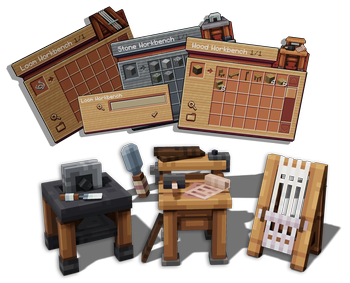
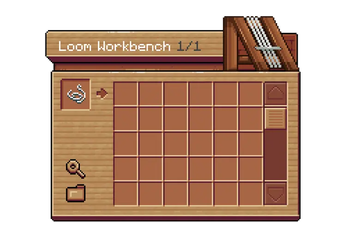
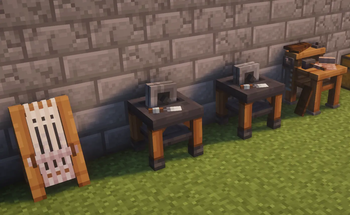
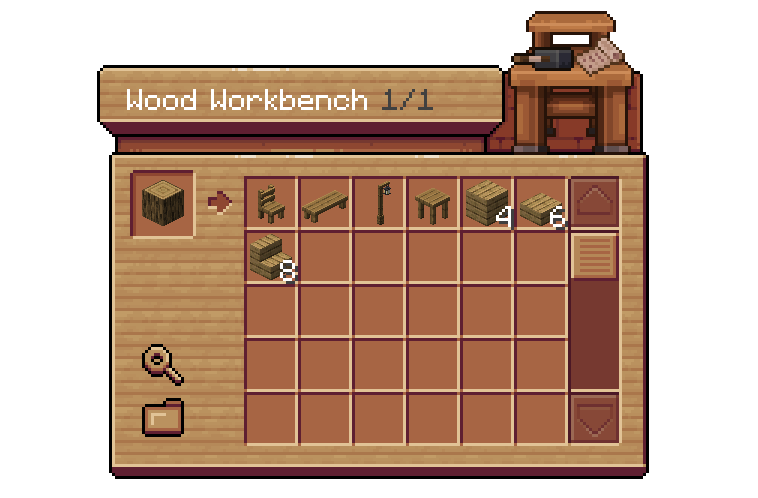
Create custom machines, workbenches, tools, and workstations with custom recipes, configurable inventories, and resource-pack interfaces , the…

⬇ Download on Modrinth
Custom Workstations — screenshot 1Custom Workstations — screenshot 2Custom Workstations — screenshot 3Custom Workstations — screenshot 4Custom Workstations — screenshot 5Custom Workstations — screenshot 6
CustomWorkstations Wiki  CustomWorkstations Discord

CustomWorkstations overview

custom workstations features

How to install the plugin

Requirements

Spigot is not supported. Purpur may work, but it is not part of the certified test matrix.

Supported providers include ItemsAdder, Nexo, Oraxen, CraftEngine, and ModelEngine. ModelEngine is used for entity triggers and is not selected through pack-provider.

custom workstations plugins

Installation steps

  1. Stop the server.
  2. Put CustomWorkstations-<version>.jar in the server's plugins/ folder.
  3. Install the resource-pack provider used by your server, if needed.
  4. Start the server once, then stop it again.
  5. Open plugins/CustomWorkstations/provider-packs/.
  6. Copy the folder matching your provider into that provider's folder.
  7. Start the server and reload or rebuild the provider's resource pack.
  8. Keep pack-provider: auto for a normal setup using one provider.
  9. Run /cw reload.
  10. Give yourself the included workstation:
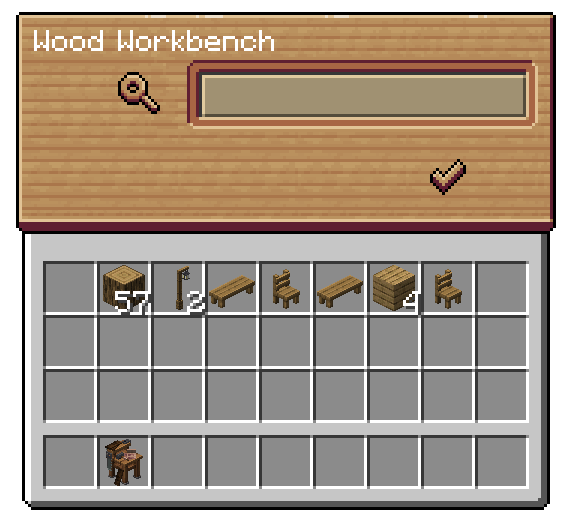
/cw give YourPlayer wood_workbench
  1. Place the workstation and right-click it to test the installation.

Do not use Bukkit's /reload. Restart the server after changing a provider plugin. Use /cw reload for CustomWorkstations configuration changes.

For provider-specific pack installation, see the full installation guide.

Configuration preview

# Incremented when the bundled configuration format changes.
config-version: 2

installation:
  # Internal installation state. Don't change this.
  default-content-installed: true
  provider-pack-version: '1'

# Pack provider used by unprefixed custom content IDs.
# Auto is accepted only when zero or one supported pack provider is enabled.
# ModelEngine is trigger-only and is never considered here.
pack-provider: auto

# When true, any invalid machine or recipe file rejects startup or reload.
# The previous valid definition set remains active after a failed reload.
fail-on-invalid-definition: true

# Write provider lifecycle and definition refresh details to the server log.
debug: false

# Language file loaded from plugins/CustomWorkstations/lang/<language>.yml.
language: en_US

menu:
  # Debounce repeated opens for the same player, workstation and exact anchor.
  # This filters duplicate main-hand/off-hand provider events.
  open-cooldown-millis: 250

  # Maximum distance from a block, furniture or entity anchor while crafting.
  # Portable item triggers are guarded by their original hotbar slot instead.
  max-use-distance: 8.0

  tag-preview:
    # Time between two material icons in a catalog item-tag preview.
    # Minecraft runs at 20 ticks per second: 30 ticks = 1.5 seconds.
    # The minimum accepted value is 10 ticks to protect server/client traffic.
    interval-ticks: 30

Commands

The main command is /workstation. /cw, /workstations, and /customworkstation are aliases.

Command Player Console Permission
/cw wiki Yes Yes customworkstations.admin
/cw help Yes Yes customworkstations.admin
/cw reload Yes Yes customworkstations.command.reload
/cw inspect Yes No customworkstations.command.inspect
/cw give <player> <machine> [silent] Yes Yes customworkstations.command.give
/cw open <machine> Yes No customworkstations.command.open
/cw open <player> <machine> Yes Yes customworkstations.command.open
/cw items category create <category> Yes Yes customworkstations.command.items
/cw items category delete <category> Yes No customworkstations.command.items
/cw items import <id> <category> Yes No customworkstations.command.items
/cw items update <imported-id> Yes No customworkstations.command.items
/cw items delete <imported-id> Yes Yes customworkstations.command.items

Permissions

Command permissions

Permission Default Purpose
customworkstations.admin Operator Access help, bypass content restrictions, and use administrative commands
customworkstations.command.reload Operator Reload definitions and language files
customworkstations.command.inspect Operator Identify the held provider item
customworkstations.command.give Operator Give a workstation item
customworkstations.command.open Operator Open a workstation directly
customworkstations.command.items Operator Manage imported item categories and snapshots

Workstation and recipe permissions

Every loaded workstation receives:

customworkstations.machine.use.<machine-id>

Recipe visibility and crafting use separate permissions:

customworkstations.recipe.view.<machine-id>.<recipe-id>.<output-id>
customworkstations.recipe.craft.<machine-id>.<recipe-id>.<output-id>

Set view to false to hide a result. Set craft to false to keep it visible but prevent crafting.

Search permissions

Each searchable workstation view receives:

customworkstations.search.use.<machine-id>.workstation
customworkstations.search.use.<machine-id>.catalog
customworkstations.search.use.<machine-id>.details

Parent permissions

Permission Scope
customworkstations.machine.use Every workstation
customworkstations.recipe.view Every recipe menu entry
customworkstations.recipe.craft Every crafting transaction
customworkstations.search.use Every search view
customworkstations.* All CustomWorkstations permissions

After adding or removing workstations or recipes, run /cw reload so the generated permissions match the active configuration.

CustomWorkstations Wiki  CustomWorkstations Discord

Verified by MCModsHub

These come from our own check of the pack file, not from the source page.

Explore more