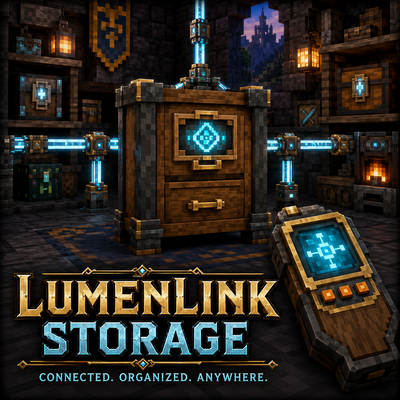
LumenLink Storage
Bedrock add-on listed for Minecraft 26.x. Download on the author's site.
LumenLink Storage connects Minecraft Bedrock chests into one searchable network with visual browsing, smart transfers, remote access, diagnostics, and…
⬇ Download on CurseForgeLumenLink Storage
Connected. Organized. Anywhere.
Turn an entire Minecraft Bedrock storage room into one connected, searchable network.
LumenLink Storage lets you browse real item icons, search thousands of stored items, deposit or withdraw exact quantities, protect important supplies, organize related materials, and manage multiple networks from a portable Remote.
Built by Frostforge Addons, LumenLink combines practical storage tools with detailed animated blocks and four visual themes designed for survival builds, multiplayer worlds, and Realms.
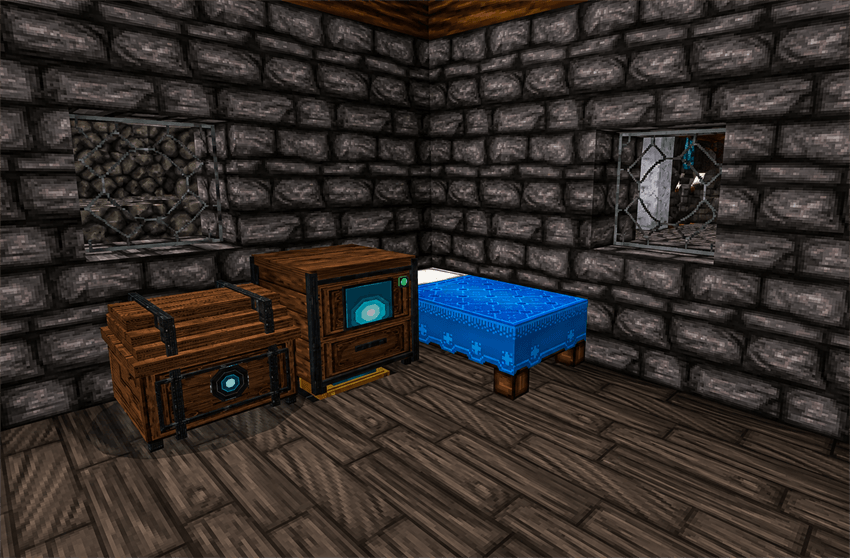
Your storage room, connected
Run Luminous Conduit from a Network Core to your storage area, then attach supported containers with Storage Links. The Storage Console combines their contents into one easy interface while every item remains inside normal physical storage.
- Browse items using their actual Minecraft icons
- See combined quantities across the entire network
- Search with partial names, aliases, and forgiving matching
- Filter items by useful categories and subcategories
- Sort results by name or quantity
- Save Favorites and revisit Recent Items
- Withdraw a chosen quantity of up to twenty stacks at once
- Deposit individual stacks, selected inventory stacks, your hotbar, or your inventory
- Use the Transfer Chest for exact chest-style deposits
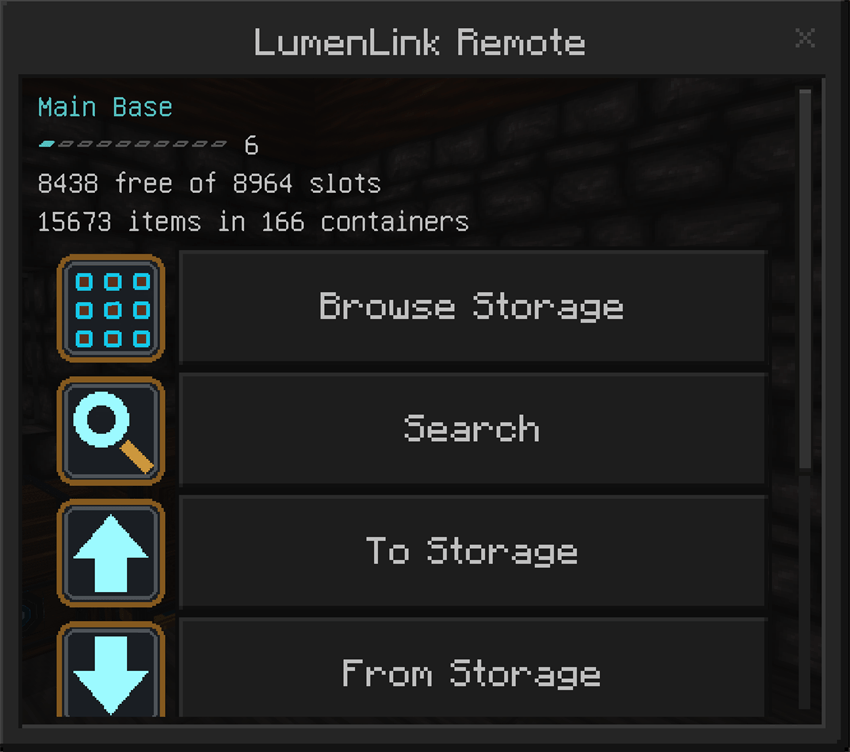
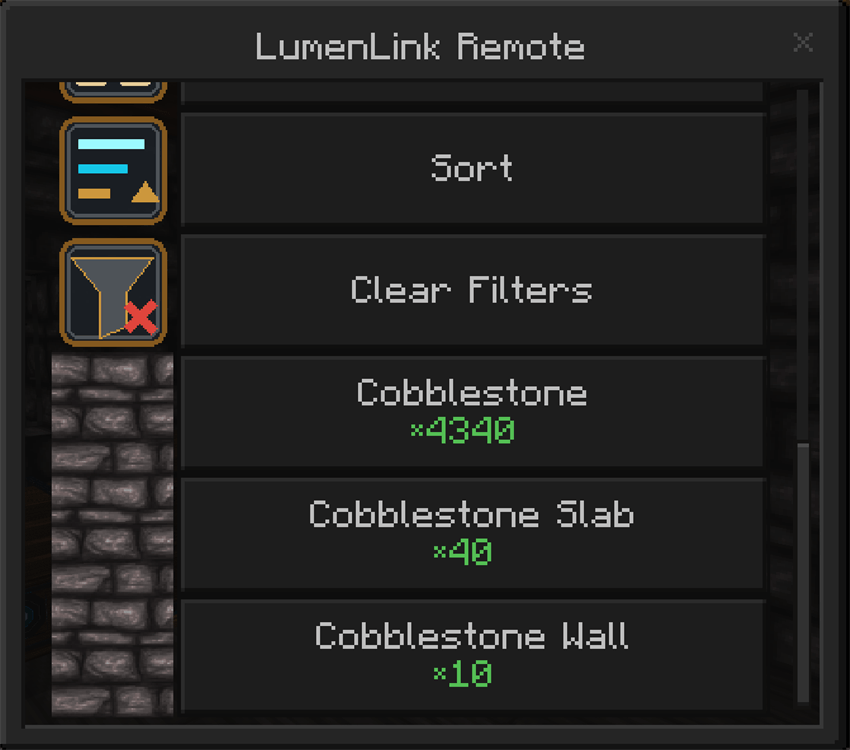
Built to handle serious storage
LumenLink is designed for storage rooms that have grown far beyond a few labeled chests.
- A background storage index keeps menus responsive on large networks
- Capacity monitoring shows used slots, free space, and warning levels
- Smart placement looks for an exact match before grouping related materials together
- Birch planks, for example, can be placed near other birch blocks even when no birch planks are stored yet
- Reorganize Existing Storage consolidates stacks and groups related materials across loaded containers
- Double chests are recognized as one shared inventory
- A single Storage Link can serve compatible containers placed on opposite sides
- Transfers stop safely if required storage becomes unavailable
Find and repair network problems
Built-in diagnostics can locate:
- Storage Links without a supported container
- Open conduit endpoints
- Unloaded storage boundaries
- Missing or unreachable sections of a network
Select a reported problem to highlight its location in the world for twenty seconds, giving you time to close the menu and find it.
Purpose-built network devices
Network Core
The heart of a LumenLink network. It stores the network identity, owner, permissions, appearance, and long-range settings.
Luminous Conduit
Carries the storage connection through walls, floors, ceilings, and corners. Its geometry changes automatically as neighboring network blocks are added or removed.
Storage Link
Connects the conduit network to supported chests, barrels, and copper chests. A Link can connect directly or bridge through one supported illuminated block, including Glowstone and Froglights.
Storage Console
The main workstation for browsing, searching, depositing, withdrawing, checking network status, changing settings, and reading the in-game Guide.
Transfer Chest
An animated 27-slot deposit chest that sits beside the Console. Arrange the exact items and quantities you want to store, then send everything into the network.
LumenLink Remote
Portable access to your storage. One Remote can remember up to eight named networks and provides access to browsing, search, deposits, withdrawals, status, diagnostics, settings, and the Guide.
LumenLink Handbook
A portable illustrated guide covering construction, every network component, storage tools, sorting, diagnostics, remote access, and troubleshooting.
Four network themes
Match LumenLink to the style of your build with four complete appearances:
- Default — the original walnut, black iron, and luminous cyan design
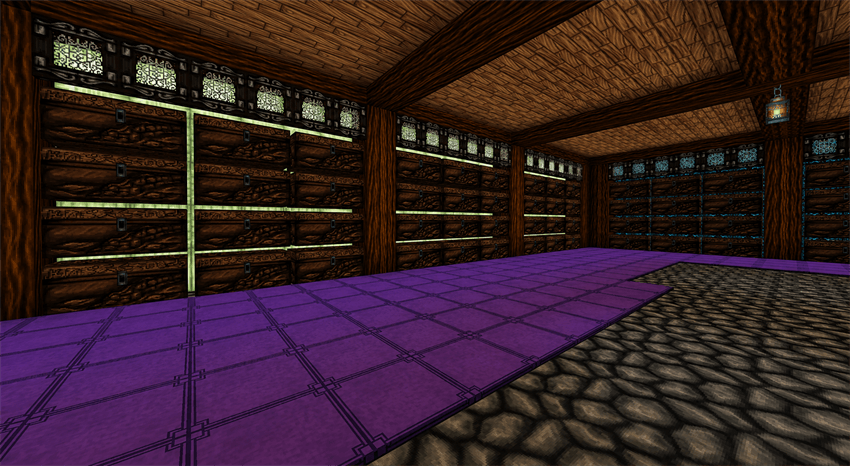
- Dark Manor — carved dark wood, blackened metal, and sea-green arcane light
- Modern — glossy black and white surfaces with bright color accents
- Vanilla — a simpler design made to blend naturally with Minecraft builds
Network owners can change the theme from:
Player Settings → Network Appearance
The Console, Transfer Chest, Network Core, conduits, and Storage Links update together without needing to be replaced.
Per-player language settings
Each player can choose their own menu language from Player Settings. Language choices are saved separately, so people sharing the same Realm can use different languages.
Included languages:
- English
- German
- Spanish
- French
Minecraft item names continue to follow each player's Minecraft language.
Multiplayer permissions
The first player to use a new Console becomes the network owner. Owners can name the network, add trusted players, and independently decide who may:
- Browse stored items
- Deposit items
- Withdraw items
- Change network settings
Access can be limited to the owner, shared with trusted players, or opened to everyone.
Protect important supplies
Deposit Protection prevents bulk transfers from taking items you want to keep.
You can protect:
- Selected item types
- Individual hotbar slots
- Mining essentials
- Building supplies
- Favorite items
- Your entire hotbar
Protected items are skipped automatically during inventory and multi-item deposits.
Remote access and Realms
Minecraft only allows add-ons to access blocks and containers in loaded chunks. LumenLink includes an optional owner-controlled Keep Network Loaded setting with a radius of one to four chunks around the Network Core.
A four-chunk radius covers an area roughly 128 × 128 blocks around the Core. The setting keeps the storage area available; it does not load every chunk between the player and the network.
Large networks that extend beyond the loaded area will pause transfers safely and report the unloaded boundary through Network Diagnostics.
Getting started
- Open the downloaded
.mcaddonfile to import both LumenLink packs. - Activate the LumenLink behavior pack and resource pack on your world.
- Place a Network Core.
- Place the Storage Console directly above the Core.
- Run Luminous Conduit from the Core toward your storage.
- Place Storage Links beside each supported container.
- Open the Console and use the Guide or Network Status to verify the connection.
- Use a Remote on the Network Core to save that network.
- Repeat the binding process on other Cores to add more networks to the same Remote.
LumenLink requires no external add-ons, cheats, or experimental feature toggles for normal operation.
Compatibility
- Made for Minecraft Bedrock Edition
- Supports single-player worlds, multiplayer worlds, and Realms
- Works with supported vanilla containers without replacing them
- Existing chests and their contents remain normal Minecraft storage
- Uses the
lumenlink:namespace to reduce conflicts with other add-ons - Long-range access remains subject to Minecraft Bedrock's chunk-loading limits
Feedback and bug reports
LumenLink Storage is actively developed. When reporting a problem, please include:
- Your Minecraft version
- Whether you are playing locally or on a Realm
- A screenshot of the affected blocks or message
- The approximate size of the network
- Steps that reproduce the issue, when known
Created by Frostforge Addons.
- Edition: Minecraft Bedrock
- File type: .mcpack or .mcaddon
- Minecraft version listed: 26.40
- How to install: Download the .mcpack or .mcaddon file. → Open it — Minecraft imports it. → In your world: Behavior Packs → Available → Activate, then the same under Resource Packs.
- Where to get it: Opens on CurseForge — not every file is mirrored on our own servers.
Install steps are the general flow for this file type — How to install Minecraft Bedrock addons & mods walks through it step by step.
LumenLink Storage is a free Minecraft Bedrock addon. Compatible with Minecraft 26.40. Downloaded 147 times (via CurseForge). Download it and open it directly in the game.