
ModificationFFA Core
An all in one customizable FFA plugin with kits, combat, custom weapons, tokens, arenas, stats, pets, and more.
⬇ Download on Modrinth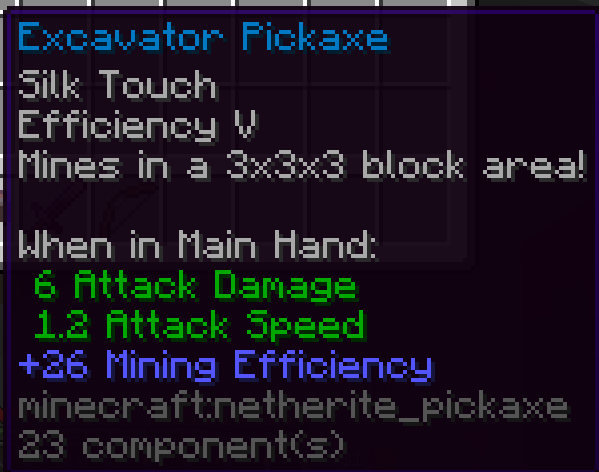
ModificationFFA
ModificationFFA is an all-in-one free-for-all plugin with kits, combat tagging, custom weapons, tokens, regenerating resource nodes, arenas, statistics, player settings, cosmetic pets, messaging, spawn teleporting, and animated menus.
Everything is designed to work together as one complete FFA experience.
Commands
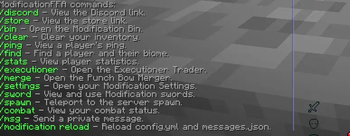
/m is the main shortcut. /modify, /modification, /modificationffa, and /p can also open ModificationFFA features.
/malso works as a private-message alias. For example,/m Steve hellomessages Steve, while/m settingsopens the settings menu.
| Command | Description |
|---|---|
/modification |
Shows the plugin name, version, author, and help command. |
/m help |
Displays the main ModificationFFA command list. |
/m settings |
Opens your personal settings. |
/m stats [player] |
Displays your statistics or another player’s statistics. |
/m find <player> |
Shows a player’s coordinates and current custom biome. |
/m bin |
Opens the animated item bin. |
/m clear [player] |
Clears your inventory or an admin-selected player’s inventory. |
/m ping [player] |
Shows your ping or another player’s ping. |
/m executioner |
Opens the Executioner Trader. |
/m merge |
Opens the Punch Bow Merger. |
/m reload |
Reloads the plugin’s configuration and messages. Admin only. |
/discord |
Displays the clickable Discord link. |
/store |
Displays the clickable store link. |
/bin or /trash |
Opens the Modification Bin. |
/merge |
Opens the Punch Bow Merger. |
/settings |
Opens your Modification Settings. |
/clear |
Clears your own inventory. |
/clear <player> |
Clears another player’s inventory. Admin only. |
/find <player> or /locate <player> |
Finds an online player and displays their biome and coordinates. |
/ping |
Displays your ping. |
/ping <player> |
Displays another player’s ping. |
/stats |
Displays your statistics. |
/stats <player> |
Displays another player’s statistics. |
/spawn |
Teleports you to spawn after a five-second countdown. |
/executioner |
Opens the Executioner Trader. |
Kit commands
| Command | Description |
|---|---|
/kit help |
Displays the kit command list. |
/kit load |
Loads your saved kit layout. |
/kit save |
Saves your current legal kit layout. |
/kit delete |
Deletes your saved layout. |
/kit adminsave |
Saves your inventory as the server’s main kit. Admin only. |
Players may rearrange the items from the main kit and save their preferred layout. They cannot add different items, extra items, extra durability, or upgraded versions. Using fewer items is allowed.
Kit loading has a short cooldown to prevent spam. Kit Safety can also stop players from accidentally replacing purchased items in their inventory.
Social commands
| Command | Description |
|---|---|
/msg <player> <message> |
Sends a private message. |
/message, /m, /whisper, /w, /tell, /pm |
Aliases for /msg. |
/reply <message> |
Replies to the last player who messaged you. |
/r or /apprend |
Aliases for /reply. |
/continue <message> |
Continues your current private conversation. |
/c or /a |
Aliases for /continue. |
Players can toggle private-message sounds and join/leave messages inside /settings.
Pet commands
| Command | Description |
|---|---|
/pet help |
Displays the pet command list. |
/pet spawn <rabbit|frog|cat|wolf> <name> |
Spawns a permitted cosmetic pet with a custom name. |
/pet despawn |
Despawns your active pet. |
/pet list |
Lists all available pets. |
Pet names support RGB colors such as:
/pet spawn cat D00FBMōDFCeA79FEo�B6FFw
Only one pet can be active at a time. Pets follow their owner, cannot attack, cannot take damage, cannot burn, and disappear when their owner leaves. Right-click your pet to make it sit or follow you.
Sword and custom-item commands
| Command | Description |
|---|---|
/sword help |
Displays the custom-weapon command list. |
/sword ability |
Activates the held Dash Sword, Axe of Protection, or Axe of Explosion. |
/sword give <type> |
Gives yourself a custom item. Admin only. |
/sword give <player> <type> |
Gives a custom item to another player. Admin only. |
Available item types:
strikedashexecutionervoidlifestealinhibitorknockbackorkbprotectionresistanceexplosionexcavatorpunch_bow
Combat commands
| Command | Description |
|---|---|
/combat help |
Displays combat commands. |
/combat timer |
Shows your remaining combat time. |
/combat tag <player> |
Forces a player into combat. Admin only. |
/combat untag <player> |
Removes a player from combat. Admin only. |
/combat commandwhitelist list |
Lists commands allowed during combat. Admin only. |
/combat commandwhitelist add <command> |
Allows a command during combat. Do not include /. |
/combat commandwhitelist delete <command> |
Removes a command from the combat whitelist. |
Biome commands
| Command | Description |
|---|---|
/biome help |
Displays biome commands. |
/biome list |
Lists all custom biome regions. |
/biome wand |
Gives the biome selection wand. Admin only. |
/biome create <name> |
Creates a custom biome from the selected region. Admin only. |
/biome delete <name> |
Deletes a custom biome. Admin only. |
Custom biomes can overlap. A player’s custom biome name is displayed when they are found using /find.
Gameplay arena commands
| Command | Description |
|---|---|
/arena help |
Displays arena commands. |
/arena wand |
Gives the arena selection wand. Admin only. |
/arena create <name> |
Creates an arena from the selected region. Admin only. |
/arena delete <name> |
Deletes an arena. Admin only. |
/arena edit <setting> <arena> <true|false> |
Enables or disables an arena rule. Admin only. |
/arena edit <arena> <setting> <true|false> |
Alternative arena-first command order. |
Available arena settings:
| Setting | Controls |
|---|---|
pvp |
Whether players can fight inside the arena. |
block-break |
Whether blocks may be broken. |
block-place |
Whether blocks may be placed. |
interact |
Whether players may use chests, doors, buttons, and other blocks. |
wind-charge |
Whether wind charges may be used. |
item-drops |
Whether players may drop items. |
item-pickup |
Whether players may pick up items. |
Example:
/arena edit interact spawn false
When arenas overlap, the most recently created arena takes priority.
Protected arena commands
| Command | Description |
|---|---|
/protectarena help |
Displays protected-arena commands. |
/protectarena wand |
Gives the protected-arena wand. |
/protectarena create <name> |
Saves the selected protected region. |
/protectarena delete <name> |
Deletes a protected region. |
/protectarena exempt wand |
Gives the exemption selection wand. |
/protectarena exempt create <arena> <name> |
Creates an editable exemption inside a protected arena. |
/protectarena exempt delete <arena> <name> |
Deletes an exemption. |
Saved blocks inside a protected arena cannot normally be broken. Players may place new blocks and later break those placed blocks. Exemptions create areas where every block can be edited normally.
Token and resource-node commands
| Command | Description |
|---|---|
/tokens give <player> <type> <amount> |
Gives tokens to a player. Admin only. |
/woodtoken give <player> <wood-type> |
Gives a regenerating wood node. Admin only. |
/miningtoken give <player> <ore-type> |
Gives a regenerating mining node. Admin only. |
Available token types:
killminingwoodafkcompressed_miningcompressed_woodenchanted_killcompressed_kill
Feature Guide
Combat system
Attacking another player starts a 60-second combat timer for both players. The remaining time is displayed above the hotbar.
Players cannot use blocked commands during combat. Operators and players with the combat-command bypass permission may use every command.
If a player leaves during combat, a stationary zombie appears in their place. It keeps their:
- Inventory
- Armor
- Main-hand and off-hand items
- Health
- Potion effects
- Experience
- Food
- Location
If the player returns while the zombie is alive, they return at the zombie’s current health and location with their items restored.
If the zombie is killed, all stored items are dropped. The logged-out player returns without their inventory and receives a death. Killing an eligible combat logger can also award a Kill Token.
Kill Tokens
Players receive one Kill Token when they kill another player. Killing the same player repeatedly does not award another token until ten minutes have passed.
Kill Tokens automatically enter an available inventory slot or join an existing stack. If the inventory is full, the token drops on the ground and is prioritized when collecting nearby items.
Executioner Trader
The Executioner Sword has a chance to produce an Executioner Head when its target dies. The weapon also displays its recorded kill count.
Use /executioner or /m executioner to open the animated trader. Clicking the player head trades every Executioner Head in your inventory for Kill Tokens.
Players can enable the Executioner Token setting to receive Kill Tokens directly instead of heads.
Regenerating resource nodes
Mining nodes support ores and Ancient Debris. When mined, they temporarily turn into stone or deepslate and regenerate after five minutes.
Wood nodes support logs, wood, stems, hyphae, and similar wood blocks. When harvested, they become stripped and regenerate their bark after five minutes.
The special Mining and Wood Token tools cannot damage players and do not lose durability.
In Creative mode:
- Breaking a node normally displays a deletion reminder.
- Sneaking while breaking permanently deletes the node.
Custom weapons
- Strike Sword: Has a 20% chance to strike its target with lightning.
- Dash Sword: Launches the player forward. Activate it with sneak + right-click or
/sword ability. It has a 20-second cooldown and plays a firework-launch sound. - Executioner Sword: Has a 20% chance to award an Executioner Head or Kill Token after a kill. Its lore tracks kills.
- Void Sword: Has a 10% chance to blind its target.
- Lifesteal Sword: Has a 7.5% chance to restore two hearts after hitting another player.
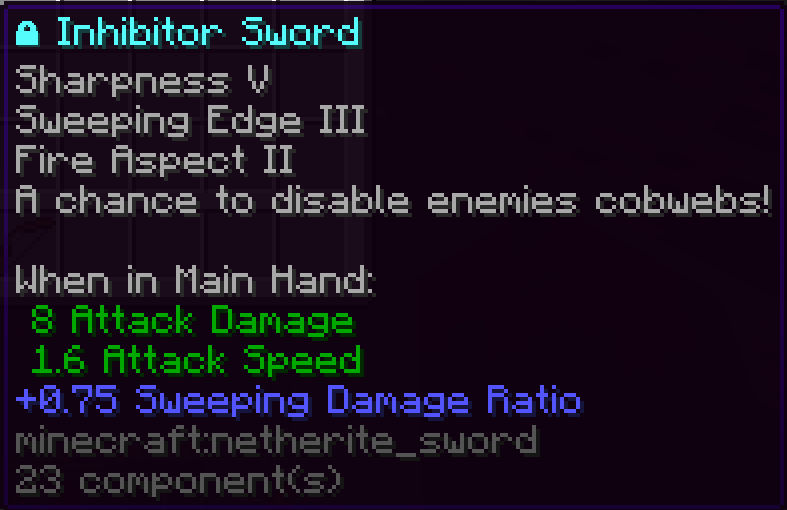
- Inhibitor Sword: Has a 2% chance to temporarily disable the target’s cobwebs.
- Knockback Sword: A golden sword with Knockback II and Unbreaking II. Unlike the other main custom weapons, it can lose durability.
- Axe of Protection: Blocks a number of incoming hits based on how many players recently attacked you. It lasts for up to 15 seconds and has a 60-second cooldown.
- Axe of Resistance: Passively reduces damage while it is anywhere in your hotbar. One attacker gives no resistance, two attackers give 5%, three give 10%, and each additional recent attacker adds another 5%.
- Axe of Explosion: Damages and knocks away nearby players without hurting its owner. It also removes cobwebs, stone, and obsidian within five blocks when arena protection allows it. It has a 40-second cooldown.
- Excavator Pickaxe: Mines a 3×3×3 area of suitable pickaxe blocks.
- Punch Bow: Comes with Power V, Flame, Punch II, Unbreaking III, and Infinity.
Most custom weapons are unbreakable, have individual cooldowns, and work with the Modification FFA resource pack.
Punch Bow Merger
Use /merge or /m merge to open the animated Punch Bow Merger.
Place one Punch Bow into each input slot and press the green confirmation button. Their remaining durability is combined into one bow. If the menu closes before merging, both input bows are safely returned.
Modification Bin
Use /bin, /trash, or /m bin to open the animated four-row bin.
Place unwanted items into the first three rows and click the animated lava bucket to delete them. Closing the menu without pressing delete returns every stored item. Overflow items are safely dropped beside the player.
Statistics
/stats tracks:
- Kills
- Deaths
- K/D ratio
- Current killstreak
- Best killstreak
- Cobwebs placed
- Ender Pearls used
- Golden Apples eaten
- Enchanted Golden Apples eaten
- Chorus Fruit eaten
- Experience Bottles used
- Weapon swings
- Successful hits
- Accuracy
Players may hide their statistics in /settings. Staff with the hidden-stat viewing permission can still view them.
Spawn system
Admins can set the server spawn using /setspawn.
/spawn begins a five-second countdown with a guitar sound every second. Moving, teleporting, taking damage, dying, or leaving cancels the teleport.
First-time players join at spawn, and all players respawn there after death.
Player settings
/settings or /m settings opens the animated Modification Settings menu.
Available settings include:
- Broadcast reminders
- Join and leave messages
- Private-message sounds
- Protection Axe sneak activation
- Explosion Axe sneak activation
- Hidden statistics
- Kit Safety
- Personal time
- Personal weather
- Direct Executioner Tokens
- Anti-Ghost Water
- Invisibility effects
- Staff settings placeholder
Personal Time and Personal Weather are optional VIP settings. Invisibility can be disabled so invisibility effects do not affect that player. Anti-Ghost Water keeps water buckets visually synchronized after use.
Discord, store, and reminders
/discord and /store display configurable clickable links.
Discord and store reminders alternate at a configurable interval. Reminder sounds are disabled by default but can be enabled and changed.
Permissions and Customization
| Permission | Default | Purpose |
|---|---|---|
modificationffa.reload |
OP | Use /m reload. |
modificationffa.cooldown.bypass |
OP | Bypass Discord/store command cooldowns. |
modificationffa.kit.admin |
OP | Use /kit adminsave. |
modificationffa.clear |
Everyone | Clear your own inventory. |
modificationffa.clear.others |
OP | Clear another player’s inventory. |
modificationffa.biome.admin |
OP | Manage custom biomes. |
modificationffa.tokens.admin |
OP | Give tokens and resource nodes. |
modificationffa.spawn.set |
OP | Set the server spawn. |
modificationffa.command.combat.tag |
OP | Force combat tags. |
modificationffa.command.combat.untag |
OP | Remove combat tags. |
modificationffa.command.combat.commandwhitelist |
OP | Manage combat-allowed commands. |
combat.command.bypass |
OP | Use every command during combat. |
modificationffa.sword.ability |
Everyone | Use custom weapon abilities. |
modificationffa.sword.give |
OP | Give custom weapons. |
modificationffa.pet.spawn.rabbit |
Off | Spawn rabbit pets. |
modificationffa.pet.spawn.frog |
Off | Spawn frog pets. |
modificationffa.pet.spawn.cat |
Off | Spawn cat pets. |
modificationffa.pet.spawn.wolf |
Off | Spawn wolf pets. |
modificationffa.pet.list |
OP | Use /pet list. |
modificationffa.arena.admin |
OP | Manage gameplay arenas. |
modificationffa.protectarena.admin |
OP | Manage protected arenas. |
modificationffa.stats.view-hidden |
OP | View hidden statistics. |
ModificationFFA can be customized without changing its core gameplay:
- Change the plugin and menu name
- Add or change main command aliases
- Change the prefix and menu color themes
- Change the Discord and store links
- Change command cooldowns
- Change reminder timing and sounds
- Edit every player-facing message
- Use standard
&color codes or RGB colors such asC00C3
Use /m reload after editing the settings or messages. Changes to command aliases take effect after the next server restart.
You can add changes and edit this freely but any reuploads are not permitted.
- Edition: Minecraft Java
- File type: .jar
- Minecraft version listed: 1.21.11
- How to install: Install the matching mod loader (Forge, Fabric or NeoForge) for your Minecraft version. → Download the .jar. → Put it in the .minecraft/mods folder and launch that loader profile.
- Where to get it: Opens on Modrinth — not every file is mirrored on our own servers.
Install steps are the general flow for this file type — How to install Minecraft Java mods & modpacks walks through it step by step.
- Ships as ModificationFFA-1.0.jar — drop this file into the mods folder
- Download size: 14.2 MB
- Download link checked 14 Sept 2026 — working
These come from our own check of the pack file, not from the source page.