Welcome Message Pro
Bedrock add-on listed for Minecraft 1.21–26.x (behavior + resource pack). File opened and checked on 15 Sep 2026; installs from the MC Bedrock Mods app on Android.
Create customizable multilingual welcome messages with interactive join pop-ups, chat notifications, player recognition, MOTD support and an easy OP…
⬇ Download on CurseForge
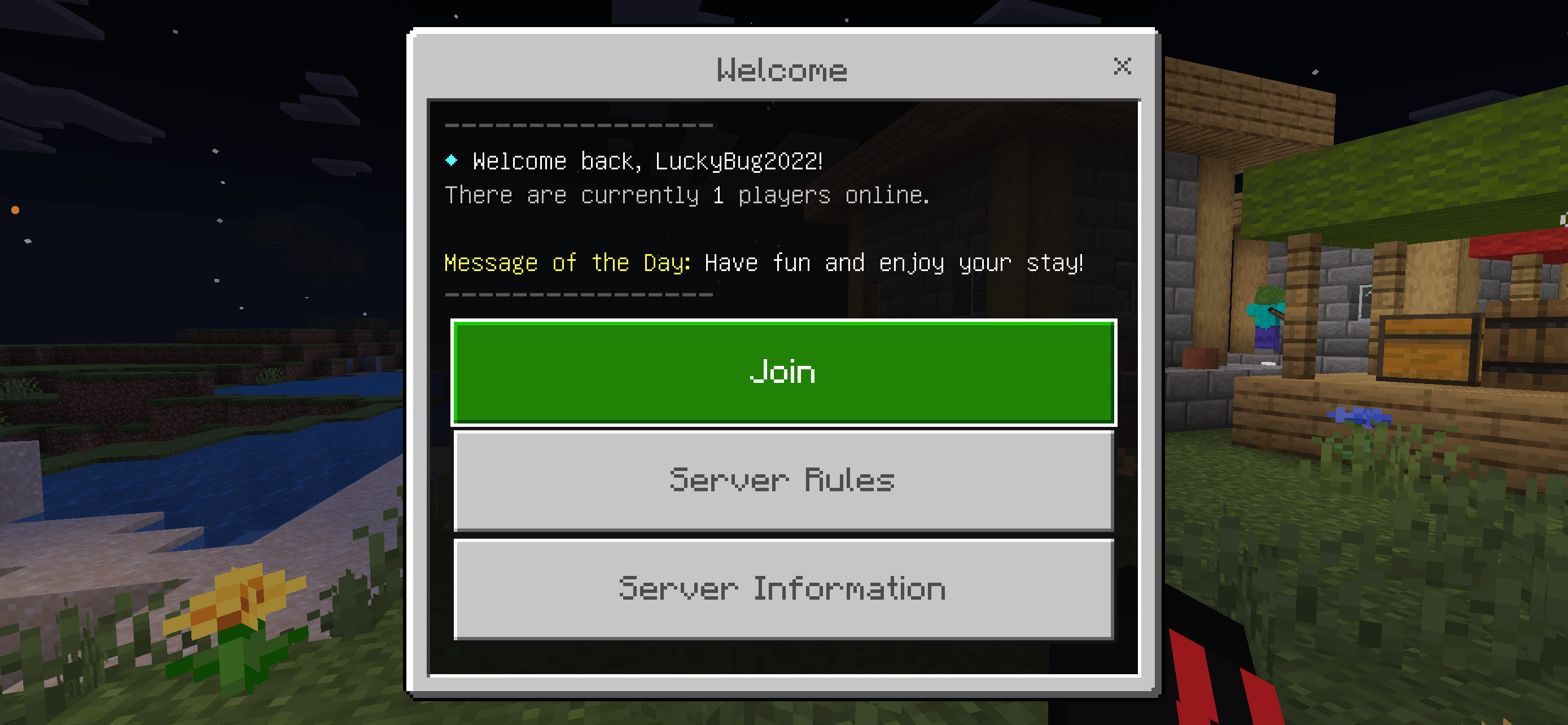
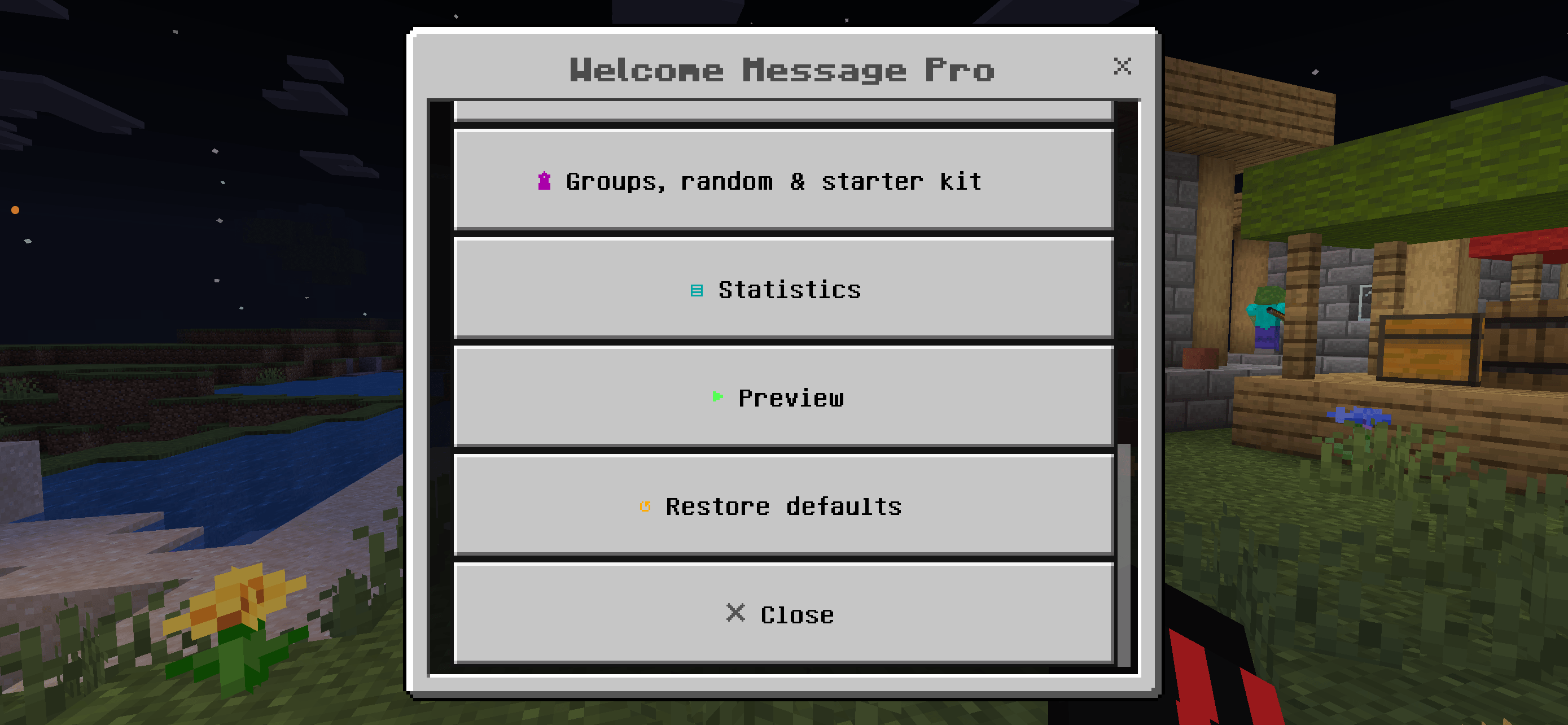
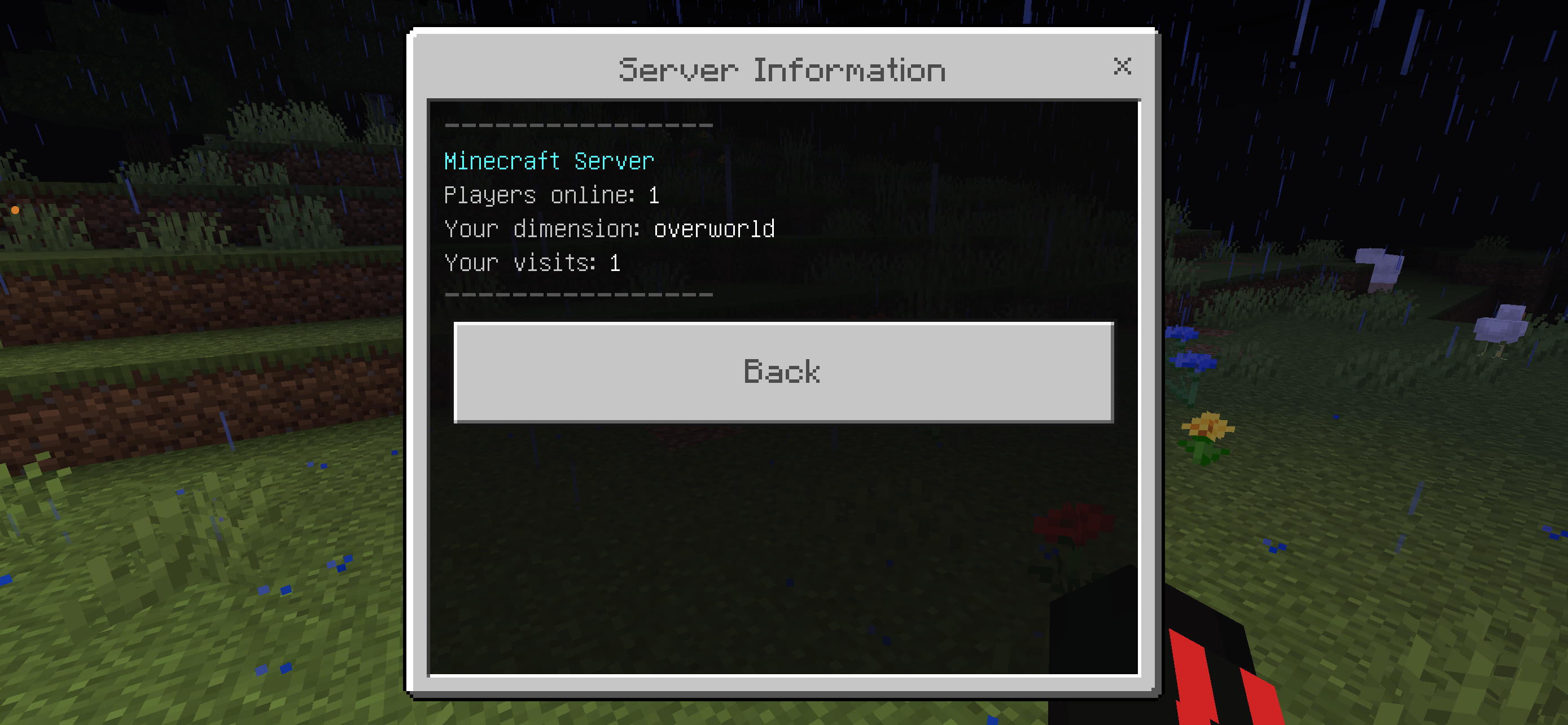
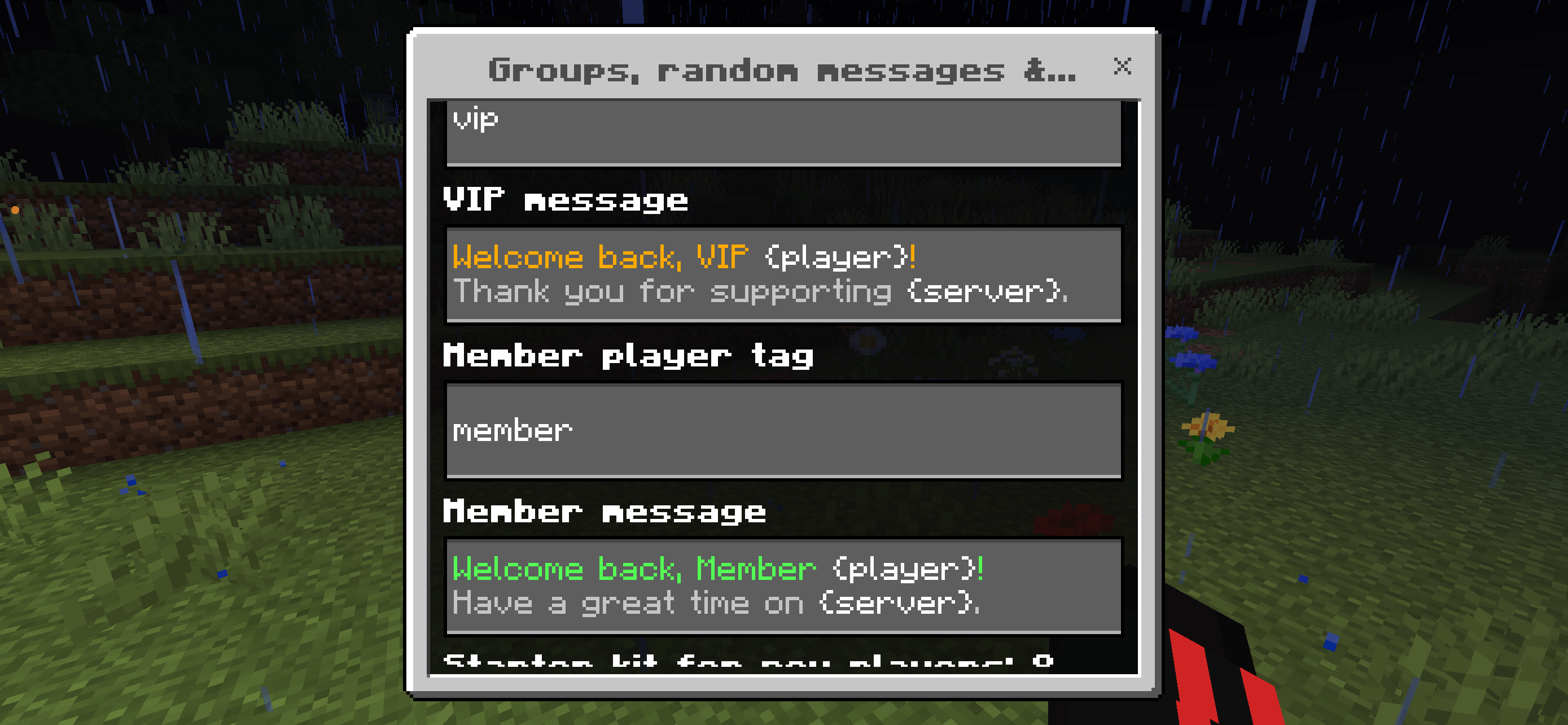
Welcome Message Pro – Multilingual Join System
Give every player a professional and customizable welcome experience when joining your Minecraft Bedrock world or server.
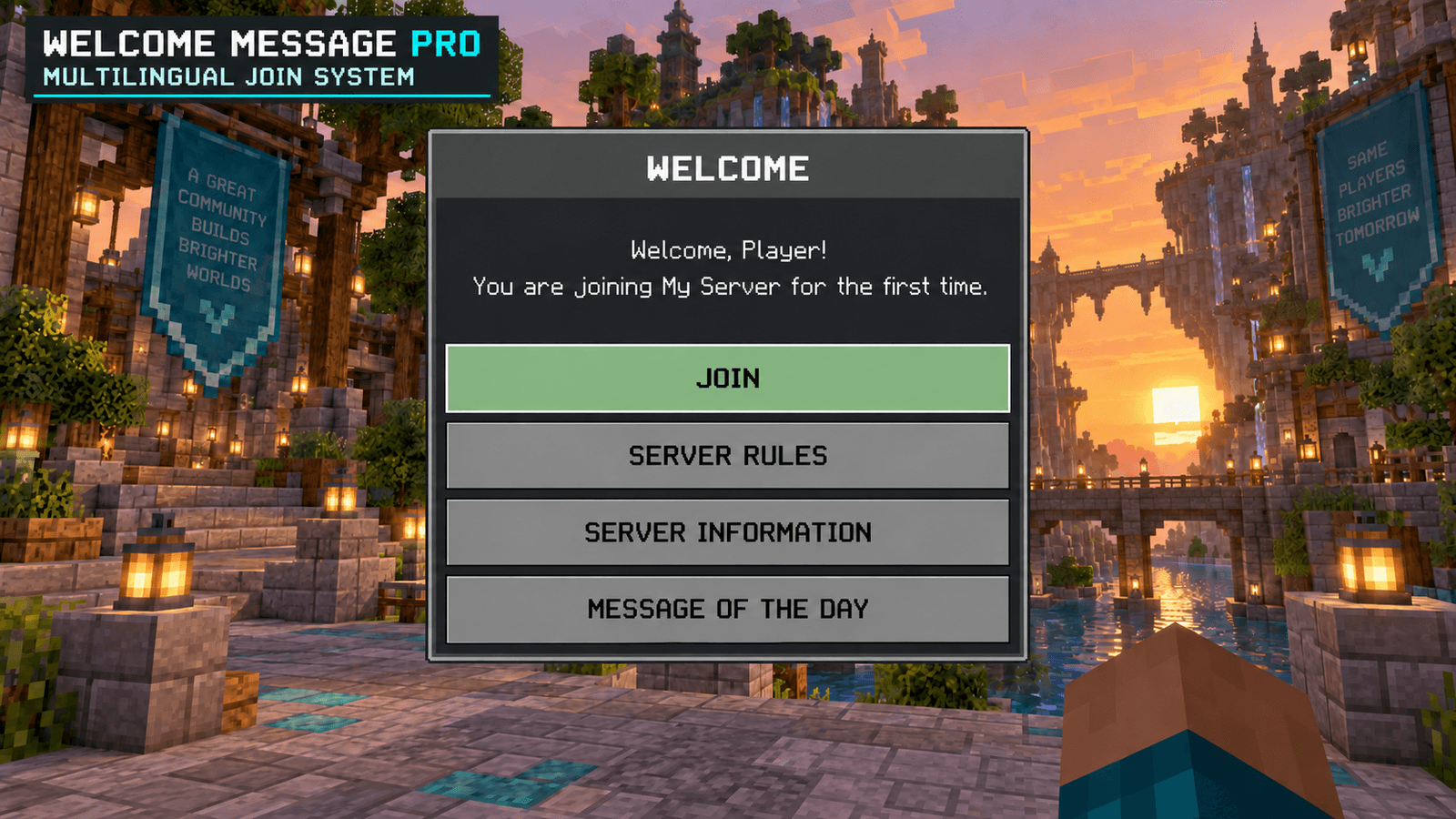
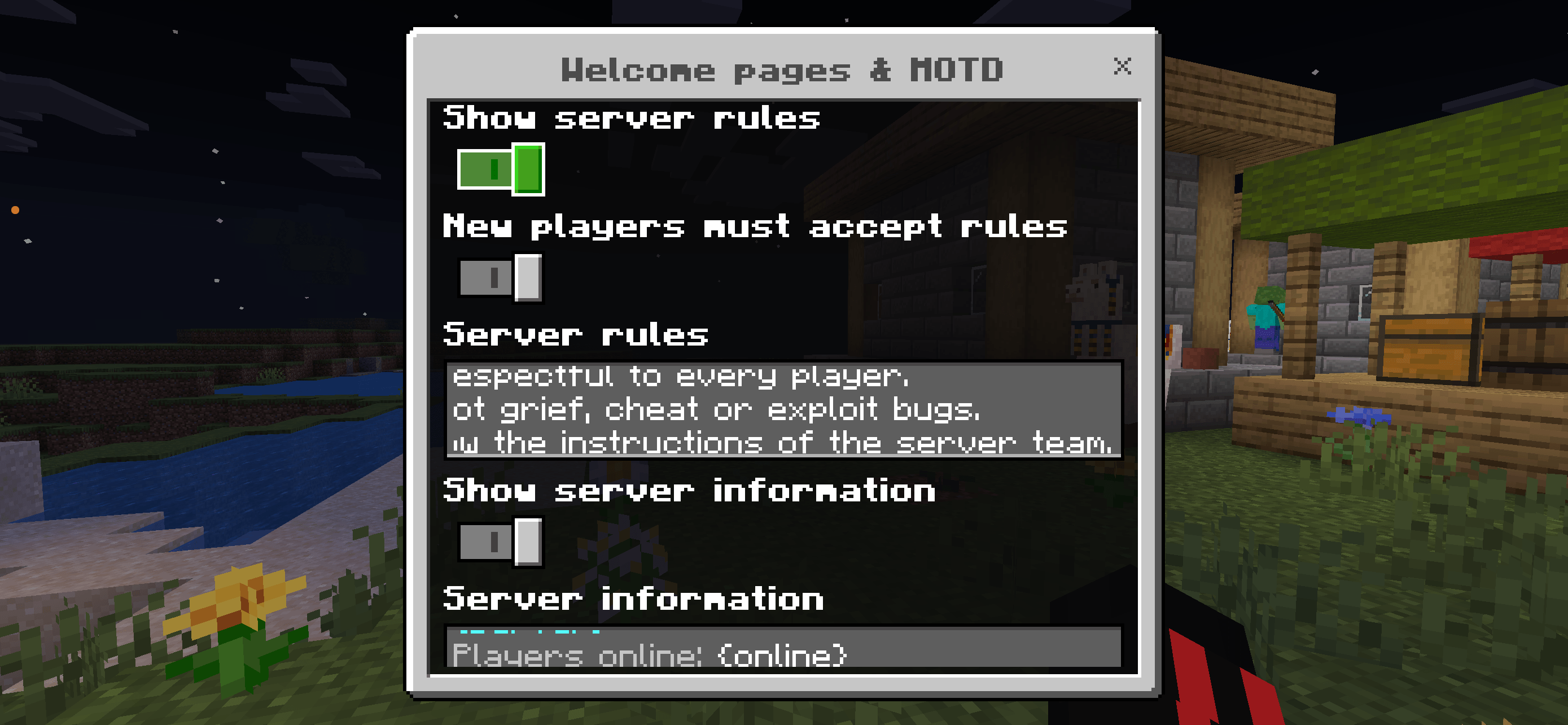
Welcome Message Pro allows administrators to create welcome messages for new and returning players. Display them as a chat message, notification, or interactive message box with buttons such as Join, Server Rules, Server Information, and Message of the Day.
Main Features
- Custom welcome messages
- Separate messages for new and returning players
- Choose when messages are displayed
- Chat messages, notifications, or interactive message boxes
- Customizable button actions
- Dedicated Message of the Day page
- Server Rules and Server Information pages
- Player-name placeholders
- Color, symbol, and emotion selection
- Automatic player recognition
- Easy administrator settings menu
- Settings are saved for the world or server
- Default setup: English message box with a Join button
Multilingual Support
Players can use their preferred language, while administrators can also select a language manually.
Supported languages:
- English
- German
- Spanish
- French
- Thai
- Chinese
- Japanese
- Turkish
Changing the language also changes the complete settings menu.
Administrator Menu
Operators can open the configuration menu with:
/function message/set
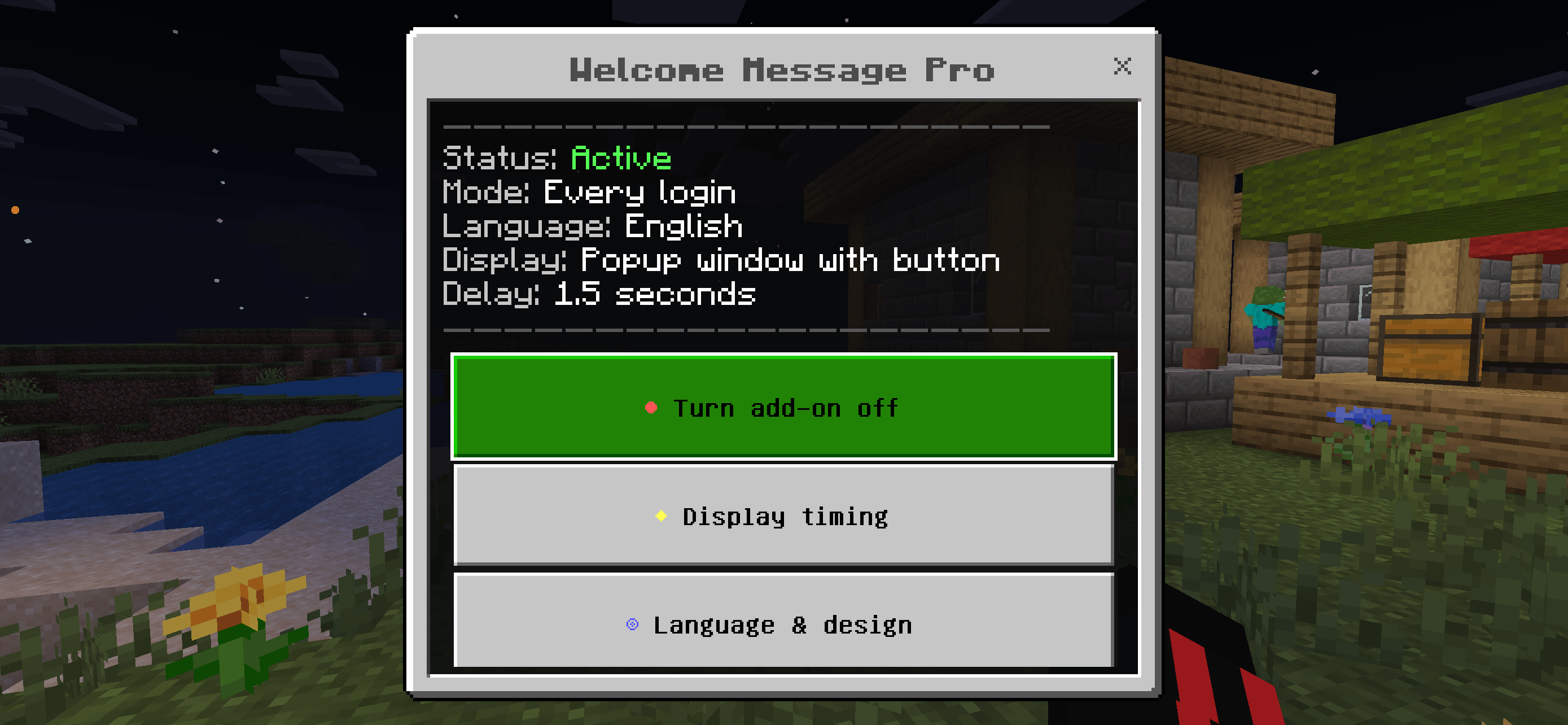
From this menu, administrators can configure the display type, welcome frequency, player messages, buttons, languages, Message of the Day, symbols, colors, and additional pages.
Perfect For
- Dedicated servers
- Realms
- Multiplayer worlds
- Survival servers
- Roleplay servers
- Minigame servers
- Community projects
Installation
Minecraft Bedrock Client
- Download the
.mcaddonfile. - Open the downloaded file with Minecraft.
- Wait until Minecraft confirms that both packs were imported successfully.
- Create a new world or edit an existing world.
- Open Behavior Packs → My Packs and activate Welcome Message Pro.
- Open Resource Packs → My Packs and activate Welcome Message Pro Resources if it was not activated automatically.
- Enable cheats and make sure the administrator has operator permissions.
- Start the world.
Administrators can open the settings menu in-game with:
/function message/set
Do not extract the .mcaddon file when installing it on a normal Minecraft client.
Bedrock Dedicated Server
- Stop the Bedrock Dedicated Server.
- Create a backup of the world before installing the addon.
- Rename the downloaded file from:
Welcome-Message-Pro-v1.1.1.mcaddon
to:
Welcome-Message-Pro-v1.1.1.zip
- Extract the ZIP file. It contains two folders:
BPRP
- Copy the
BPfolder into the server’sbehavior_packsdirectory. - Copy the
RPfolder into the server’sresource_packsdirectory. - Open the folder of the world used by the server:
worlds/<level-name>/
- Open or create
world_behavior_packs.jsonand add:
[
  {
    "pack_id": "9db8d7fc-dcf0-4df1-9d04-6f77a84588aa",
    "version": [1, 1, 1]
  }
]- Open or create
world_resource_packs.jsonand add:
[
  {
    "pack_id": "fa3493eb-4698-4338-ad8f-8f30f176af45",
    "version": [1, 1, 1]
  }
]
If these files already contain other packs, add the new entries to the existing JSON list. Do not delete the entries belonging to other addons.
- Start the Bedrock Dedicated Server.
- Join the server as an operator and open the settings menu with:
/function message/set
The settings menu must be opened by an operator inside the game. It cannot be displayed through the dedicated-server console.
Create a welcoming first impression and provide important server information directly when players join.
Support Future Development ❤️
Do you enjoy this addon? You can support my work through Buy Me a Coffee.
Every donation helps me dedicate more time to creating new addons, improving existing projects, fixing issues and responding to community suggestions more quickly.
Support is completely optional. Feedback, ideas and feature requests are always welcome and help make future updates even better.
Click here for Buy Me a Coffee
Thank you for supporting Lightscribe and the development of more Minecraft Bedrock content! 🙏
- Edition: Minecraft Bedrock
- File type: .mcpack or .mcaddon
- Minecraft versions listed: 1.21, 26.0, 26.40
- How to install: Download the .mcpack or .mcaddon file. → Open it — Minecraft imports it. → In your world: Behavior Packs → Available → Activate, then the same under Resource Packs.
- Where to get it: Opens on CurseForge — not every file is mirrored on our own servers.
Install steps are the general flow for this file type — How to install Minecraft Bedrock addons & mods walks through it step by step.
- Pack type: .mcaddon — behaviour and resource pack in one file
- Manifest requires Minecraft 1.21.80 or newer
- Complete pack — everything it depends on is inside the file
- Download size: 59 KB
- Download link checked 5 Oct 2026 — working
These come from our own check of the pack file, not from the source page.