Andy's Salvage Table
Turn crafted items back into materials with the Salvage Table. Preview returns before salvaging, protect enchanted gear, and use built-in hopper…
⬇ Download on CurseForge
Andy's Salvage Table
Minecraft lets you turn nine iron into a block and never lets you turn it back. Every chest of outgrown tools, every stack of stairs you cut wrong, every crafting table looted from a village — it all ends up in a lava pit or a junk chest, because vanilla crafting only runs one way. Andy's Salvage Table runs it the other way. Put a crafted item in and get back a fair share of what it was made from, drawn from Minecraft's own recipes rather than from anybody's guesswork.
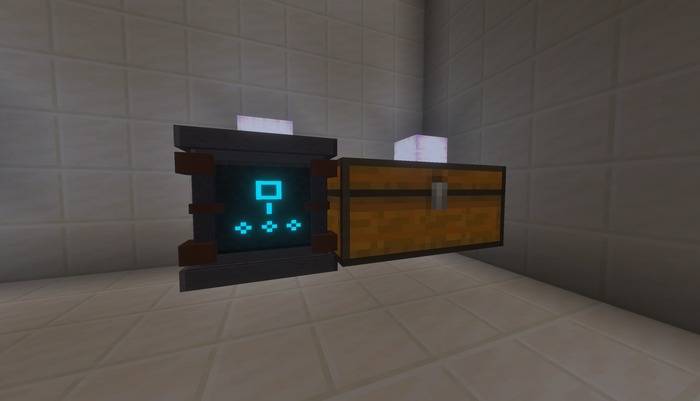
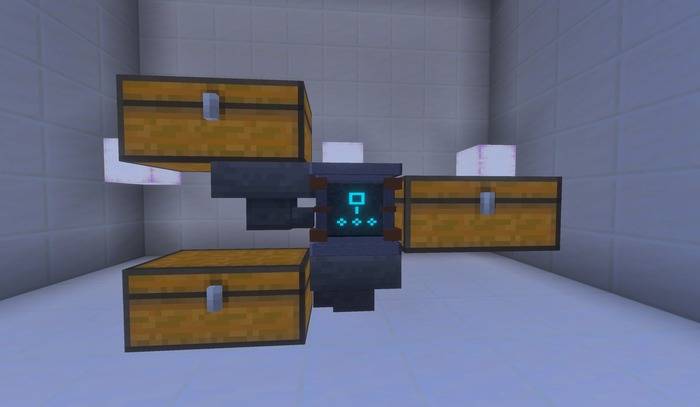
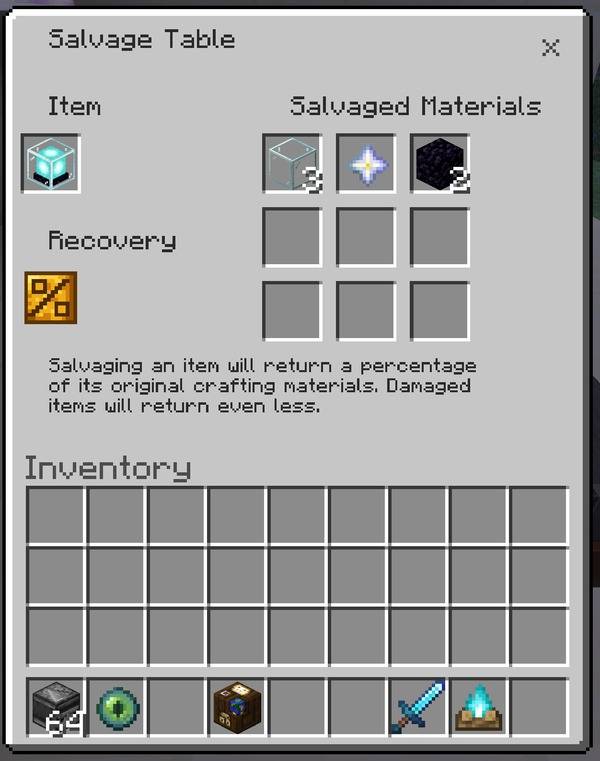
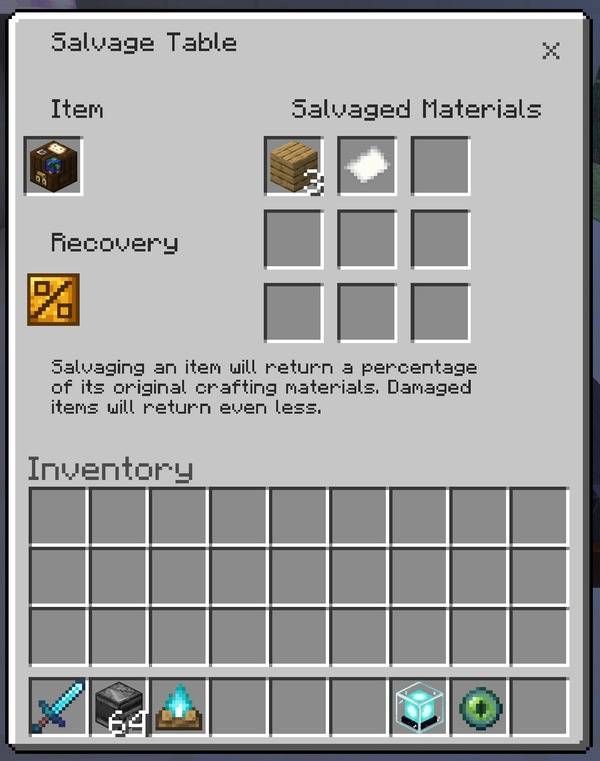
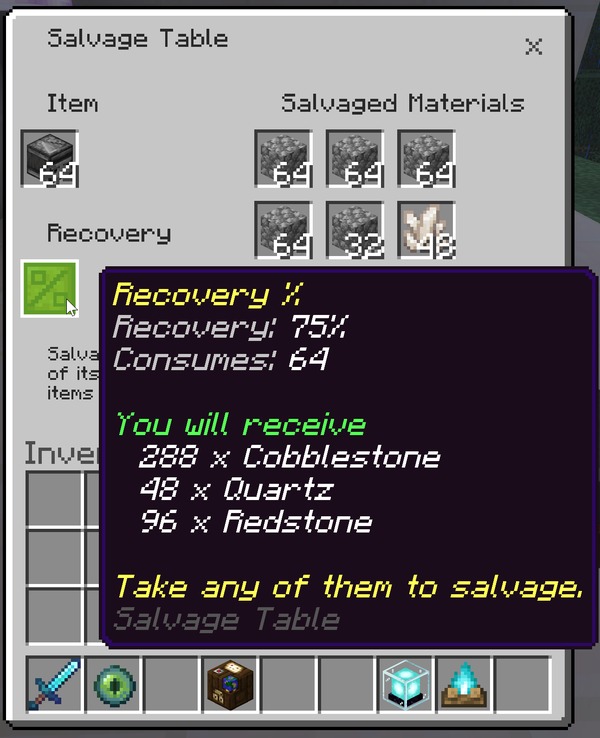
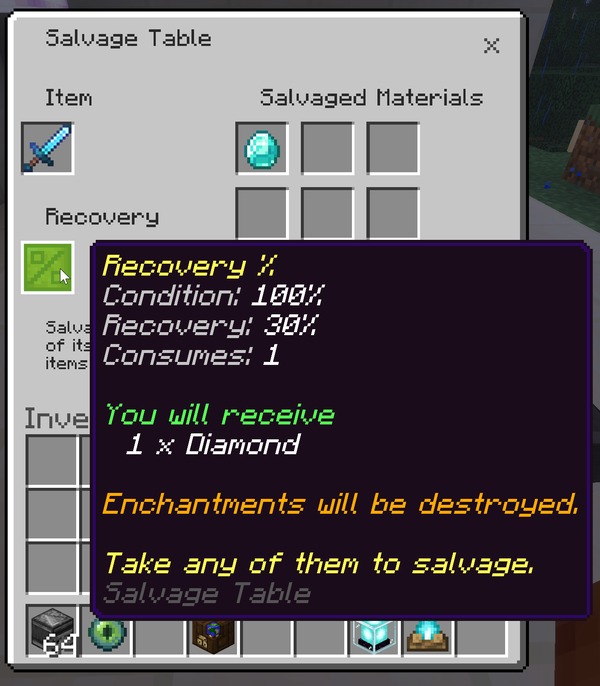
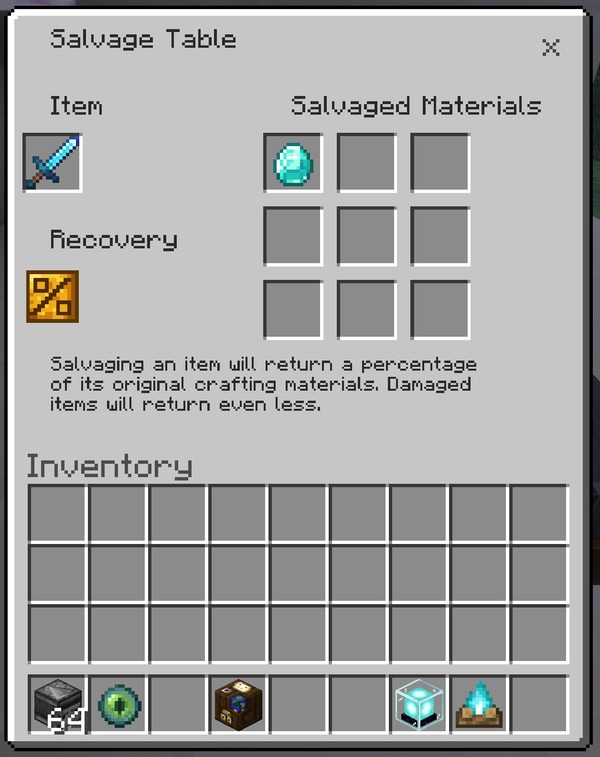
What makes it feel right is that it shows you the trade before you take it. Drop an item in the slot and the nine material slots fill with exactly what you will receive — the real stacks, at the real counts. Hover the gold percent icon and you get the arithmetic: the recovery rate, how worn the item is, what will be consumed, what is coming back. Nothing is spent until you reach in and take the materials, so you can price an item, change your mind, and take it straight back out. Then, when you have a chest of something to get through, the same block becomes a machine: hoppers in, materials out the bottom, anything it won't touch out the side.
Automation Built In!!!!
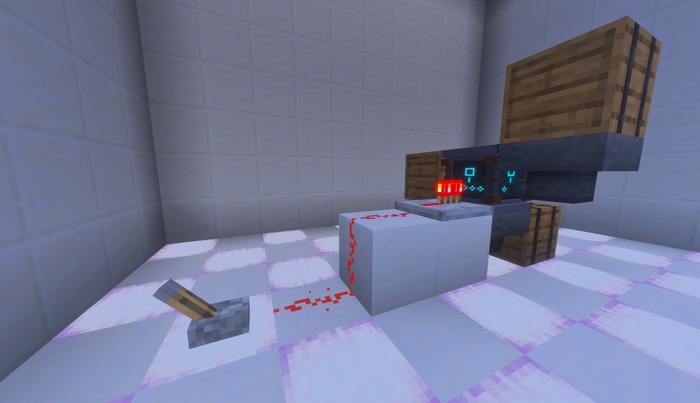
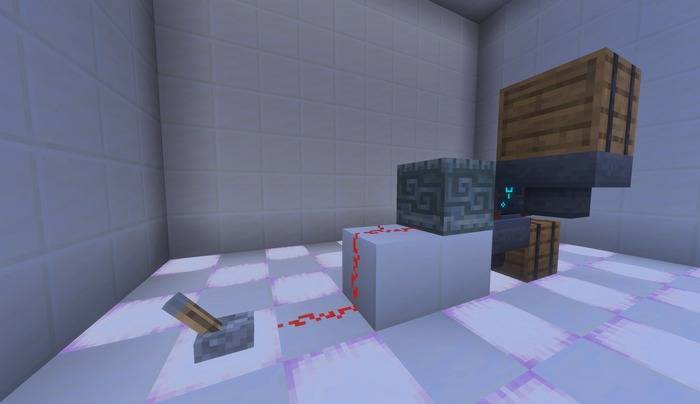
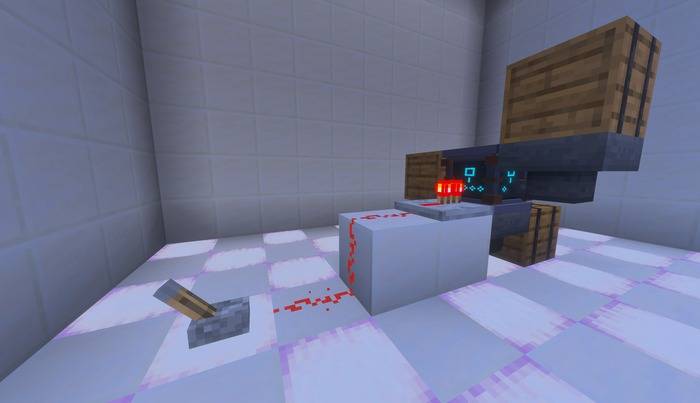
Hoppers in, materials out the bottom, anything it won't touch out the side — and redstone to switch the whole thing off.
Vanilla-friendly by design
- Adds one block. No vanilla item, block, recipe, or mechanic is replaced or overridden
- Returns only vanilla materials, from Minecraft's own crafting recipes — nothing invented
- Never returns more than the original recipe took
- Every safety protection starts switched on; nothing valuable is destroyed by default
- No cheats, commands, Beta APIs, experimental gameplay toggles, or required add-on dependencies
- Standard graphics and Vibrant Visuals/PBR support
- Single-player, multiplayer, Realms, and compatible Bedrock servers
Requirements
- Minecraft Bedrock Edition 1.26.30 or newer
- Both Andy's Salvage Table [BP] and Andy's Salvage Table [RP] must be active
- A Grindstone or a Stonecutter unlocks the recipe
- No required add-on dependencies
The add-on uses stable Script APIs supplied by Minecraft. Players do not need to enable cheats or experimental features.
Installation
Windows and supported desktop devices
- Download the current
Andys_Salvage_Table_0.7.15.mcaddonfrom the official project page. - Open the
.mcaddonwith Minecraft Bedrock. - Wait for both Andy's Salvage Table [BP] and Andy's Salvage Table [RP] to import successfully.
- Create a world or edit the intended existing world.
- Activate the Behavior Pack, then confirm the linked Resource Pack is active.
- Craft a Salvage Table, place it, and put any crafted item in its Item slot.
Android and iOS
Download the .mcaddon, open or share it to Minecraft, allow both packs to import, then activate both linked packs on the intended world. The exact file-sharing steps vary by device and operating-system version.
Consoles through a Realm
Consoles generally do not offer the same local .mcaddon import workflow. Import and activate the add-on on a supported Windows or mobile device, upload that prepared world to a Realm, and join the Realm from the console. Minecraft will deliver the required world packs through its normal Realm process.
Servers and Realms
Install and activate both packs on the world before uploading or starting it. Joining players must accept the Resource Pack so the table's model, textures, and interface appear correctly. Test a salvage in a backed-up staging copy before deploying to an established shared world.
Updating
- Back up the world.
- Import the newer
.mcaddonand wait for both pack updates to complete. - Edit the world and verify that matching versions of the Behavior Pack and Resource Pack are active.
- Remove or deactivate obsolete duplicate copies if Minecraft retained them.
- Completely leave and reopen the world before testing the update.
Placed tables keep their settings across updates, and so do your world settings.
Quick start
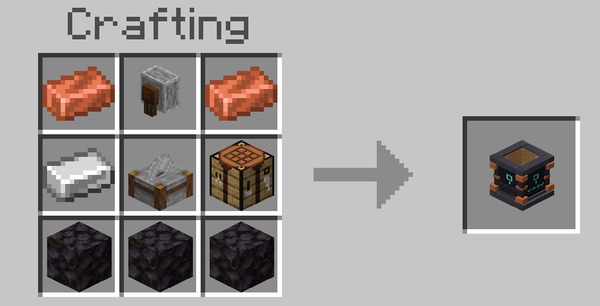
- Craft a Salvage Table — Copper, a Grindstone, Iron, a Stonecutter, a Crafting Table, and Blackstone.
- Place it and use it.
- Put a crafted item in the Item slot.
- Take any one of the materials that appear. That completes the salvage.
Crafting Recipes
Salvage Table (Crafting Table recipe)
Recipe type: Shaped
| Copper Ingot | Grindstone | Copper Ingot |
| Iron Ingot | Stonecutter | Crafting Table |
| Blackstone | Blackstone | Blackstone |
Unlocks when: you first obtain a Grindstone or a Stonecutter.
What it produces: One Salvage Table. Mine it with a pickaxe to get it back.
The salvage screen
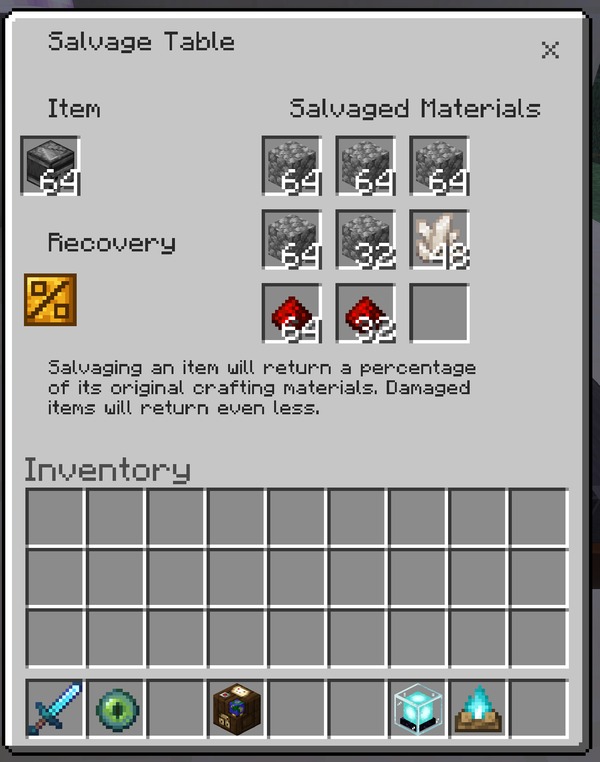
What it does: One Item slot, a 3×3 Salvaged Materials grid, and a gold Recovery % icon. Put a crafted item in the Item slot and the grid fills with exactly what you would receive.
Why and when to use it: This is the whole add-on for most players. Old tools, a chest of stairs you cut wrong, a stack of crafting tables from an abandoned build — anything crafted goes back to something useful instead of being thrown away.
Where to use it: Anywhere you can place the block, in any dimension.
How to use it:
- Use the table to open it.
- Place a crafted item in the Item slot. Shift-clicking an item in your inventory sends it there.
- Read the grid — those stacks are exactly what you get, at the counts shown.
- Take any one of them. The item is consumed once and the whole result is paid into your inventory.
Suggested starting settings: None needed; the screen has no settings of its own.
Edge cases and limits: Nothing is consumed until you take a material, so you can put an item in, read what it would give you, and take it straight back out with nothing lost. If the whole result will not fit in your inventory, nothing is salvaged and a message says so. The materials in the grid are a preview — taking one does not give you that stack on its own, it triggers the whole payout.
The Recovery % readout
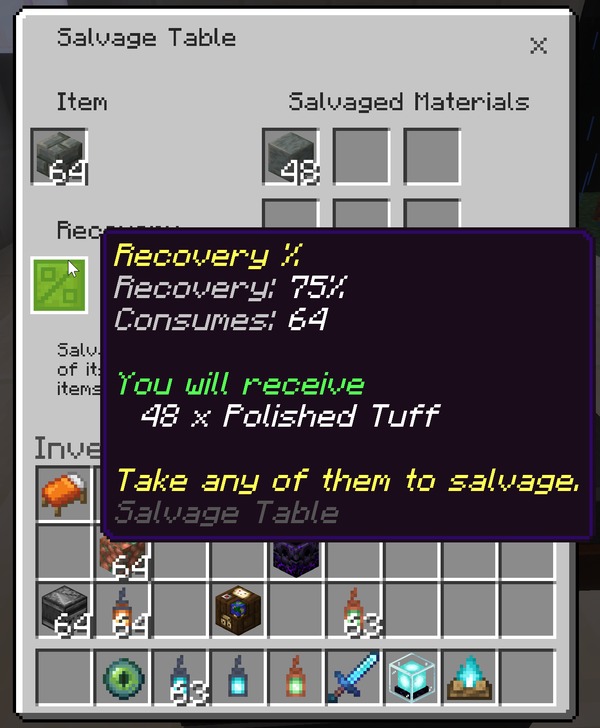
What it does: Hovering the gold percent icon shows live numbers for whatever is in the slot — the recovery rate, the item's condition if it has durability, how many will be consumed, anything left over, and the full list of materials coming back. It is also where the table explains a refusal.
Why and when to use it: To check a trade before you make it, and to find out why something was declined rather than guessing. A refusal always names its reason here: no recipe, too damaged, protected, category filtered, or not enough for one batch.
Where to use it: In the salvage screen.
How to use it:
Hover the icon. On touch devices, tap and hold.
Suggested starting settings: None. Turn on Detailed preview in Your preferences if you would rather see every output listed on its own line than summarized.
Edge cases and limits: It is part of the interface, not an item. It cannot be taken, crafted, or moved.
How much comes back
What it does: Recovery is a percentage of the original crafting recipe, scaled by how damaged the item is, and it can never exceed what the recipe took.
Why and when to use it: Knowing the rate tells you whether a salvage is worth making. Wood and stone come back generously; diamond and netherite deliberately do not.
Where to use it: Anywhere the base requirements are met — the rates are world-wide, not per table.
How to use it:
| Tier | Default rate | Applies to |
|---|---|---|
| Basic | 75% | Wood, stone, and everyday materials |
| Component | 75% | Redstone, quartz, lapis, emerald, and similar |
| Copper | 50% | Copper equipment and blocks |
| Iron | 50% | Iron equipment and blocks |
| Gold | 50% | Gold equipment and blocks |
| Diamond | 30% | Anything containing diamond |
| Netherite | 25% | Netherite gear (off by default) |
Three more rules shape the result:
- Batch awareness. A recipe's output count is divided out. Sixteen Glass Panes came from six Glass, so one pane never returns one Glass — and you need sixteen panes before the table can return anything at all.
- Durability scaling. A tool at half durability returns half as much again. A pristine Diamond Pickaxe gives one Diamond; a badly worn one gives nothing.
- Rounding. Fractions floor at or above one and round at half below one, so a result of 3.0 is 3 and a result of 0.75 is 1. That is why a pristine diamond tool returns something rather than nothing.
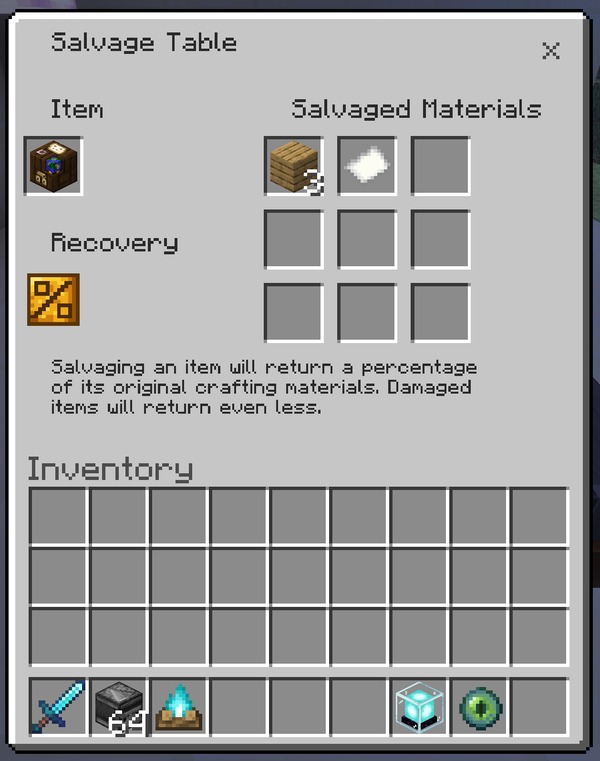
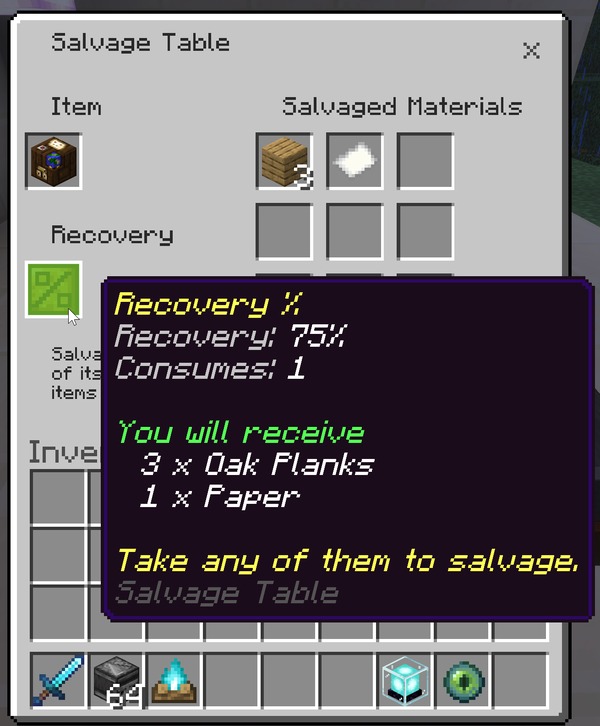
A worked example. 1,152 Crafting Tables cost 4,608 planks to craft. Salvaged, they return 3,456 planks — exactly 75%. Note that one item becomes three, so the item count grows even though the value falls. Anything built from several parts expands like this on the way back, which matters when you size an output chest.
Suggested starting settings: Leave the rates alone until you have played with it. If you want a harsher economy, a world owner can halve every rate at once.
The machine settings menu
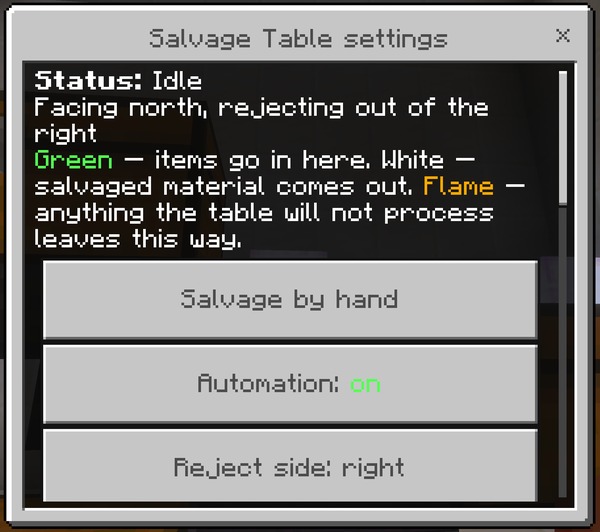
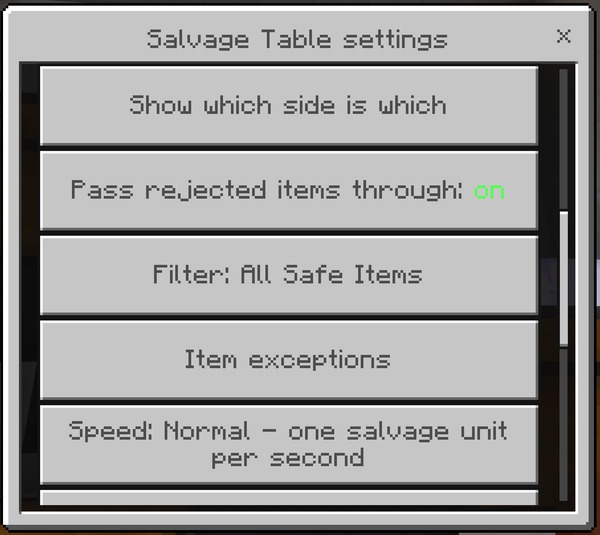
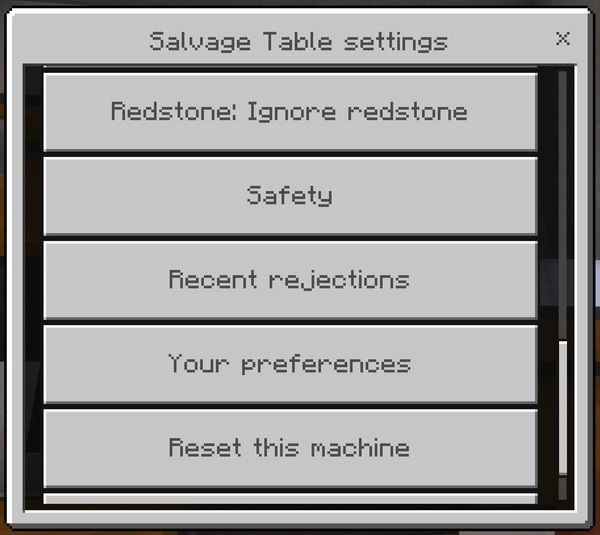
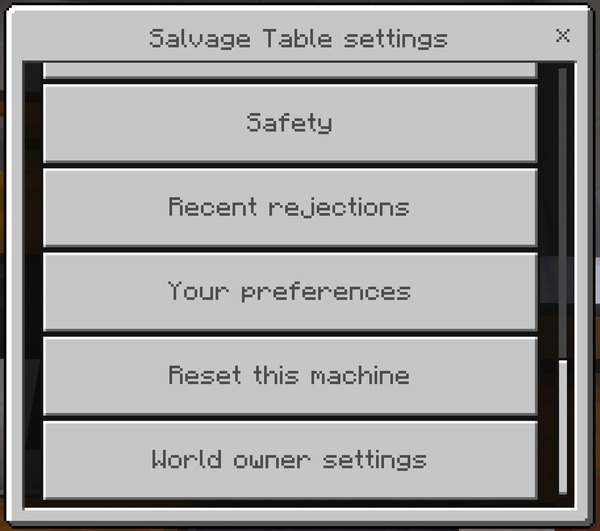
What it does: Crouching with an empty hand and using a table opens its own settings menu. The top of the screen is a live status readout — what the machine is doing right now, which way it faces, which side it rejects out of, and a legend for the particle face markers. Everything else in this list is a button on that menu.
Why and when to use it: This is where a table stops being a block you click and becomes a machine you configure. Every setting here belongs to this one table, so two tables side by side can do completely different jobs.
Where to use it: At any placed Salvage Table. Settings live with the block and are forgotten when it is broken.
How to use it:
Crouch with an empty hand and use the table. Crouching with a block in hand builds against it instead, exactly as with a vanilla workstation.
The status line reads one of:
| Status | Meaning |
|---|---|
| Idle | Nothing to do |
| Processing | Working |
| Output blocked | The container below cannot take the whole result. Nothing is consumed; it waits |
| No output container below | There is nothing under the table |
| Paused by redstone | The redstone mode says no |
| Automation off | Switched off on this machine |
| Turned off for this world | A world setting has disabled it |
Suggested starting settings: The defaults are a sensible first machine: automation on, All Safe Items, Normal speed, redstone ignored, rejecting to the right, both safety protections on.
Edge cases and limits: World settings that override this machine are called out in the menu body rather than hidden — if automation or the whole add-on is off for the world, the menu says so, so you can see at a glance why a table is not doing anything.
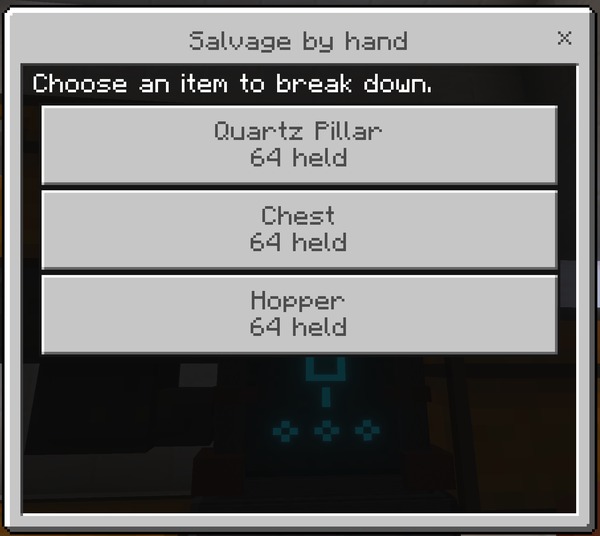
Salvage by hand
What it does: A list of everything in your own inventory that has a salvage recipe, with a per-item preview, a quantity slider, and a confirm step. It reads your inventory rather than the table's Item slot.
Why and when to use it: When you want to process part of a stack rather than all of it, when you would rather not shuffle items into the slot at all, or when you want to read the full preview and any warnings before committing.
Where to use it: At any Salvage Table, from its settings menu.
How to use it:
- Crouch with an empty hand and use the table.
- Choose Salvage by hand. Every salvageable stack you are carrying is listed with how many you hold.
- Pick one. The detail screen shows its condition, how many will be consumed, the recipe batch size if it is larger than one, the recovery rate, and everything coming back.
- Choose Salvage to do it, Change quantity to set the slider first, or Cancel to go back.
Change quantity opens a single slider measured in whole recipe batches — an item crafted four at a time moves in fours, because anything less recovers nothing. The slider only appears when you hold more than one batch.
Suggested starting settings: Leave the quantity at its default, which is one full recipe batch — the smallest amount that can produce anything.
Edge cases and limits: If you are carrying nothing salvageable, the screen tells you so and explains what the table does accept. If the item leaves your inventory before you confirm, nothing is consumed.
Automation
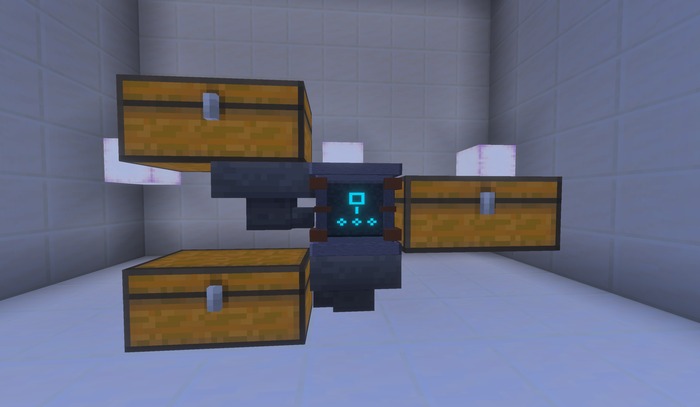
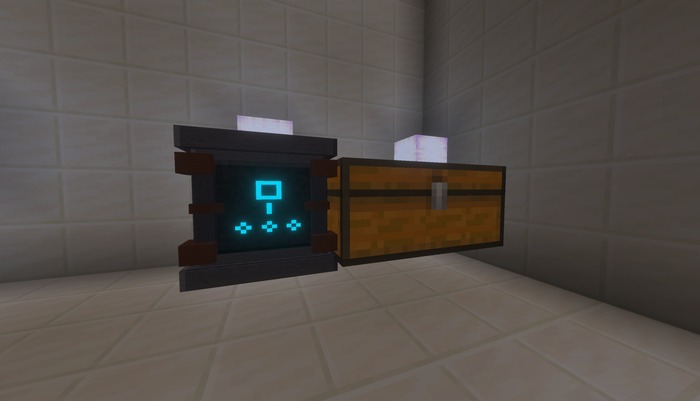
What it does: Switches automatic processing on or off for this one table. Containers on four faces feed it, recovered materials leave through the bottom, and anything it will not process leaves through a side you choose.
Why and when to use it: When you have more to get through than you want to click — a mob farm's gear, a stripped-out build's blocks, a villager-trade surplus. Switching it off parks a machine without dismantling the farm around it, which is what you want while you are still building the arrangement.
Where to use it: Per table. A container directly below the table is required — without one the machine will not run at all. It does not affect any other table or the world.
How to use it:
| Face | Job |
|---|---|
| Bottom | Salvaged materials come out here. Required |
| Reject side | Anything the table will not process leaves here. Right by default |
| Top, front, back, and the remaining side | Inputs. Any container on these is drained |
Four of the six faces take input, so you can feed the table from wherever is convenient. Point a hopper at the table and leave it there. The hopper holds the items and the table takes them out of it — that is the intended arrangement, and it is why a hopper aimed at a table can look like it is doing nothing.
Crouch with an empty hand and use the table → Automation to switch it.
Suggested starting settings: On. A hopper into any input face, a chest below, and a chest on the reject side is a complete farm.
Edge cases and limits: A world owner can switch automation off for the whole world. When they have, this button has no effect and the status reads Turned off for this world. One batch is processed per step, never a whole stack, so a stack of 64 Crafting Tables takes 64 steps.
Reject side
What it does: Chooses whether refused items leave through the table's left or right face. The opposite side becomes an input.
Why and when to use it: To fit a farm into the space you have. The reject side is the only face besides the bottom that is not an input, so which one it is decides your whole layout.
Where to use it: Per table.
How to use it:
Crouch with an empty hand and use the table → Reject side. The menu closes and the table marks its faces in particles, so you see the change on the block rather than reading it in a screen you are about to dismiss.
Suggested starting settings: Right, unless your build needs otherwise.
Edge cases and limits: Changing it does not move anything already sitting in the old reject container.
Show which side is which
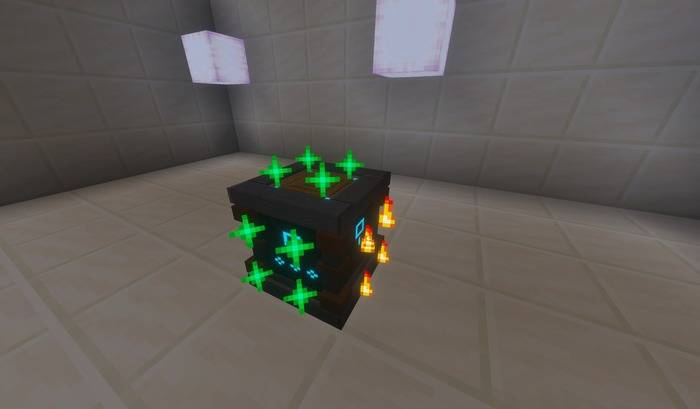
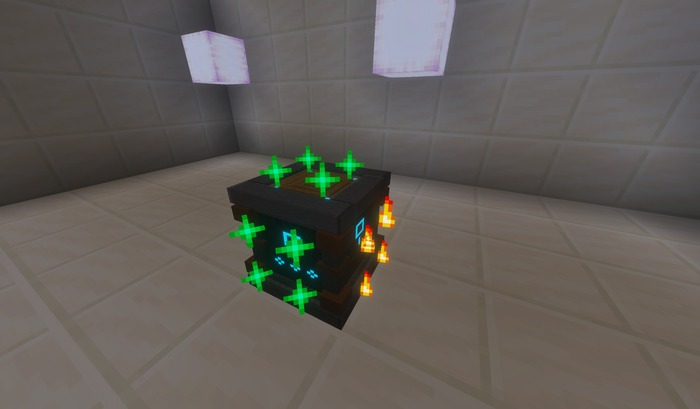
What it does: Marks every face of the table in particles for about two seconds — green sparkles for inputs, white for the material output below, flame for the reject side.
Why and when to use it: While building. The rune panel on the block tells you which way a table faces, which is not enough to know which face takes hoppers and which one will quietly break the farm if you point one at it.
Where to use it: Per table, at any time.
How to use it:
Crouch with an empty hand and use the table → Show which side is which. The menu closes so the markers are visible on the block. Changing the reject side does the same thing automatically.
Suggested starting settings: Use it once per table when you build the farm.
Edge cases and limits: It leaves nothing behind and has no effect on the machine.
Pass rejected items through
What it does: Whether this table moves refused items out of the reject side at all. Off means a refused item stays where it is and the machine moves on to the next slot.
Why and when to use it: Turn it off when the input is a sorting system that should keep hold of anything the table will not take, rather than having it pushed out to a reject chest. With it on, the table clears its own input and the farm never backs up.
Where to use it: Per table.
How to use it:
Crouch with an empty hand and use the table → Pass rejected items through.
Suggested starting settings: On.
Edge cases and limits: Off never jams the machine — it skips the refused item and carries on. The order when it is on is: the container on the reject side first; if there is none or it is full, thrown out dropper-style when the world allows ejection; and if neither works, the item is left exactly where it was. A rejected item can slow a farm down but can never jam it.
Filter
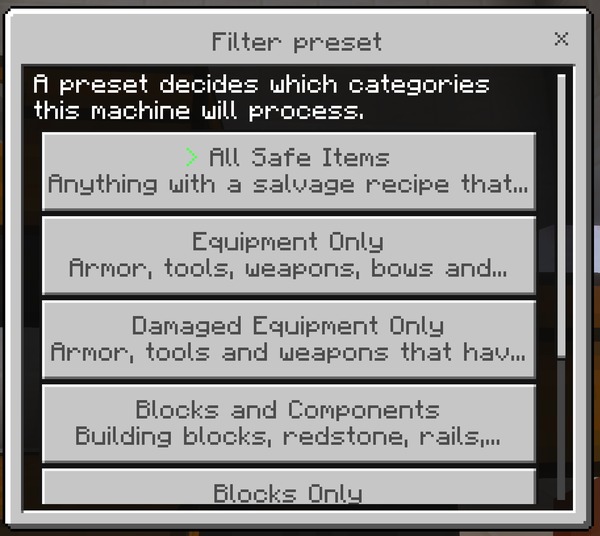
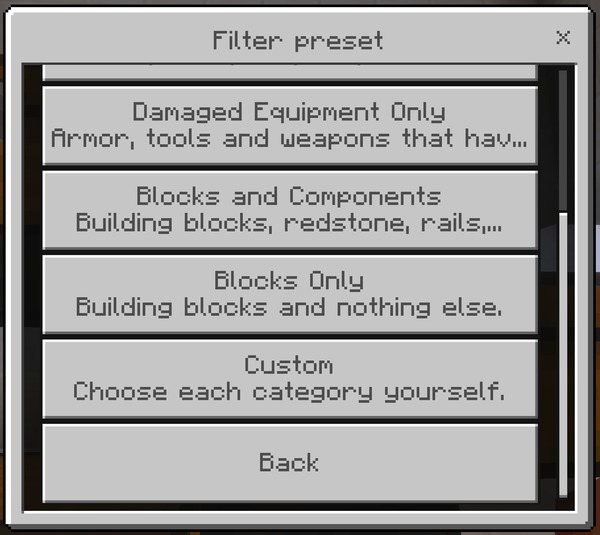
What it does: Chooses which categories of item this table accepts, from six presets.
Why and when to use it: So one table takes only worn gear while another takes only blocks, without either affecting the other. Damaged Equipment Only is the specialist one — pristine gear passes through untouched, which is how you build a farm that recycles broken drops without eating your own spare kit.
Where to use it: Per table, in its own settings menu.
How to use it:
| Preset | Accepts |
|---|---|
| All Safe Items | Everything with a recipe that passes the safety checks |
| Equipment Only | Armor, tools, weapons, bows and shields |
| Damaged Equipment Only | The same, but pristine gear passes through untouched |
| Blocks and Components | Blocks, redstone, transport, storage, utility |
| Blocks Only | Building blocks and nothing else |
| Custom | Pick each category yourself |
Crouch with an empty hand and use the table → Filter → choose a preset. The current one is marked.
A worked example — a piglin gold farm. The drops are gold nuggets, gold ingots, rotten flesh, and golden gear. Set Equipment Only and you get: gear salvaged, nuggets and ingots rejected as category filtered, rotten flesh rejected as having no recipe. Enchanted swords also reject while enchanted-item protection is on, which for a gold farm is usually what you want — feed the reject chest to a Disenchanting Pillar.
Suggested starting settings: All Safe Items. Narrow it once you know what you are feeding in.
Edge cases and limits: Choosing Custom adds a Categories button to the menu. A category a world owner has switched off stays off whatever this table's filter says.
Categories
What it does: Eight individual switches — Armor, Tools, Weapons, Building blocks, Redstone components, Rails/boats/minecarts, Storage blocks, and Utility and decorative items — for a table whose filter is set to Custom.
Why and when to use it: When no preset matches what you want. Blocks and transport but nothing else, for a rail-and-building recycler; or everything except storage, so Chests and Shulker Boxes are never touched.
Where to use it: Per table. The button only appears while the filter preset is Custom.
How to use it:
Crouch with an empty hand and use the table → Filter → Custom → Categories → toggle each one. Each button shows its current state and saves immediately.
Suggested starting settings: Start from the preset closest to what you want, switch to Custom, then adjust the one or two that are wrong.
Edge cases and limits: A category switched off for the whole world by an operator shows as locked off and cannot be switched on here.
Item exceptions
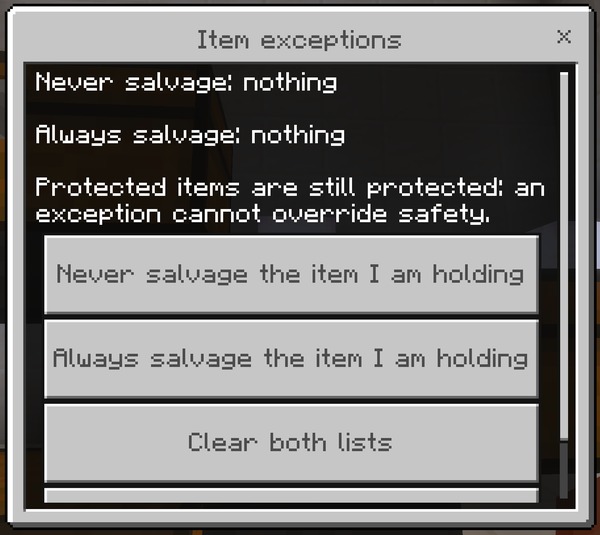
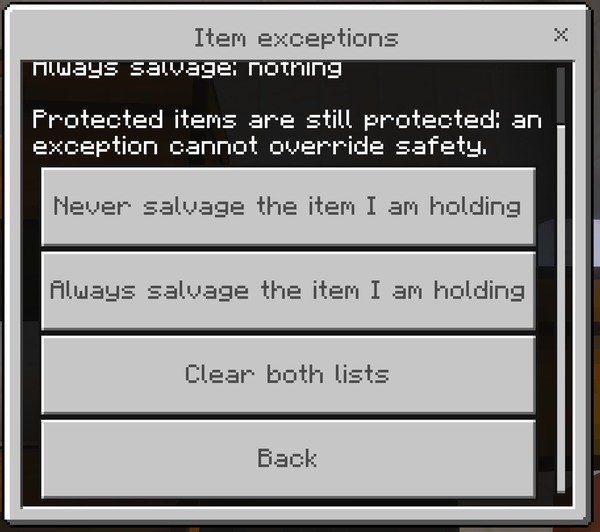
What it does: A per-table allow list and deny list of specific items, set from whatever you are holding. An allow-listed item skips the category filter entirely; a deny-listed item is always refused.
Why and when to use it: For the one exception a preset cannot express — a single item you want processed that its category excludes, or one you never want touched however the filter is set. An allow list is how you build a table that takes exactly one thing.
Where to use it: Per table.
How to use it:
- Hold the item you want to add.
- Crouch with an empty hand and use the table → Item exceptions. Both lists are shown at the top of the screen by name.
- Choose Never salvage the item I am holding or Always salvage the item I am holding.
Clear both lists empties them in one action. Hold the item first — the screen tells you if your hand is empty.
Suggested starting settings: Both lists empty. Reach for them only when a preset cannot do the job.
Edge cases and limits: Adding an item to one list removes it from the other, so the two can never disagree. Neither list overrides the safety protections — an allow-listed enchanted item is still refused while enchanted protection is on. An allow list also cannot invent a recipe: an item with no salvage recipe stays unsalvageable however you list it.
Speed
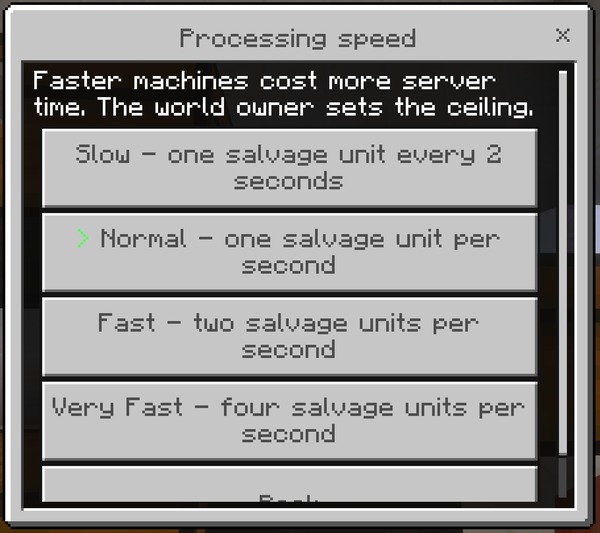
What it does: How often this table processes one batch: Slow (one every two seconds), Normal (one per second), Fast (two per second), or Very Fast (four per second).
Why and when to use it: Speed is the performance cost of a farm. Raise it when a farm genuinely produces faster than the table can keep up; lower it when you are running many tables in the same world.
Where to use it: Per table, under a world-wide ceiling a world owner sets.
How to use it:
Crouch with an empty hand and use the table → Speed. The current one is marked. One batch is processed per step, not a whole stack — so a stack of 64 Crafting Tables takes 64 steps: just over a minute at Normal, sixteen seconds at Very Fast.
Suggested starting settings: Normal. Move to Very Fast only when a farm genuinely outpaces one item per second.
Edge cases and limits: A world owner can cap how fast any machine may run. Speeds above that cap are still listed, marked above the world limit, and cannot be selected.
Redstone
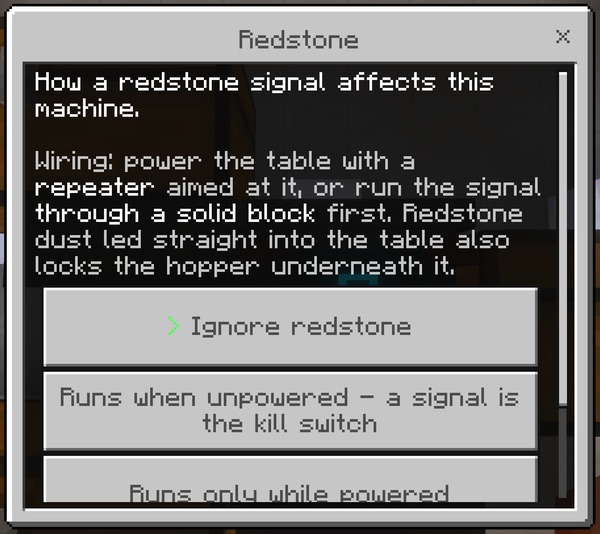
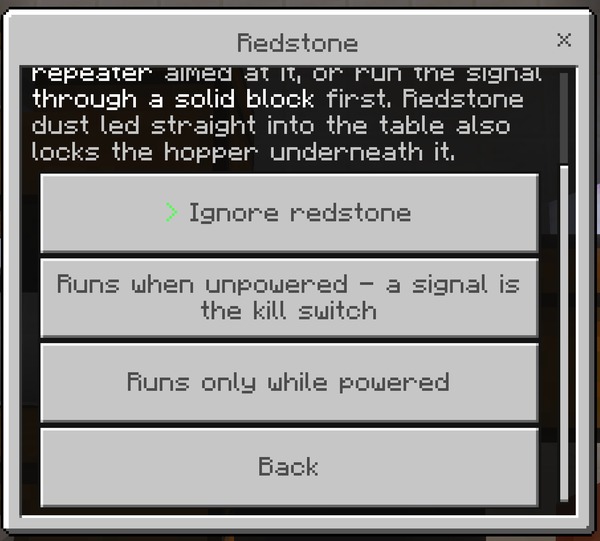
What it does: Chooses how this table responds to a redstone signal: Ignore redstone, Runs when unpowered (a signal is the kill switch), or Runs only while powered.
Why and when to use it: To switch a farm off without dismantling it, or to gate it on a clock, a daylight sensor, a pressure plate, or a lever by the door.
Where to use it: Per table.
How to use it:
Crouch with an empty hand and use the table → Redstone.
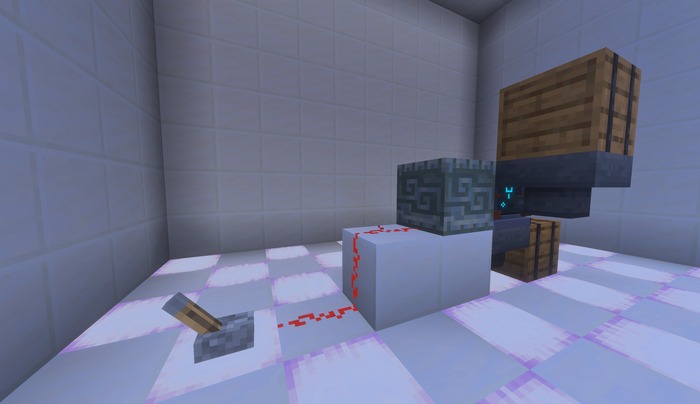
Wiring matters. Power the table with a repeater aimed at it, or run the signal through a solid block first. Redstone dust led straight into the table powers the hopper underneath it as well, and a powered hopper stops moving items. The same note is on the Redstone screen in game.
"Runs when unpowered" avoids the issue entirely and makes the better kill switch: normal operation is unpowered so nothing is ever locked, and the signal only arrives when you want everything to stop anyway.
Suggested starting settings: Ignore redstone until you want a switch, then Runs when unpowered with a lever on the table.
Edge cases and limits: Redstone gates automation only. Salvaging by hand always works, even on a table paused by redstone. Comparators cannot read a Salvage Table. When the chest below fills, the machine pauses on Output blocked and waits rather than spilling anything.
Safety
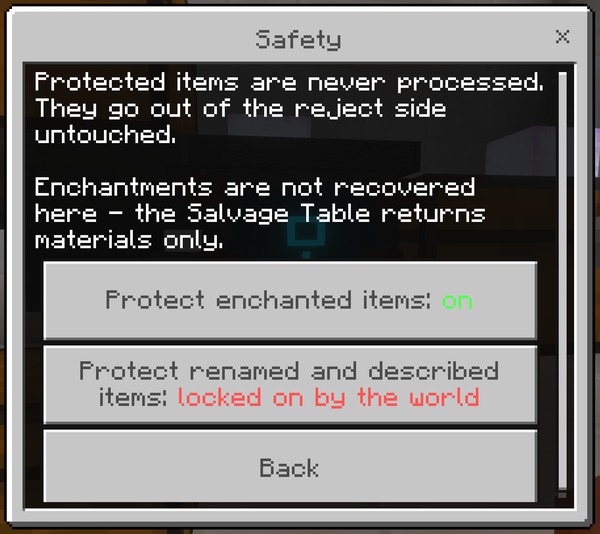
What it does: Two per-table switches, Protect enchanted items and Protect renamed and described items. A protected item is never salvaged — it leaves through the reject side untouched, with its enchantments, name, and durability intact.
Why and when to use it: Salvaging destroys enchantments, names, and lore, and none of it comes back. These protections are on by default so nothing valuable is lost by accident. Turning one off on a single table lets that machine process enchanted drops while every other table in the world still leaves them alone.
Where to use it: Per table, underneath the world policy. A world owner controls the same two protections world-wide, plus a third for container items.
How to use it:
Crouch with an empty hand and use the table → Safety. Two buttons, each showing its current state.
| Protection | Default | What it stops |
|---|---|---|
| Protect enchanted items | On | Salvaging destroys enchantments; a Looting III sword would become one gold ingot |
| Protect renamed and described items | On | Names and lore are lost when an item is broken down |
| Container items | On, world-wide only | A Shulker Box or Bundle carries its contents inside the item, and the table cannot tell a full one from an empty one |
Suggested starting settings: Leave both on. If you have Andy's Disenchanting Pillar installed, the table points you at it when it refuses an enchanted item — recover the enchantment there first, then salvage the bare item.
Edge cases and limits: A machine can be stricter than the world, never more permissive. While a world owner protects enchanted items, this button reads locked on by the world and cannot be switched off here — so these toggles only do anything in a world that has already allowed the destructive behavior. Container items have no per-table switch at all; they are world-wide only.
Recent rejections
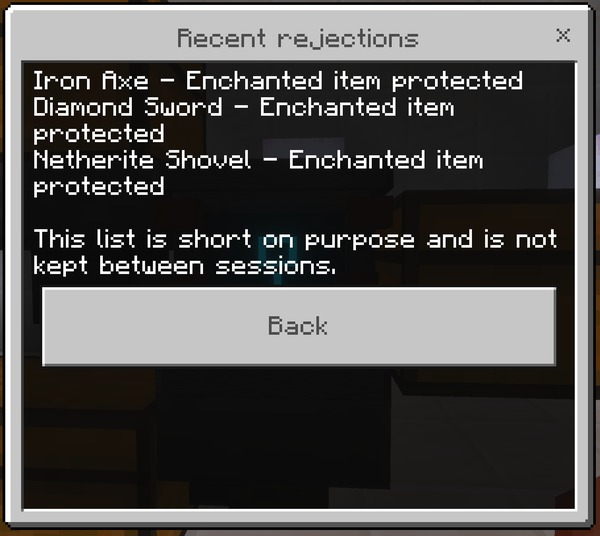
What it does: The last eight items this table refused, each with the item name and the reason.
Why and when to use it: The first thing to check when a farm is not taking something you expected. In one screen it separates a missing recipe from a category filter from a safety protection, instead of leaving you to guess at it from an increasingly full reject chest.
Where to use it: Per table.
How to use it:
Crouch with an empty hand and use the table → Recent rejections.
Suggested starting settings: Nothing to set; it is a readout.
Edge cases and limits: The list starts empty again after a world reload — it shows what a machine is doing now, not a history. Sub-batch amounts are not rejections — fifteen Rails are not refused, they are "not enough yet", and they wait in the input for a sixteenth rather than appearing here.
Your preferences
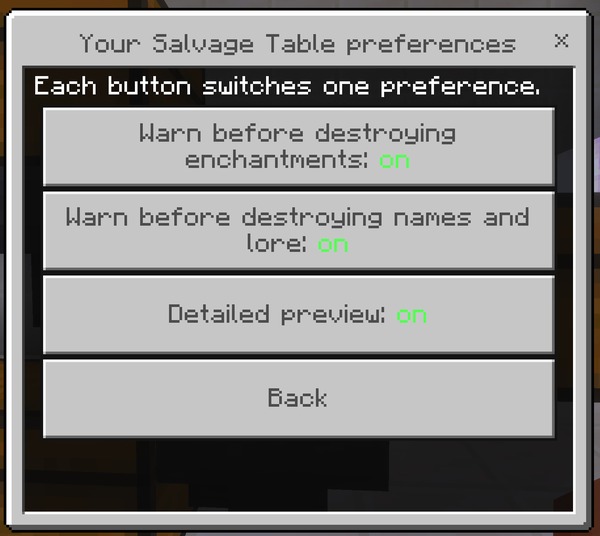
What it does: Three settings that belong to you rather than to any table: Warn before destroying enchantments, Warn before destroying names and lore, and Detailed preview.
Why and when to use it: To turn off a confirmation you have read a hundred times, or to keep it because you share a world with someone who has not. Detailed preview lists every recovered stack on its own line instead of summarizing them, which is worth having on when you are checking exact counts.
Where to use it: Per player. They follow you to every table, in every world.
How to use it:
Crouch with an empty hand and use any table → Your preferences. Each button switches one preference and saves immediately.
Suggested starting settings: All three on. Turn the warnings off only once the behavior is familiar — they are the last thing between you and a destroyed enchantment.
Edge cases and limits: The two warnings only ever appear where the destructive action is actually possible, which is a world that has allowed enchanted or renamed salvaging in the first place. A world owner can lock this screen, in which case opening it tells you that preferences are locked in this world.
Reset this machine
What it does: Forgets this table's saved configuration and returns it to the defaults — automation on, All Safe Items, Normal speed, redstone ignored, rejecting right, both protections on, and both item lists empty.
Why and when to use it: When a table has accumulated filter exceptions and settings you no longer remember choosing, and starting clean is faster than unpicking them one screen at a time.
Where to use it: Per table.
How to use it:
Crouch with an empty hand and use the table → Reset this machine.
Suggested starting settings: Not needed on a new table.
Edge cases and limits: It takes effect immediately and has no confirmation step. Breaking and replacing the table does the same thing, since settings live with the block and are forgotten when it is broken.
World owner settings
What it does: Opens the world-wide settings menu — every economy rate, protection, category, automation limit, and master switch for the whole world.
Why and when to use it: For a world owner or server operator tuning the add-on for everyone, rather than configuring one machine. Anything set here overrides what an individual table is set to.
Where to use it: Per world. The button is only shown to operators; other players never see it.
How to use it:
Crouch with an empty hand and use any table → World owner settings. Every setting is documented in the Admin & Operator Guide section below, along with the equivalent console commands for a Bedrock Dedicated Server.
Suggested starting settings: The shipped defaults are a reasonable survival balance. Change them deliberately rather than exploring.
Edge cases and limits: A protection switched on for the world cannot be switched off at a table, and a category switched off for the world cannot be switched on at one. The per-machine menus show these as locked rather than pretending to accept the change.
Admin & Operator Guide
Every category of behavior this add-on performs can be turned off or tuned by a world owner or server operator if your world or server policy doesn't allow it. There are 33 world settings, each written up below under the group it appears in, using the same wording as the button you will see in game.
How to reach the settings
Precedence is fixed: shipped defaults, then the gear menu, then anything set by the operator menu or the console.
- In game, from any table. Crouch with an empty hand and use a Salvage Table, then choose World owner settings. The button is only shown to operators.
- The gear menu, next to the Behavior Pack in the world editor. Every toggle there is off by default, and off always means the safe behavior — you only ever switch things on. Numbers and speeds have no gear toggle; each write-up says which.
- The console, for a Bedrock Dedicated Server. See below.
The operator menu, screen by screen
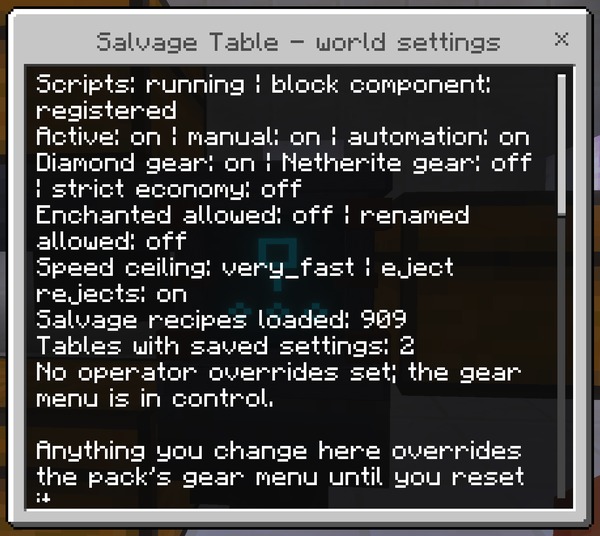
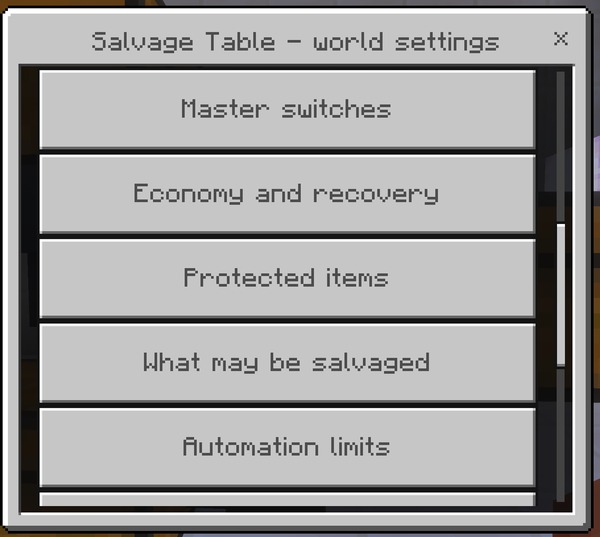
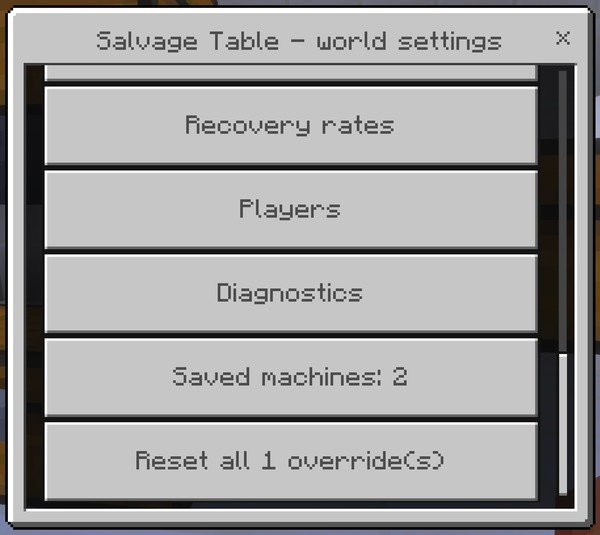
The menu opens on a summary — version, master switches, speed ceiling, recipes loaded, add-on recipes, saved machines, and your current overrides — above eight group buttons, a Saved machines button, and a Reset all overrides button. Inside a group, one button changes one setting and saves immediately. Booleans flip on the spot, speeds open a list, and numbers open a single slider on its own screen.
Saved machines reports how many tables have stored configuration and can forget all of them at once, returning every table in the world to its defaults — useful after a world edit or rollback.
Master switches
The five switches that decide whether the add-on does anything at all. Everything else in this guide is tuning; these are on or off.
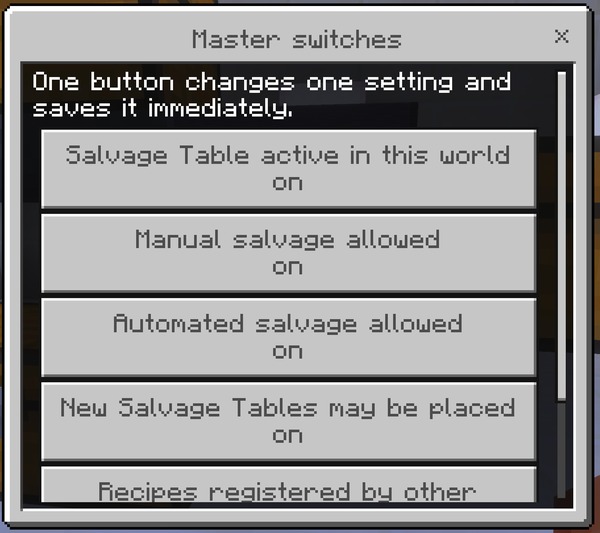
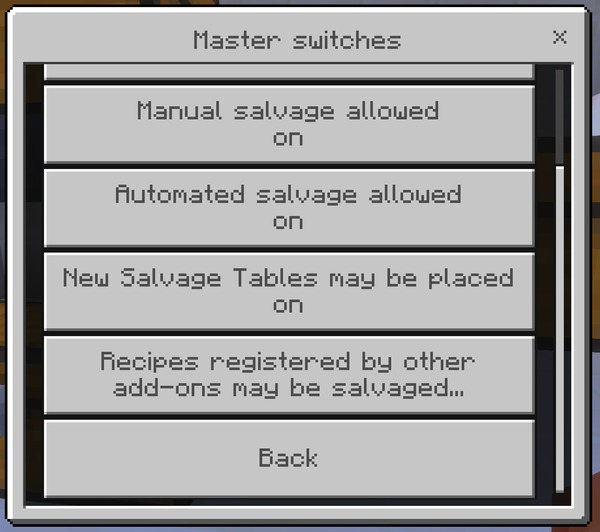
Salvage Table active in this world (enabled)
What it controls: The entire add-on. Off means every Salvage Table does nothing at all — no salvage screen, no automation, no settings menu — while staying placed in the world with its configuration intact.
Why and when to change it: To suspend the add-on without removing the pack, so nobody loses a build or a machine's settings while you decide whether to keep it. Removing the Behavior Pack instead would strand every placed table as an unknown block.
Suggested starting value: On. Turn it off only to temporarily suspend everything, and turn it back on rather than uninstalling.
How to set it: The world editor's gear-menu toggle andy_salvage:disabled (on means the add-on is off), the in-game operator menu, or /scriptevent andy_salvage:set.
Manual salvage allowed (manual)
What it controls: Whether players can salvage by hand — both the slot interface and the Salvage by hand menu screen.
Why and when to change it: On a server where salvaging should be an industrial process rather than a pocket tool. Turn this off and leave automation on, and Salvage Tables work only as farm machinery that has to be built and fed.
Suggested starting value: On.
How to set it: The world editor's gear-menu toggle andy_salvage:no_manual (on means hand salvaging is off), the in-game operator menu, or /scriptevent andy_salvage:set.
Automated salvage allowed (automation)
What it controls: Whether tables pull items out of adjacent containers and process them automatically. Hand salvaging is unaffected.
Why and when to change it: On a performance-sensitive server, or one where large-scale automated material recovery would unbalance the economy. Players keep the feature; they just have to do it one item at a time.
Suggested starting value: On. Off on a heavily loaded server that wants the feature but not the farms.
How to set it: The world editor's gear-menu toggle andy_salvage:no_automation (on means automation is off), the in-game operator menu, or /scriptevent andy_salvage:set.
New Salvage Tables may be placed (placement)
What it controls: Whether the block can be placed at all. Tables already in the world keep working normally.
Why and when to change it: To freeze the number of tables in a world — during an event, while you settle an economy dispute, or while you test a configuration change — without breaking anyone's existing build.
Suggested starting value: On.
How to set it: The world editor's gear-menu toggle andy_salvage:no_placement (on means placement is blocked), the in-game operator menu, or /scriptevent andy_salvage:set.
Recipes registered by other add-ons may be salvaged (addon_recipes)
What it controls: Whether salvage recipes that other add-ons have registered are honored. The built-in catalog of vanilla recipes is completely unaffected.
Why and when to change it: To keep a strictly vanilla recovery economy while still running other content add-ons. It is also the switch to reach for if a third-party pack registers recipes you consider too generous.
Suggested starting value: On.
How to set it: The world editor's gear-menu toggle andy_salvage:no_addon_recipes (on means third-party recipes are refused), the in-game operator menu, or /scriptevent andy_salvage:set.
Economy and recovery
How generous salvaging is. If players tell you the add-on is too rewarding, the answer is almost always in this group.
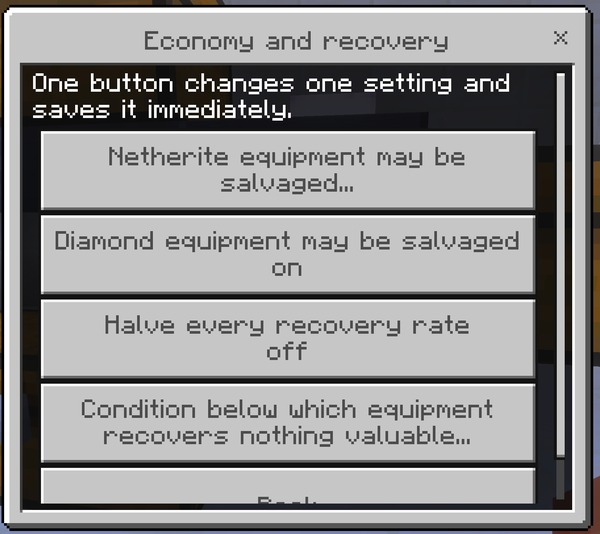
Netherite equipment may be salvaged (allow_netherite)
What it controls: Whether Netherite gear can be broken down. When it is on, salvaging returns raw Netherite Scrap only — never the Netherite Ingot, never the diamond tool that was upgraded, and never the Smithing Template.
Why and when to change it: Off by default because Netherite sits at the top of the progression, and recovering any part of it changes late-game pacing. Turn it on for a late-game, creative-leaning, or long-established world where Netherite is no longer scarce.
Suggested starting value: Off. On for a world that has moved past Netherite scarcity.
How to set it: The world editor's gear-menu toggle andy_salvage:allow_netherite (on means Netherite may be salvaged), the in-game operator menu, or /scriptevent andy_salvage:set.
Diamond equipment may be salvaged (allow_diamond)
What it controls: Whether anything containing diamond can be broken down, at the diamond recovery rate of 30%.
Why and when to change it: Turn it off on a hardcore, skyblock, or scarcity-themed server where even a 30% diamond return is too generous. It refuses the item outright rather than quietly returning nothing, so players get a clear reason instead of a confusing empty result.
Suggested starting value: On.
How to set it: The world editor's gear-menu toggle andy_salvage:no_diamond (on means diamond gear is refused), the in-game operator menu, or /scriptevent andy_salvage:set.
Halve every recovery rate (strict_economy)
What it controls: Halves all seven recovery rates at once, on top of whatever they are individually set to.
Why and when to change it: The single blunt lever for “salvaging is too generous here”. It takes basic materials from 75% to 37.5% and diamond from 30% to 15% without you having to think about seven separate numbers. Reach for it first, and for the individual rates only when this is too coarse.
Suggested starting value: Off. On for a survival server where salvaging should be a last resort rather than a routine.
How to set it: The world editor's gear-menu toggle andy_salvage:strict_economy (on means every rate is halved), the in-game operator menu, or /scriptevent andy_salvage:set.
Condition below which equipment recovers nothing valuable (min_condition)
What it controls: How damaged a durable item may be before the table refuses it outright. The default 0.05 means an item with less than 5% of its durability left is declined.
Why and when to change it: Raise it so nearly-broken gear is refused with a clear message rather than processed for almost nothing — players find a refusal easier to understand than a result of zero. Lower it toward 0 to let any item through whatever its state.
Suggested starting value: 0.05. Try 0.25 if players complain about salvaging worn gear and getting nothing back.
How to set it: The in-game operator menu, or /scriptevent andy_salvage:set. This setting has no gear-menu toggle.
Protected items
Three things a salvage destroys and cannot give back. All three are protected by default, and an individual machine can be stricter than the world but never more permissive.
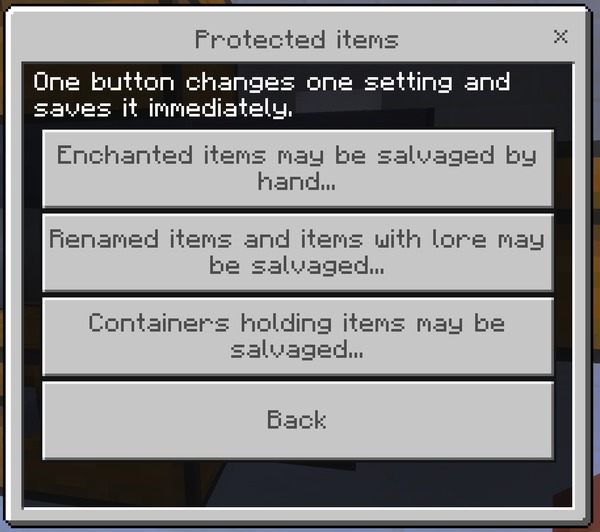
Enchanted items may be salvaged by hand (allow_enchanted)
What it controls: Whether enchanted items can be broken down. Salvaging destroys the enchantments — the Salvage Table returns materials only and never produces an Enchanted Book.
Why and when to change it: Turn it on for a gold farm or mob farm where the ingots matter and the books do not. Leave it off anywhere a player might lose good gear by accident: a Looting III sword becomes one gold ingot, and there is no undo.
Suggested starting value: Off. If Andy's Disenchanting Pillar is installed in the same world, the table already tells players to use it first, which is a better answer than switching this on.
How to set it: The world editor's gear-menu toggle andy_salvage:allow_enchanted (on means enchanted items may be salvaged), the in-game operator menu, or /scriptevent andy_salvage:set.
Renamed items and items with lore may be salvaged (allow_named)
What it controls: Whether items carrying a custom name or lore text can be broken down. The name and the lore are lost with the item.
Why and when to change it: Leave it off on any server where renamed items are used for quests, shops, kits, or roleplay — those are exactly the items a player cannot replace by crafting another one.
Suggested starting value: Off.
How to set it: The world editor's gear-menu toggle andy_salvage:allow_named (on means renamed and described items may be salvaged), the in-game operator menu, or /scriptevent andy_salvage:set.
Containers holding items may be salvaged (allow_filled)
What it controls: Whether Shulker Boxes and Bundles can be broken down. Anything stored inside is destroyed with the container.
Why and when to change it: The table cannot tell an empty Shulker Box from one holding a player's entire base, so it declines all of them. Turn this on only if you accept that somebody will eventually lose a full one.
Suggested starting value: Off. This is the protection most likely to cost a player real storage, and the only one the table cannot warn them about first.
How to set it: The in-game operator menu, or /scriptevent andy_salvage:set. This setting has no gear-menu toggle.
What may be salvaged
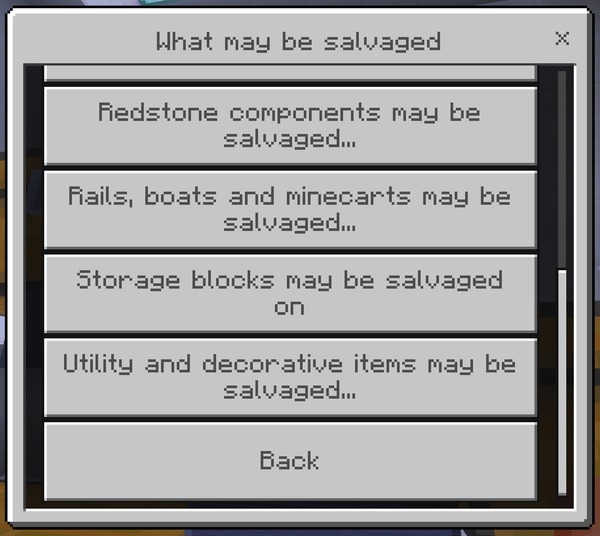
Eight world-wide switches over classes of item. A category switched off here cannot be salvaged anywhere in the world, whatever an individual machine's filter says — the machine's Categories screen shows it as locked off and refuses to toggle it.
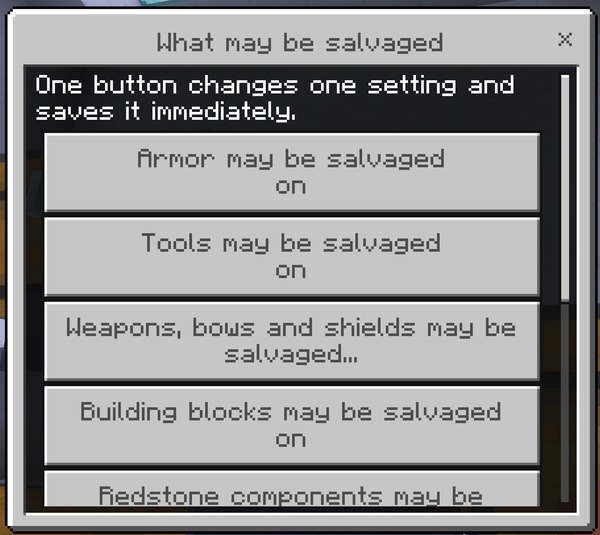
Armor may be salvaged (category.armor)
What it controls: Whether helmets, chestplates, leggings, boots, and horse armor may be salvaged anywhere in the world.
Why and when to change it: Switch it off to keep armor out of the recovery economy entirely — useful on a PvP server where armor scarcity is part of the balance, or where recovered diamond from armor would shorten the gear loop.
Suggested starting value: On.
How to set it: The world editor's gear-menu toggle andy_salvage:no_armor (on means armor is never salvaged), the in-game operator menu, or /scriptevent andy_salvage:set.
Tools may be salvaged (category.tools)
What it controls: Whether pickaxes, axes, shovels, hoes, shears, flint and steel, and similar tools may be salvaged anywhere in the world.
Why and when to change it: Switch it off if a worn tool should be a sunk cost rather than a material source. This is the category most equipment farms are built around, so switching it off has the largest practical effect after blocks.
Suggested starting value: On.
How to set it: The world editor's gear-menu toggle andy_salvage:no_tools (on means tools are never salvaged), the in-game operator menu, or /scriptevent andy_salvage:set.
Weapons, bows and shields may be salvaged (category.weapons)
What it controls: Whether swords, bows, crossbows, tridents, and shields may be salvaged anywhere in the world.
Why and when to change it: Switch it off on a PvP server where recovering weapon materials would shorten the gear loop too much, or where mob-farm weapon drops would become an unintended iron and gold source.
Suggested starting value: On.
How to set it: The world editor's gear-menu toggle andy_salvage:no_weapons (on means weapons are never salvaged), the in-game operator menu, or /scriptevent andy_salvage:set.
Building blocks may be salvaged (category.blocks)
What it controls: Whether crafted building blocks — stairs, slabs, walls, fences, planks, bricks, and the rest — may be salvaged anywhere in the world.
Why and when to change it: This is the highest-volume category by a wide margin, and the one that most affects tick time in a large farm. Switch it off if block recycling makes large builds too cheap to undo, or as a performance measure.
Suggested starting value: On.
How to set it: The world editor's gear-menu toggle andy_salvage:no_blocks (on means building blocks are never salvaged), the in-game operator menu, or /scriptevent andy_salvage:set.
Redstone components may be salvaged (category.redstone)
What it controls: Whether repeaters, comparators, pistons, observers, dispensers, droppers, hoppers, and similar components may be salvaged anywhere in the world.
Why and when to change it: Switch it off on a technical server where cheap redstone recovery would trivialize dismantling and rebuilding large contraptions.
Suggested starting value: On.
How to set it: The world editor's gear-menu toggle andy_salvage:no_redstone (on means redstone components are never salvaged), the in-game operator menu, or /scriptevent andy_salvage:set.
Rails, boats and minecarts may be salvaged (category.transport)
What it controls: Whether rails of every kind, boats, and minecarts may be salvaged anywhere in the world.
Why and when to change it: Rails are the notable one — they are crafted sixteen at a time, so recovering them is a meaningful iron source on a world with a large rail network being torn up.
Suggested starting value: On.
How to set it: The world editor's gear-menu toggle andy_salvage:no_transport (on means transport items are never salvaged), the in-game operator menu, or /scriptevent andy_salvage:set.
Storage blocks may be salvaged (category.storage)
What it controls: Whether Chests, Barrels, Shulker Boxes, and similar blocks may be salvaged anywhere in the world.
Why and when to change it: Switching it off protects Shulker Boxes and Chests from being broken down even in a world where allow_filled has been turned on — a useful pairing if you allowed container salvaging for Bundles only.
Suggested starting value: On.
How to set it: The world editor's gear-menu toggle andy_salvage:no_storage (on means storage blocks are never salvaged), the in-game operator menu, or /scriptevent andy_salvage:set.
Utility and decorative items may be salvaged (category.utility)
What it controls: Whether the catch-all category — item frames, lanterns, candles, beds, decorative blocks, and everything that fits nowhere else — may be salvaged anywhere in the world.
Why and when to change it: This is the largest category after blocks, so switching it off is a substantial change. Do it if you want salvaging restricted to equipment and building materials only.
Suggested starting value: On.
How to set it: The world editor's gear-menu toggle andy_salvage:no_utility (on means utility and decorative items are never salvaged), the in-game operator menu, or /scriptevent andy_salvage:set.
Automation limits
The performance controls. If Salvage Tables are costing you tick time, this is the group to open.
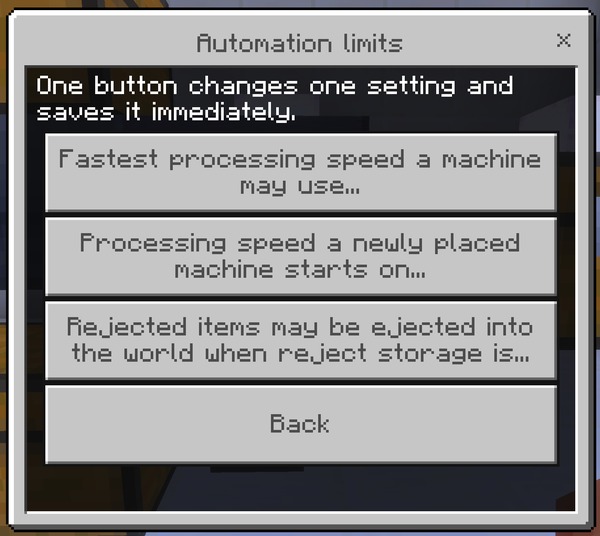
Fastest processing speed a machine may use (max_speed)
What it controls: The ceiling any machine in this world may be set to — slow, normal, fast, or very_fast. Machines already set faster are capped immediately; their own setting is remembered but not honored.
Why and when to change it: The main performance lever in the add-on. Cap at normal or slow on a server with many farms and every existing machine is capped with it, retroactively, with no player action required. Players still see the faster options in their menu, marked above the world limit, so the cap is visible rather than mysterious.
Suggested starting value: very_fast. Drop to normal if tick performance suffers, and to slow if it still does.
How to set it: The world editor's gear-menu toggle andy_salvage:force_slow (on means every machine is capped at slow), the in-game operator menu, or /scriptevent andy_salvage:set.
Processing speed a newly placed machine starts on (default_speed)
What it controls: The speed a freshly placed Salvage Table begins at, before anyone opens its menu.
Why and when to change it: Set it lower than the ceiling so players opt into speed deliberately rather than inheriting the fastest setting the world allows. A world full of tables nobody ever configured then costs you the least.
Suggested starting value: normal. slow on a large server where most tables are placed and forgotten.
How to set it: The in-game operator menu, or /scriptevent andy_salvage:set. This setting has no gear-menu toggle.
Rejected items may be ejected into the world when reject storage is unavailable (allow_eject)
What it controls: Whether a machine may throw a refused item out dropper-style when there is no container on its reject side, or that container is full.
Why and when to change it: Turn it off on a server that dislikes loose item entities — chunk-loaded farms ejecting into a corner are a classic source of accumulated lag. With it off, a refused item simply stays where it is and the machine moves on to the next slot.
Suggested starting value: On. Off on a server where you would rather a badly built farm stall than litter.
How to set it: The world editor's gear-menu toggle andy_salvage:no_eject (on means rejected items are never thrown out), the in-game operator menu, or /scriptevent andy_salvage:set.
Recovery rates
Seven numbers, one per value tier, each between 0 and 1. These are the precise version of strict_economy — use them when halving everything is too coarse. All seven are set from the operator menu's slider or from the console; none has a gear-menu toggle.
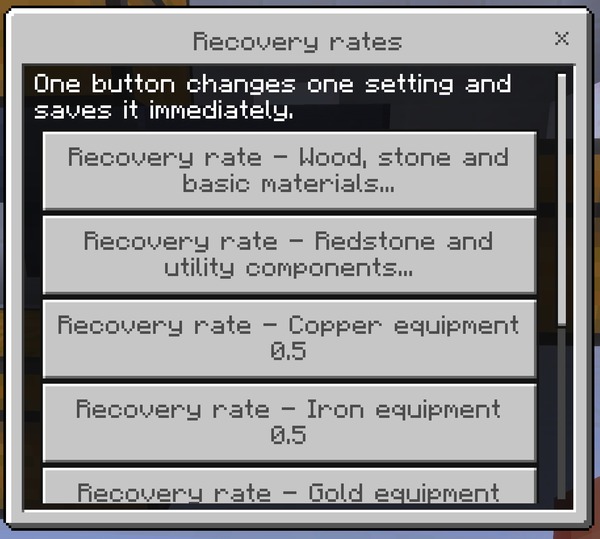
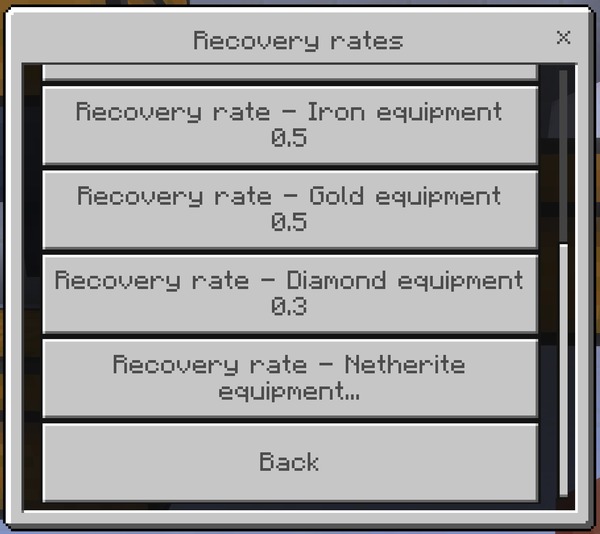
Recovery rate - Wood, stone and basic materials (rate.basic)
What it controls: The fraction of the original recipe returned for wood, stone, and everyday materials. Default 0.75.
Why and when to change it: The single most effective economy change you can make, because most salvaging by volume is wood and stone. Lower this before touching anything else — halving it is felt immediately, where halving the diamond rate is felt by almost nobody.
Suggested starting value: 0.75. Try 0.5 for a noticeably tighter survival economy.
How to set it: The in-game operator menu, or /scriptevent andy_salvage:set. This setting has no gear-menu toggle.
Recovery rate - Redstone and utility components (rate.component)
What it controls: The fraction returned for redstone dust, quartz, lapis, emerald, and similar mined or traded materials. Default 0.75.
Why and when to change it: Lower it to make recovering redstone and quartz less attractive than mining fresh, on a world where dismantling old contraptions was becoming the cheapest way to get them.
Suggested starting value: 0.75.
How to set it: The in-game operator menu, or /scriptevent andy_salvage:set. This setting has no gear-menu toggle.
Recovery rate - Copper equipment (rate.copper)
What it controls: The fraction returned for copper equipment and copper blocks. Default 0.5.
Why and when to change it: Copper is abundant enough that this rarely needs changing. Raise it if your world treats copper as a bulk building material and you want tearing down copper builds to be close to free.
Suggested starting value: 0.5.
How to set it: The in-game operator menu, or /scriptevent andy_salvage:set. This setting has no gear-menu toggle.
Recovery rate - Iron equipment (rate.iron)
What it controls: The fraction returned for iron equipment and iron blocks. Default 0.5.
Why and when to change it: Iron farms make this the rate most likely to matter on a long-running server. Lower it if recovered iron starts competing with iron production as the main supply.
Suggested starting value: 0.5.
How to set it: The in-game operator menu, or /scriptevent andy_salvage:set. This setting has no gear-menu toggle.
Recovery rate - Gold equipment (rate.gold)
What it controls: The fraction returned for gold equipment and gold blocks. Default 0.5.
Why and when to change it: Raise it if you run a piglin gold farm and want worn golden swords to be worth processing — at 0.5, combined with durability scaling, most badly damaged ones return nothing at all and players find that surprising.
Suggested starting value: 0.5.
How to set it: The in-game operator menu, or /scriptevent andy_salvage:set. This setting has no gear-menu toggle.
Recovery rate - Diamond equipment (rate.diamond)
What it controls: The fraction returned for anything containing diamond. Default 0.3, the second-lowest in the add-on.
Why and when to change it: Deliberately low. Raising it turns diamond gear into a renewable material source and changes progression significantly, so change it as a deliberate decision rather than to settle one argument.
Suggested starting value: 0.3.
How to set it: The in-game operator menu, or /scriptevent andy_salvage:set. This setting has no gear-menu toggle.
Recovery rate - Netherite equipment (rate.netherite)
What it controls: The fraction returned for Netherite gear, as Netherite Scrap. Default 0.25, and only ever reached when allow_netherite is on.
Why and when to change it: The lowest rate in the add-on, applied to the most valuable material in the game. Change it only alongside a deliberate decision about late-game pacing — and remember it does nothing at all while allow_netherite is off.
Suggested starting value: 0.25.
How to set it: The in-game operator menu, or /scriptevent andy_salvage:set. This setting has no gear-menu toggle.
Players
Who may use the add-on, and how much of it they may configure for themselves.
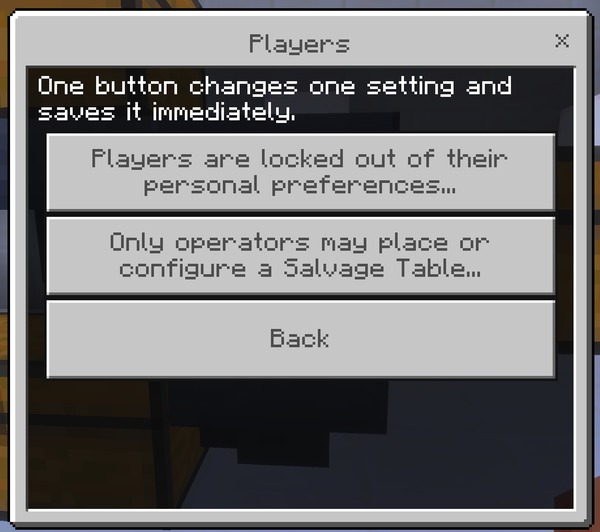
Only operators may place or configure a Salvage Table (operators_only)
What it controls: Restricts placing and configuring Salvage Tables to operators.
Why and when to change it: For an adventure map, a showcase world, or a minigame server where the table is fixed machinery rather than a tool players build with.
Suggested starting value: Off.
How to set it: The world editor's gear-menu toggle andy_salvage:operators_only (on means operators only), the in-game operator menu, or /scriptevent andy_salvage:set.
Players are locked out of their personal preferences (lock_player_settings)
What it controls: Prevents players opening Your preferences and changing their own warning and preview settings. They see a message explaining that preferences are locked in this world.
Why and when to change it: On a curated server where the experience should be identical for everyone — particularly where you want the enchantment and rename warnings to stay on, rather than dismissed by a player who then complains about losing an item.
Suggested starting value: Off. On for a curated or tightly moderated server.
How to set it: The world editor's gear-menu toggle andy_salvage:lock_player_settings (on means personal preferences are locked), the in-game operator menu, or /scriptevent andy_salvage:set.
Diagnostics
One switch, for when you are working out why something in your world is behaving unexpectedly.
Write detailed activity to the content log (debug)
What it controls: Extra per-action detail in the content log — every acceptance, every refusal with its reason code, and every automation step.
Why and when to change it: When you are working out why a table is refusing something, or gathering detail for a support request. It is noisy by design and will fill a busy server's log quickly, so turn it off again afterward.
Suggested starting value: Off.
How to set it: The world editor's gear-menu toggle andy_salvage:debug (on means detailed logging), the in-game operator menu, or /scriptevent andy_salvage:set.
Bedrock Dedicated Server / console access
Andy's Salvage Table supports Bedrock Dedicated Server console administration: every setting above is also reachable without a form, for servers running headless or scripted. Commands issued from the server console are always accepted; a player running the same command in game needs operator permission. Every change is written to the content log with the name of whoever made it.
scriptevent andy_salvage:<action> <args>| Action | Effect |
|---|---|
set <key> <value> |
Change one setting |
get <key> |
Report one setting's current value |
list [group] |
Report every setting, or just one group |
status |
Version, world policy summary, recipe count, and how many tables have saved settings |
clear <key> |
Hand one setting back to the gear menu |
reset |
Hand every setting back to the gear menu |
machines |
How many tables have saved settings |
machines clear |
Forget every saved machine configuration |
config |
Open the operator menu in game; prints status and help on a console |
inspect |
Report whether the item in your hand can be salvaged, and why |
help |
The full command list |
register |
Used by other add-ons to register salvage recipes, not by operators — see the add-on compatibility guide in the wiki |
Every command works with or without a player present. Run in game, the reply goes to your chat; run from a console, the same text goes to the content log.
Setting groups accepted by list are: master, economy, protection, categories, automation, rates, players, diagnostics.
Values are forgiving. A boolean accepts true, on, yes, 1, enable, enabled, or allow, and the matching negatives. A number outside its range, or a choice that is not one of the listed options, is refused rather than written, so a typo leaves the setting as it was.
Concrete examples:
scriptevent andy_salvage:status
scriptevent andy_salvage:list protection
scriptevent andy_salvage:get rate.diamond
scriptevent andy_salvage:set allow_enchanted true
scriptevent andy_salvage:set rate.basic 0.5
scriptevent andy_salvage:clear rate.basic
Suggested base configuration for a new survival server:
scriptevent andy_salvage:set max_speed normal
scriptevent andy_salvage:set rate.basic 0.5
scriptevent andy_salvage:set min_condition 0.25
scriptevent andy_salvage:set allow_diamond false
scriptevent andy_salvage:status
That caps farm throughput, halves the most-used recovery rate, refuses badly worn gear, and keeps diamond out of the economy — while leaving every safety protection at its default.
Compatibility
- Minecraft Bedrock 1.26.30 or newer
- Standard graphics and Vibrant Visuals/PBR
- Single-player, multiplayer, Realms, and compatible Bedrock servers
- Works in every dimension; no scale or platform limits
- Achievement-friendly — worlds keep achievements enabled
- No cheats, commands, experiments, or required dependencies
- Items from other add-ons are not salvageable unless that add-on adds support for it. Add-on developers: you can make your craftable items salvageable in about ten lines — see Making Your Add-on Compatible in the GitHub wiki
- Banners, Suspicious Stew, and Maps are excluded, because the table cannot tell a red Banner from a blue one and would hand back the wrong dye
Andy's Disenchanting Pillar compatibility
The two are designed to be used together and override different vanilla screens, so neither interferes with the other.
When the Pillar is installed, the Salvage Table's enchanted-item refusal adds a line telling the player to use a Pillar first to keep the enchantments. A world without the Pillar simply never shows that line, and neither add-on requires the other.
The natural pairing is a farm: route the Salvage Table's reject chest to a Disenchanting Pillar, so enchanted gear has its books pulled before anything else happens to it.
Troubleshooting
The Salvage Table doesn't appear in the creative menu or recipe book
- Confirm the Behavior Pack is active in the world, not just imported
- Confirm the Resource Pack is also active — the block has no texture without it
- The recipe unlocks once you have a Grindstone or a Stonecutter
Nothing happens when I use the table
- Confirm both packs are active on the world, and that you left and reopened the world after activating them
- A world owner can switch the add-on off entirely, or switch off hand salvaging on its own. Ask whoever runs the world to check the Salvage Table's world settings
- If the world is set to operators only, only operators can use a table
My item goes in but the materials grid stays empty
- Hover the gold Recovery % icon; it always says why
- Most often not enough for one batch — a recipe that makes sixteen needs sixteen before anything comes back
- Next most often a protection: the item is enchanted, renamed, or a container such as a Shulker Box
An enchanted item is refused
- That is the default, because salvaging returns materials only and would destroy the enchantments
- Use a Disenchanting Pillar first to keep them, then salvage the bare item
- Or, if the enchantments don't matter to you, a world owner can allow enchanted salvaging in the Salvage Table's world settings
The automation isn't running
- A container directly below the table is required. Without one the machine will not start
- Check the status line at the top of the settings menu — Output blocked means the container below cannot take the whole result
- Check the machine's Automation toggle, and whether a world owner has switched automation off for the world
- If the redstone mode is Runs only while powered, it is waiting for a signal
Powering the table stops my hoppers
- A powered hopper stops moving items, and dust led into the table powers the hopper under it too
- Use a repeater aimed at the table, or run the signal through a solid block first
- Or use Runs when unpowered, which avoids the problem entirely — normal running is unpowered, so nothing is ever locked
I can't place a hopper against the table
- Crouch with the block in hand. The first crouch-click primes the table and does nothing visible; the next few seconds place normally
- Punching the table once does the same thing
Items I expect to be salvaged end up in the reject chest
- Open Recent rejections in the settings menu — it lists the last eight refusals with the reason for each
- Check the machine's filter preset, and its Item exceptions lists
- Check whether a world owner has switched that whole category off for the world
The output chest fills much faster than the input empties
- Expected. One item often becomes several going back — a Crafting Table becomes three planks, a Chest becomes six. Size the output for the expansion rather than for the input
Two copies of the add-on are installed
- Open the world's pack list and check for two copies of the Behavior Pack or Resource Pack at different versions
- Remove or deactivate the older copy, then completely leave and reopen the world
Reporting problems
Include:
- Salvage Table version
- Exact Minecraft Bedrock version and platform
- Standard or Vibrant Visuals graphics
- Single-player, multiplayer, Realm, or server
- Active Behavior and Resource Pack order
- Which Salvage Table settings differ from the defaults
- Exact reproduction steps and any messages shown
- Screenshots or video
- Relevant Content Log entries
- Whether the issue repeats in a new backed-up test world with other add-ons disabled
Support AndyTheMakerMC
All of my Minecraft Bedrock add-ons are free to download and use. If one of my add-ons has improved your world, saved you time, or added something you wish Minecraft already had, consider supporting continued development. Your support helps fund the time and tools required to maintain existing add-ons, test new Minecraft Bedrock releases, fix bugs, create documentation and artwork, and continue building new add-ons.
Help me keep these add-ons free, updated, and actively maintained — support through Buy Me a Coffee or a direct donation through Stripe. Prefer another way? Ko-fi · Patreon · GitHub Sponsors. Every bit of support is appreciated, but it is never required.
Enjoying the add-on? Ratings, favorites, recommendations, and kind comments also help more Bedrock players discover Andy's work.
Explore more of Andy's add-ons
Visit AndyTheMakerMC.xyz for more Minecraft Bedrock add-ons, .mcstructure downloads, HoloPrint files, world lore, tutorials, guides, videos, and other creations.
Follow AndyTheMakerMC
Follow @AndyTheMakerMC for new add-on releases, development updates, tutorials, showcases, streams, and more Minecraft adventures, and join the community on Discord and Facebook:
End-user permission
You may download the official, unmodified release of Andy's Salvage Table from its official CurseForge or authorized GitHub project page and install, activate, and use it in personal single-player worlds, multiplayer worlds, Realms, and compatible Bedrock servers.
This permission includes Minecraft's normal automatic delivery of the official, unmodified add-on to players joining a world, Realm, or server where it is active. It does not permit offering the add-on file separately or distributing it as part of a world download, modpack, bundle, mirror, archive, or server download.
Content-creator permission
Content creators may use an official, unmodified release of Andy's Salvage Table in original gameplay videos, livestreams, screenshots, tutorials, reviews, showcases, articles, guides, social posts, and other original content, including monetized content.
Credit to AndyTheMakerMC and a link to the official CurseForge project page are appreciated whenever practical. This permission covers display of normal gameplay and commentary; it does not grant permission to redistribute, modify, extract, or republish the add-on or its assets.
License — All Rights Reserved
All Rights Reserved. Copyright © 2026 Andy / AndyTheMakerMC.
You may not redistribute, reupload, rehost, mirror, resell, sublicense, bundle, repackage, modify and publish, translate, adapt, decompile, disassemble, reverse engineer, extract, or reuse the add-on, its source code, scripts, documentation, branding, textures, models, pack icons, or promotional artwork without prior written permission from the copyright holder.
You may not create derivative works or incorporate any portion of the project into another add-on, Behavior Pack, Resource Pack, application, product, modpack, download, or project without prior written permission. The end-user and content-creator permissions above are limited permissions; they do not transfer ownership or grant redistribution rights.
The promotional artwork is original AI-assisted concept artwork directed for this project. It is not an in-game screenshot.
Minecraft is a trademark of Microsoft Corporation. This project is not affiliated with, endorsed by, sponsored by, or associated with Microsoft or Mojang Studios.
See LICENSE.md for the complete license and permitted-use terms.
- Edition: Minecraft Bedrock
- File type: .mcpack or .mcaddon
- Minecraft versions listed: 26.30, 26.40
- How to install: Download the .mcpack or .mcaddon file. → Open it — Minecraft imports it. → In your world: Behavior Packs → Available → Activate, then the same under Resource Packs.
- Where to get it: Opens on CurseForge — not every file is mirrored on our own servers.
Install steps are the general flow for this file type — How to install Minecraft Bedrock addons & mods walks through it step by step.
Andy's Salvage Table is a free Minecraft Bedrock addon. Compatible with Minecraft 26.30, 26.40. Downloaded 9 times (via CurseForge). Download it and open it directly in the game.