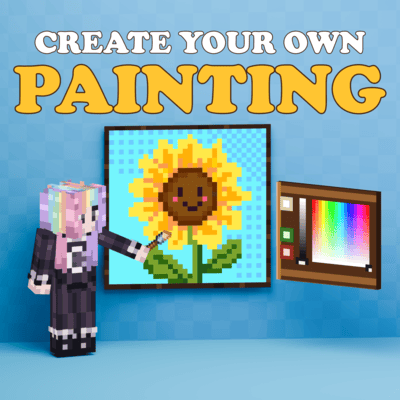
Create Your Own Painting
The author built this one for Minecraft 26.30–26.50. On other versions it may install and then do nothing.
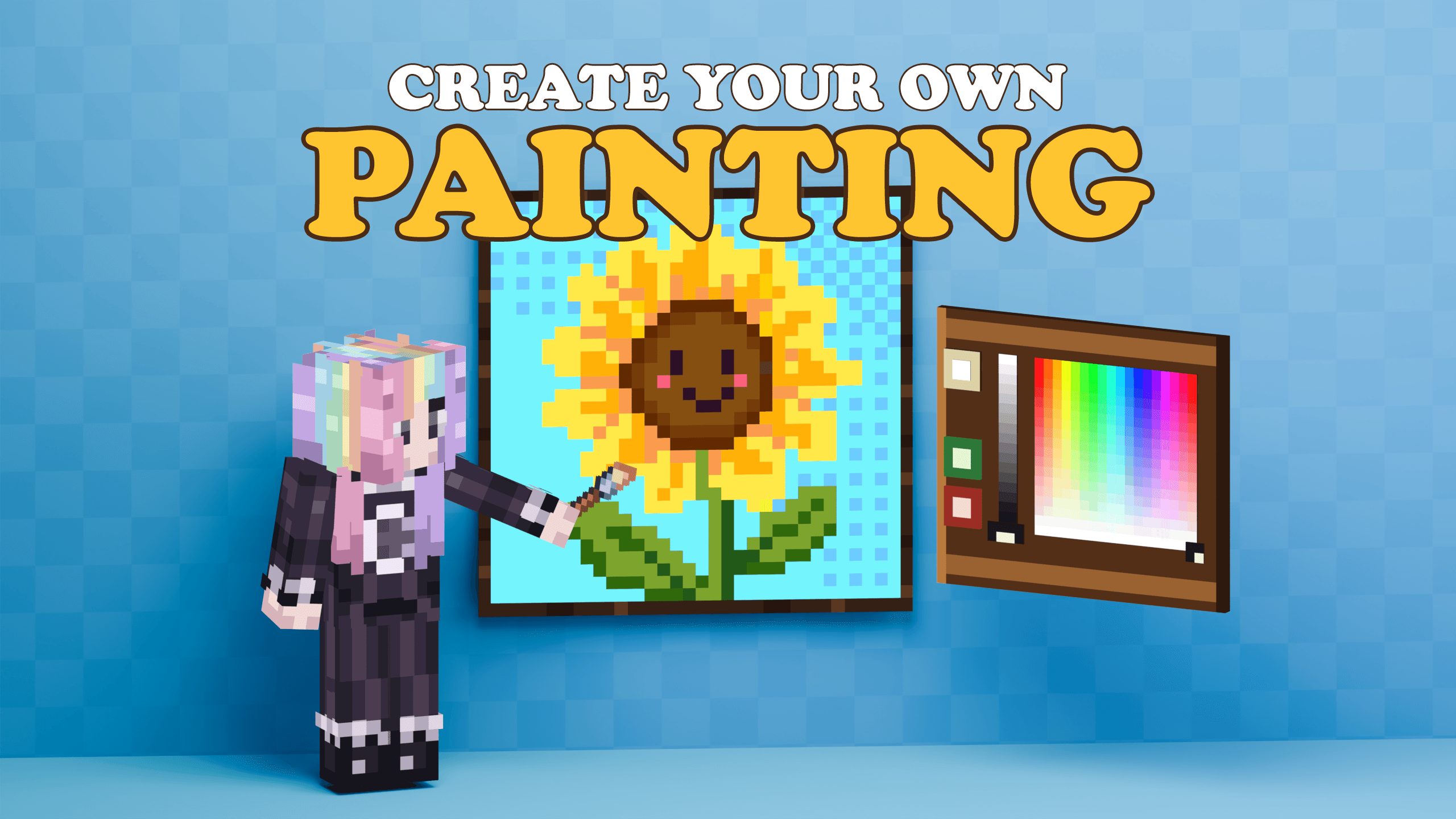
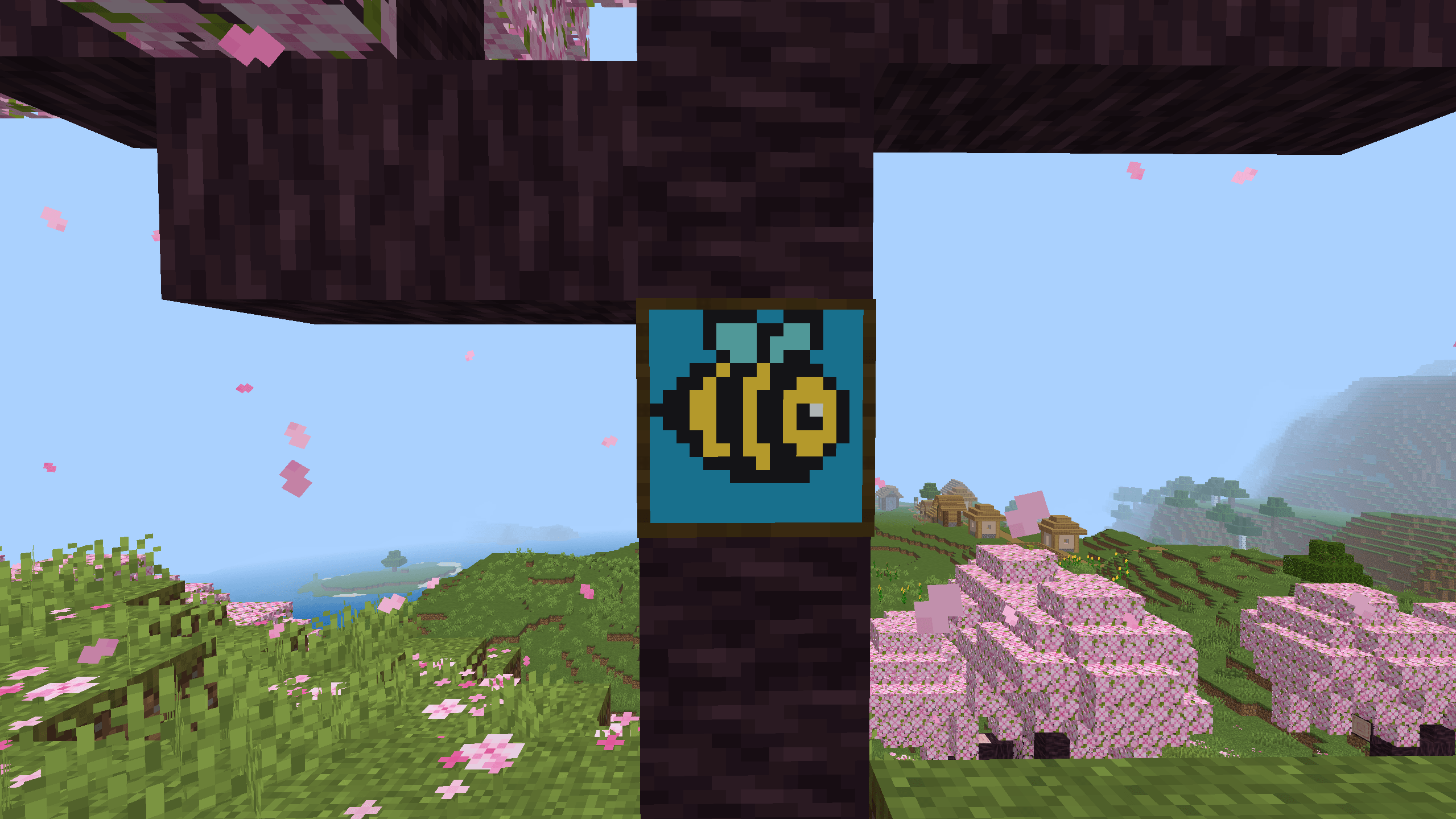
Create Your Own Painting
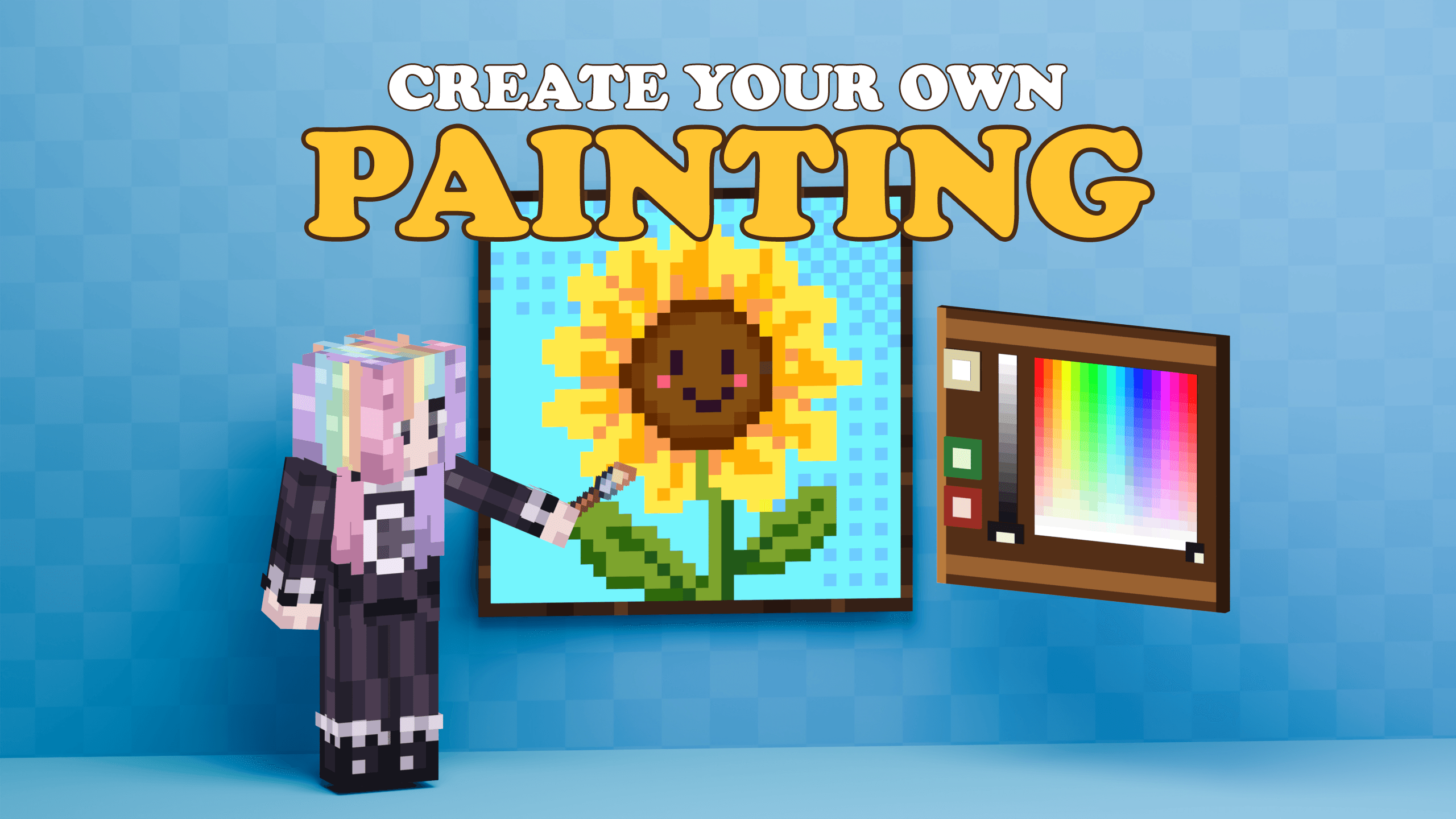
Turn your Minecraft world into an art gallery. Craft canvases, paint your own pixel art, save your creations, and display them in frames.
Features
- Paint directly on canvases
- Four canvas sizes:
- 1×1 blocks: 16×16 pixels
- 1×2 blocks: 16×32 pixels
- 2×1 blocks: 32×16 pixels
- 2×2 blocks: 32×32 pixels
- Brush and Eraser sizes from 1×1 to 5×5
- 32 quick color presets
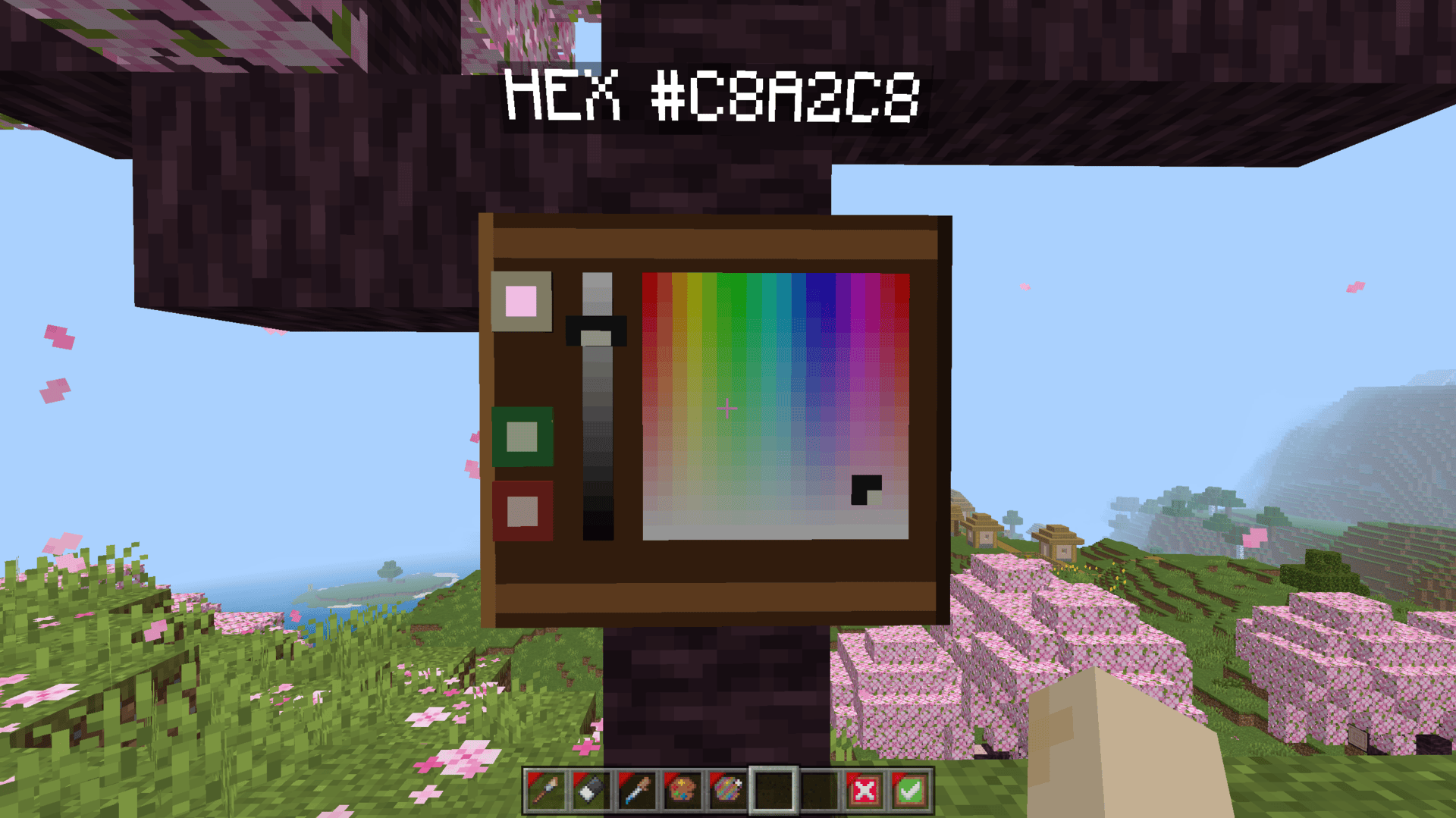
- Over 16 million custom colors using the color picker or hex codes
- Eyedropper for copying colors from your artwork
- Eyedropper and Custom Color tools
- Name and collect paintings using Shears
- Craftable frames for displaying saved artwork
- Standard and Free Painting modes
- Mobile control guidance
- Built-in Painting Guide with recipes and instructions
Painting Modes
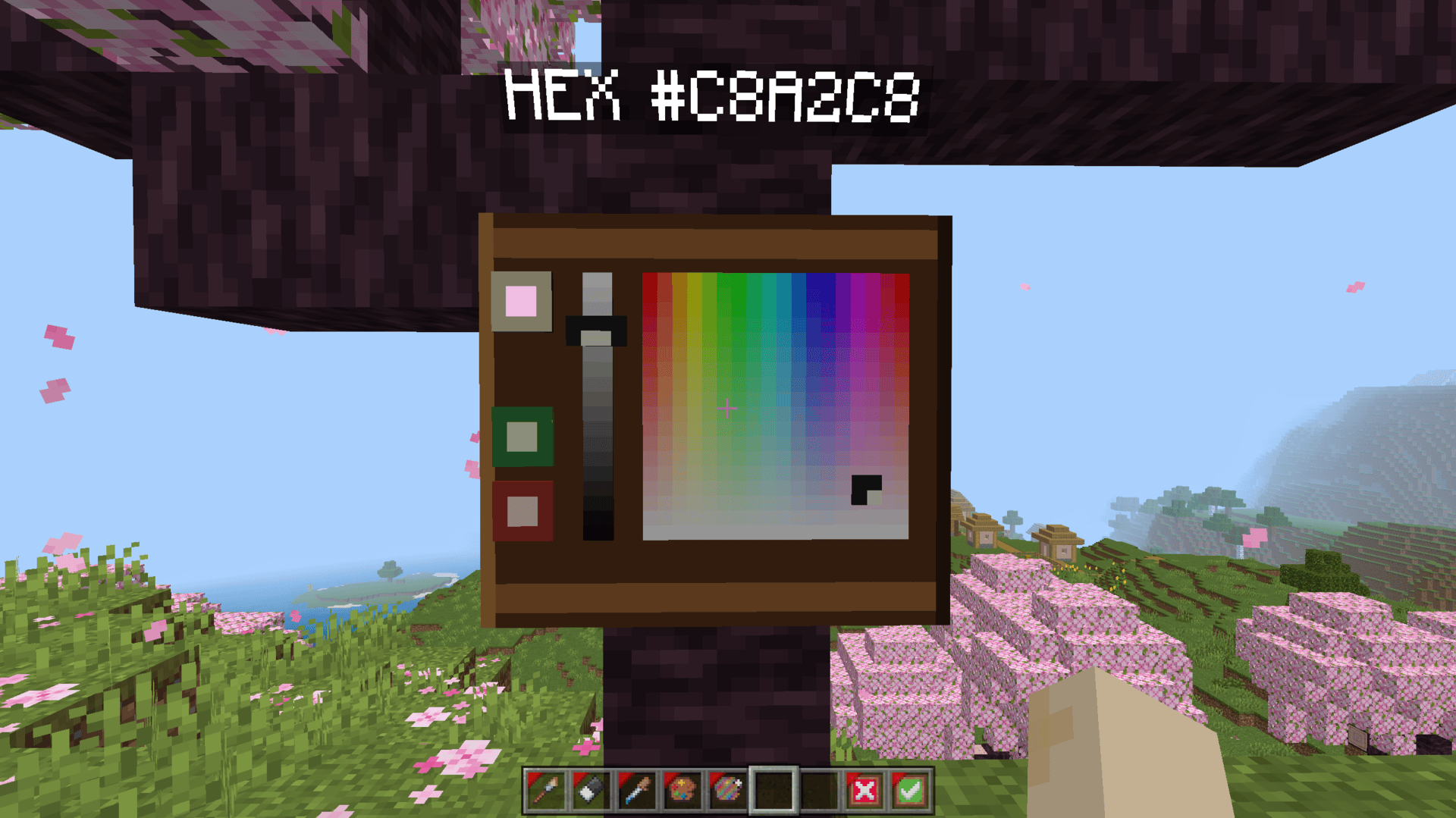
Standard Painting
Interact with a canvas to open the editor. Painting tools are temporarily added to your hotbar.
Choose a color, paint your artwork, and select Confirm to save it.
Free Painting
Enable Free Painting inside the Painting Guide settings. Craft the add-on's painting tools and paint while moving normally.
Changes save immediately without Confirm or Cancel.
Quick Start
1. Craft a canvas.
2. Place it on a solid wall.
3. Interact with it to start painting.
4. Choose a color and paint with the Brush.
5. Confirm your work.
6. Use Shears to name and collect your painting.
7. Place it on a wall or inside a matching frame.
Mobile Controls
For easier aiming, open:
Minecraft Settings → Touch → Control Mode → Joystick & aim crosshair
You can also enable Canvas Aim Marker inside the Painting Guide settings to see which pixels your tool will affect.
Painting Guide
Every player receives a Painting Guide. It includes:
- Quick-start instructions
- Painting controls
- Mobile controls
- Canvas sizes
- Frames and saved paintings
- Crafting recipes
- Settings
- Troubleshooting
If your guide is missing, craft one using a Book + Red Dye, or run:
/cyop:guidebook
Installation
1. Download and open the .mcaddon file.
2. Wait for Minecraft to import both packs.
3. Activate the Behavior Pack and Resource Pack in your world.
4. Enter the world and start crafting.
Requirements
- Minecraft Bedrock 1.26.30 or newer
- BP and RP pack must be enabled
Important
Activating a Behavior Pack disables achievements for that world. Consider making a backup before enabling the add-on.
Use Shears to collect unfinished artwork before breaking its canvas or supporting wall. Otherwise, the painted pixels will be lost.
Credits
Created by AdonisZK.
Minecraft is a trademark of Microsoft Corporation. This project is not affiliated with or endorsed by Mojang Studios or Microsoft.
- Edition: Minecraft Bedrock
- File type: .mcpack or .mcaddon
- Minecraft versions listed: 26.30, 26.40, 26.50
- How to install: Download the .mcpack or .mcaddon file. → Open it — Minecraft imports it. → In your world: Behavior Packs → Available → Activate, then the same under Resource Packs.
- Where to get it: Opens on CurseForge — not every file is mirrored on our own servers.
Install steps are the general flow for this file type — How to install Minecraft Bedrock addons & mods walks through it step by step.
- Pack type: .mcaddon — behaviour and resource pack in one file
- Manifest requires Minecraft 1.26.30 or newer
- Complete pack — everything it depends on is inside the file
- Download size: 231 KB
- Download link checked 25 Sept 2026 — working
These come from our own check of the pack file, not from the source page.