
WebDisplays 9minecraft Mod (26.3, 26.2) – Browse Real Websites and Watch Videos
Java mod listed for Minecraft 26.x. Download on the author's site.
⬇ Download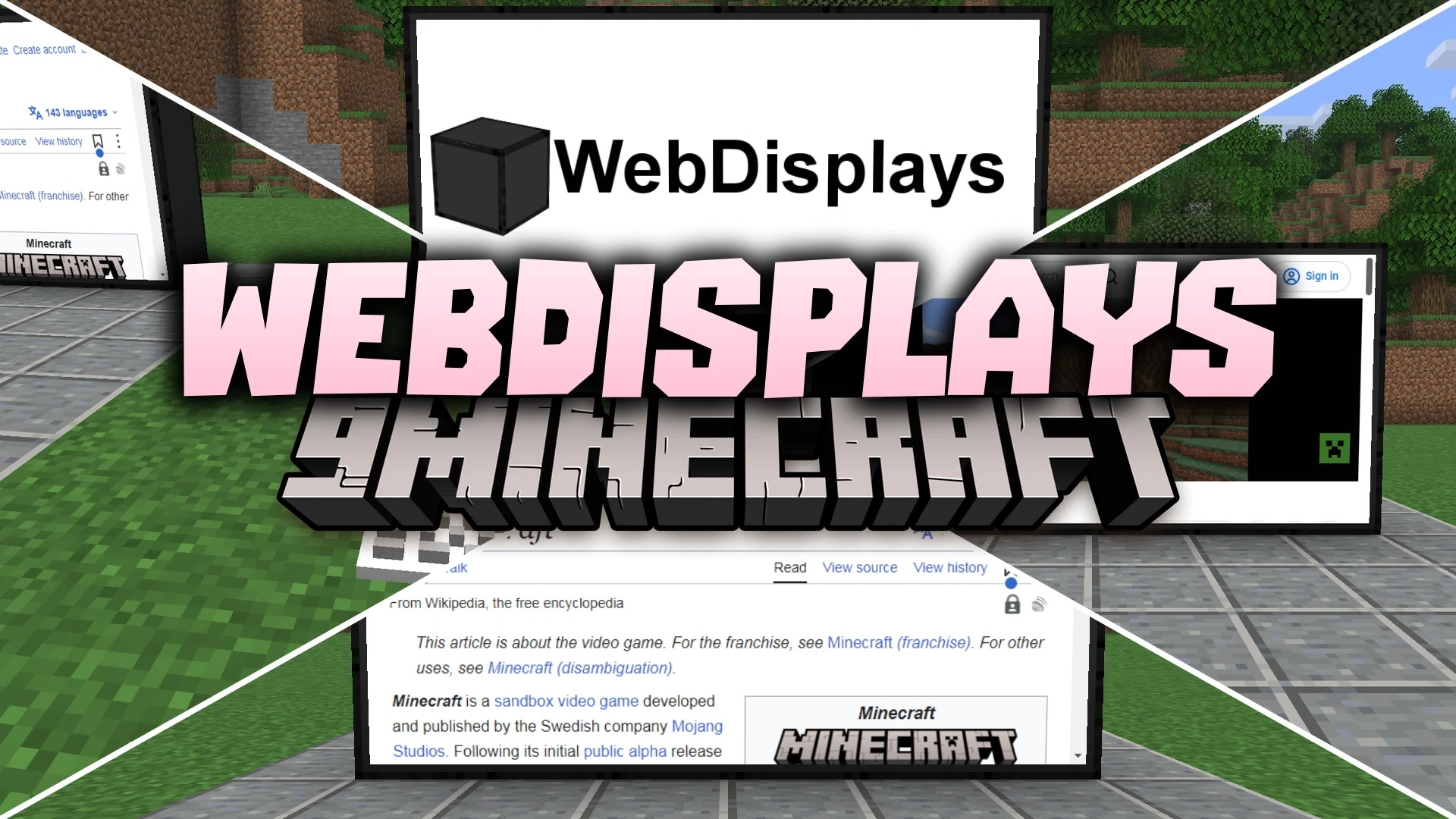


WebDisplays 9minecraft Mod brings a real web browser straight into your Minecraft world. You can build big screens on walls, floors, or ceilings to watch videos, read articles, and browse live websites with friends. This mod also packs in keyboards, handheld tablets, and redstone tools so you can control your screens from anywhere in your base.
Features:
- Custom Multi-Block Screens: Build any rectangle of Screen blocks from two by two up to a huge cinema wall, and they join into one display with a thin outer frame.
- Live Chromium Browser: Every screen runs a working browser where you can click links, watch videos, or leave a dashboard running for everyone nearby to see.
- Handheld minePad: Carry a portable tablet in your hand to open a full-screen browser with its own web address anywhere you go.
- Server Block Hosting: Use a green terminal block to run a tiny file host where you can upload and display your own web pages and pictures.
- Places screens flat on walls, floors, or ceilings while keeping the picture the right way up.
- Includes a Screen Configurator that lets the screen owner change resolution, rotate the picture, turn on automatic volume, and set player permissions.
- Adds a physical Keyboard block that connects to screens with a Linking Tool so you can type into search boxes, forms, and chat windows.
- Equips screens with a Laser Sensor upgrade so you can click links from across the room using a handheld Laser Pointer.
- Brings a Redstone Controller that switches the screen between two different web addresses depending on whether it gets a redstone signal.
- Provides a Remote Controller to change a screen’s web address from a distance.
- Turns off the entire display right away if any single block of the screen is broken.
- Guides you from building your first display to linking your first keyboard with a built-in set of advancements.
- Lets server owners set limits on screen sizes, resolutions, and blocked websites through the settings files.
- Downloads the needed Chromium browser parts automatically with a short progress bar the first time you start the game.
Commands:
Note: This mod uses no prefix instead of / for its Server block terminal commands. Type every command below directly into the Server block’s green terminal.
help: shows the list of available commands in the Server block terminal.ls: lists the files currently stored on the Server block.upload: puts your own web pages and pictures onto the Server block to show on your screens.
Gameplay:
- Place Screen blocks in a rectangle (at least 2×2) on a wall, floor, or ceiling, then Right-Click the wall with an empty hand to turn it on.
- Hold Crouch + Right-Click on the active screen to type in a new web address.
- Aim at links or buttons on the web page and Right-Click to click them.
- Place a Keyboard in front of your display, connect them using the Linking Tool, and Right-Click the keyboard to type using your real keys, including Enter, Backspace, and the Arrow Keys.
- Hold the minePad and Right-Click to browse on the go, then press Shift + Escape to close the tablet screen.
Screenshots:


WebDisplays 9minecraft Mod Download Links
- Edition: Minecraft Java
- File type: .jar
- Minecraft versions listed: 26.3, 26.2
- How to install: Install the matching mod loader (Forge, Fabric or NeoForge) for your Minecraft version. → Download the .jar. → Put it in the .minecraft/mods folder and launch that loader profile.
- Where to get it: Opens on the file's original source — not every file is mirrored on our own servers.
Install steps are the general flow for this file type — How to install Minecraft Java mods & modpacks walks through it step by step.
WebDisplays 9minecraft Mod (26.3, 26.2) – Browse Real Websites and Watch Videos is a free Minecraft Java mod. Compatible with Minecraft 26.3, 26.2. Download it and open it directly in the game.