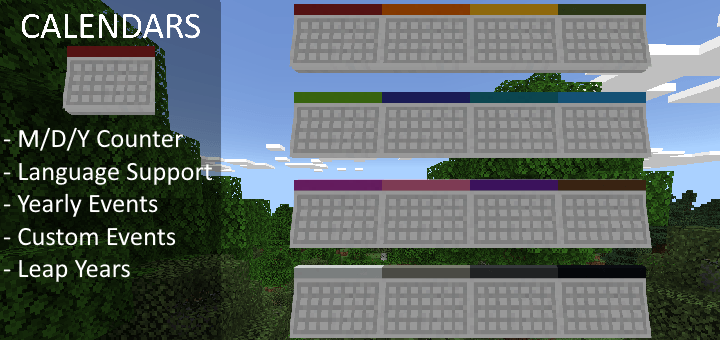
This addon adds 16 uniquely colored calendars that show the in-game date when looked at.
With special features such as:
- Custom events
- Default events
- Yearly events
- Partial multi-lingual support
- Customizable starting year
- Leap year support
But before you can use any of these, you'll first need to start-
Crafting the Calendar
For this, you'll need 6 paper and 3 of your favorite colored dye
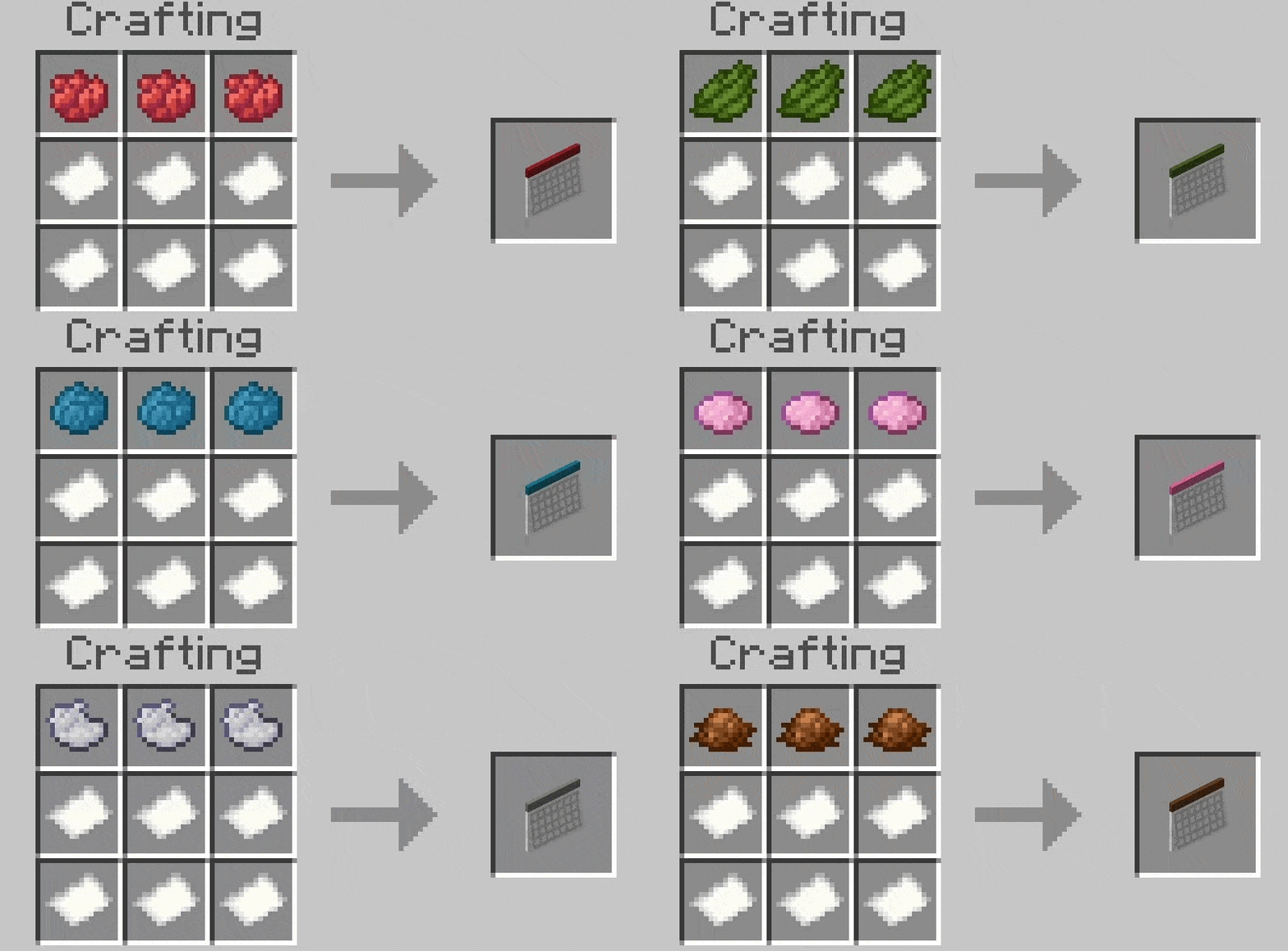
But maybe you decide you want a new color, or you only have one of your favorite colored dye.
Whatever the case, you can dye pre-existing calendars
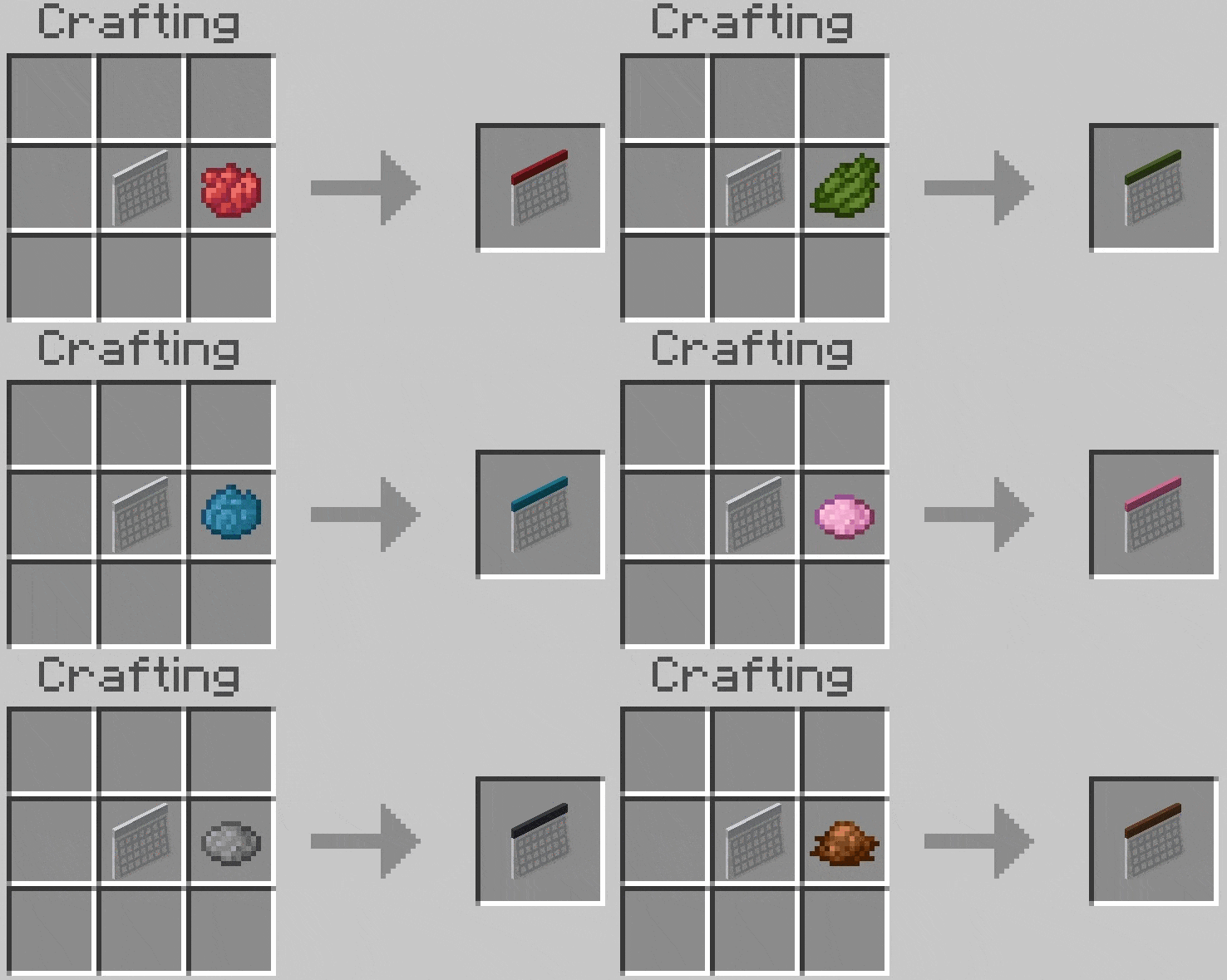
After this, you'll probably want to make sure your calendar doesn't just go to waste, in that case, might you consider-
Using the Calendar
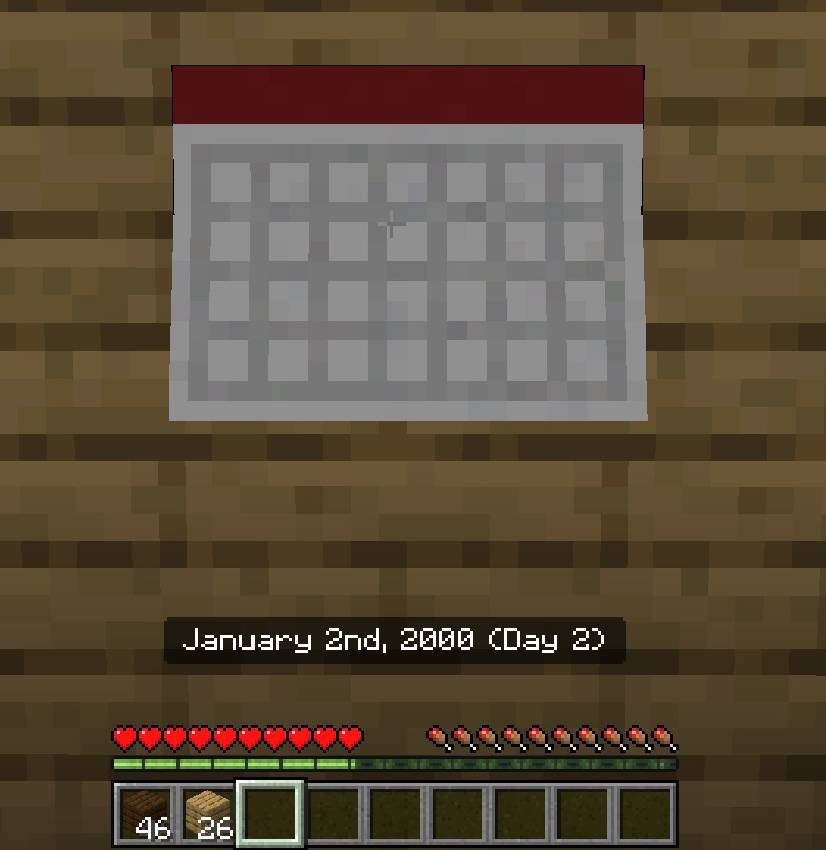
First off, you'll notice that when you look at a calendar, it will show: the in-game-date, day count, and potentially, an event that is happening on that day. But you might be tired of looking, maybe you want to start doing. To do so, first right click the calendar. This will bring you to this screen:
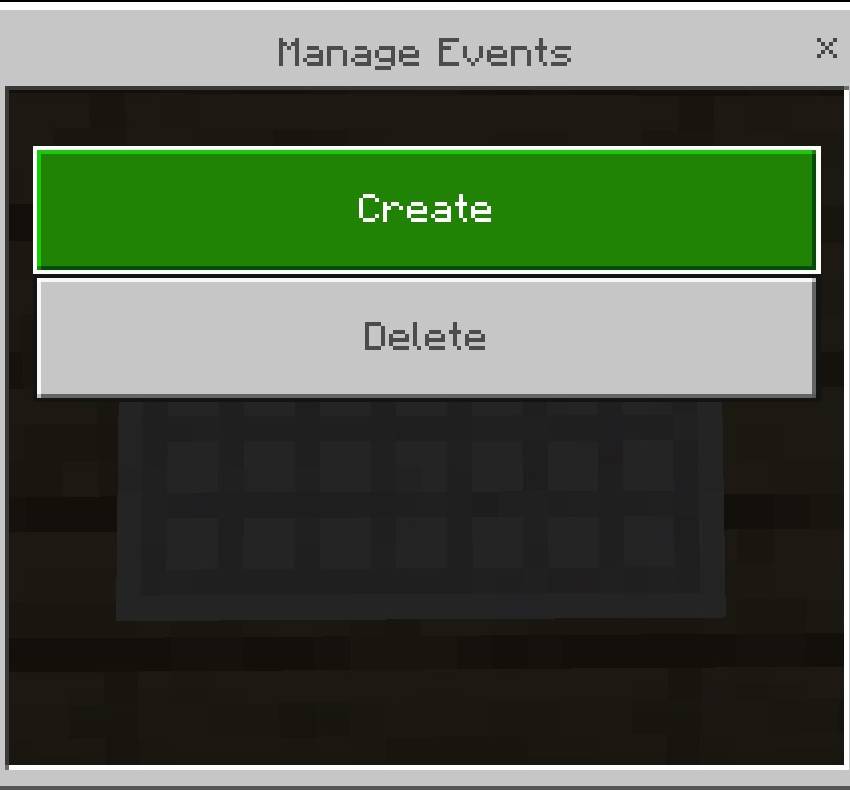 From here, click the "Create" button. (We'll talk about the "Delete" button later) This will bring you to a screen where you can start-
Creating Events
(The Fun Part)
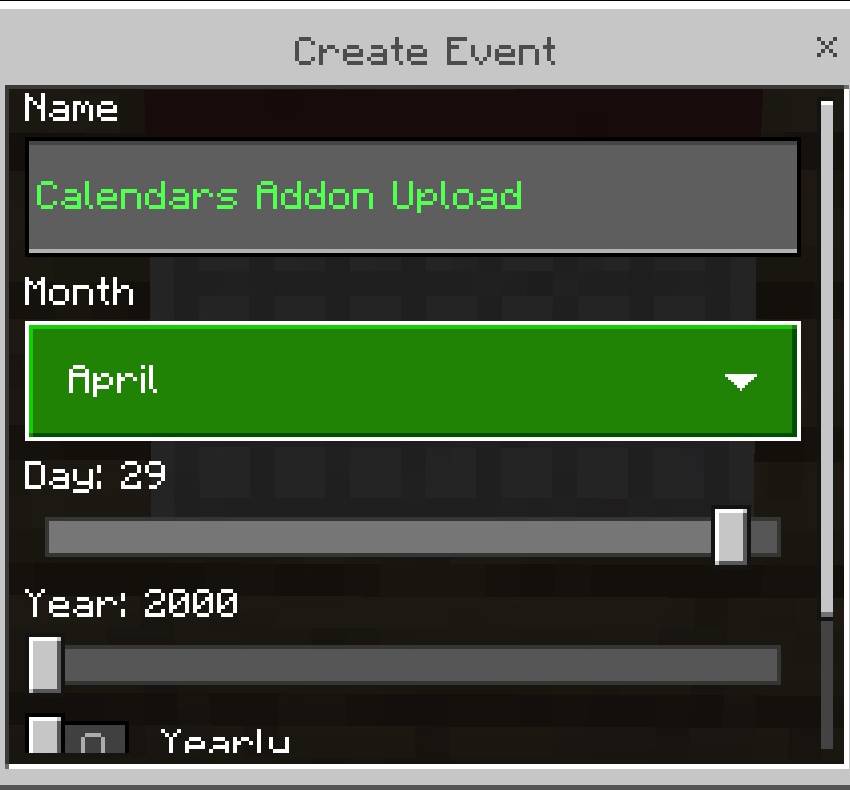
As you can see I've already filled this out. Usually the first thing you'll see will be a seemingly empty textbox. Click on it, and it will reveal a golden formatting code, you can change it to whichever one you like. Next you'll see options for the month, day, and year. By default these will be set to January 1st, [CURRENT YEAR]. Last but not least, you'll see a yearly toggle. By default this is on, meaning the next in-game year will also have this event and the year slider will be ignored. Turning the yearly toggle off will delete the event after it has passed. Some examples of events you'll want to be yearly may include: birthdays and special holidays. Where as a deadline should probably only occur once. After you've set your settings, press create. So long as you haven't done anything wrong (You'll get an error if you do). You'll see something like this on the day of the event:

But maybe you did something wrong, or you just changed your mind. Then you might want to consider-
Deleting Events
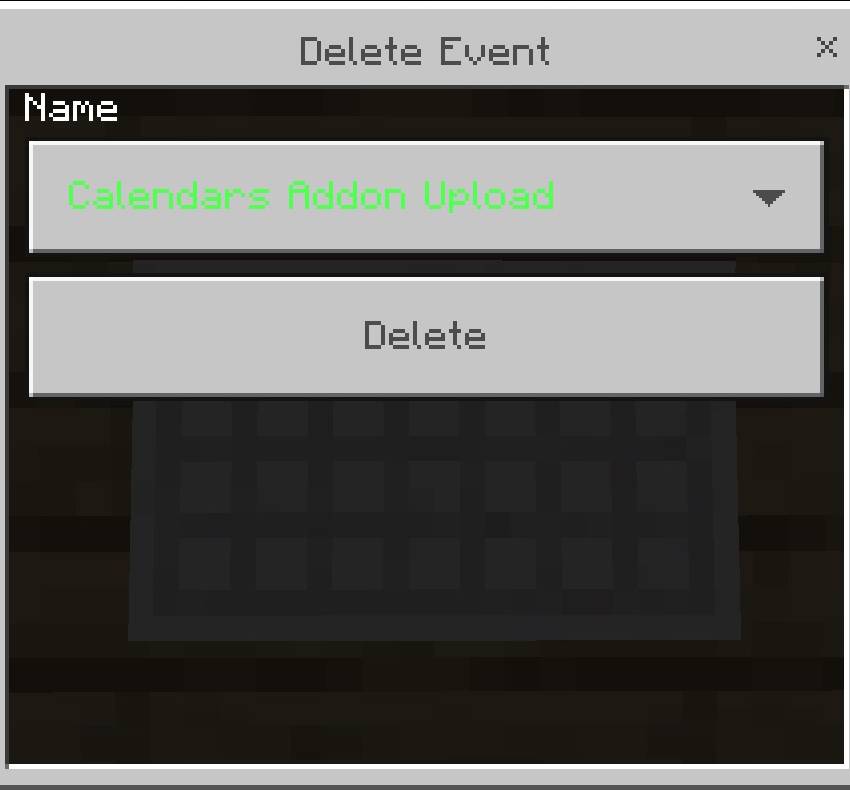
Click the dropdown and select the event you wish to delete, then, press the "Delete" button.
Additional Info:
- Some UI elements use mojang translations, this includes the current month
- Almost everything supports translation, the only thing that doesn't is the ordinal numbered date
- You can set the starting year with "/scriptevent calendars:set_starting_year [year]"
- Starting year must be >99, otherwise it will be set to the 1900s.
- The default starting year is 2000
- There are 11 default events, can you find them all?
- Events are player-specific
- Edition: Minecraft Bedrock
- File type: .mcpack or .mcaddon
- Minecraft versions listed: 1.21.73, 1.21.72, 1.21.71
- How to install: Download the .mcpack or .mcaddon file. → Open it — Minecraft imports it. → In your world: Behavior Packs → Available → Activate, then the same under Resource Packs.
- Where to get it: Opens on CurseForge — not every file is mirrored on our own servers.
Install steps are the general flow for this file type — How to install Minecraft Bedrock addons & mods walks through it step by step.
- Pack type: .mcaddon — behaviour and resource pack in one file
- Manifest requires Minecraft 1.21.70 or newer
- Complete pack — everything it depends on is inside the file
- Download size: 63 KB
- Download link checked 16 Sept 2026 — working
These come from our own check of the pack file, not from the source page.