HomeJavaModsNow Playing
Now Playing
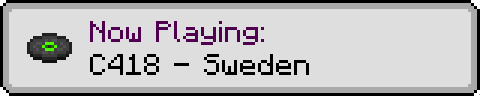
Now Playing — screenshot 1
Icon

Now Playing

Shows a popup whenever the active music track changes.

Environment Latest Minecraft

Loader Loader Loader

Available on Modrinth Available on GitHub

About

Have you ever wondered what all the songs in Minecraft are actually called? Sure, you could check the soundtrack to find out, but then you have to listen to every song, hoping it's the one you're thinking of.

With this mod, wonder no more! A toast will pop up in the top right corner of your screen or just above your hotbar (configurable), telling you what song you're about to listen to.

Setup

General Options Custom Sprites

Now Playing supports changing which disc sprites are displayed for each background music track via a resource pack. First, create a nowplaying folder in the assets folder of your pack, and place a sprites.json file in that folder, as shown below.

assets
├── minecraft
└── nowplaying
    └── sprites.json

Next, populate the sprites.json file with key-value pairs, where the key is the music resource location (or part thereof), and the value is the sprite location, as shown below.

{
    "minecraft:music/game":                   "minecraft:textures/item/music_disc_cat",
    "minecraft:music/game/creative":          "minecraft:textures/item/music_disc_blocks",
    "minecraft:music/game/creative/taswell":  "minecraft:textures/item/music_disc_chirp",
    "minecraft:music/game/nether":            "minecraft:textures/item/music_disc_pigstep"
}

If you only specify part of a music resource location, the corresponding disc will be shown for all music tracks in that location, except those that have a more specific definition. In the example above:

You can use any existing music disc sprite, or any sprite provided by a resourcepack.

Custom Music Track Titles

If you have a resource pack that adds custom background music, you can specify titles using a translation file (e.g. en_us.json). First, create a nowplaying folder in the assets folder of your pack, create a lang folder inside, and place a translation file in that folder, as shown below.

assets
├── minecraft
└── nowplaying
    └── lang
        └── en_us.json

Next, populate the translation file with key-value pairs, where the key is the music resource location, prefixed with nowplaying, and the value is the translated title of the track, as shown below.

{
    "nowplaying.minecraft:music/game/a_familiar_room":     "Aaron Cherof - A Familiar Room",
    "nowplaying.minecraft:music/game/an_ordinary_day":     "Kumi Tanioka - An Ordinary Day",
    "nowplaying.minecraft:music/game/ancestry":            "Lena Raine - Ancestry",
    "nowplaying.minecraft:music/game/clark":               "C418 - Clark",
    "nowplaying.minecraft:music/game/creative/aria_math":  "C418 - Aria Math"
}

Old translation files which use the music.nowplaying.[name] format are still supported, but have a lower priority than the new format.

Contact

GitHub Issues

License

Quick facts

Install steps are the general flow for this file type — How to install Minecraft Java mods & modpacks walks through it step by step.

Verified by MCModsHub

These come from our own check of the pack file, not from the source page.

Explore more